

Top 8 DataGrip Database Explorer Features You Have to Know


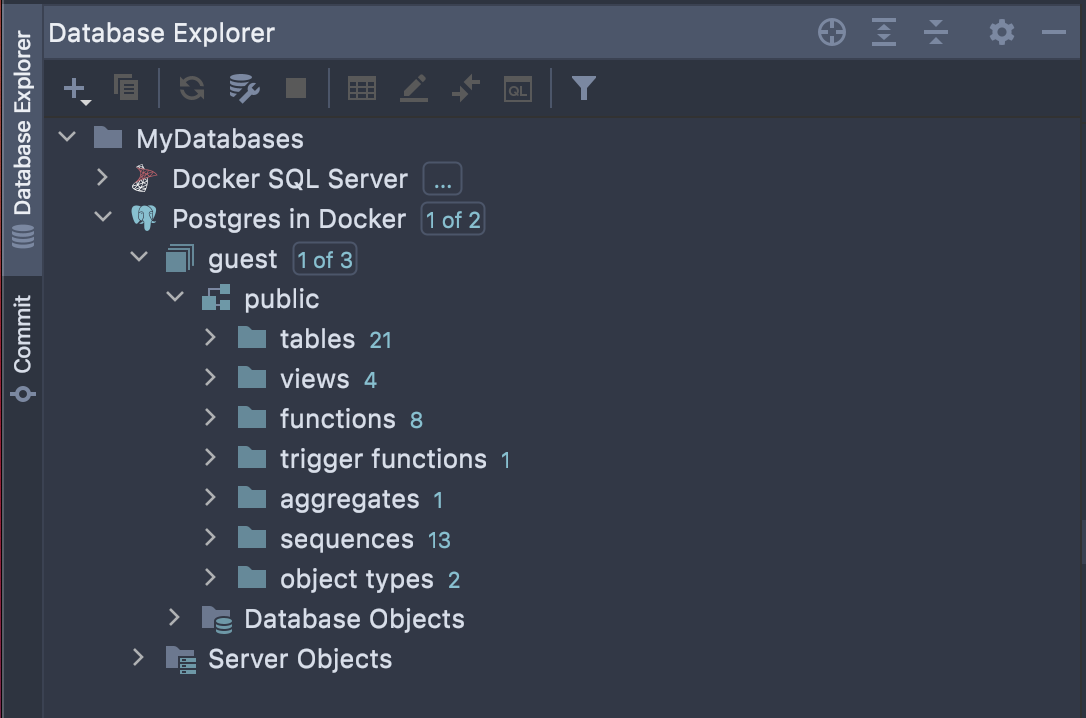
JetBrains DataGrip is a powerful tool for working with databases. It supports PostgreSQL, MySQL, SQL Server, Oracle, MongoDB, and many other databases and DDL data sources. You can view the structure of your databases and perform other tasks in the database explorer.
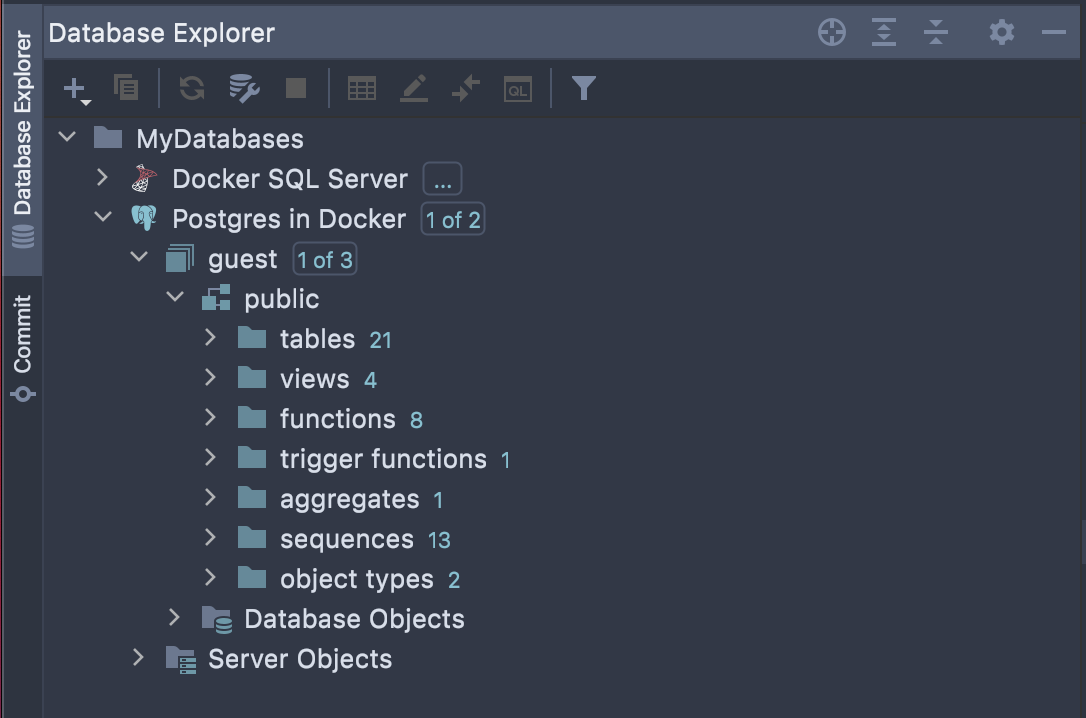
Here are the advantages of the DataGrip database explorer that our users value most.
Easy copy-pasting of data sources
Copy-pasting data sources can be useful in the following situations:
- Distributing data source settings among team members
- Sharing data sources between projects
- Duplicating or creating a similar data source
- Working in different IDEs
Just use Ctrl+C, Ctrl+V, and Ctrl+X (⌘+C, ⌘+V, and ⌘+X for MacOS) to copy, paste, and cut your data sources, respectively.
Put the cursor on the data source and press Ctrl+C/⌘+C, and an XML snippet will be created on your clipboard.

You can then just paste this XML snippet as a new data source in a database tool window inside the same IDE or in another JetBrains IDE (Ctrl+V for Windows/Linux, ⌘+V for MacOS).
The only thing you will need to specify again is the password, because that isn’t copied with the data source.
Speed search
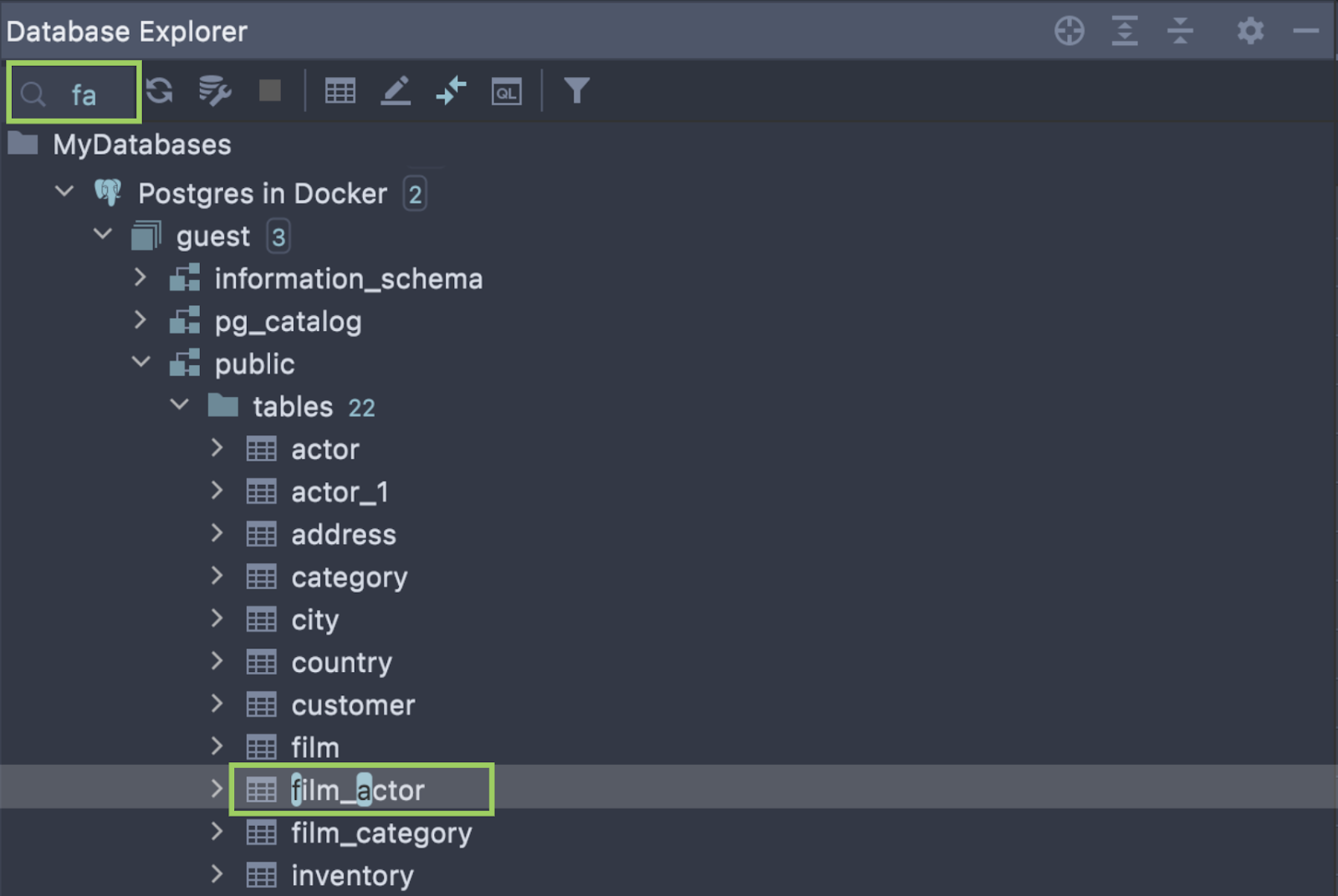
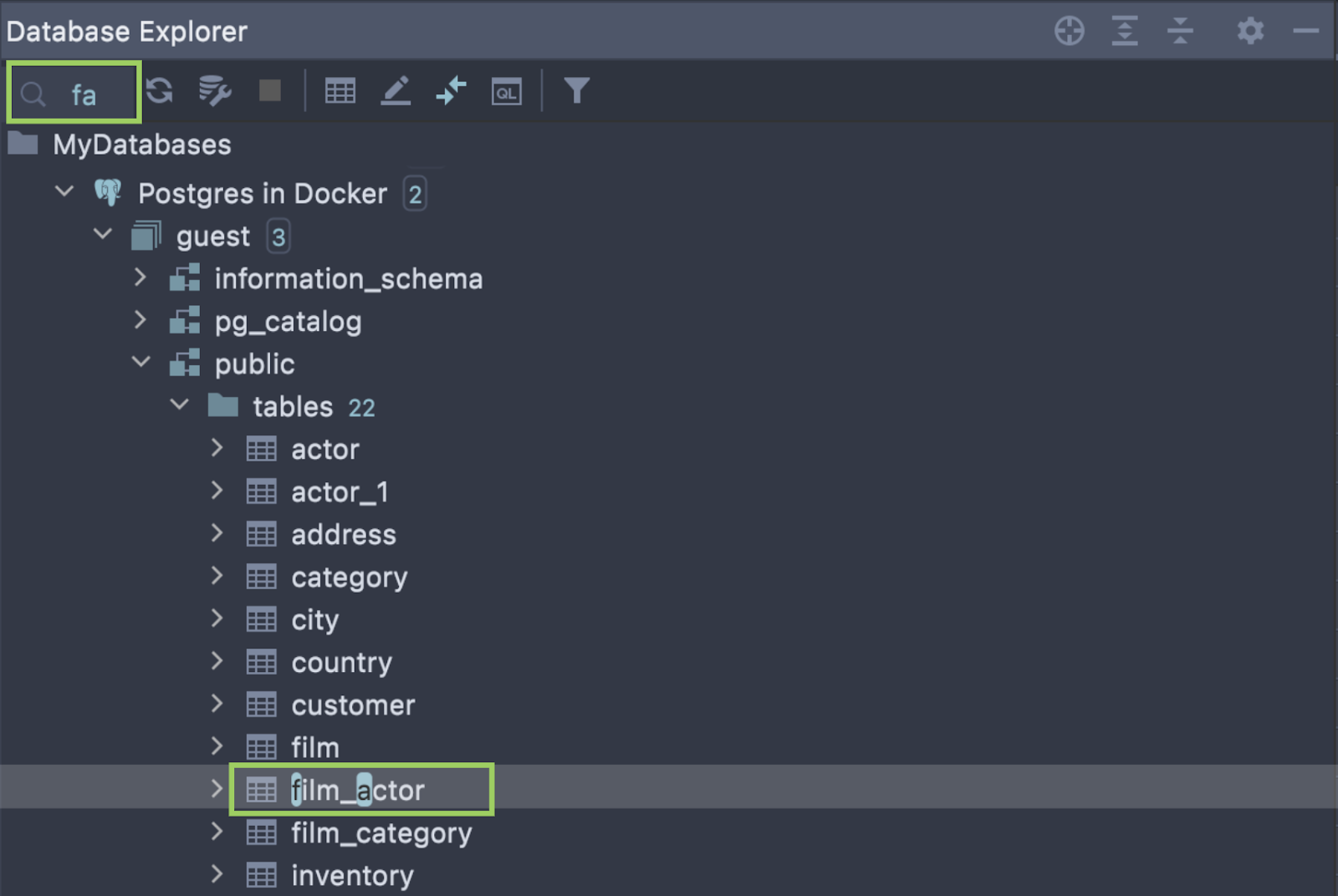
Just start typing! As you type, a text field appears over the database explorer window, the entered characters are displayed, and the selection moves to the first item that matches your search query. The matching part of the string is highlighted. You can use the arrow keys to navigate through the matches. Note that speed search works only for expanded nodes.
It also supports abbreviations. For instance, ‘fa‘ is enough to find ‘film_actor‘.
Group data sources
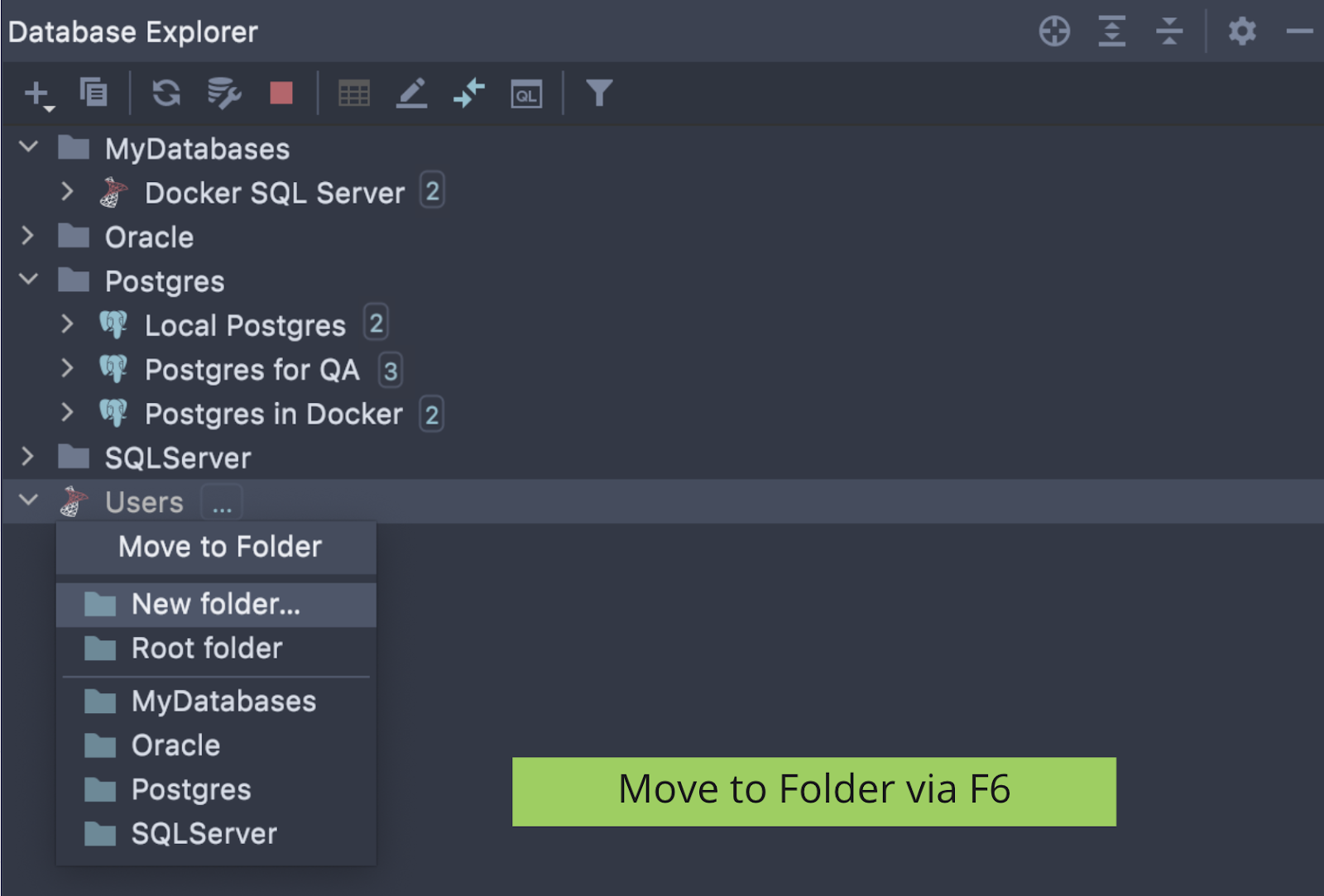
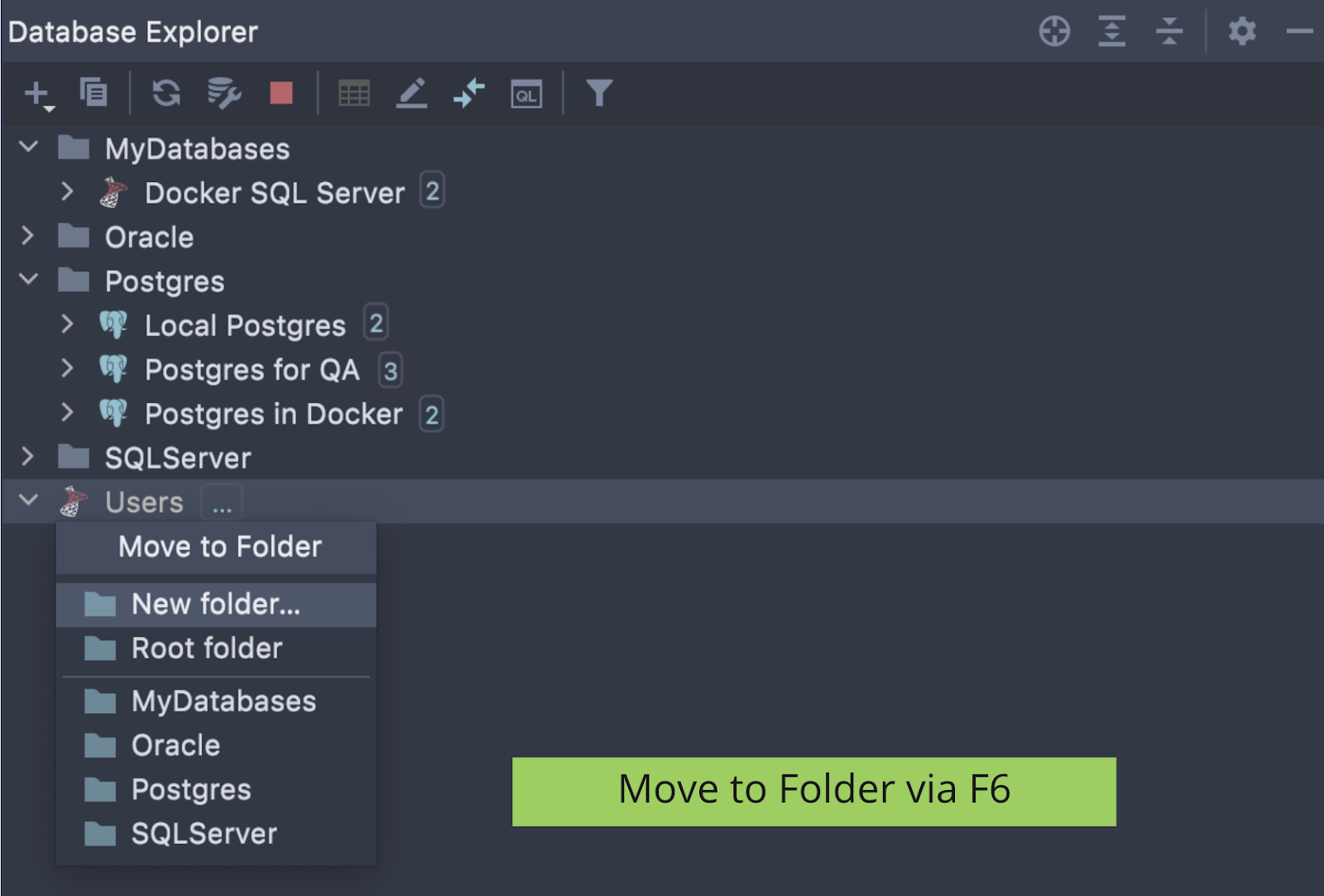
When you’re working with a large number of data sources, it can be convenient to group them, just as you would do with folders on your computer. Press F6 or choose Move to group in the context menu.
Drag-and-drop also works for creating groups in the database explorer. To create a new group, just drag one data source onto the other. The same works when placing the data source into an existing group – just drag-and-drop it there.
You can also use Ctrl+C, Ctrl+V, and Ctrl+X (⌘+C, ⌘+V, and ⌘+X for MacOS) to copy, paste, and cut your data sources between folders.
Separate nodes for non-major objects
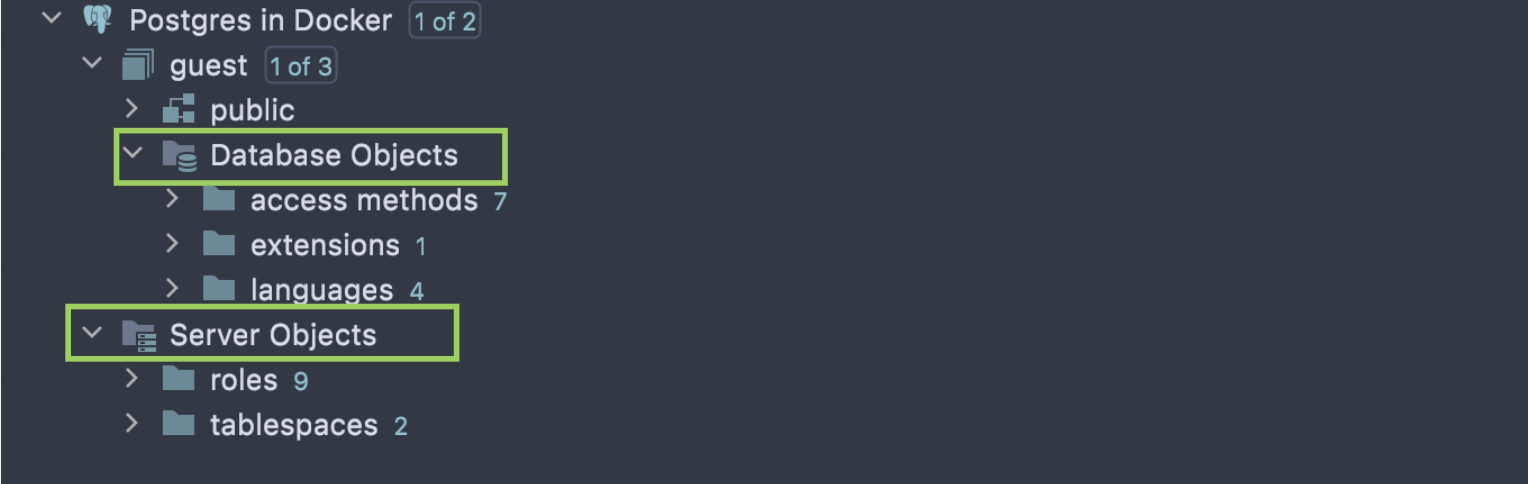
People are constantly working with tables, views, and routines, but users, roles, tablespaces, foreign data wrappers, and many other object types are not used as frequently.
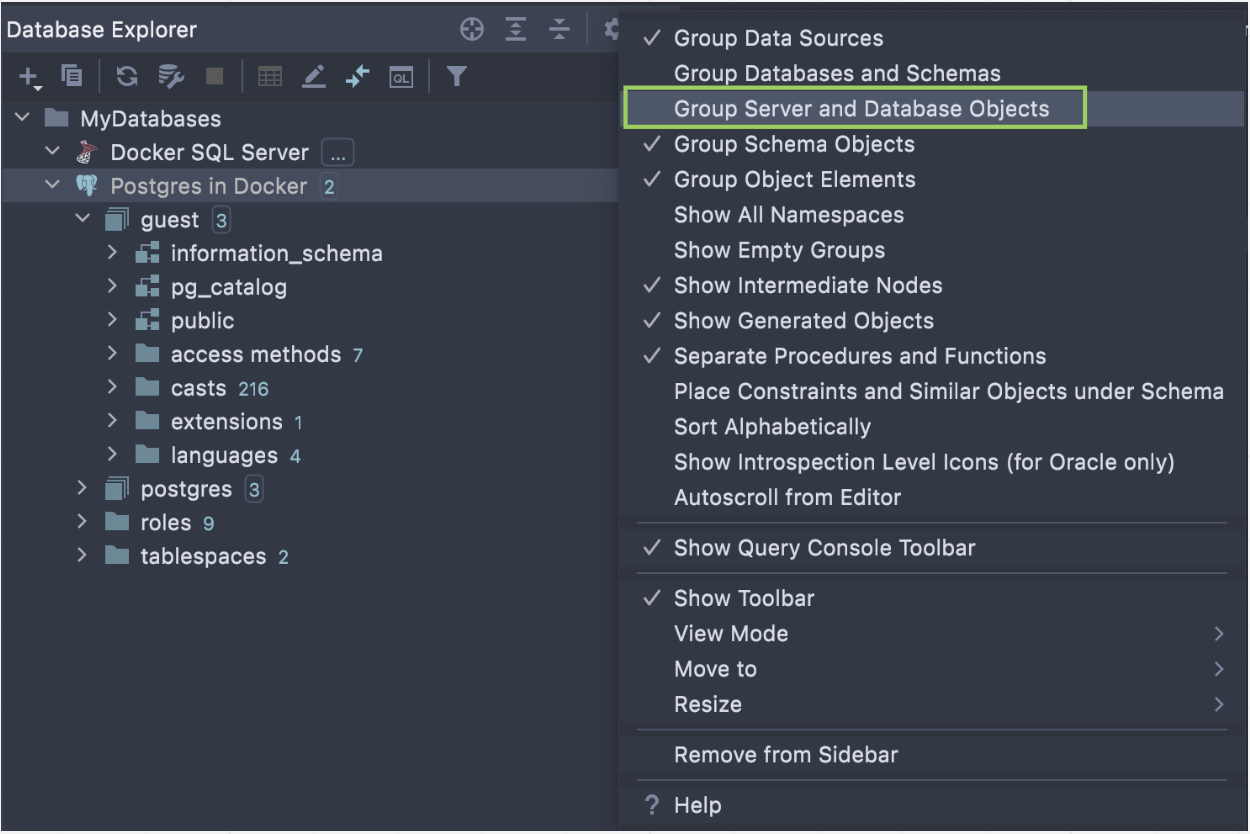
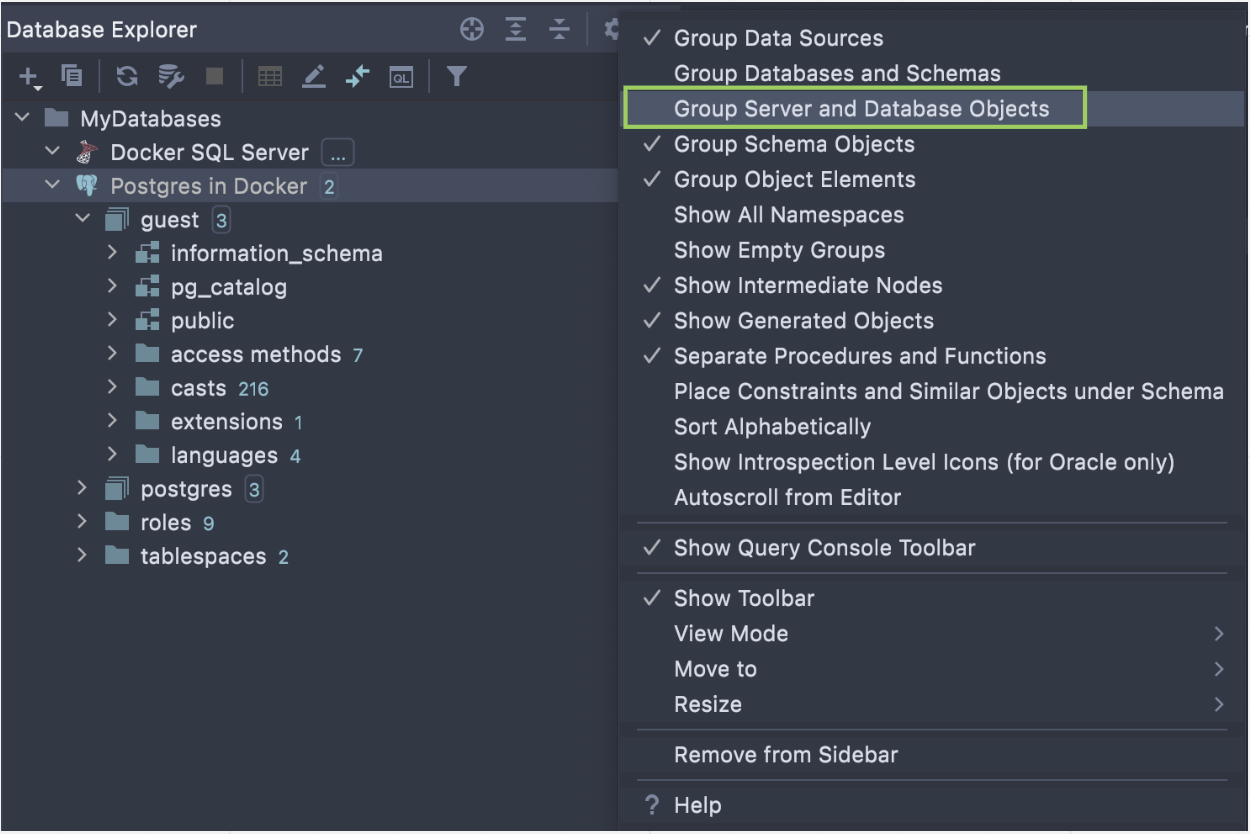
In DataGrip these secondary objects are hidden under two nodes: Server Objects and Database Objects.
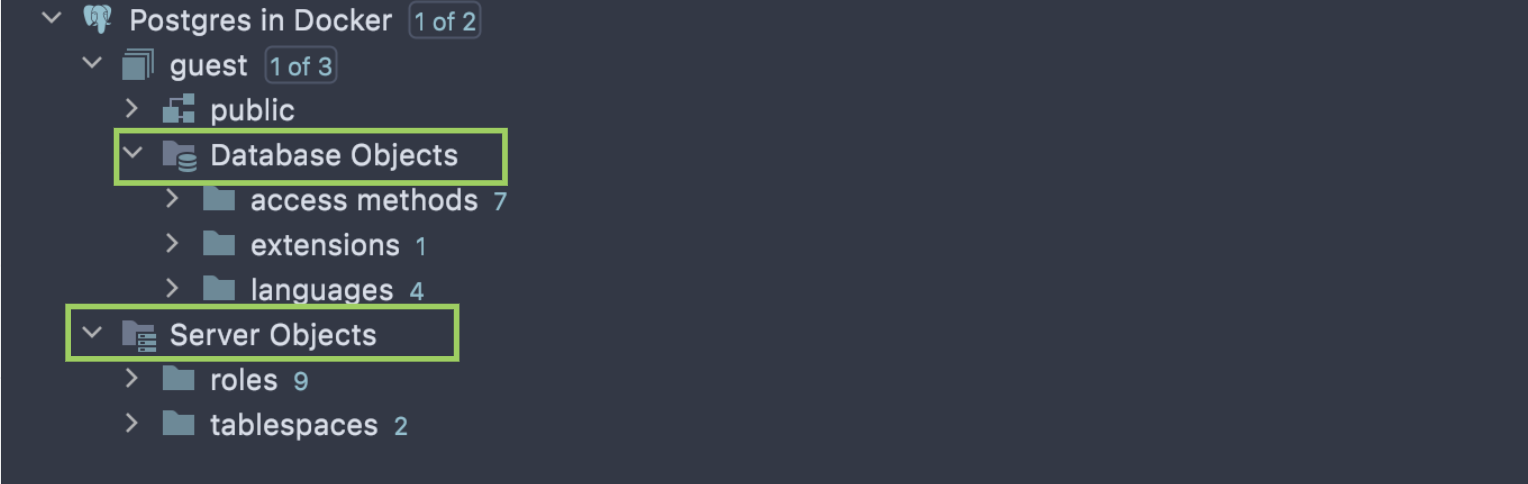
You can manage this grouping in the datasource settings.
Objects filter
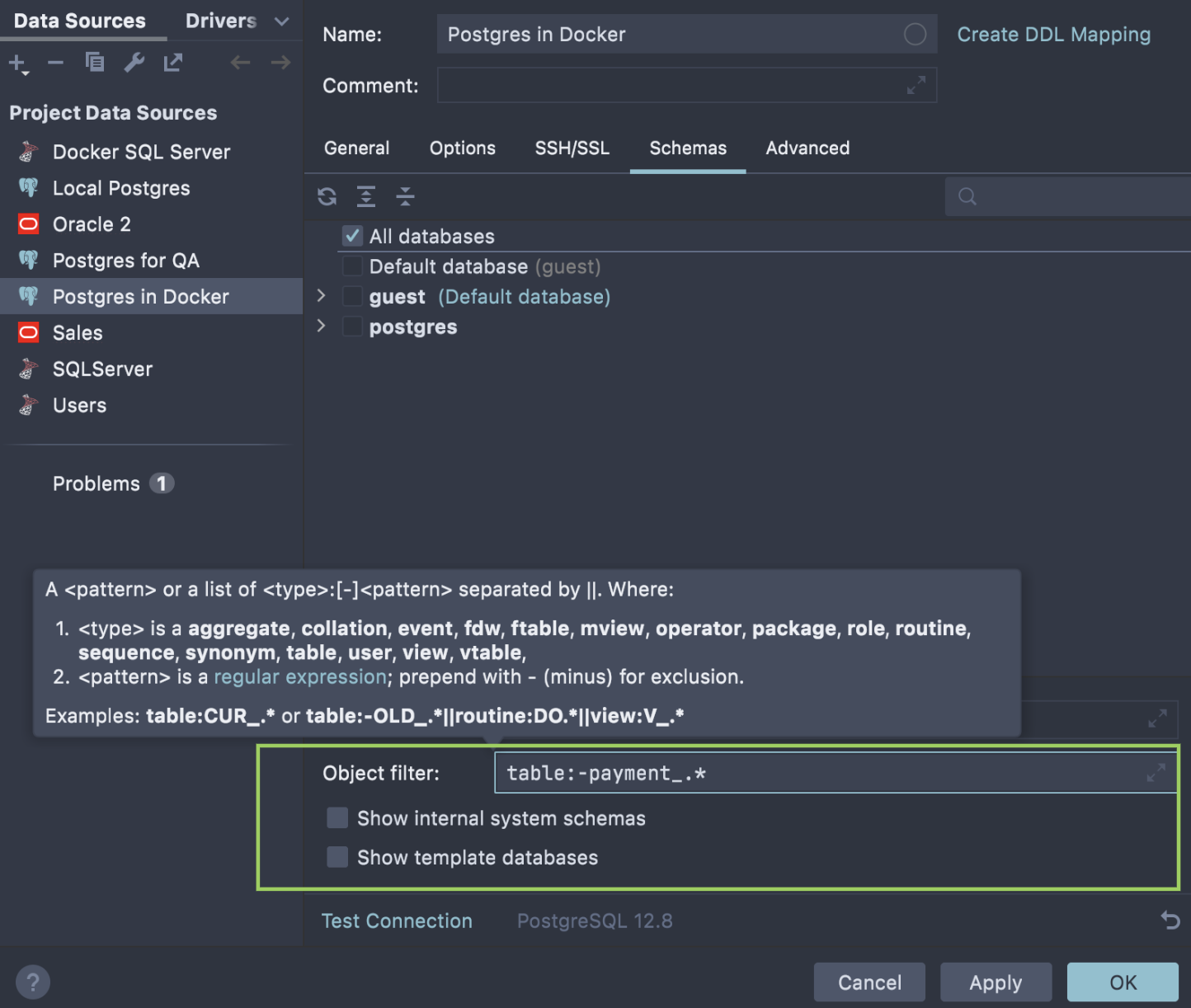
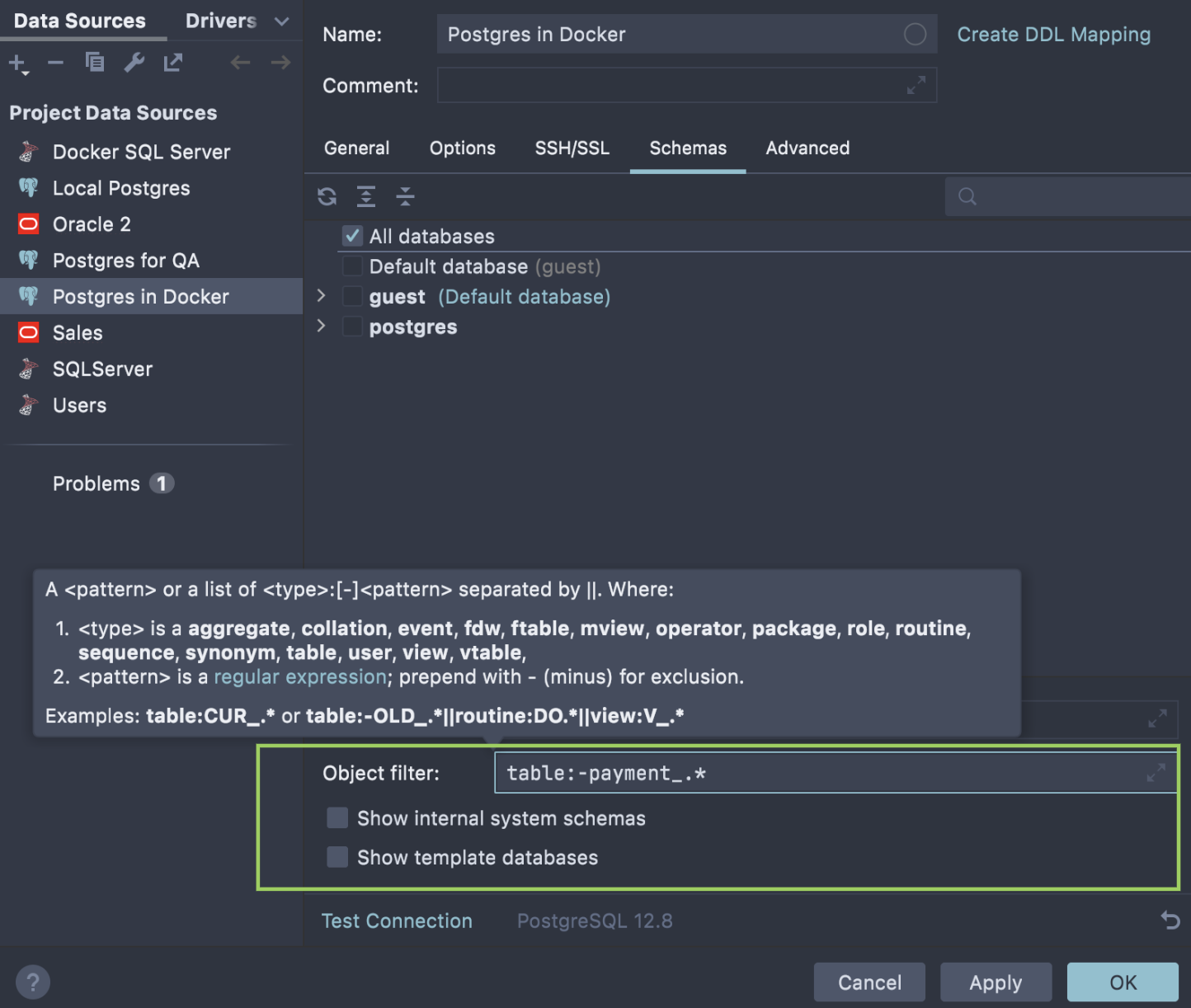
If there are certain objects you don’t want to see in the database tree, you can hide them in the data source properties (Properties | Schemas).
For instance, you can hide all tables with a specific prefix. F1 will give you information about the syntax. In our example, all tables with names starting with “payment_” are filtered out.
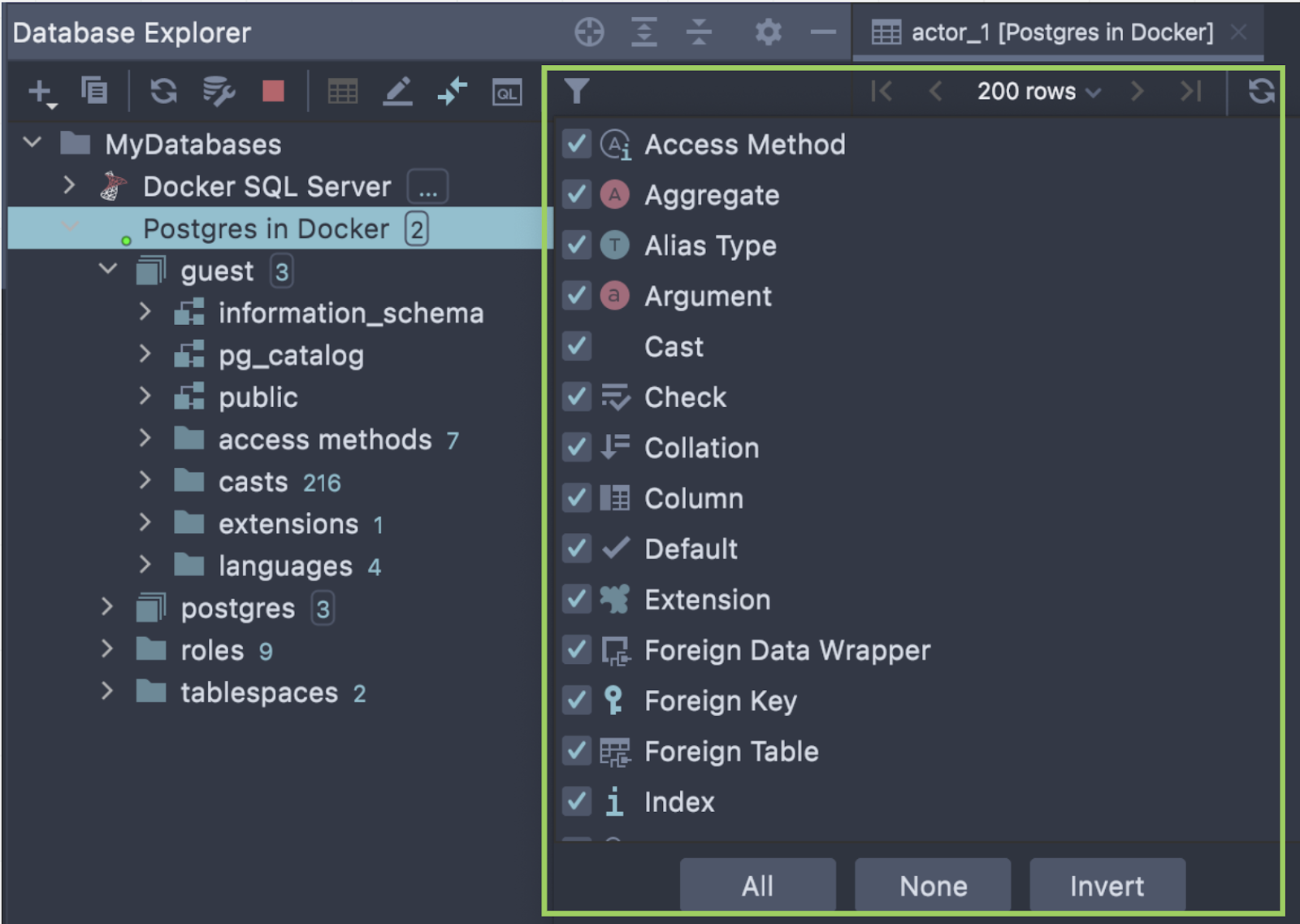
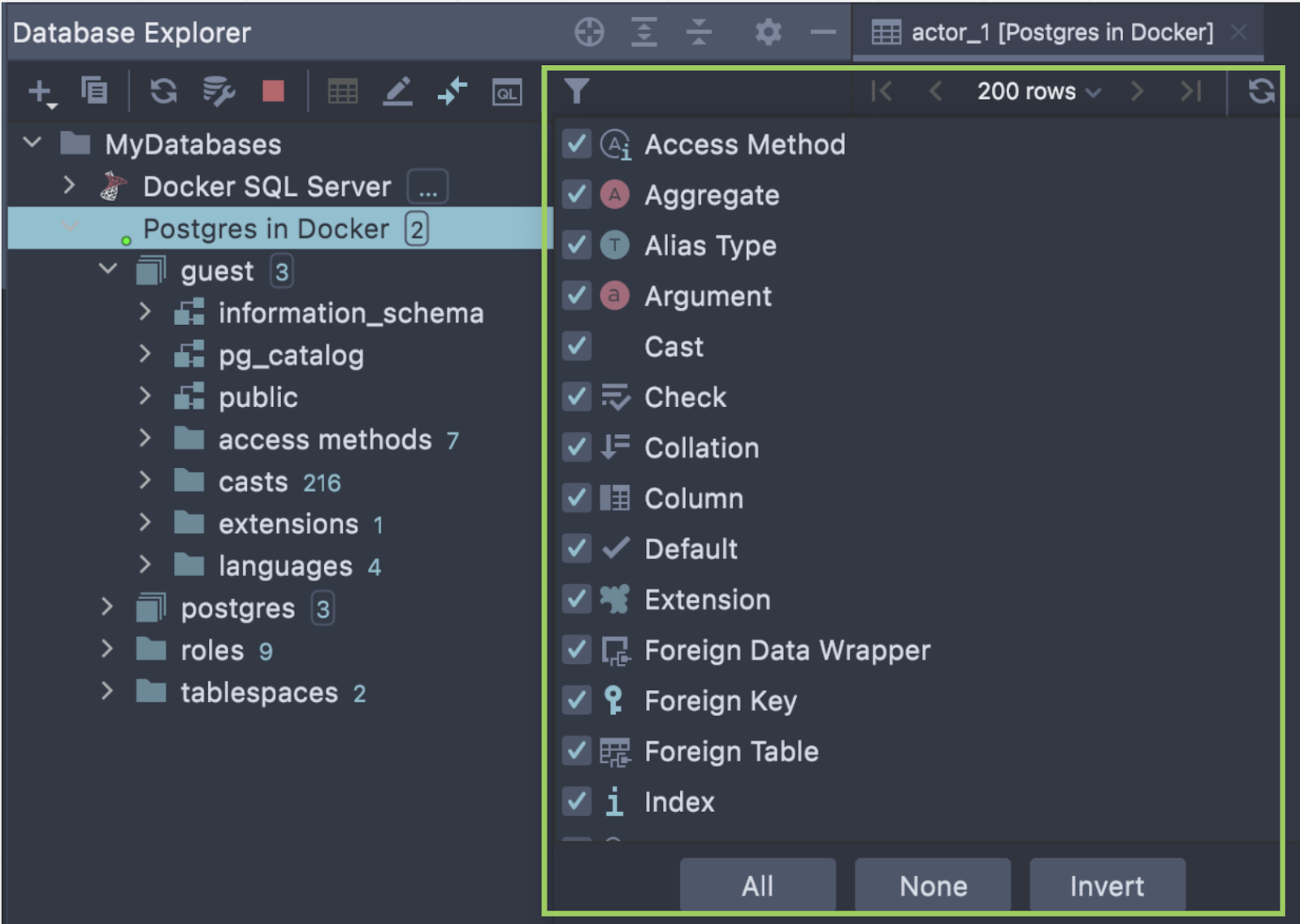
Or you can filter objects by type via the filter icon on the toolbar.
Scroll from editor
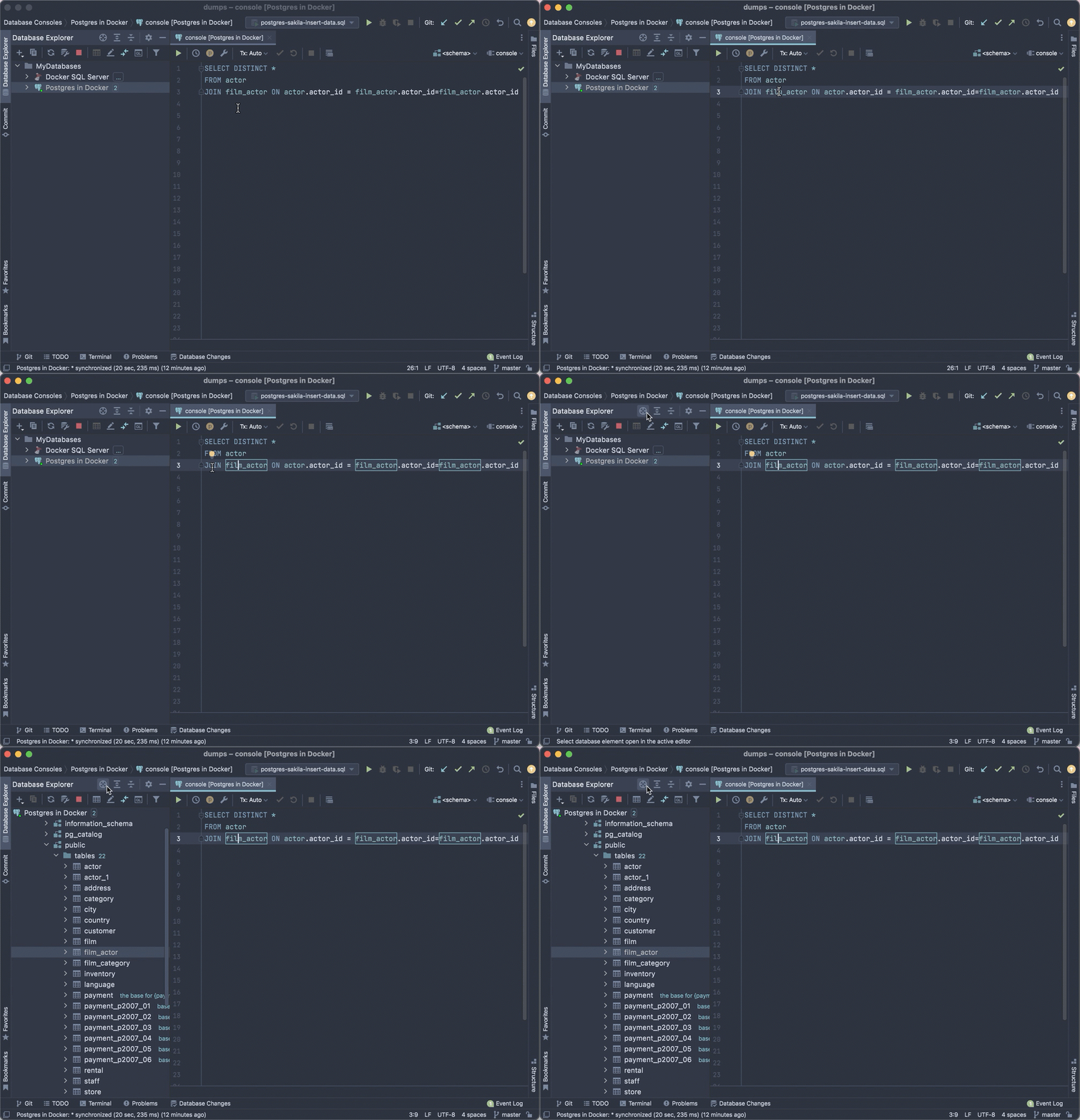
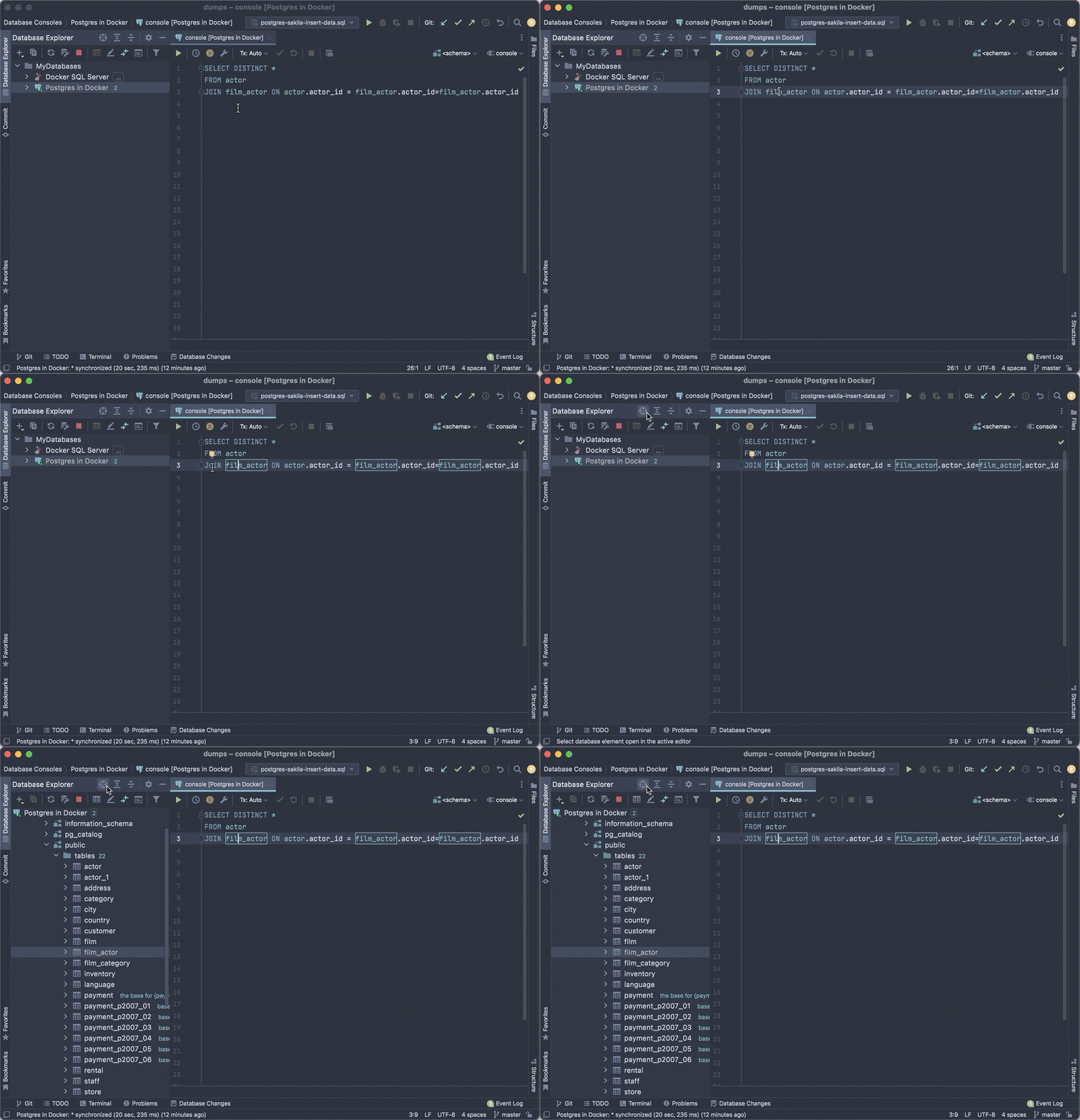
Place the caret over the name of an object in your code and click the crosshair icon in the database explorer toolbar. The corresponding nodes will open and the object will be highlighted in the database tree.
This is useful when you want to quickly find out what the object is and where it is located in the database tree.
Quick table backup
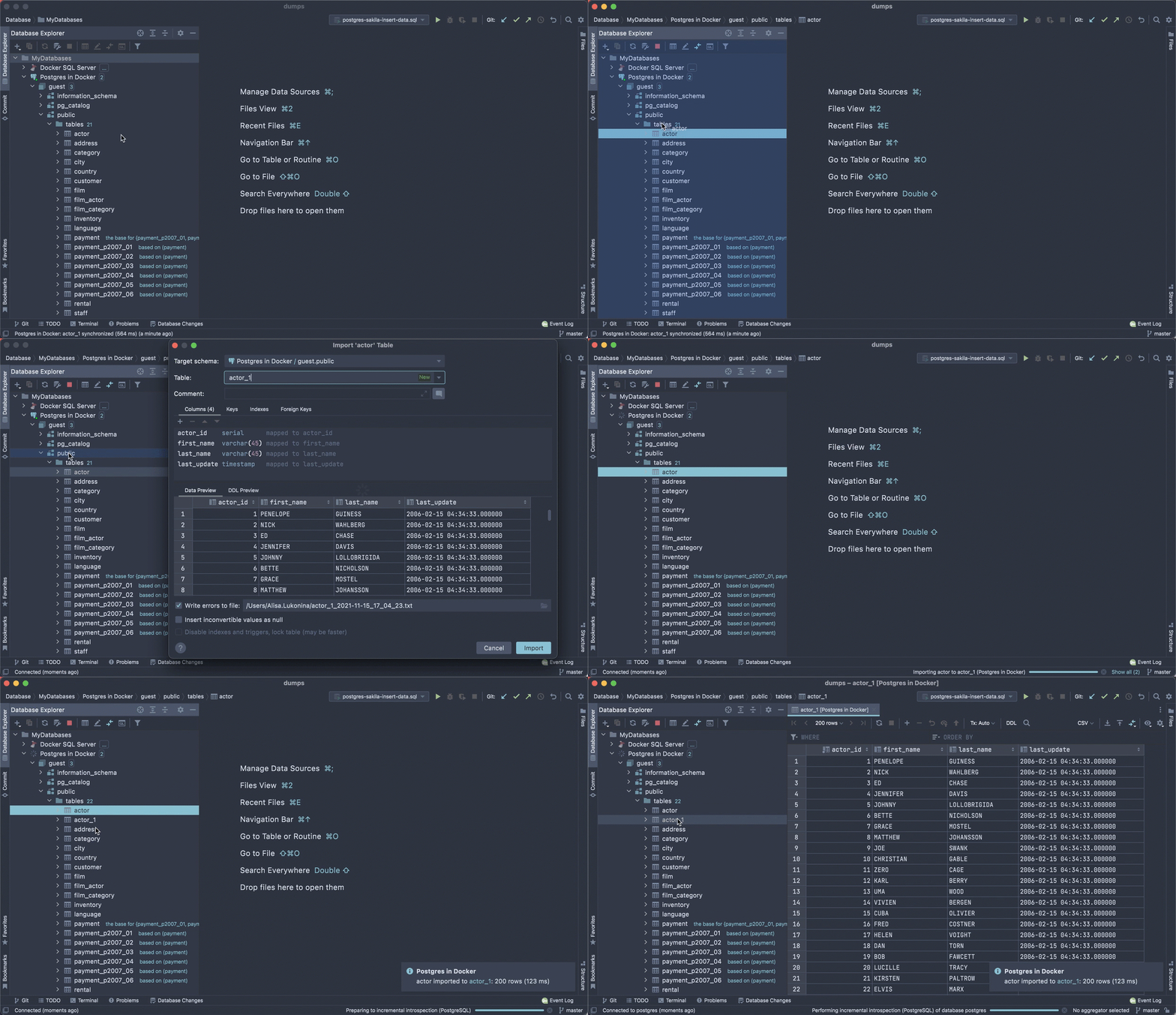
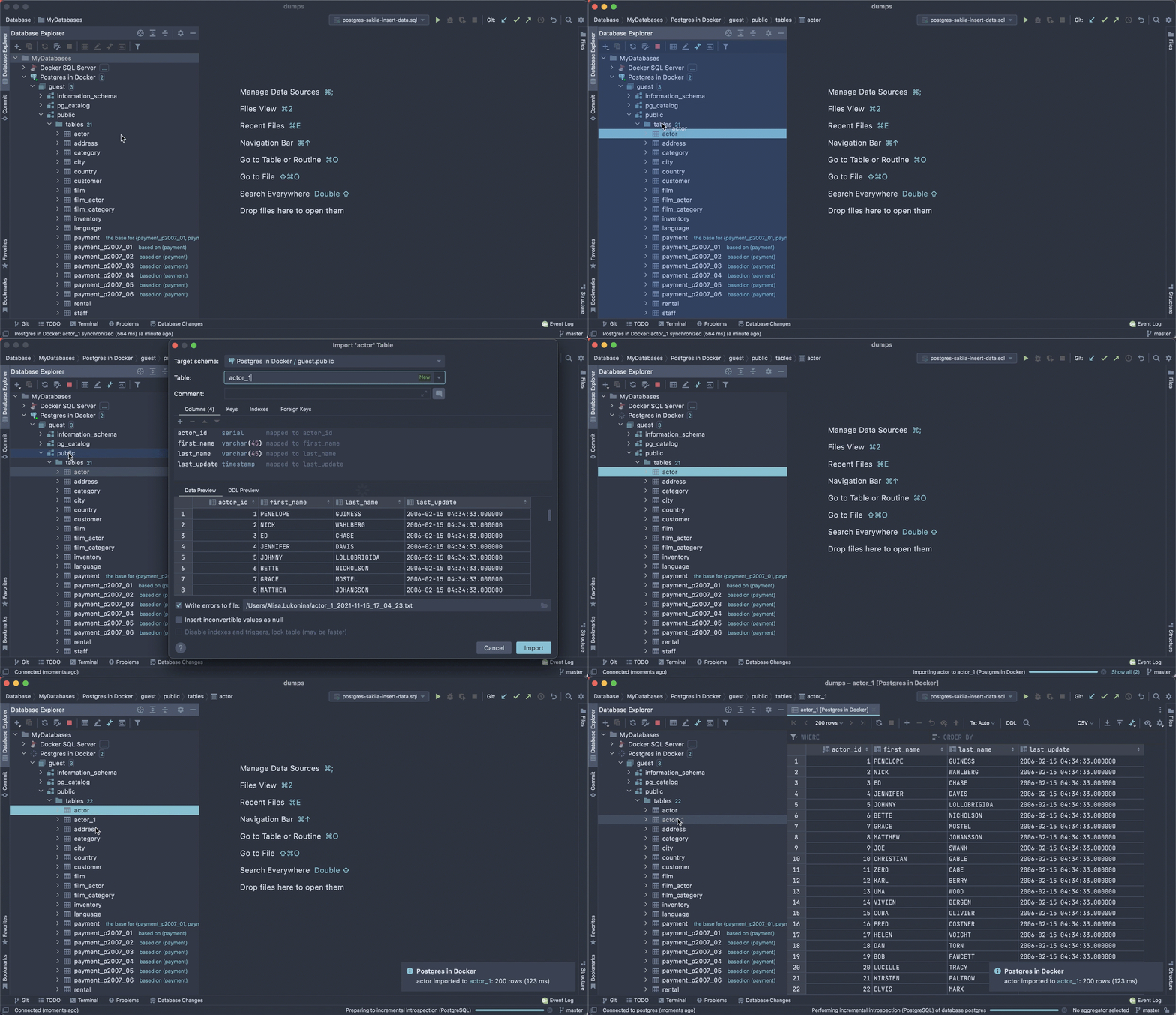
You can copy a table to the same data source using drag-and-drop. This is useful for making a quick backup of the table before any significant data manipulation.
Assign a color to a data source
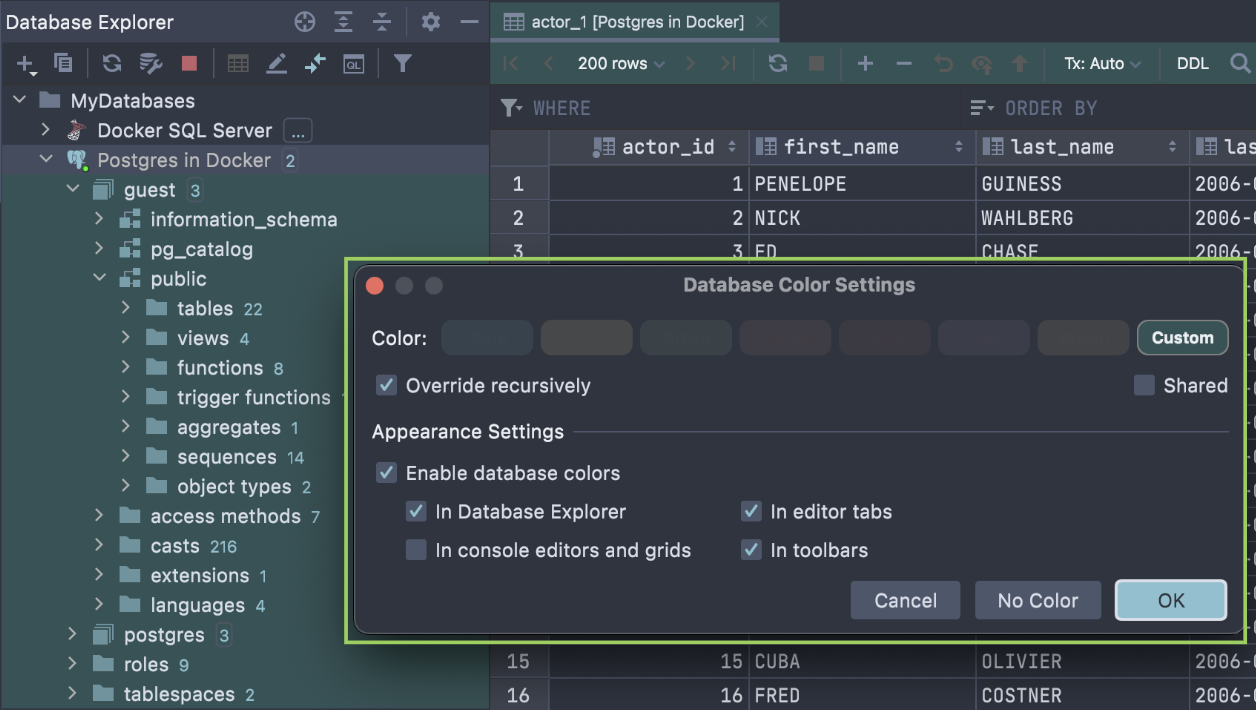
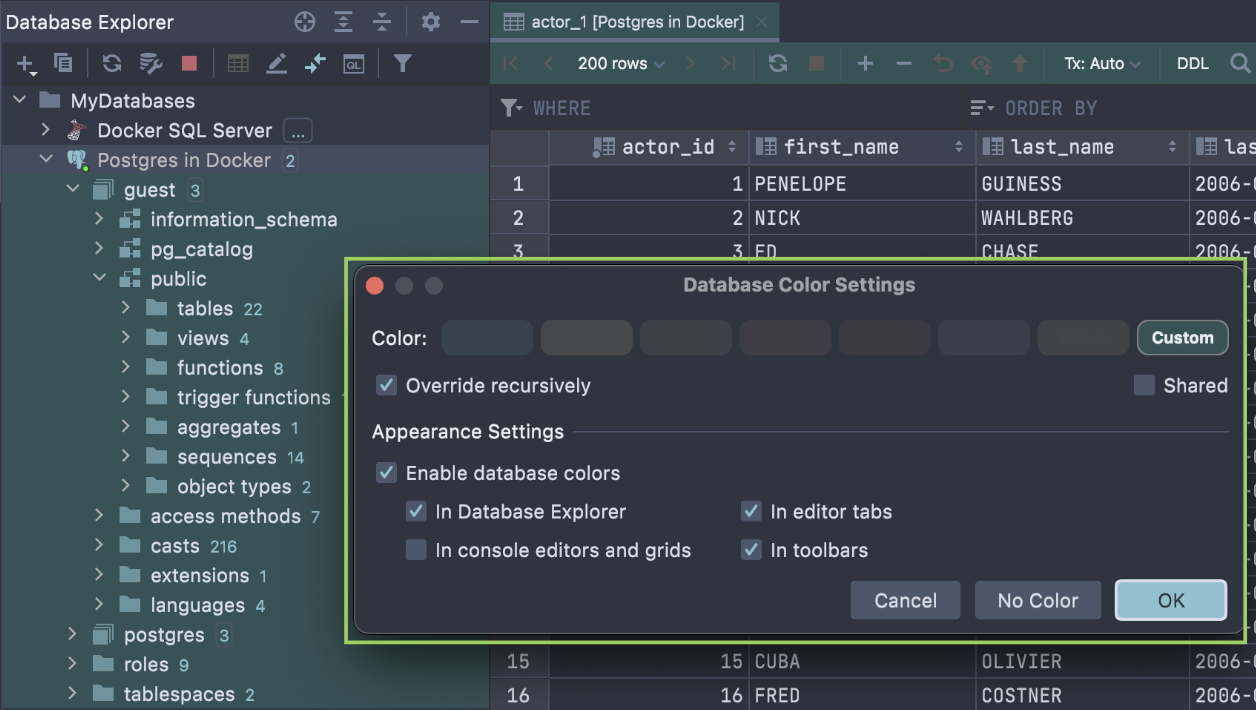
To distinguish your production data source from a staging or test data source, you can mark your data sources with colors. The chosen color will be used for everything related to that specific data source, like the database tree, the query console, the result sets, associated files, etc.
Right-click the data source in the database explorer and navigate to Color Settings. In the Database Color Settings dialog, configure the color and appearance settings.
That’s it! We hope that this set of database explorer features is useful for DataGrip users and we encourage those who have never used DataGrip to try it.
Questions?
- Please comment here
- Contact our support
- Tweet us!
- Email us at datagrip@jetbrains.com
- Report bugs to our issue tracker
- Сheck our overview video to know more about DataGrip
The DataGrip team
Subscribe to DataGrip Blog updates
Discover more




DataGrip 数据库资源管理器八大必知功能

JetBrains DataGrip 是一款强大的数据库处理工具。 支持 PostgreSQL、MySQL、SQL Server、Oracle、MongoDB 等多种数据库和 DDL 数据源。您可以在数据库资源管理器中查看数据库的结构和执行其他任务。
以下是 DataGrip 数据库资源管理器用户最青睐的功能。
轻松复制粘贴数据源
最适合复制粘贴数据源的情况:
- 在团队成员之间分发数据源设置
- 在项目之间共享数据源
- 复制或创建一个类似的数据源
- 在不同的 IDE 中工作
使用 Ctrl+C、Ctrl+V 和 Ctrl+X(MacOS 为 ⌘+C、⌘+V 和 ⌘+X)即可复制、粘贴和剪切数据源。
将光标置于数据源上,按 Ctrl+C/⌘+C,将在剪贴板上创建一个 XML 代码段。

然后,您可以将此 XML 代码段作为新数据源,粘贴到同一个 IDE 或另一个 JetBrains IDE 内的数据库工具窗口(Windows/Linux 为 Ctrl+V,MacOS 为 ⌘+V)。
只有密码需要重新指定,因为它不会随数据源一起复制。
快速搜索
开始输入吧! 输入时,数据库资源管理器窗口会出现文本字段,显示输入的字符,并且选区将移至与搜索查询匹配的第一个条目。 字符串的匹配部分将被高亮显示。 您可以使用方向键浏览匹配项。 请注意,快速搜索仅适用于展开的节点。
它也支持缩写。 例如,使用 fa 即可找到 film_actor。
数据源分组
分组可以让大量数据源更易于处理,就像在计算机上使用文件夹时一样。 按 F6 或在上下文菜单中选择 Move to group(移动到组)。
在数据库资源管理器中创建组也可以使用拖放操作。 要创建一个新组,只需将一个数据源拖放到另一个上。 要将数据源放入现有组,只需拖放即可。
您同样可以使用 Ctrl+C、Ctrl+V 和 Ctrl+X(MacOS 为 ⌘+C、⌘+V 和 ⌘+X)在文件夹之间复制、粘贴和剪切数据源。
非主要对象的单独节点
人们经常使用表、视图和例程,而较少使用用户、角色、表空间、外部数据包装器和其他对象类型。
在 DataGrip 中,这些次要对象隐藏在两个节点下:Server Objects(服务器对象)和 Database Objects(数据库对象)。
您可以在数据源设置中管理分组。
对象筛选器
如果您不想在数据库树中看到某些对象,您可以将其隐藏在数据源属性(Properties | Schemas(属性 | 架构))中。
例如,您可以隐藏具有特定前缀的所有表。 F1 将提供语法相关信息。 在我们的示例中,所有名称以 payment_ 开头的表均被筛除。
或者,您也可以通过工具栏上的筛选器图标按类型筛选对象。
从编辑器滚动
将文本光标放在代码中对象的名称上,然后点击数据库资源管理器工具栏中的交叉线图标。 相应的节点将打开,对象将在数据库树中高亮显示。
这可用于快速找出对象及其在数据库树中的位置。
快速备份表
您可以使用拖放操作将表复制到同一数据源。 这可用于在大型数据操作之前快速备份表。
为数据源指定颜色
您可以使用不同的颜色标记数据源,区分生产数据源与暂存或测试数据源。 所选颜色将用于与特定数据源相关的所有内容,例如数据库树、查询控制台、结果集、关联文件等。
右键点击数据库资源管理器中的数据源并导航到 Color Settings(颜色设置)。 在 Database Color Settings(数据库颜色设置)对话框中,配置颜色和外观设置。
就是这些! 我们希望这组数据库资源管理器功能可以增强 DataGrip 用户体验,并吸引更多未使用过 DataGrip 的用户来试用。
还有其他疑问?
您的 DataGrip 团队
英文博文原作者:
