

Space
The intelligent code collaboration platform
Space and SpaceCode will be discontinued on June 1, 2025. Learn more → →
Introducing Documents in Space

No matter what your role is, you likely work with documents every day. We use them for everything, from preparing notes before and after meetings to working on drafts of blog posts. Documents provide a great format for sharing knowledge, information, ideas, and decisions, so everyone in the organization can stay informed about what they need to know. When you work in an organization, it’s increasingly important to have streamlined methods for storing, sharing, and collaborating on content. Whether the documents you want to add are project plans, decisions, or postmortems, they will be easier to work with if they are centralized.
To address this, we’ve introduced Documents in Space – a single place where everyone can create, store, and share information.
Documents overview
We want Space to be a hub for the exchange of information throughout the whole company, and documents play an important role in this mission.
Documents in Space are divided into two types:
- Project Documents
- Personal Documents
Project Documents let you organize project-related content, for example, documentation, roadmaps, and meeting notes, and are available directly in every project. In Personal Documents (called My documents), you can find all of the personal documents that have been shared with you, shared by you, and all your private drafts. Documents in Space are collaborative, this means that everyone with access to a document can work on it together at the same time.
Let’s take a more detailed look at how it all works.
Project Documents
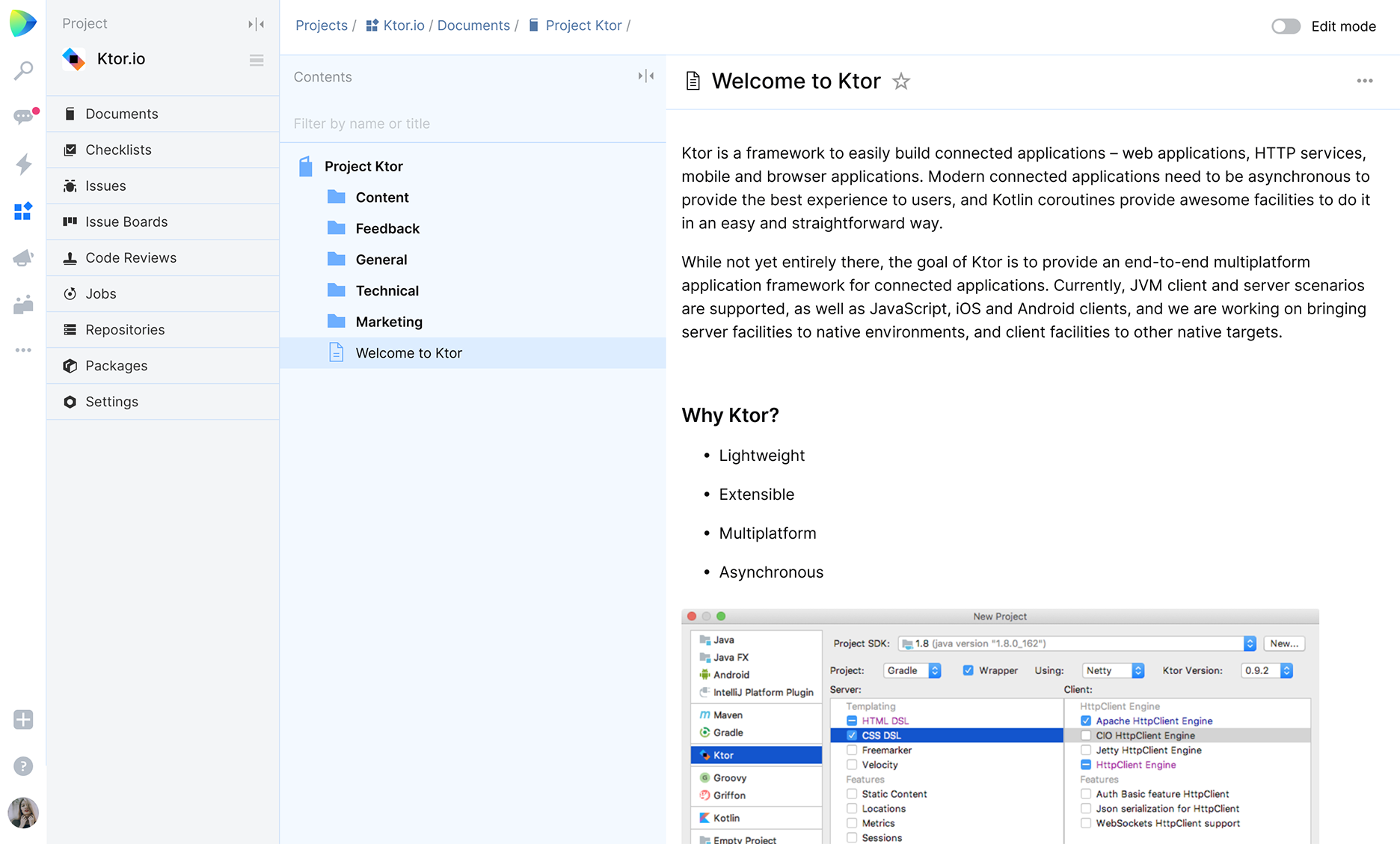
Project Documents let you keep all project-related information together in one place. Create multiple books to cover all the different topics that are relevant to your project!
Space lets you record and share knowledge as a collection of books. You can fill each book with an unlimited number of folders and articles. You can move articles and folders within and between books. It’s also possible to filter the content of a book by the folder and article names inside it.
You can add an introduction article to a book or a folder. This lets you see the content of that file in the body of the page.
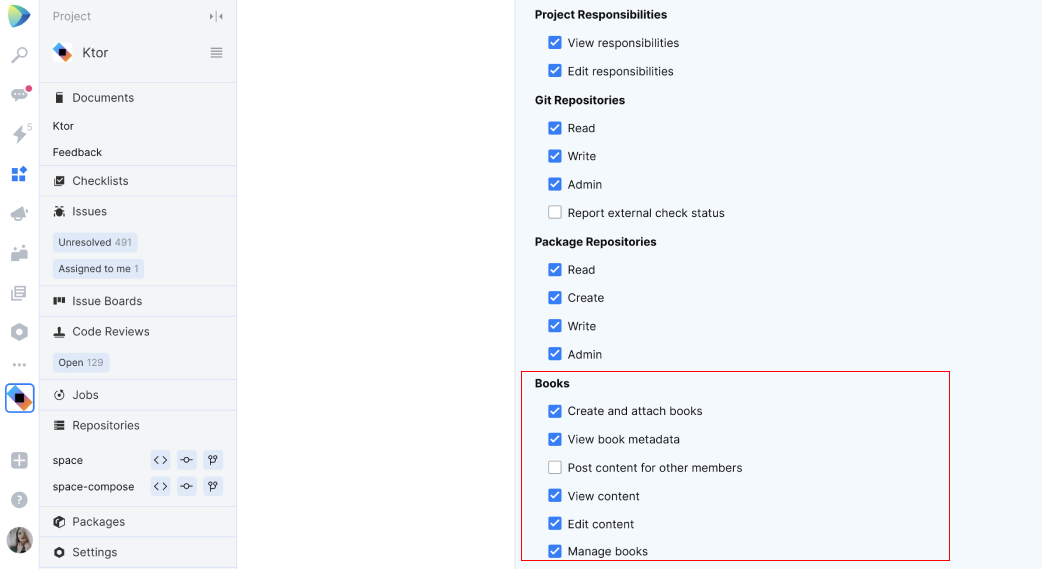
Project admins can set permissions that determine who can edit books and their content, and who can manage and create books in their projects. They can also share a particular book with specific people outside of the project team.
Personal Documents
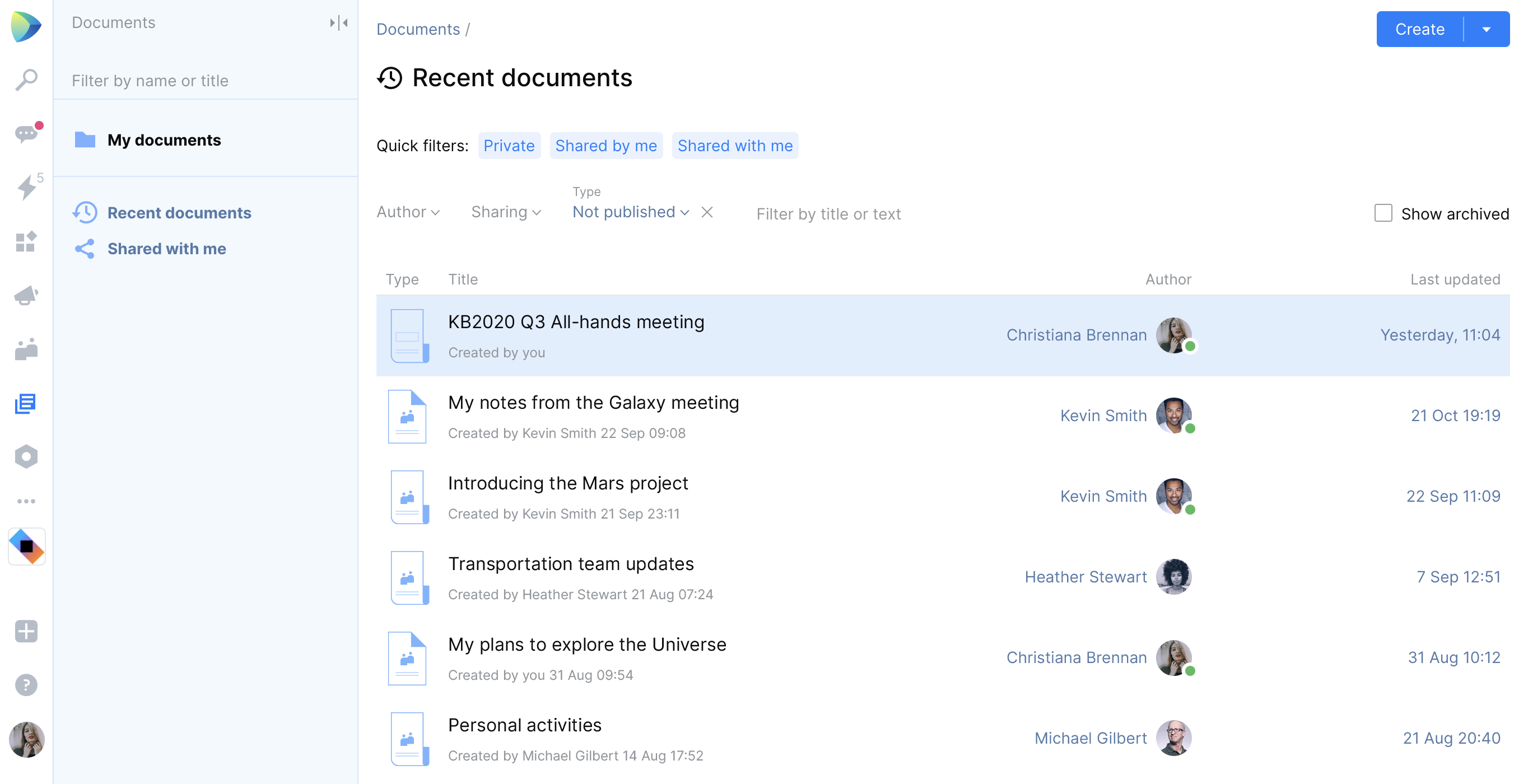
Personal Documents (My Documents) serve as a space for your private documents and drafts of articles that you plan to publish later in the Blog or move to Project Documents.
You can organize your documents in nested subfolders, or just keep them in the top-level “My Documents” folder. When you create a new document, it’s added to the top-level folder by default. Documents in the top-level folder will be visible only to you and to those you’ve explicitly shared them with.
If you are the author of a document or if it’s been shared with you, you can find it in Recent documents. You can filter documents by type, author, title, or by the “shared” status. In Shared documents, you’ll find only the documents that have been shared with you.
Working with articles
There are several ways to start working on your articles.
Creating an article from Project Documents
You can create an article directly from Documents. Please note that everyone who has permission to see Project Documents can see the content of the article and collaborate on it with you while you are working on it.

Creating an article from My Documents
You can also create an article from the My Documents section if you want to first create a draft and work on it privately. You can share these articles with your colleagues for collaborative editing before moving them to Project Documents or publishing them in the Blog.
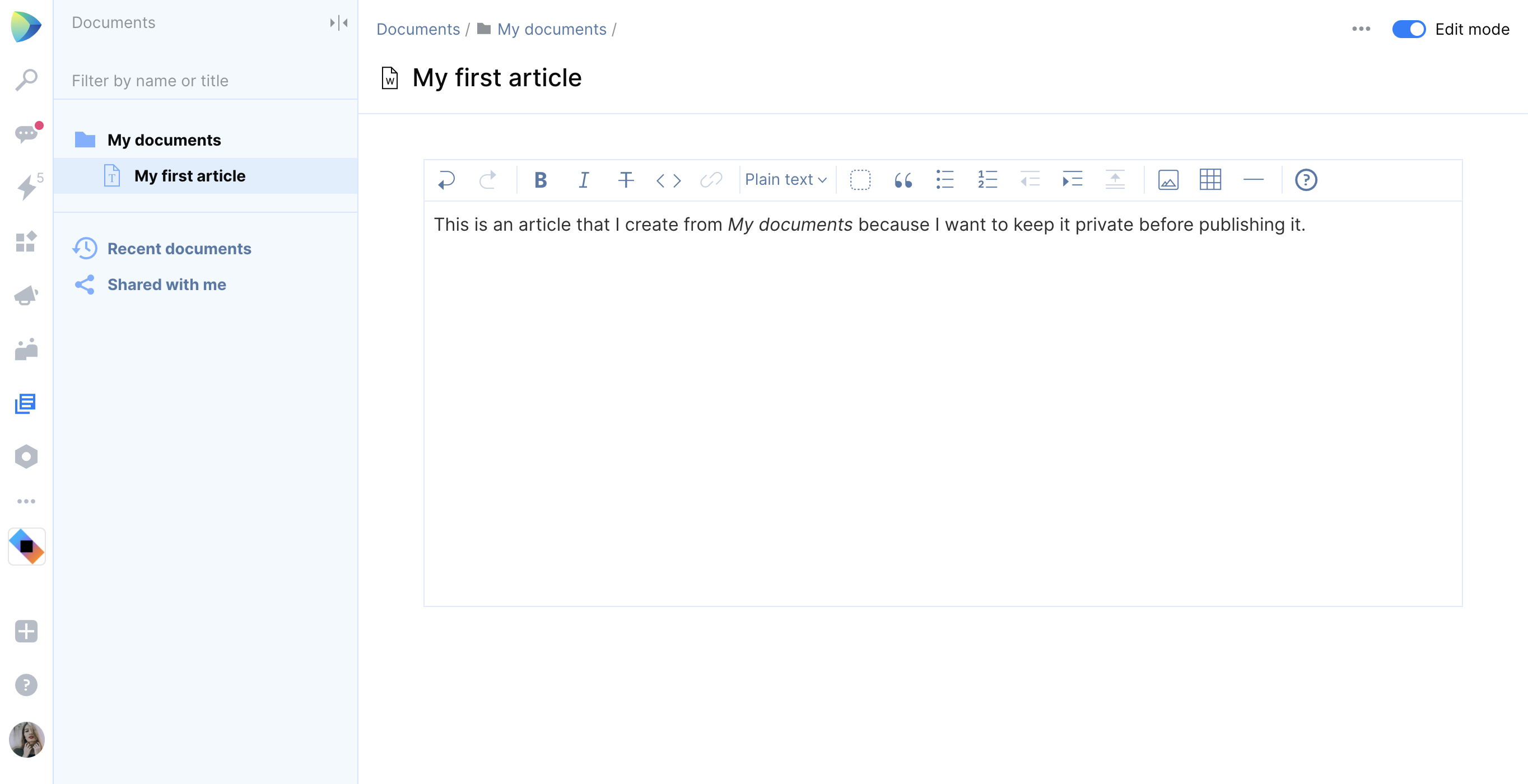
When the document is ready, just move it to Project Documents or publish it in the Blog. If you are not ready to make your document public just yet, simply close it and the draft will be saved in My Documents.
Migration from other tools
Migration from other tools is not yet available, but we plan to release it soon. This will make it possible to import Markdown documents in Space.
Space is now in Beta and is available for free to everyone. If you haven’t joined our Beta program yet, sign up for Space for free and start using it today.
Give Documents a try and share your experience with us!
Subscribe to Space Blog updates
Discover more




Neu: „Documents“ in Space
Fast alle von uns arbeiten täglich mit Dokumenten, unabhängig davon, wie unsere genaue Aufgabenbeschreibung lautet. Wir verwenden Dokumente für alles – von Besprechungsnotizen bis hin zu Blog-Entwürfen. Dokumente bieten eine großartige Möglichkeit für den Austausch von Erkenntnissen, Informationen, Ideen und Entscheidungen. Sie helfen allen Mitarbeiterinnen und Mitarbeitern einer Organisation, auf die jeweils benötigten Informationen zuzugreifen. Wenn Sie in einem Team arbeiten, wird es auch für Sie immer wichtiger, optimale Lösungen für das Speichern, Teilen und gemeinsame Bearbeiten von Inhalten zu finden. Unabhängig davon, ob es um Projektpläne, Entscheidungen oder Postmortem-Analysen geht – die Arbeit mit Dokumenten ist immer einfacher, wenn sie zentralisiert vorliegen.
Um dieses Problem anzugehen, haben wir in Space „Documents“ eingeführt – einen zentralen Ort, an dem jeder Informationen erstellen, speichern und teilen kann.
Documents – Übersicht
Wir möchten, dass Space zu einer Drehscheibe für den unternehmensweiten Informationsaustausch wird, und Dokumente spielen dabei eine gewichtige Rolle.
Dokumente werden in Space in zwei Kategorien unterteilt:
- Projektdokumente
- Persönliche Dokumente
Mit Projektdokumenten strukturieren Sie projektbezogene Inhalte: Dokumentationen, Roadmaps oder Besprechungsnotizen. Sie sind in jedem Projekt direkt erreichbar. Persönliche Dokumente (zu finden in My documents) sind alle persönlichen Inhalte, die mit Ihnen geteilt wurden, solche, die Sie selbst erstellt und geteilt haben, sowie alle Ihre privaten Entwürfe. In Space sind Dokumente für die gemeinsame Bearbeitung vorgesehen. Dies bedeutet, dass alle Nutzer*innen, die Zugriff auf ein Dokument haben, auch gleichzeitig daran arbeiten können.
Sehen wir uns einmal an, wie dies im Detail funktioniert.
Projektdokumente
Mit Projektdokumenten können Sie alle projektbezogenen Informationen an einem Ort zusammenfassen. Erstellen Sie verschiedene Bücher, um alle Themen abzudecken, die für Ihr Projekt relevant sind!
In Space können Sie Wissen in einer Sammlung von Büchern speichern und teilen. Jedes Buch kann eine unbegrenzte Anzahl von Ordnern und Artikeln enthalten. Sie können Artikel und Ordner innerhalb eines Buches oder zwischen Büchern verschieben. Den Inhalt eines Buches können Sie anhand der darin enthaltenen Ordner- und Artikelnamen filtern.
Bücher und Ordner können einen Einführungsartikel haben. Auf diese Weise können Sie den Inhalt einer Datei im Hauptbereich der Seite anzeigen.
Projektadmins können durch Berechtigungen festlegen, wer in ihren Projekten Bücher verwalten und erstellen und Buchinhalte bearbeiten darf. Es besteht auch die Möglichkeit, ein bestimmtes Buch mit bestimmten Personen außerhalb des Projektteams zu teilen.
Persönliche Dokumente
Persönliche Dokumente (My Documents) dienen als Speicherort für Ihre privaten Dokumente und Artikelentwürfe, die Sie später im Blog veröffentlichen oder zu den Projektdokumenten verschieben möchten.
Sie können Ihre Dokumente in verschachtelten Unterordnern strukturieren oder einfach im Hauptordner „My Documents“ speichern. Wenn Sie ein neues Dokument erstellen, wird es standardmäßig im Hauptordner gespeichert. Dokumente im Hauptordner sind nur für Sie selbst sichtbar sowie für Personen, denen Sie explizit Zugriff erteilt haben.
Dokumente, die Sie selbst erstellt haben oder die für Sie freigegeben wurden, finden Sie unter Recent documents. Sie können Dokumente nach Typ, Autor, Titel oder Freigabestatus filtern. In Shared documents finden Sie nur die Dokumente, die für Sie freigegeben wurden.
Arbeiten mit Artikeln
Sie haben verschiedene Möglichkeiten, die Arbeit an einem Artikel zu beginnen.
Artikel in Project Documents erstellen
Sie können einen Artikel direkt in Documents erstellen. Auf diese Weise kann jeder, der die Berechtigung zum Einsehen von Projektdokumenten hat, den Inhalt des Artikels sehen und gleichzeitig mit Ihnen am Artikel arbeiten.
Artikel in My Documents erstellen
Sie können einen Artikel auch im Bereich My Documents erstellen, wenn Sie vorerst privat an Ihrem Entwurf arbeiten möchten. Sie können diese Artikel für eine gemeinsame Bearbeitung mit anderen teilen, bevor Sie sie zu den Projektdokumenten verschieben oder im Blog veröffentlichen.
Wenn das Dokument fertig ist, verschieben Sie es einfach in Project Documents oder veröffentlichen es im Blog. Wenn das Dokument noch nicht zur Veröffentlichung bereit ist, können Sie es einfach schließen – der Entwurf wird dann in My Documents gespeichert.
Migration von anderen Tools
Die Migration von anderen Tools ist noch nicht einsatzbereit, soll aber nach unseren Plänen bald zur Verfügung stehen. Diese Funktion wird die Möglichkeit bieten, Markdown-Dokumente in Space zu importieren.
Space ist jetzt in der Betaphase und steht allen Interessierten kostenlos zur Verfügung. Wenn Sie sich noch nicht für unser Beta-Programm angemeldet haben, registrieren Sie sich kostenlos bei Space und machen Sie noch heute Ihre ersten Schritte.
Probieren Sie die Dokumentfunktion aus und lassen Sie uns an Ihren Erfahrungen teilhaben!


