
DataGrip 2026.2: AI Agent Skills, MCP Tools and CLI Commands for Data Source Management, Bundled JDBC Drivers, and Improved Session Control

DataGrip 2026.2, the second major update of the year, is here! Let’s take a look at what’s inside.
AI
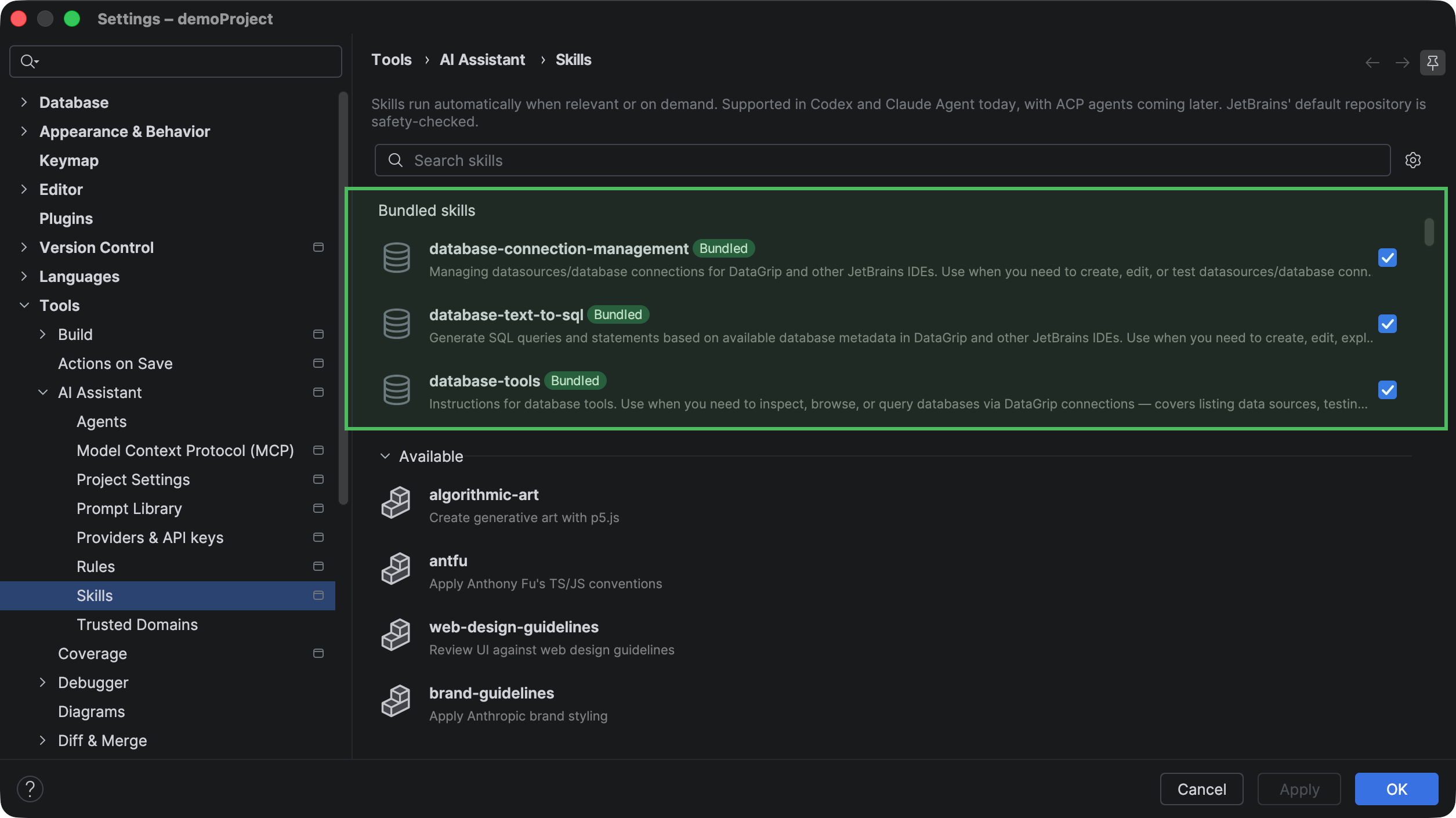
This release introduces three AI agent skills for working with databases: database-tools, database-connection-management, and database-text-to-sql. Together, they let AI agents explore and query connected databases, configure and update database connections, and generate SQL based on your database schema directly from the AI chat. The skills also include the corresponding MCP tools, so no additional setup is required.
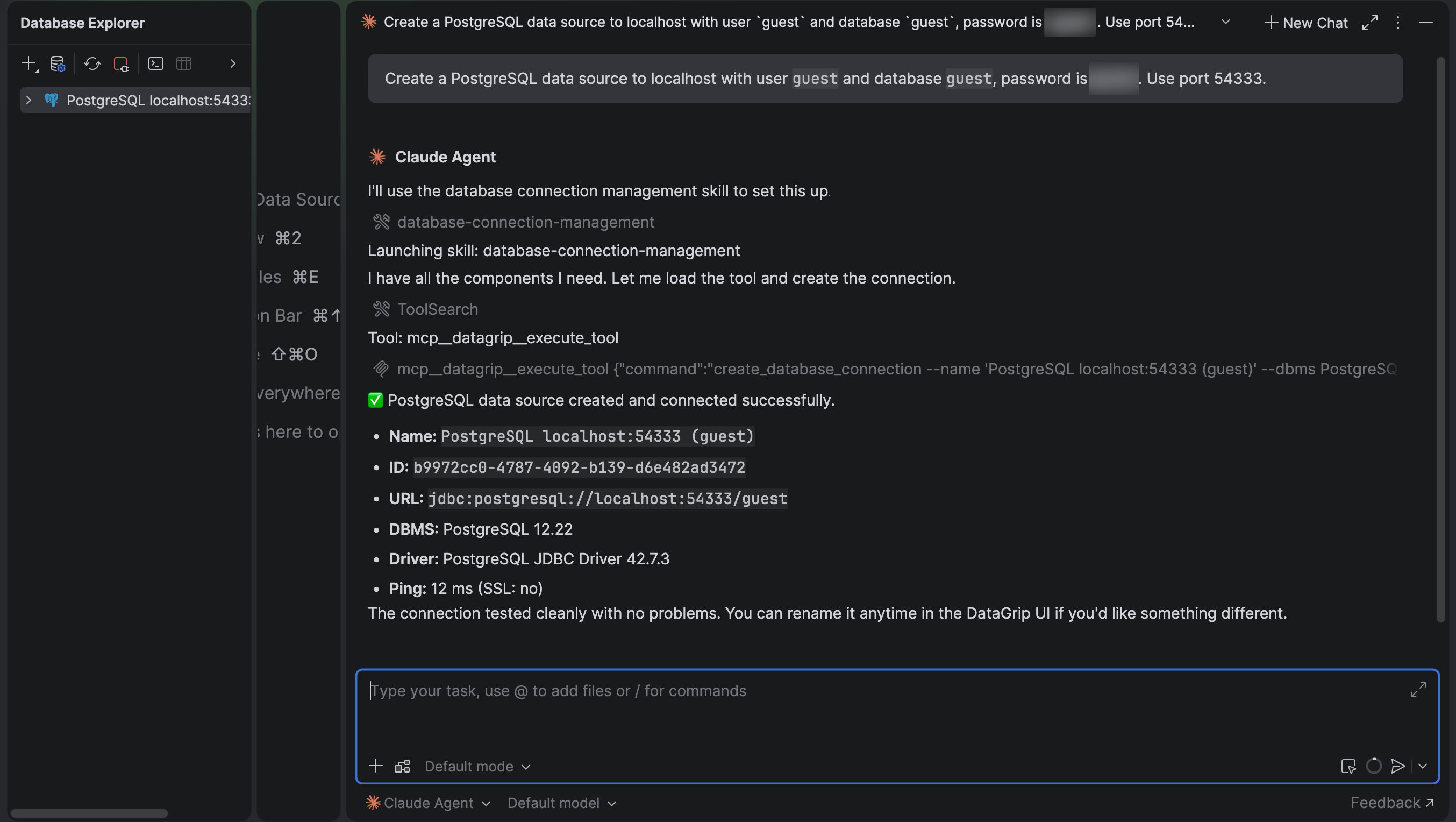
To help agents work with data source management tasks, we’ve added two new MCP tools – create_database_connection and edit_database_connection – and included them in the database-connection-management skill. With these MCP tools and the new skill, you can, for example, ask an agent to create a new data source in chat, providing the connection details in your prompt.
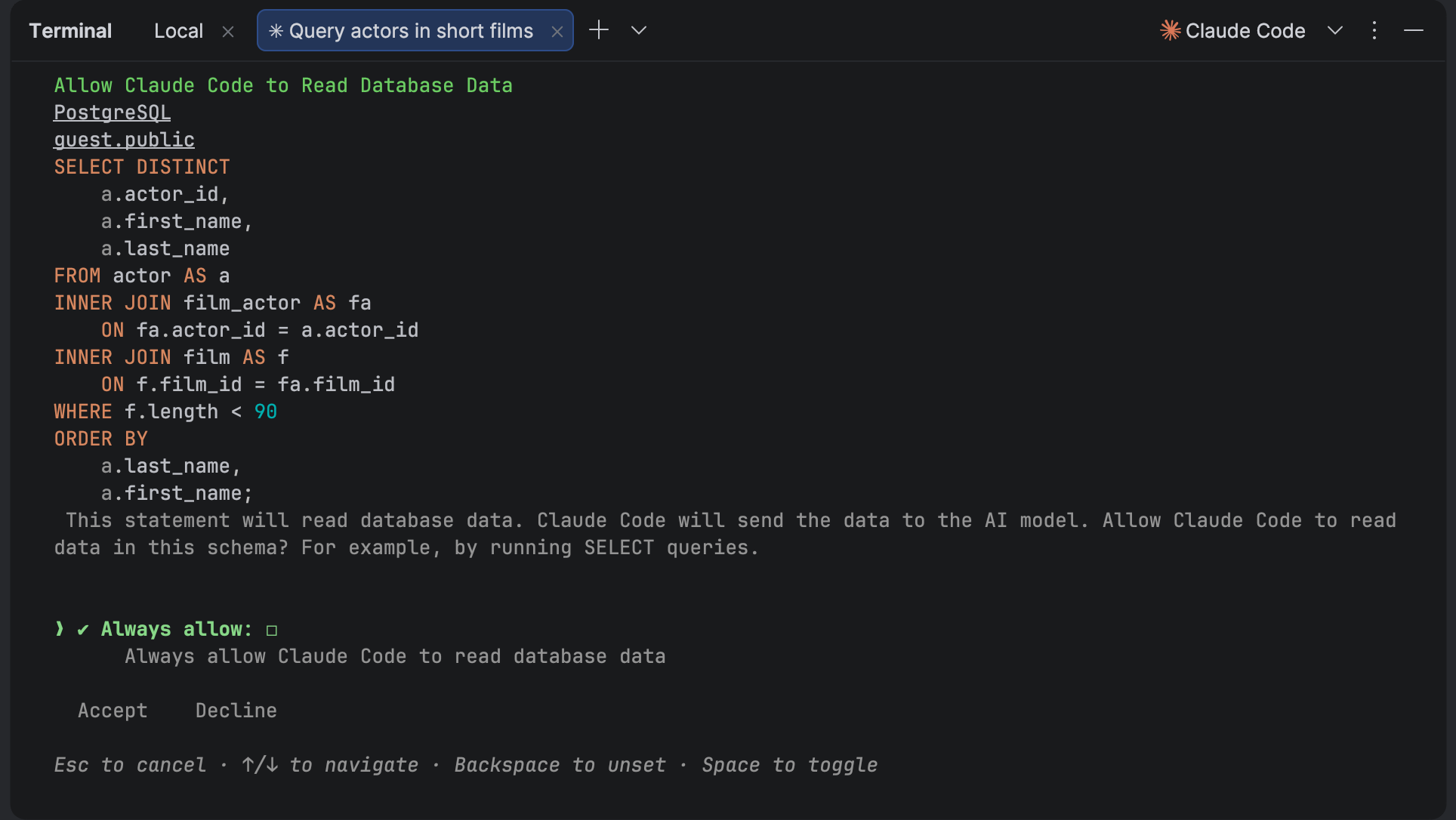
Next up is an update for those who work with AI agents in CLI. Now, before performing an operation on a database, an agent asks for your consent and shows you what it is about to do. SQL queries are syntax-highlighted for better readability:
This release also brings a number of smaller enhancements that make AI-assisted database workflows smoother and more reliable:
- AI Assistant now remembers query results from previous interactions, so you can fetch additional rows without rerunning the query.
- When an AI agent creates a database object, it appears in the Database Explorer right away.
- AI agents are now better at resolving database objects. They can distinguish between objects that don’t exist and objects that haven’t been introspected yet.
- Queries executed by AI agents are now included in the data source query history, making it easier to review AI-generated SQL alongside your own queries.
- When an SQL query fails, AI agents now receive the database’s actual error message instead of a generic error, allowing them to respond more accurately.
- The
list_database_connectionsMCP tool no longer returns an output schema error when parameters with default values are provided.
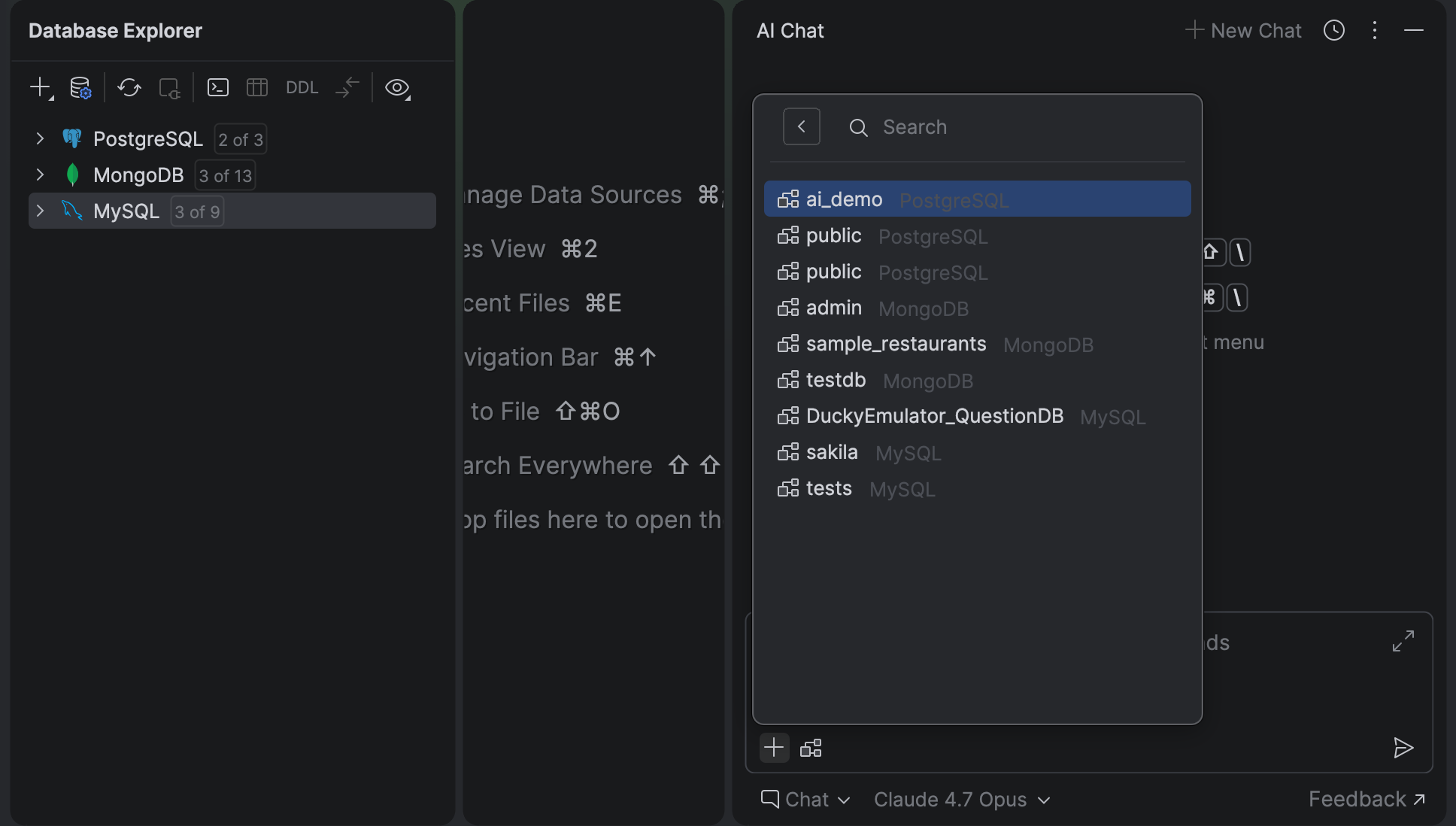
We’ve also redesigned the schema attachment UI in the AI Chat tool window and removed the AI Assistant plugin requirement for database-specific MCP tools.
A smoother start
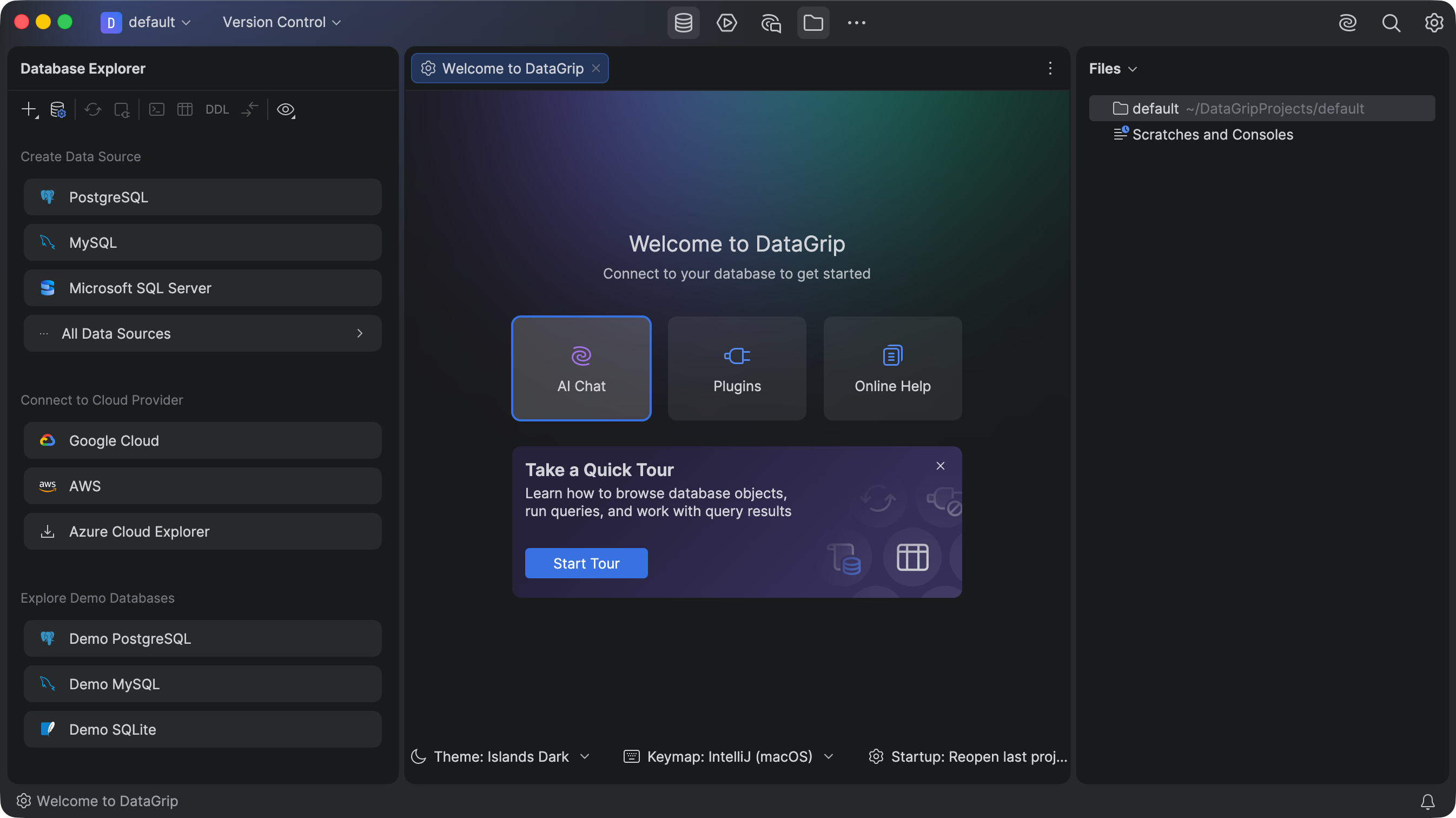
We’ve reworked the first steps a user takes in the IDE. The Welcome screen that you saw when starting DataGrip for the first time or after closing all projects – it used to be a modal dialog, but now it is a regular IDE tab. You can have it open and use the IDE at the same time. This new Welcome tab appears in the default project.
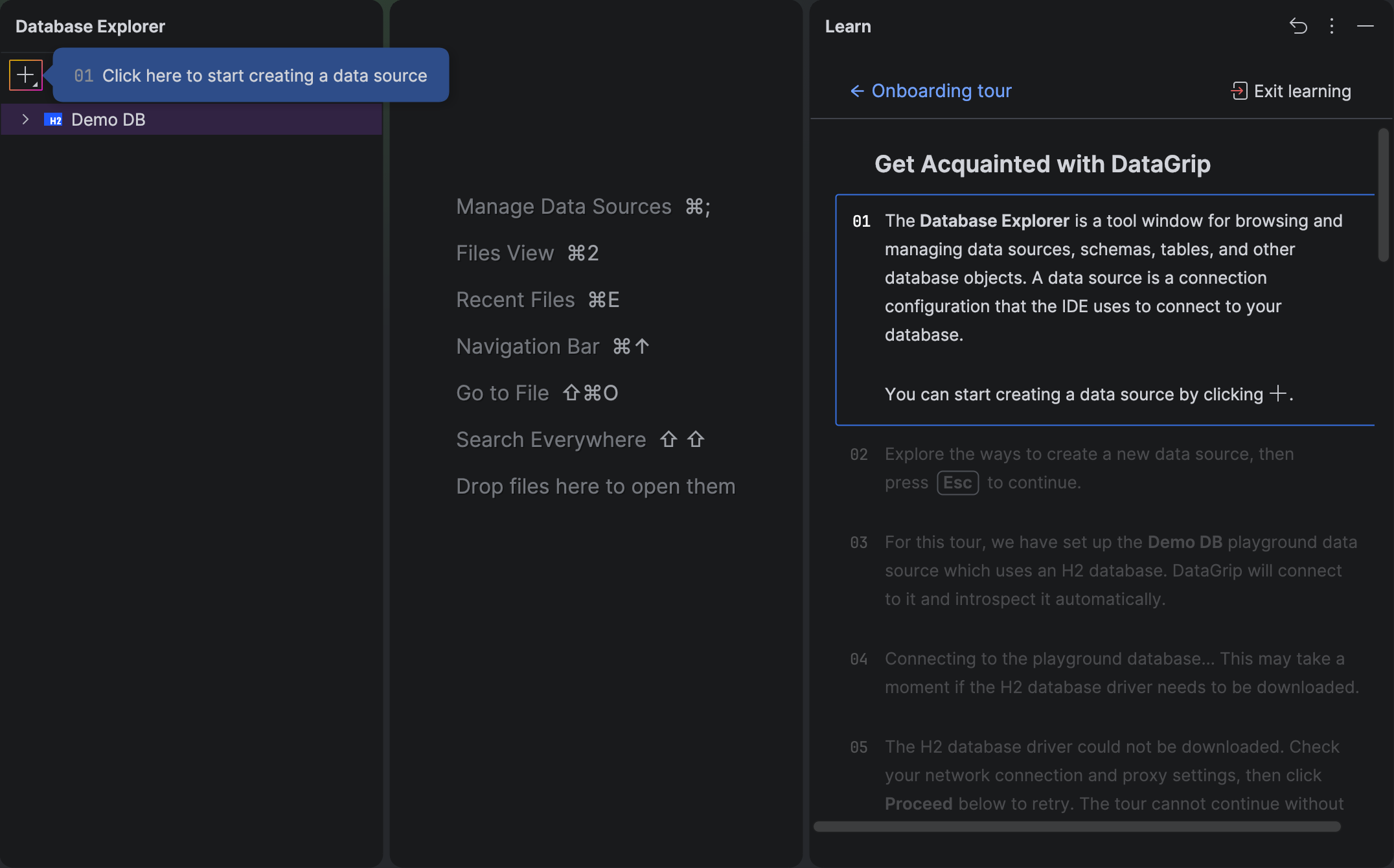
In this release, we’re also introducing an interactive onboarding tour. The tour shows you around the essential UI areas and walks through the IDE’s core features. It demonstrates key actions in the Database Explorer tool window, the data source settings dialog, query execution in a query console, viewing and working with query result sets, and submitting changes to a database.
CLI commands for data sources
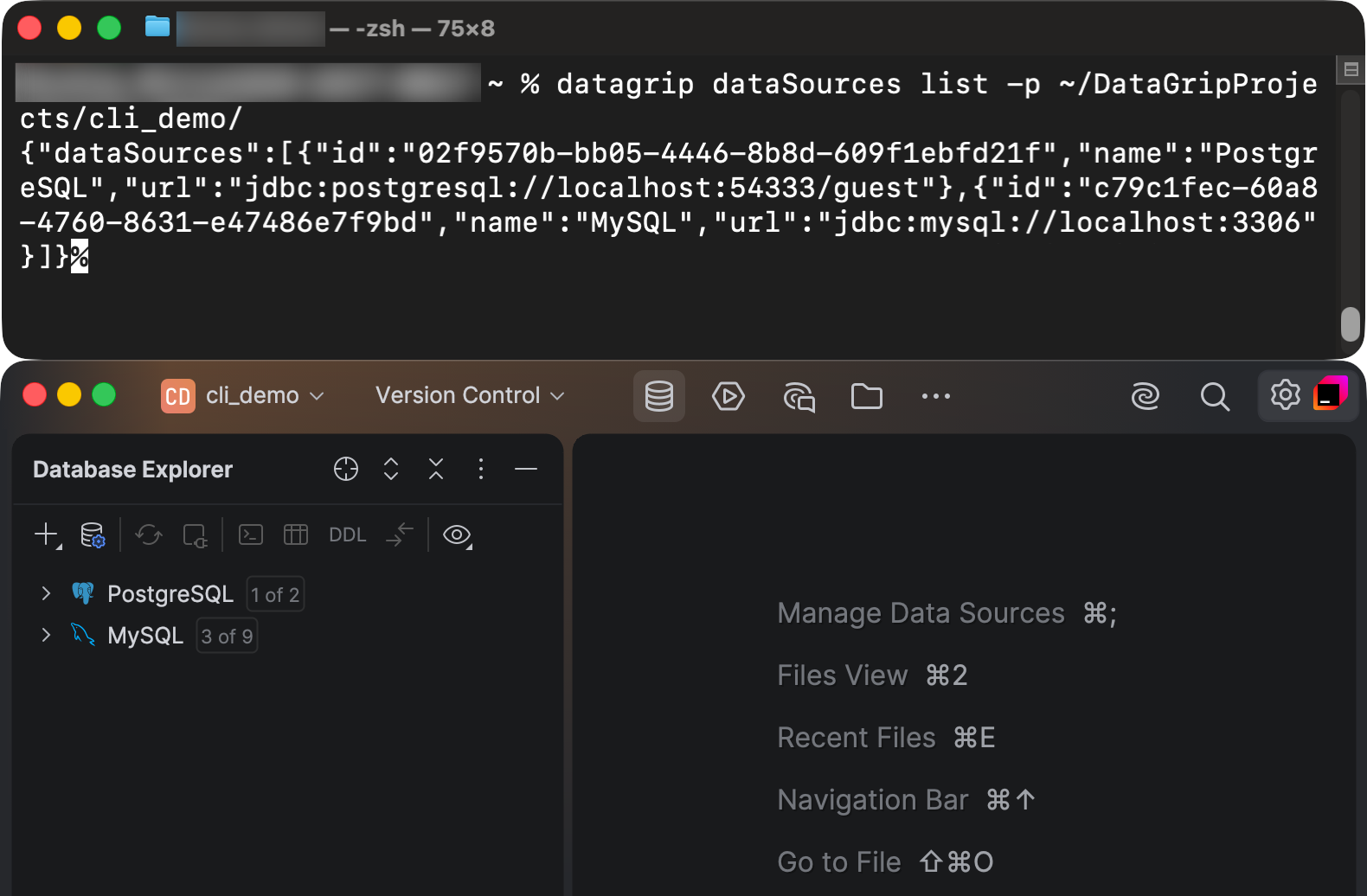
Now you can perform some actions on data sources in a command-line interface (CLI). We’ve introduced the list and manage commands that allow you to manage your connections and drivers. The syntax is:
datagrip dataSources <command> [options] [arguments]
In this interface, a batch-processing approach is used. It means you can pass a JSON file containing multiple instructions instead of running one command per action. The tool processes them in a single session and returns the results in JSON, making it perfect for shell pipelines.
Connectivity
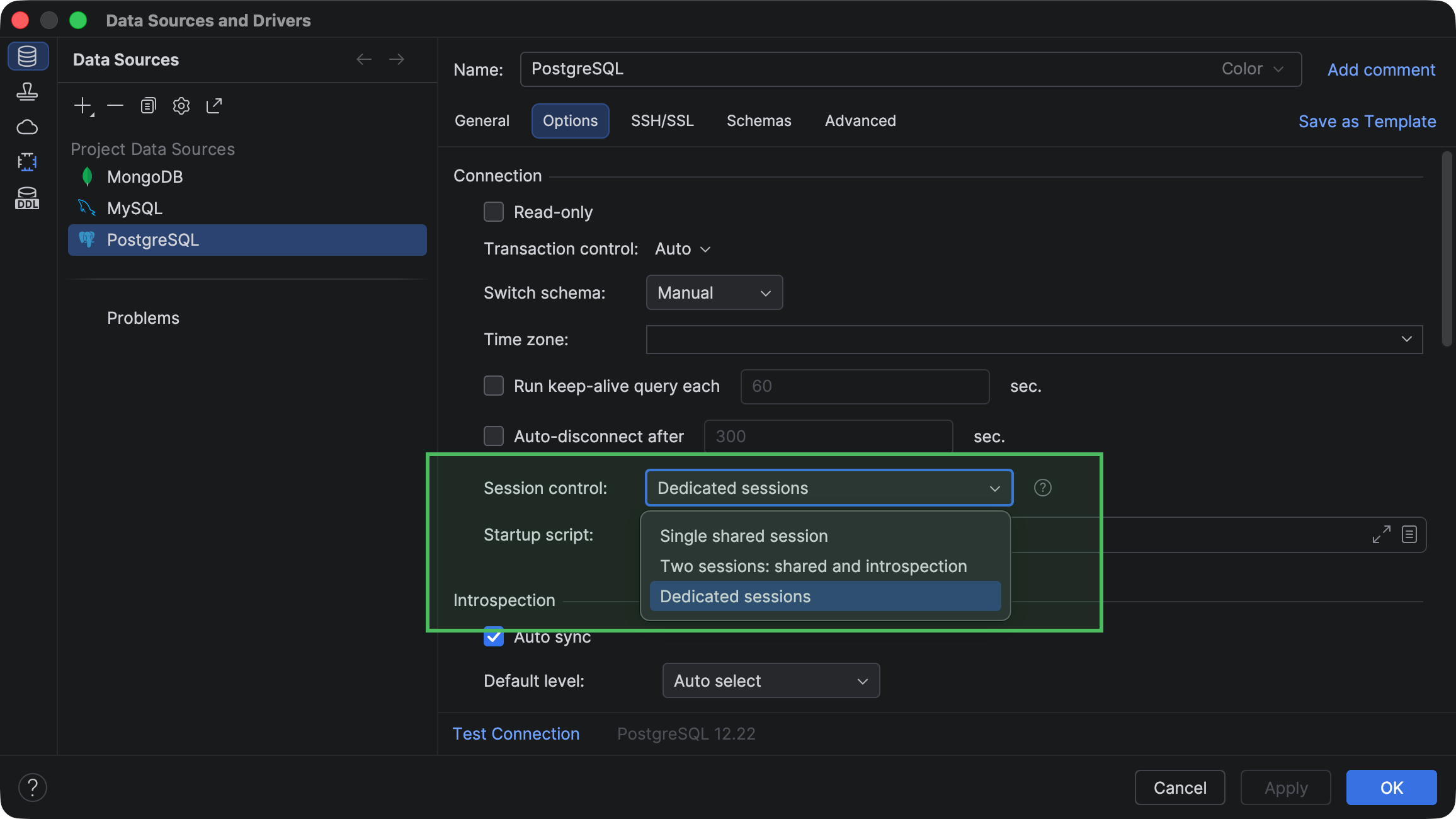
Now there are three session control modes for you to switch between, depending on how you want to divide database connection sessions between clients (query console, data editor, and so on):
- Single shared session mode supports scenarios where you want to share a single connection across multiple clients.
- Two sessions: shared and introspection creates two sessions: one for introspection and the other for everything else.
- Dedicated sessions creates a new session for each client.
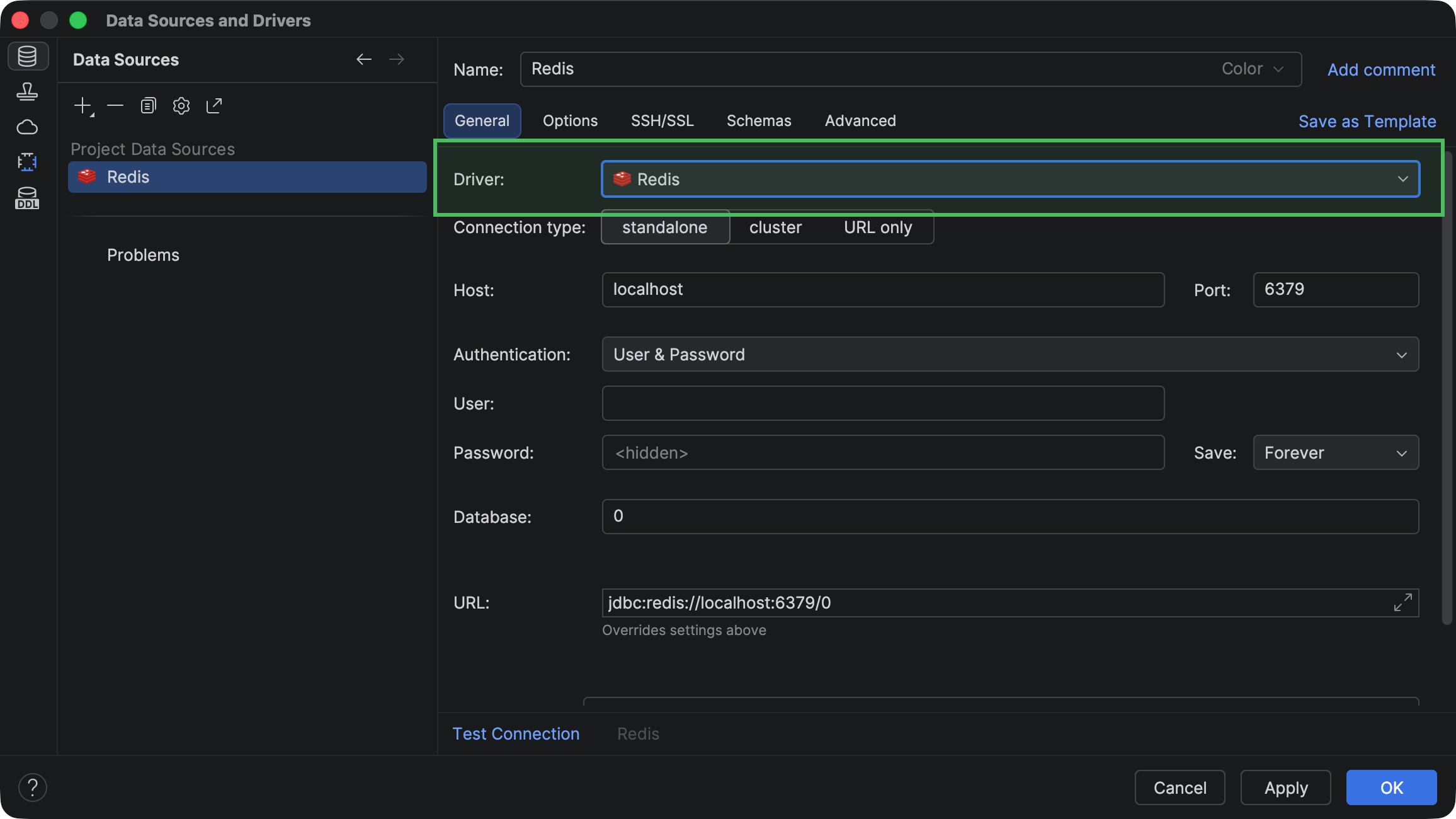
To help you create data sources more quickly without waiting for a JDBC driver to be downloaded, we’ve bundled a few drivers with the IDE. Now, DataGrip includes the following drivers:
- Microsoft SQL Server ver. 13.2.1
- MongoDB ver. 1.21
- MySQL Connector/J ver. 9.5.0
- PostgreSQL ver. 42.7.3
- Redis ver. 1.6
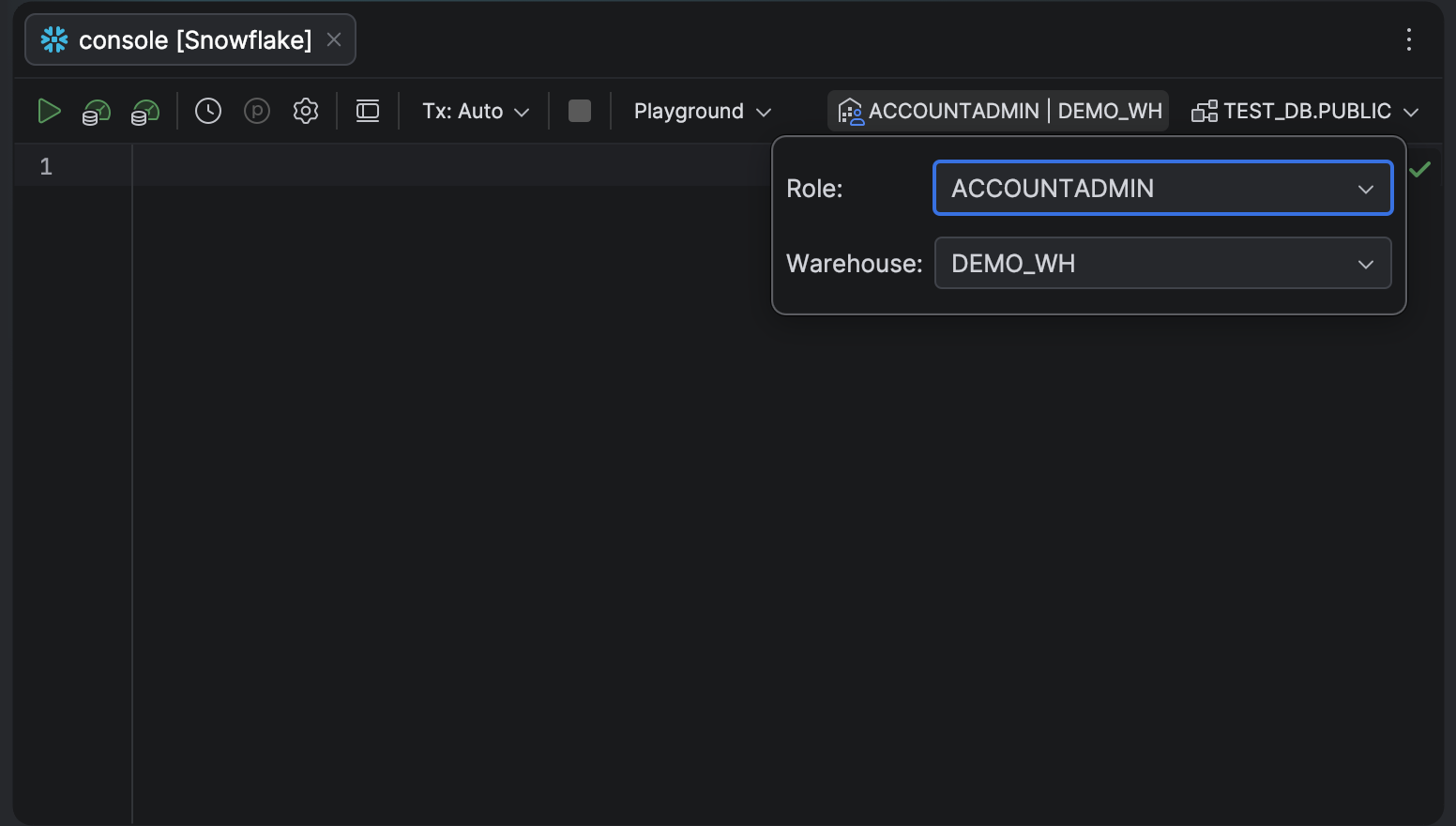
Switching between database roles and warehouses just got a lot faster, too. If you work in Snowflake, you no longer need to manually execute SET ROLE commands or dig through connection settings to change your permissions for the current session. A new dropdown menu in the query console toolbar lets you swap between available roles and warehouses instantly.
Working with data
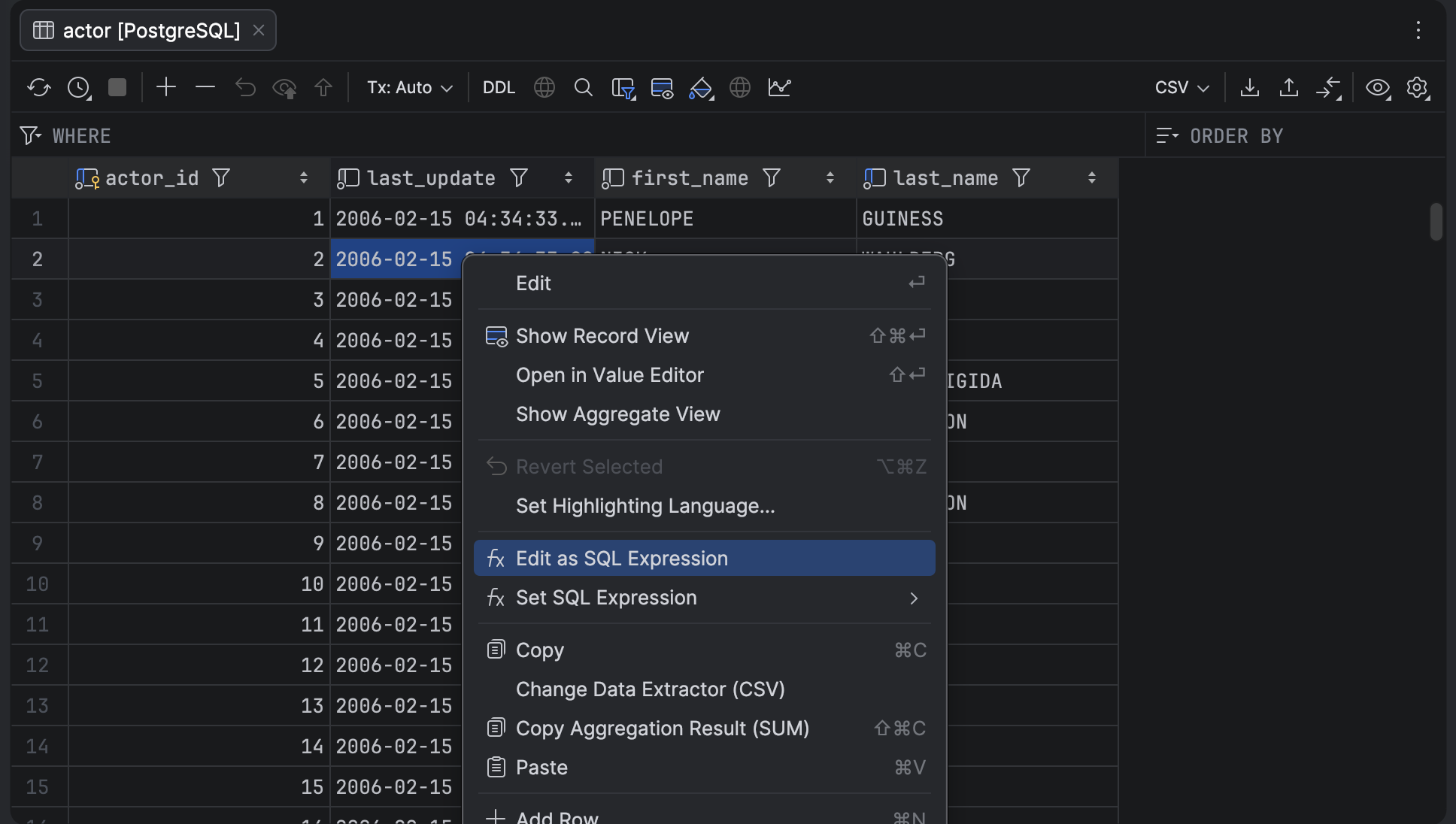
We’ve made it possible to set grid cell values using SQL expressions instead of being limited to literal values. With the new SQL Expression mode in the data editor, you can enter any valid SQL expression into a cell, for example, NOW(), and DataGrip will use the result as the new cell value. When you submit the changes, the IDE incorporates your expression directly into the generated UPDATE or INSERT statement without escaping it as a string.
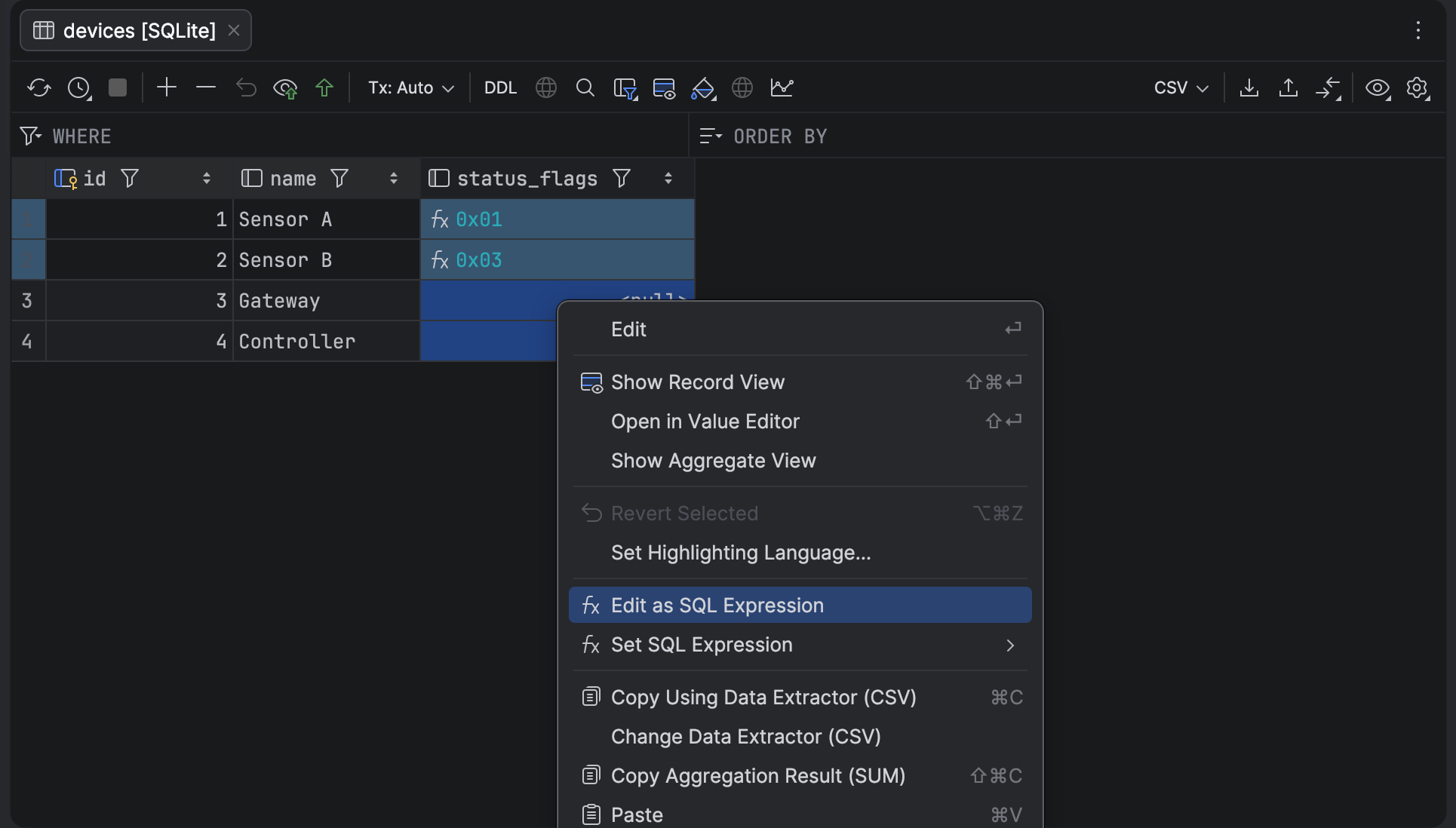
The new mode also allows you to enter values that begin with 0x in numeric columns. Now you can just turn the SQL Expression mode on and enter the value, instead of running SQL commands to update the cell.
Database explorer
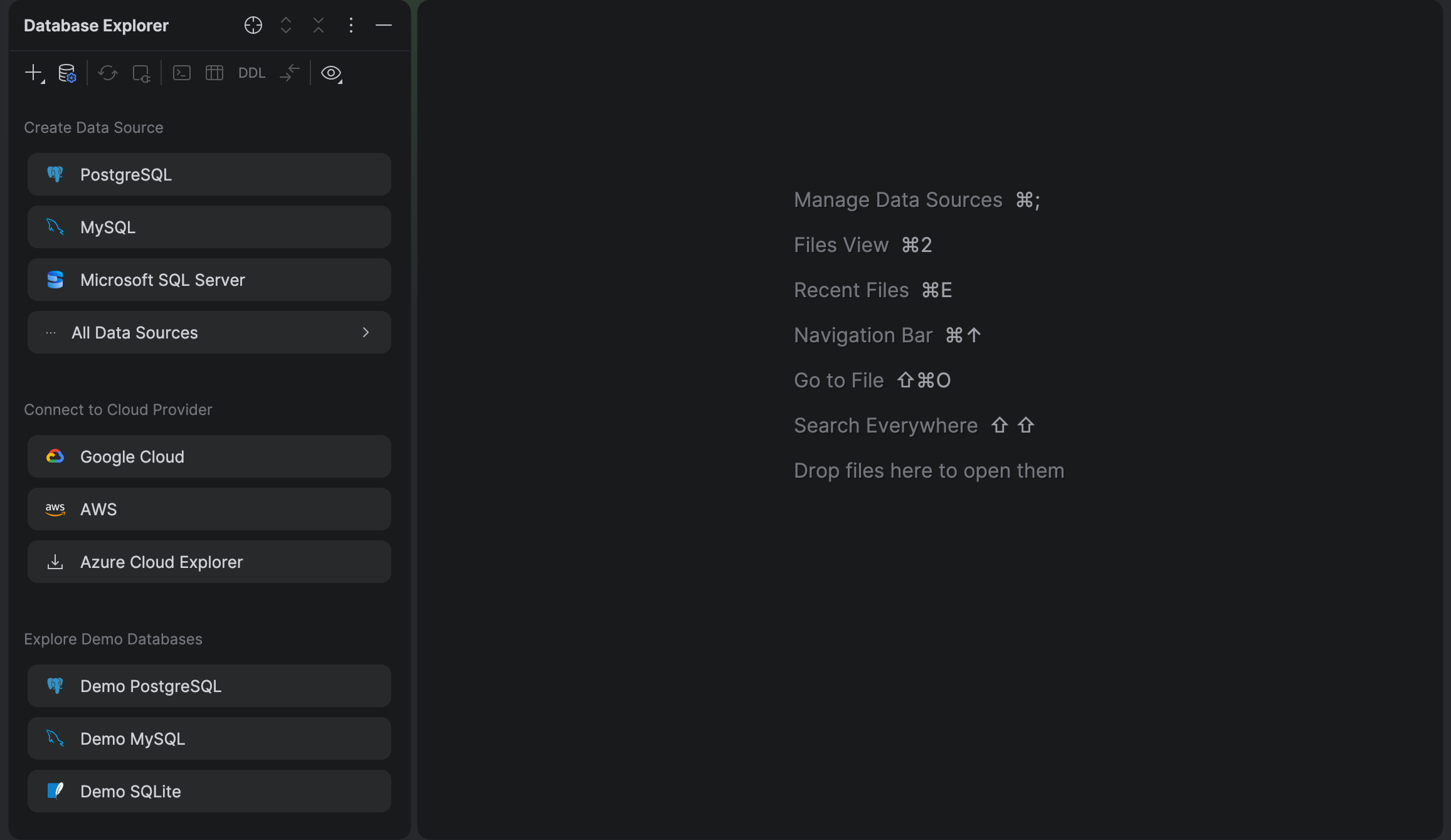
The Database Explorer tool window now has a redesigned empty state that offers quick actions for data source creation, including those described in our quick start guide.
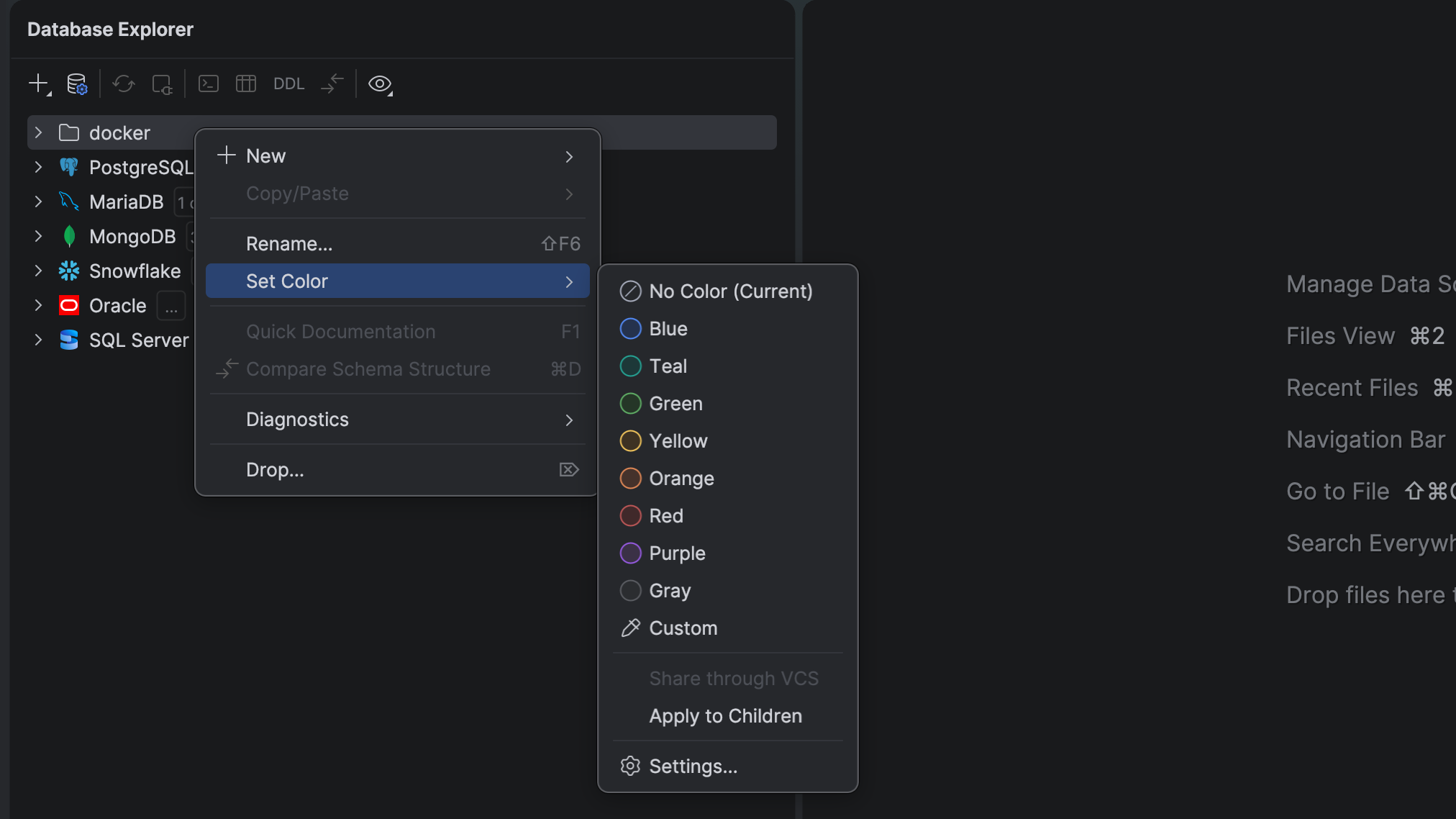
With the reworked database colors system, it is easier to assign a color to a data source, database object, or folder using a fresh and consistent UI. The behavior of custom colors has been significantly improved, making the shades suit both the light and dark IDE themes. Custom colors are now available for data source folders, too. For better discoverability, we’ve moved the database colors settings to the main IDE Settings dialog under Settings | Database | Database Explorer.
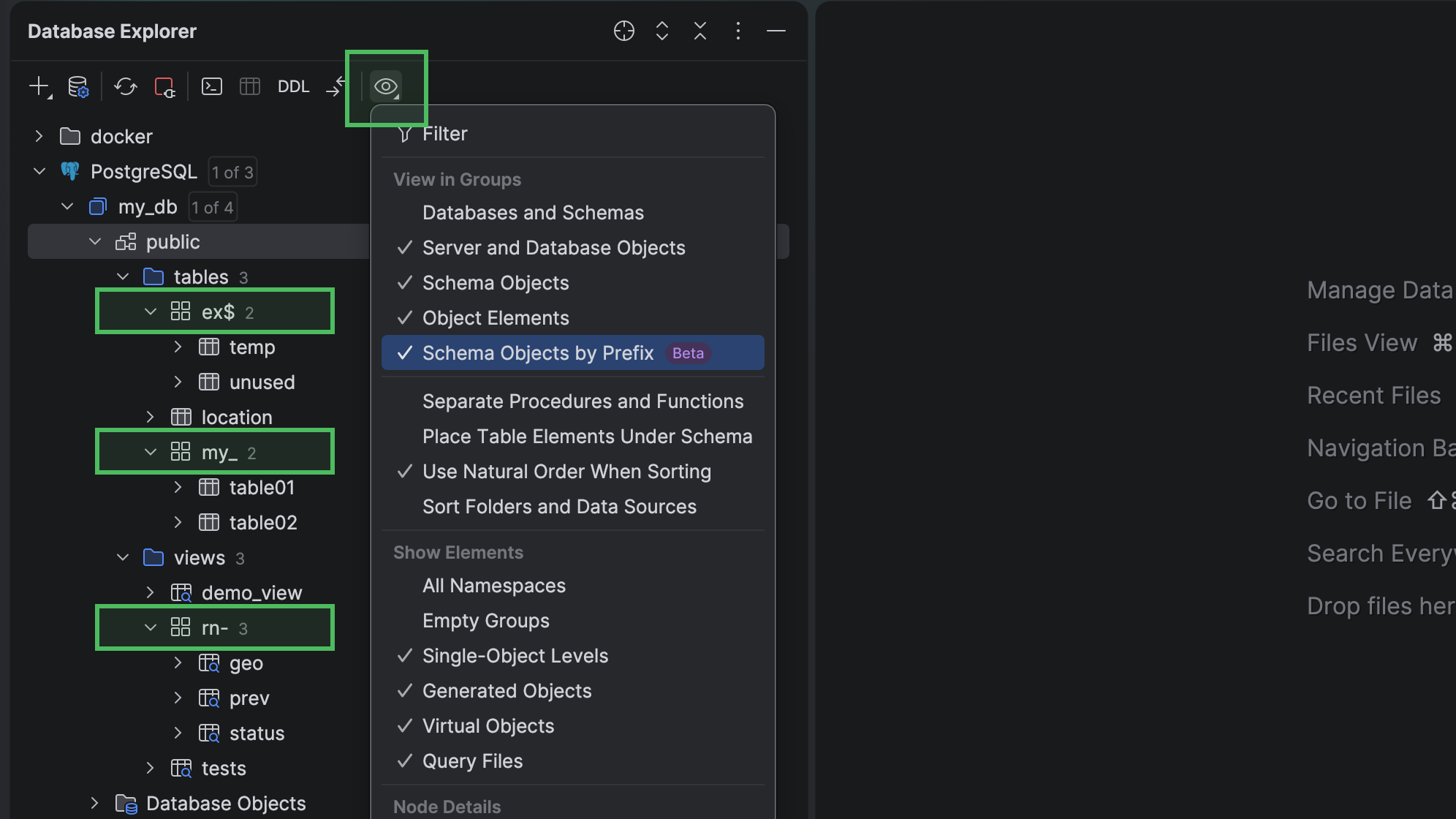
For database objects that have the same prefix, Database Explorer can now put them into individual groups. The group gets the prefix name. For example, my_table01 and my_table02 are grouped under my_, and their names are displayed as table01 and table02 within the group. Currently, the following characters are treated as prefix delimiters: _, -, and $.
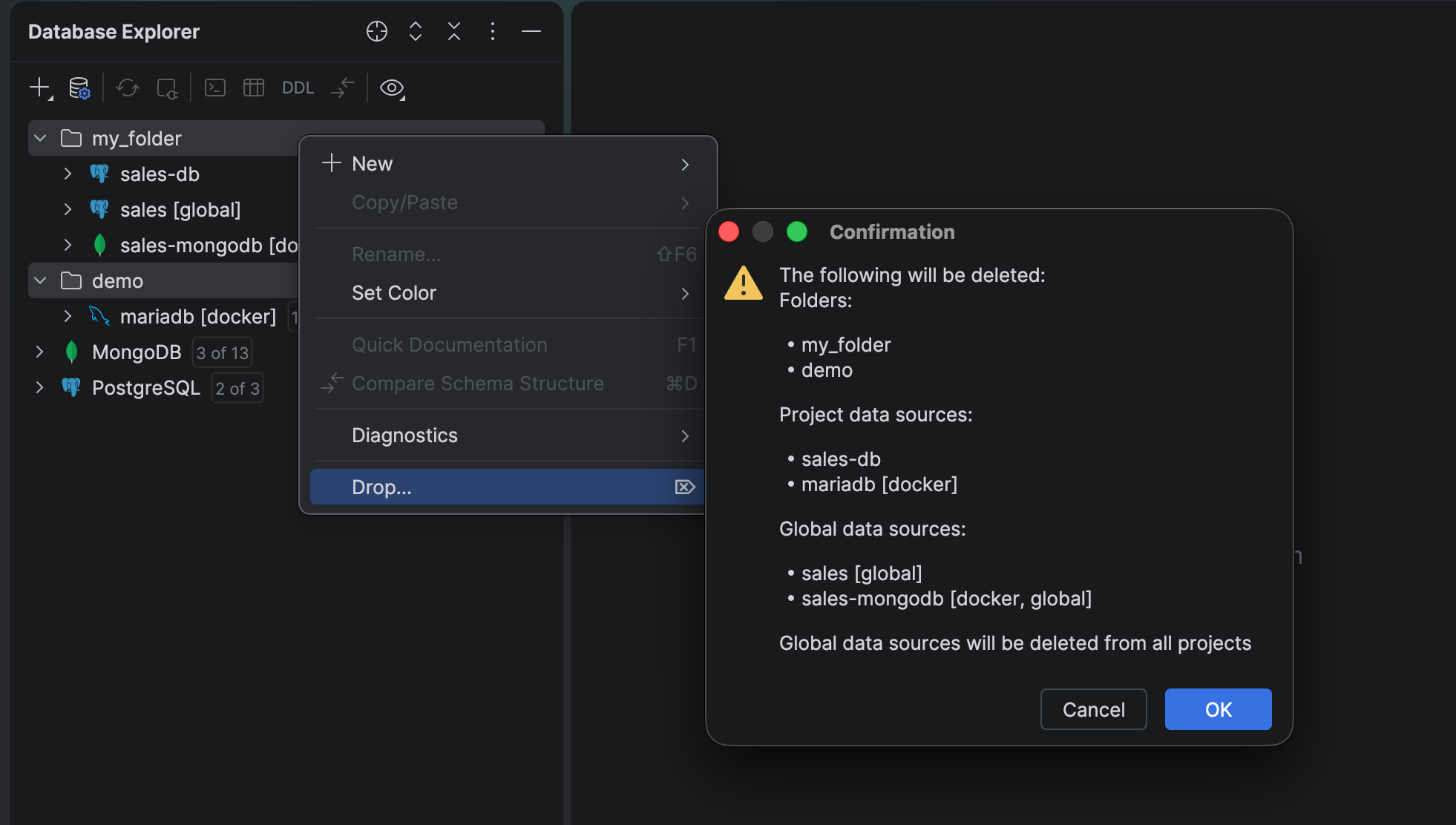
If you want to delete data source folders that contain other folders or data sources, select the items, right-click them, and then select Drop. DataGrip will ask for confirmation and display the list of items to be deleted.
Explain Plan menu and actions
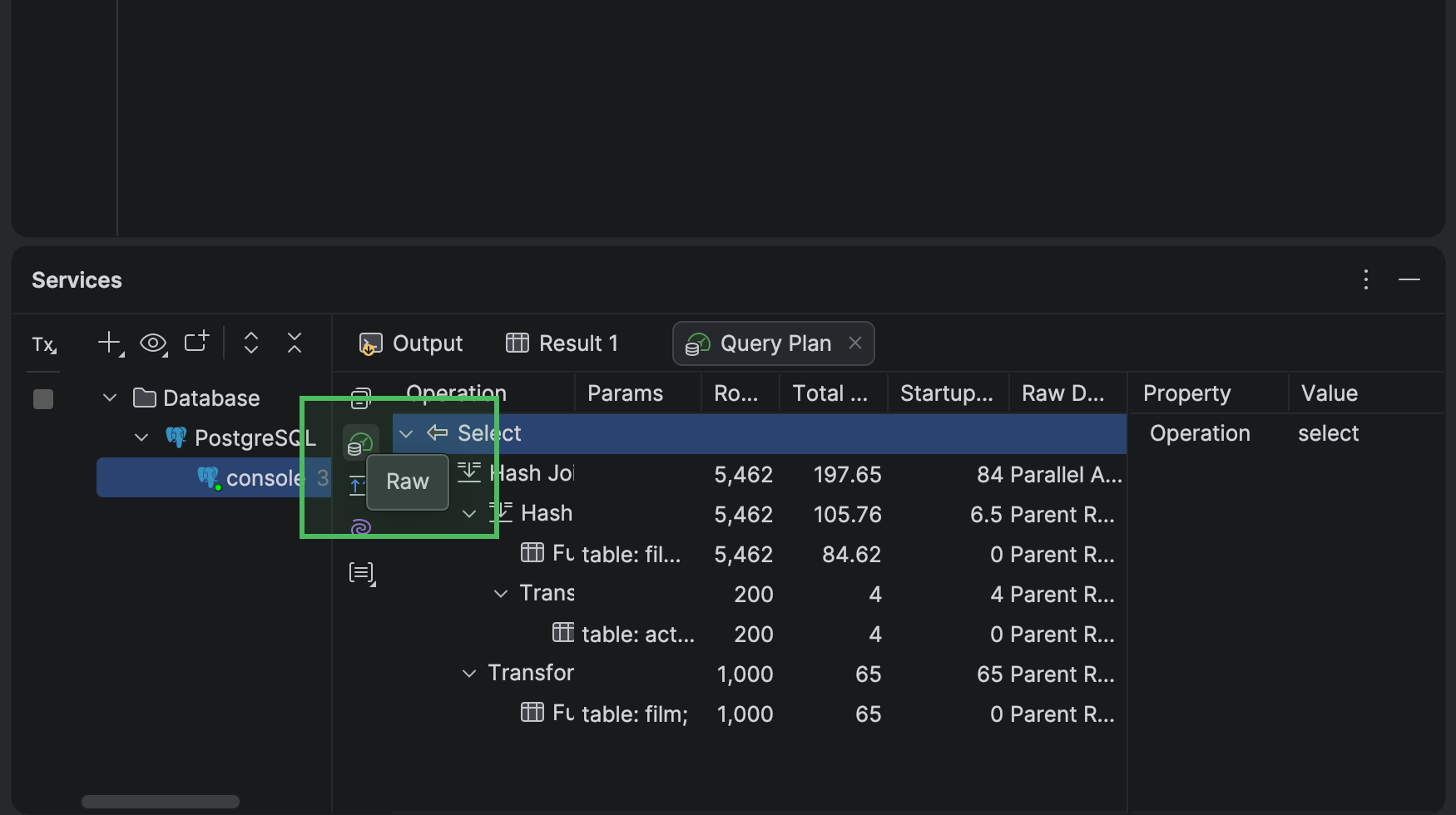
Following user feedback, we’ve brought back the raw format actions that were removed in the previous release. Now, to open an explain plan in raw format, click the Raw button on the left-hand toolbar of the Query Plan tab. It will open the Raw inner tab. If you’re already viewing the raw explain plan, this button says Show Tree and opens the Operations Tree inner tab. To add the raw format actions to the Explain Plan dropdown, go to Settings | Appearance & Behavior | Menus and Toolbars, select Explain Plan, and click Add.
Query files and consoles
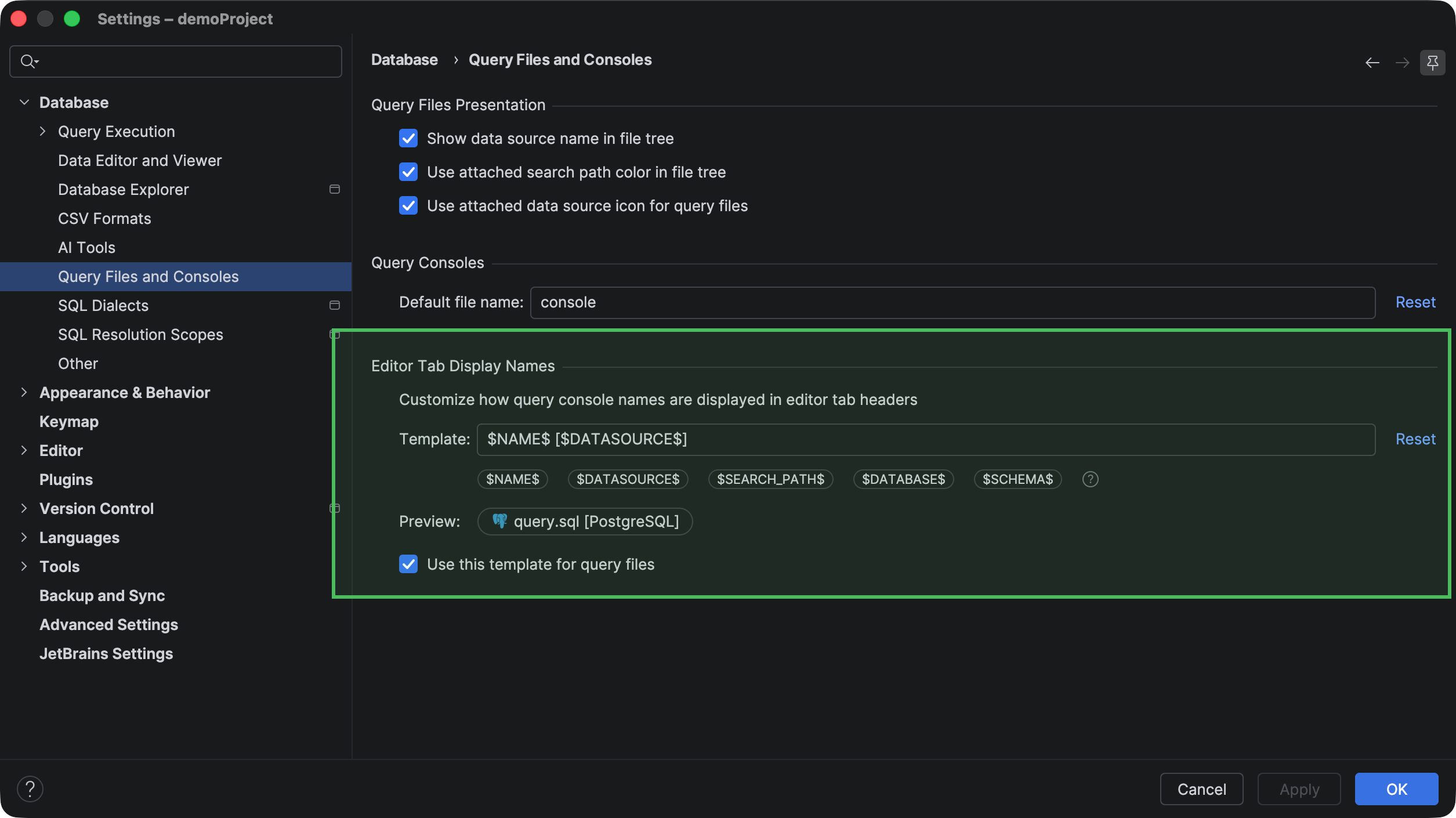
Now, you can use variables to add more details to query console names in the editor tab headers. For example, you can add the attached data source, database, schema, or search path. To use them, go to Settings | Database | Query Files and Consoles. To add a variable to a console name, place the caret where you want to insert it in the Template field and click the corresponding variable button.
Code editor
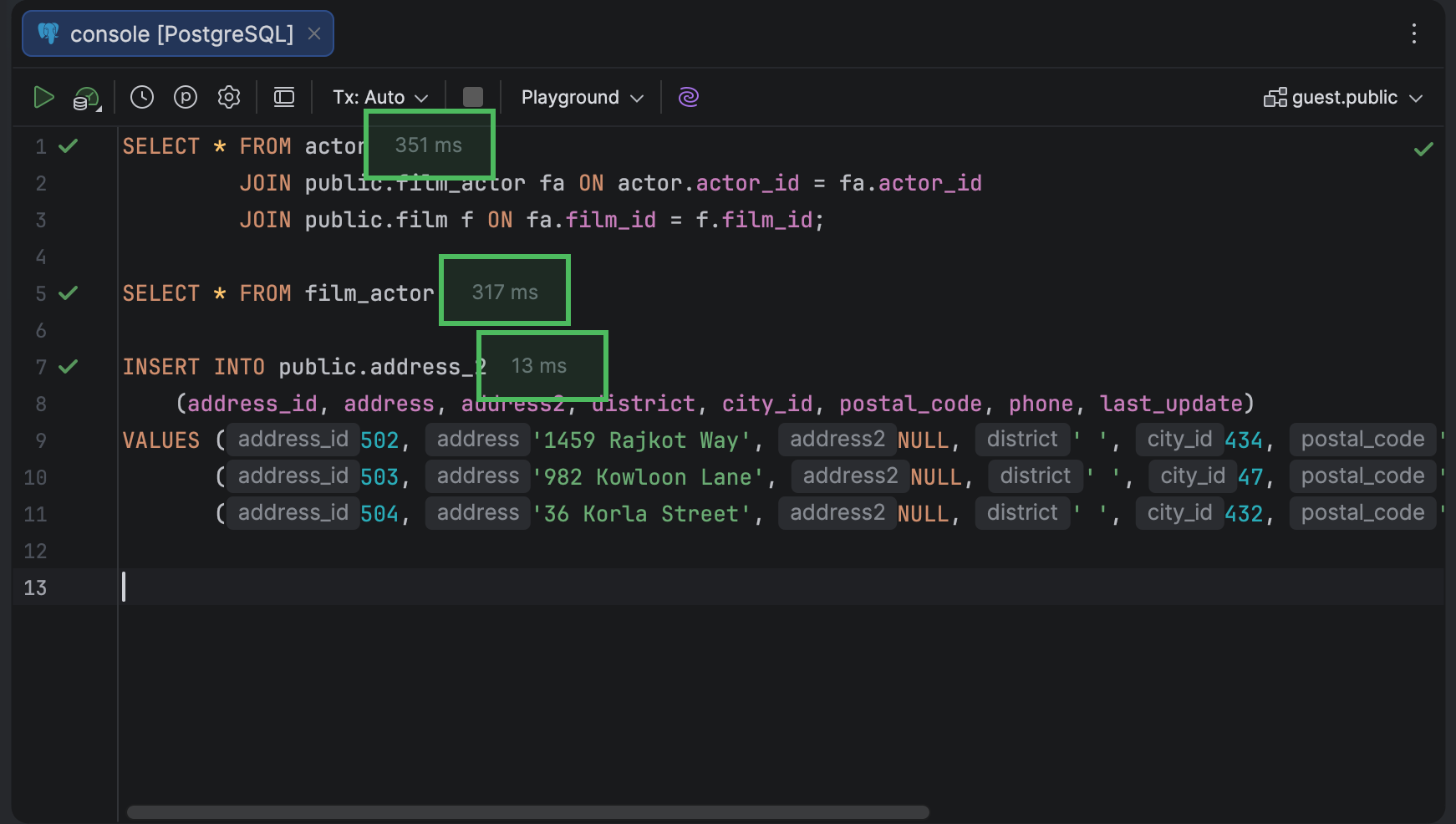
In the code editor, you can now find the execution time right next to each query. After a query is executed, DataGrip displays its execution time on the first line of the query.
We’ve significantly expanded ClickHouse and Snowflake SQL support by including new syntax, improved syntax recognition, and support for additional statements and functions, such as ClickHouse query parameters and SYSTEM statements, and Snowflake flow operations, DATABASE ROLE syntax, and HASH functions.
If you’re interested in upgrading to DataGrip 2026.2, or if you have any questions or suggestions, here are a few links you might find useful:
- Download DataGrip 2026.2.
- Visit our What’s New page for the full list of improvements.
- Contact us on X.
- Report any bugs to our issue tracker
The DataGrip team