

A Deep Dive Into JetBrains Gateway

Recently we announced support for remote development in JetBrains IDEs. This means you can host your source code, toolchains, and an IntelliJ-based IDE running as a service on a remote server. A local thin client, based on the familiar IntelliJ Platform, provides a rich, full featured UI for editing, building, running, testing, debugging, and more.
Everything you need for working on your code can live remotely on a physical server or a virtual machine, giving you clean, reproducible development environments, the power of a server machine, and the ability to work from anywhere.
If you haven’t already seen the announcement, now is a good time to check it out.
Today, let’s take a deeper look at the remote development workflow managed by the new JetBrains Gateway app.
Remote development with JetBrains Gateway
JetBrains remote development will connect to a server via SSH. The IDE is installed as a backend service on the remote machine, where it will load the project without displaying a user interface. A thin client runs locally, connects to the IDE backend and provides a full, rich UI, while all the processing happens remotely.
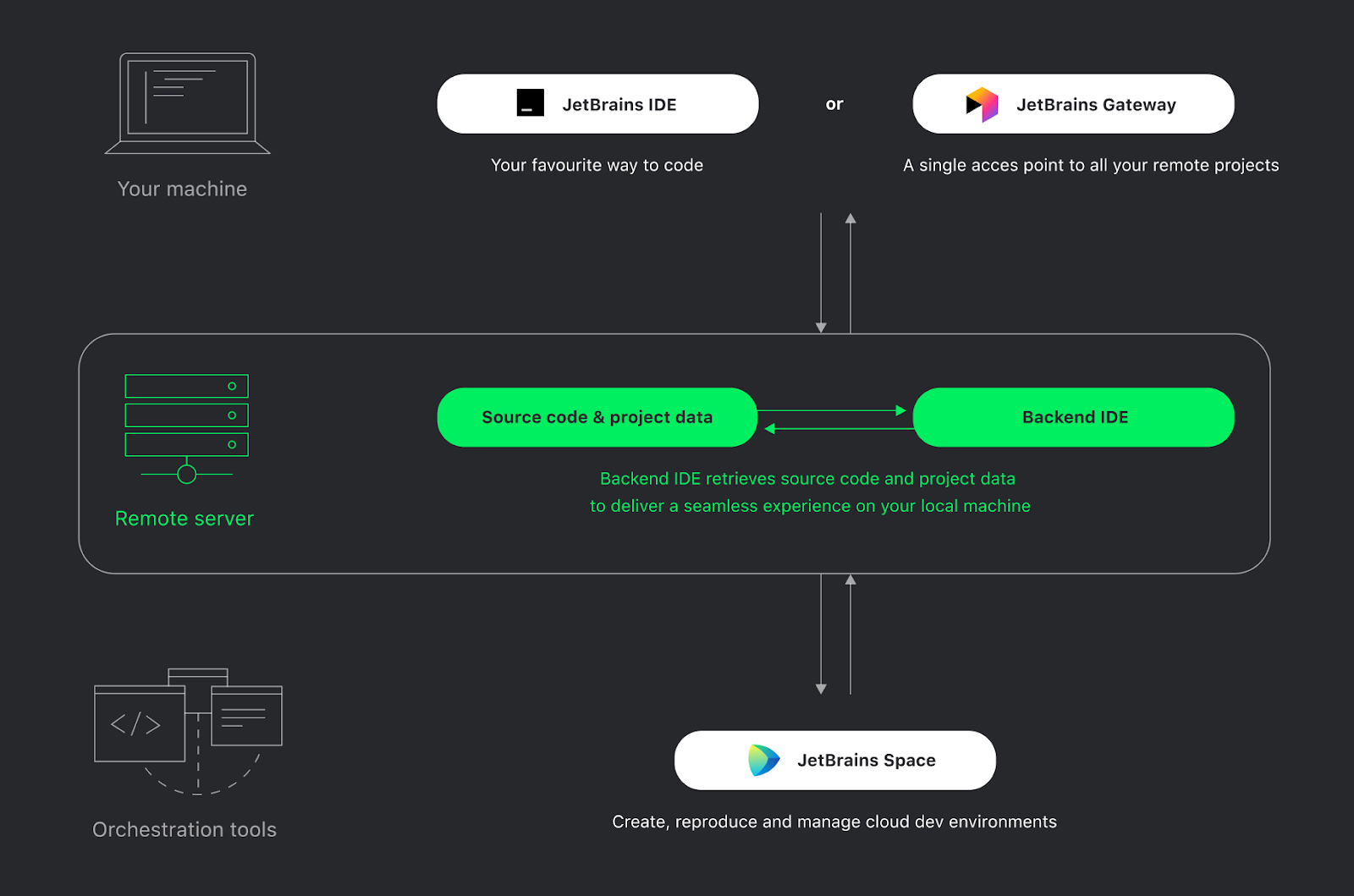
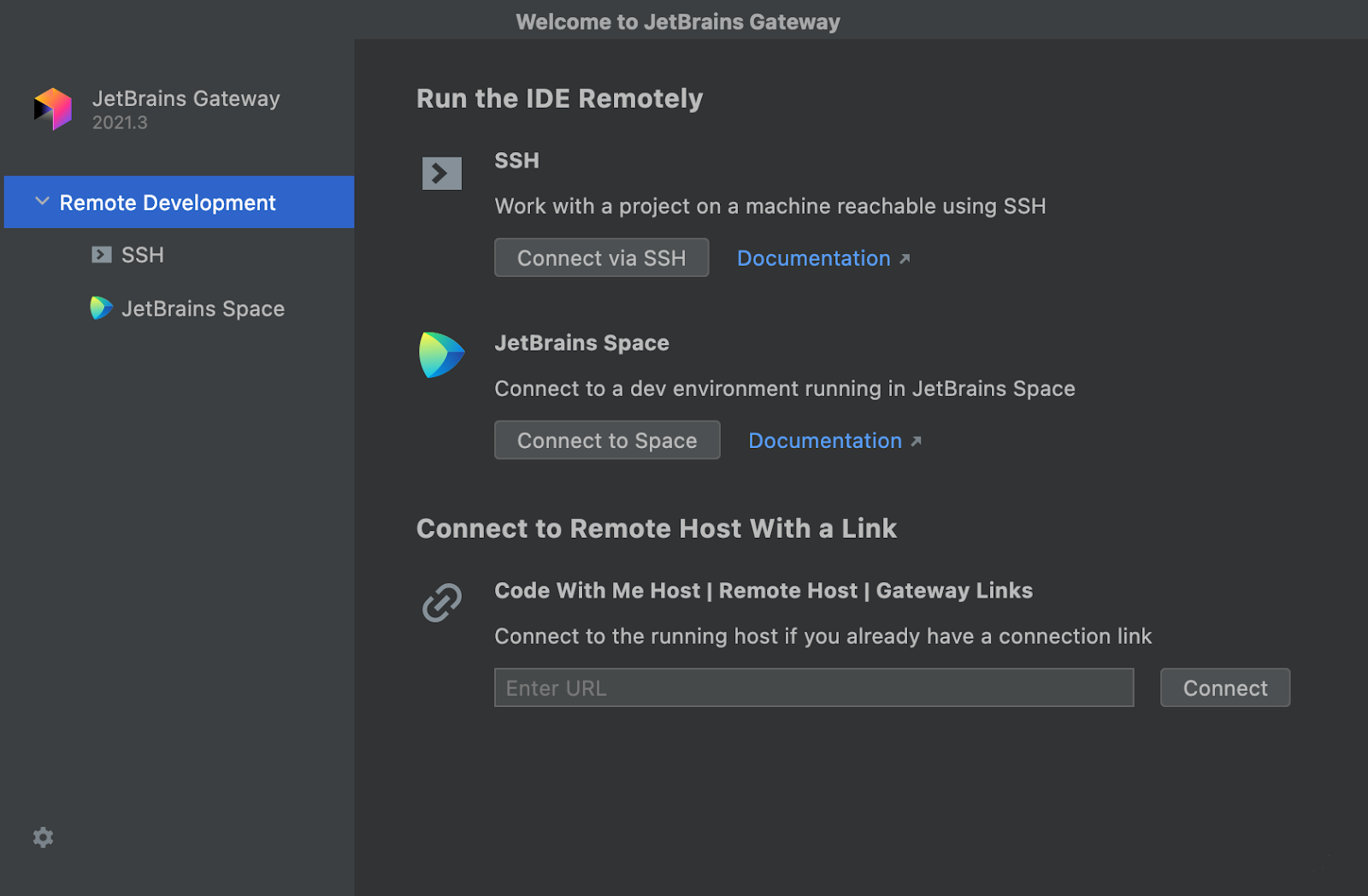
This whole process is managed by JetBrains Gateway, a new, compact, standalone app that provides everything you need to get started with remote development. Since it’s standalone, it’s the only thing you need to install locally to start working and is ideal for less powerful laptops and in cases where a full IDE install isn’t desired.
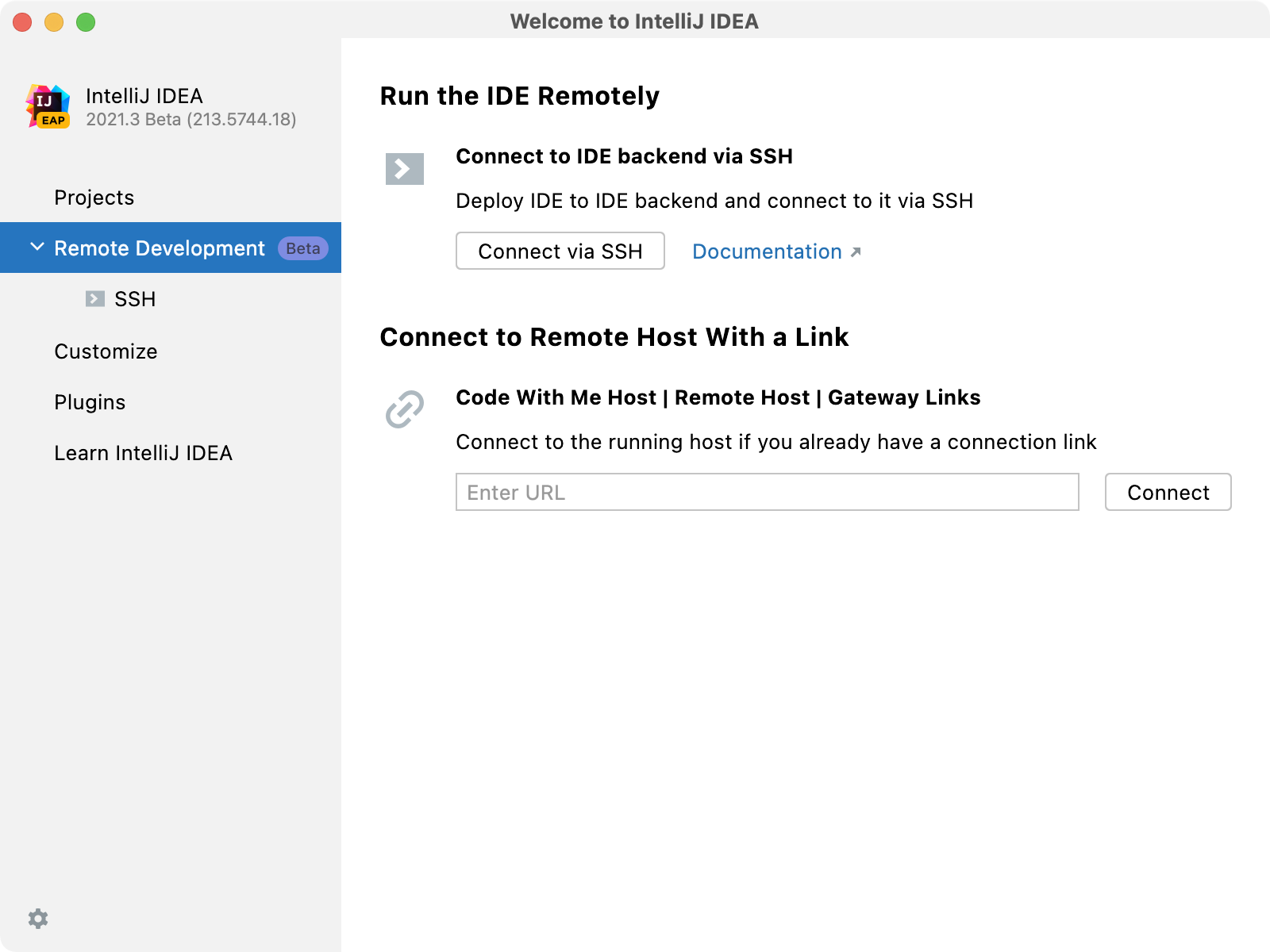
JetBrains Gateway is also bundled as a plugin with a number of JetBrains IDEs. In this initial beta release, you can start a remote development session directly from the Welcome screen of IntelliJ IDEA Ultimate, PyCharm Professional, GoLand, PhpStorm, and RubyMine. Additionally, the standalone Gateway app can install and manage CLion and WebStorm. More IDEs will be supported soon.
Gateway will install the remote IDE backend and the local thin client, and connect them both via SSH. First, it sets up the SSH connection. Specify a host and username and provide either a key or a password, and Gateway will connect to the remote server. It checks to see whether an IDE backend is already installed and will download a new version from jetbrains.com if not.
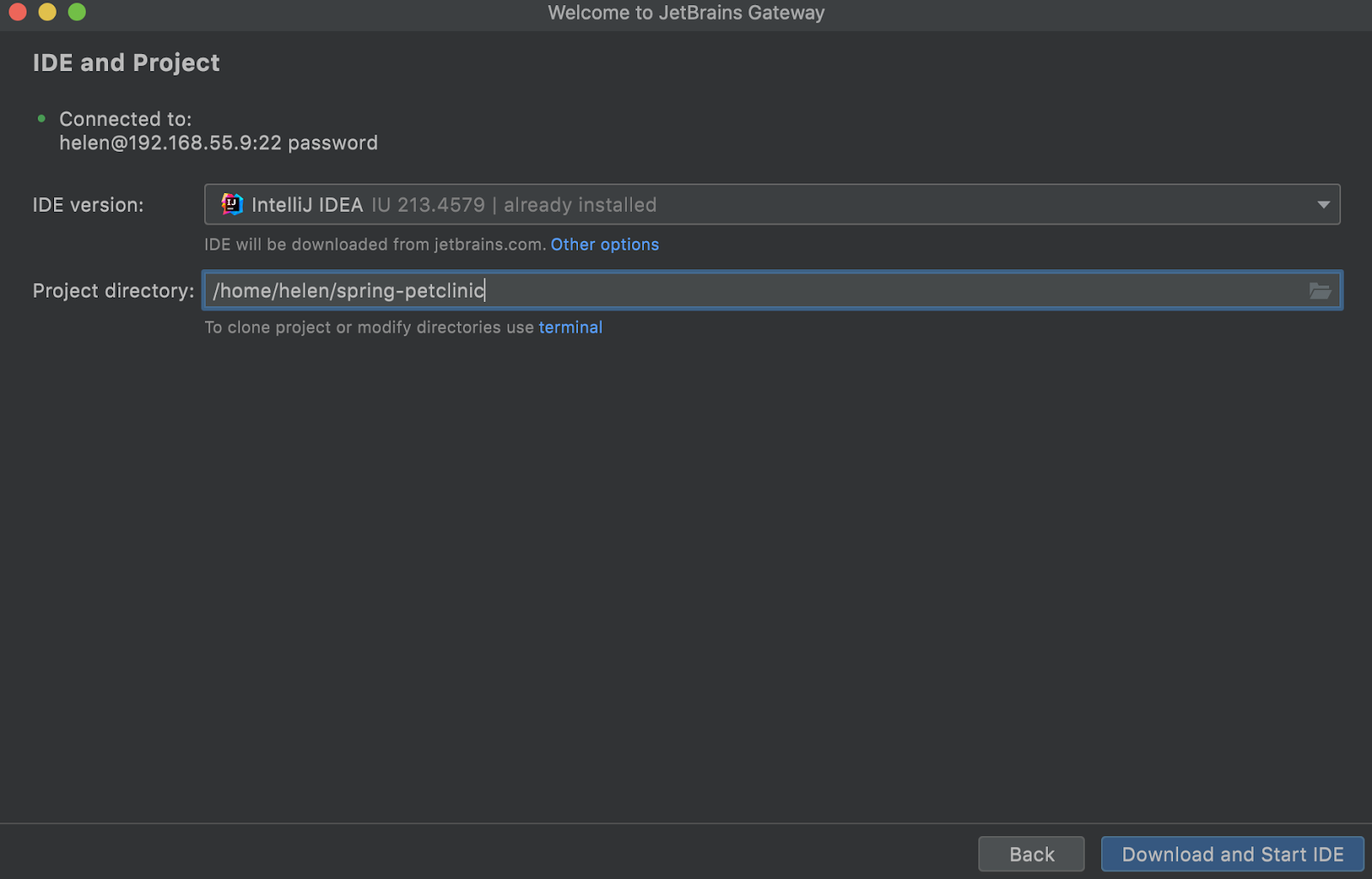
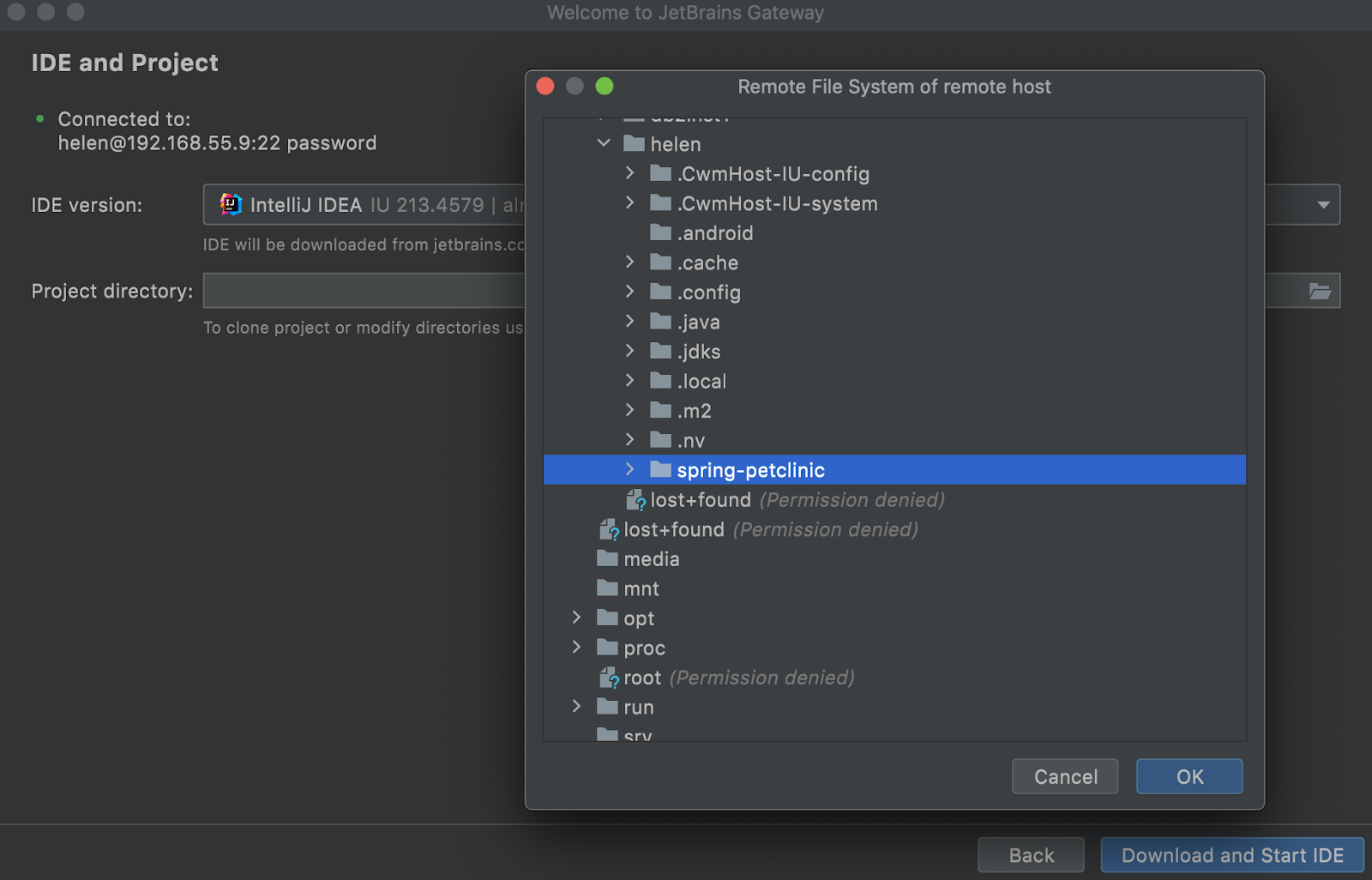
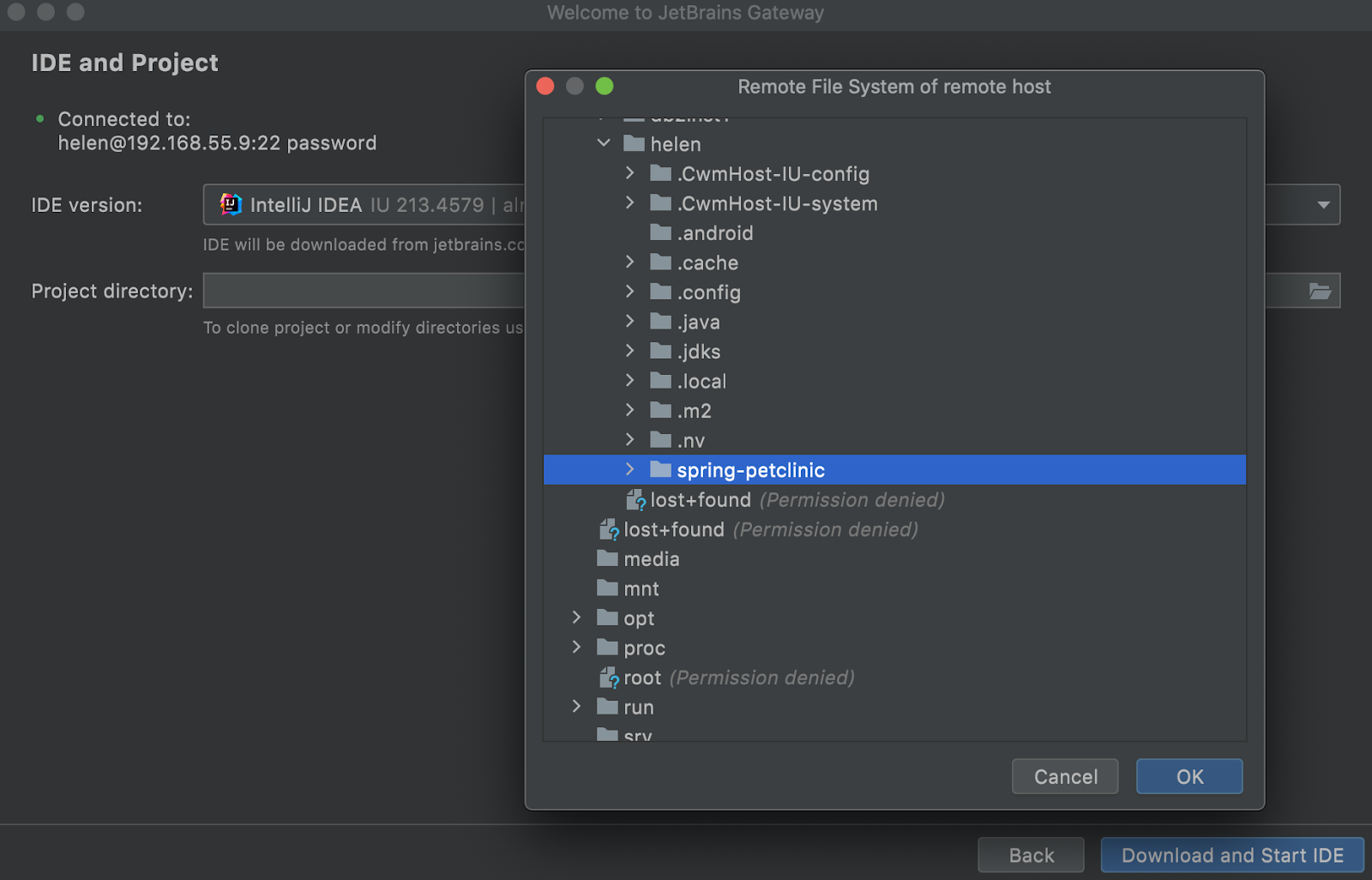
In order to launch the IDE backend, Gateway needs to know the project directory. You can browse the remote file system and choose a directory, or if the project isn’t available yet, you can use the built-in terminal to clone the project from your version control system.
Once the IDE version and project directory are selected, Gateway will download the IDE to the remote server, unpack it, and launch it with your project loaded. It then downloads, caches, and launches a matching version of the JetBrains Client locally.
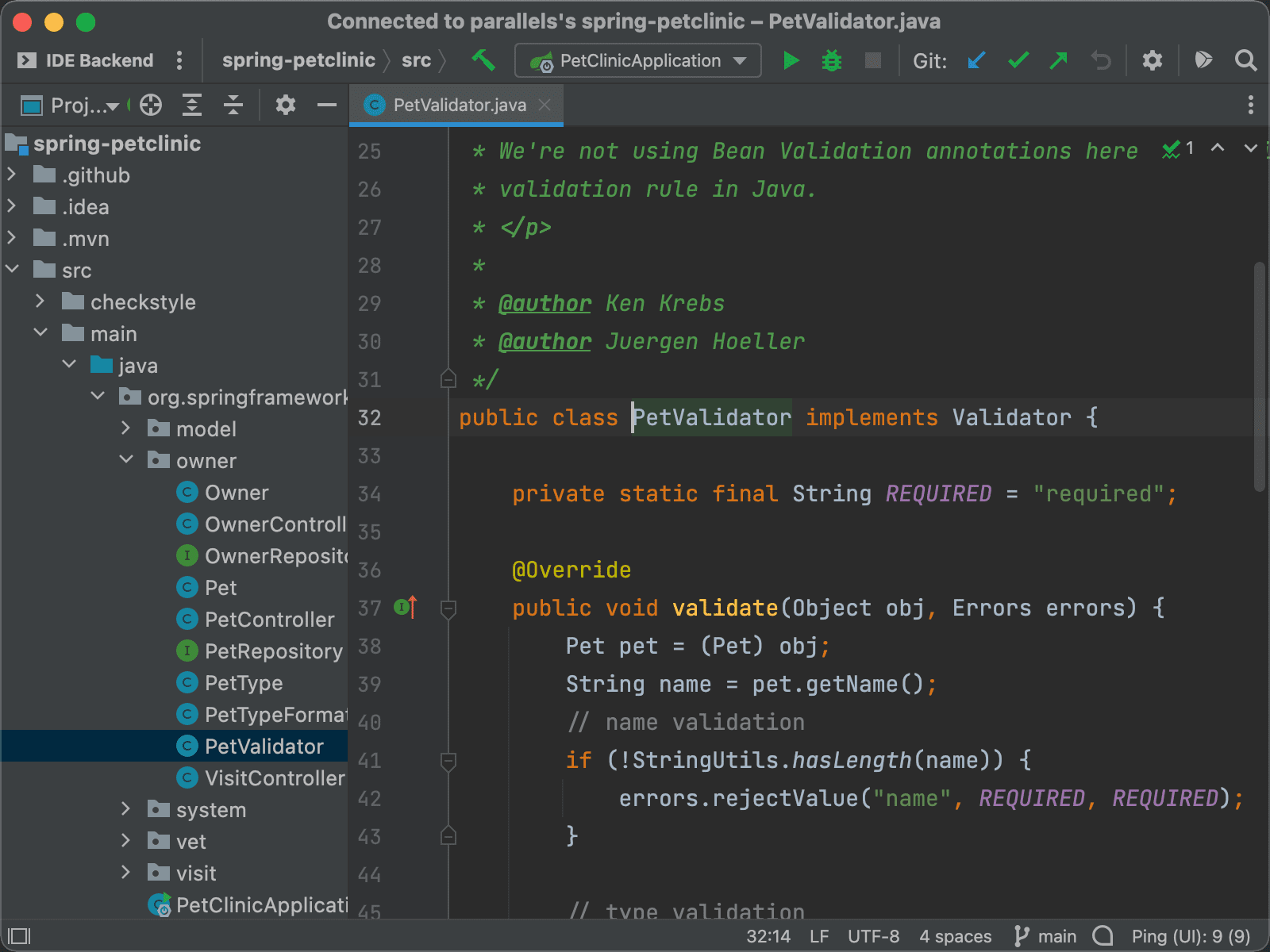
The JetBrains Client runs locally and provides the user interface for the IDE backend. It’s based on the IntelliJ Platform and feels just like a full IntelliJ-based IDE – it has the same editor, code completion, navigation, inspections, and refactoring tools as a local IDE, but all of the files are hosted remotely and all of the language processing is done on the remote server. It is the same JetBrains Client we use for Code With Me, although it’s been taught a few new tricks. It can now show all of the dialogs and tool windows from the IDE backend locally in the rich IDE client, which allows access to all of the features of the remote IDE backend.
Once you’ve finished working with your code, you can simply close the JetBrains Client. The IDE backend will continue running, and you can easily reconnect by clicking the recent connection listed in Gateway.
Server configuration
So far, we haven’t talked much about the remote server. Currently, remote development requires a Linux server, but this will be updated in the future (the Client runs on Windows, macOS, and Linux). Other than that, you can use whatever server you like – physical or virtual, hosted locally, in a data center, or in the cloud.
One of the benefits of using virtual machines or containers is the ability to reproduce an environment and share it amongst the team. To help your DevOps team, JetBrains remote development includes a helper script that can be used to “warm up” an existing environment, by loading the project, downloading dependencies, indexing, and compiling. The resulting image is now ready for you to immediately start coding.
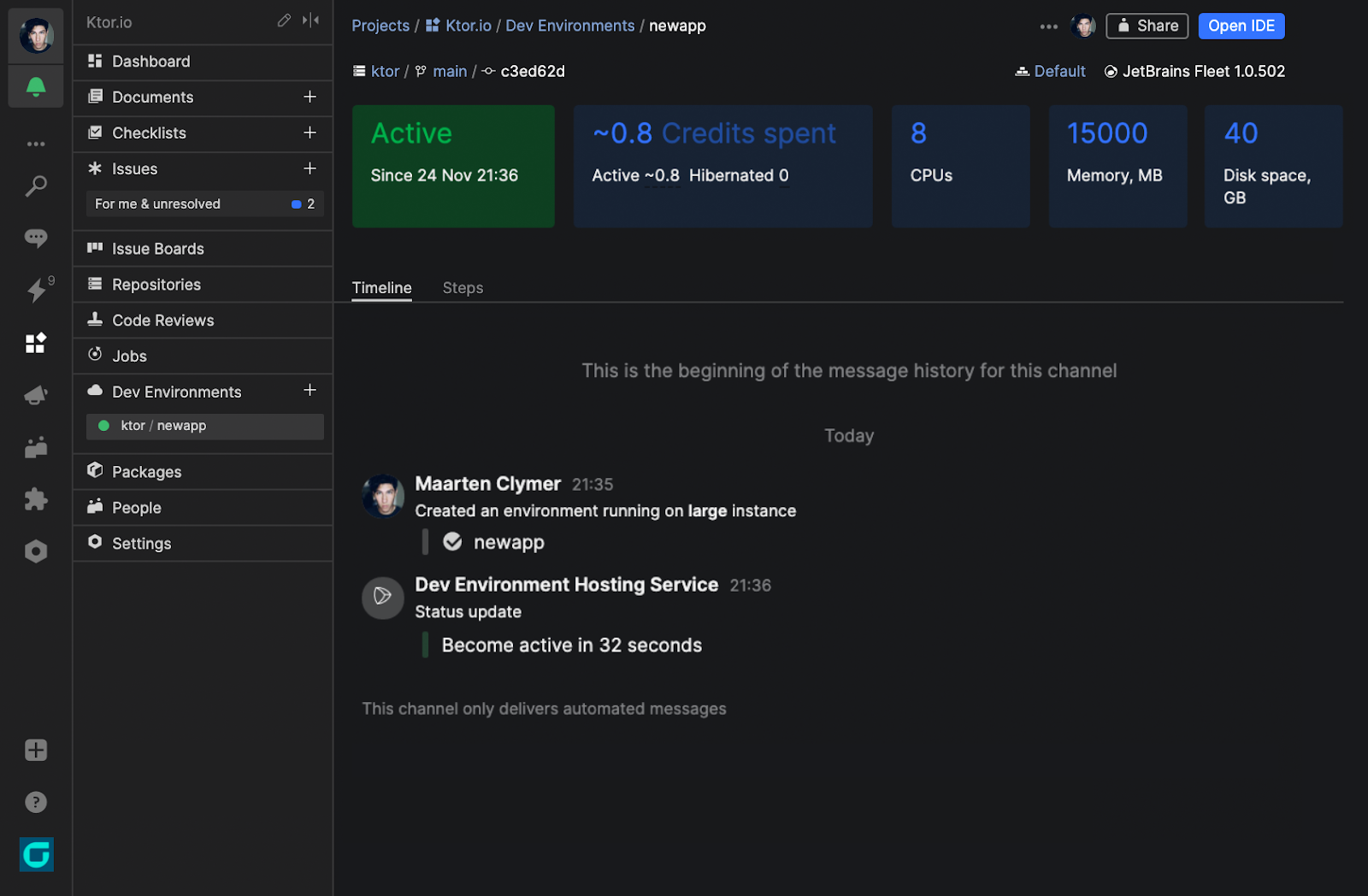
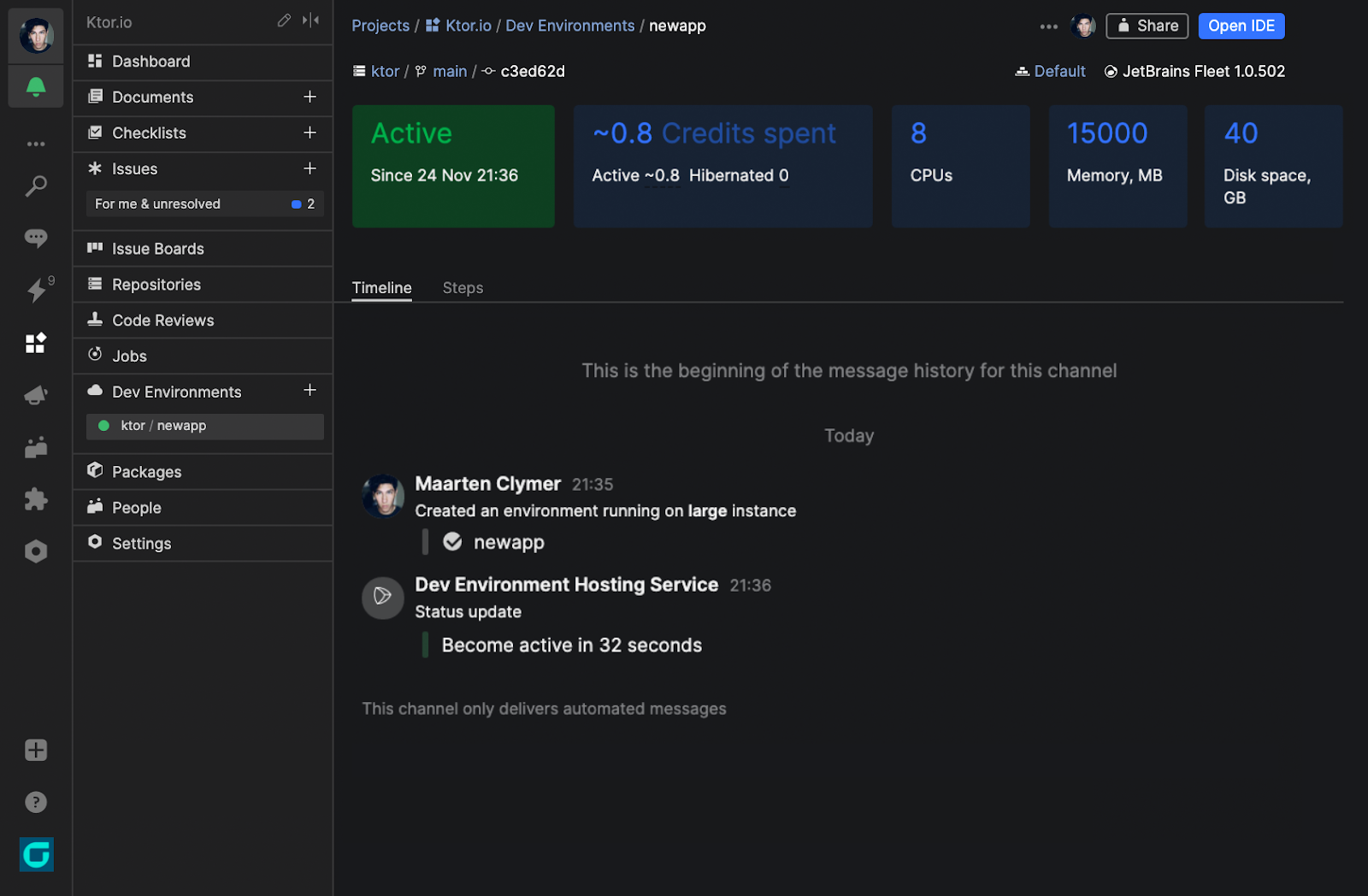
If you’d prefer not to spend time writing your own scripts, JetBrains Space, our all-in-one solution for software teams and projects, has just introduced cloud dev environments. Any project hosted in Space can easily be turned into a dev environment, with support for warming up the project by loading, compiling, indexing, and then saving the environment as a snapshot that is ready for you to start coding in. Read the Space announcement post for more details.
Get started with remote development using the standalone JetBrains Gateway tool, or download the 2021.3 release of your favorite IntelliJ-based IDE (released this week). Check out the documentation and please let us know about your experience!
FAQ
What is the status of remote development support?
You might have noticed the “beta” labels in the screenshots. Support for remote development is baked into the IntelliJ Platform itself, and touches a huge number of features across all IDEs. While we’re confident that the core scenarios work, there are still going to be some hiccups along the way. Nevertheless, we want to get the features into the hands of developers early.
JetBrains Gateway is bundled as a plugin in a number of IDEs. Some other IDEs (CLion and WebStorm) don’t bundle it, since they are not as far along with testing as the others. You can still try out Gateway on these other IDEs using the standalone app.
Finally, there are a few IDEs that currently don’t work with remote development: AppCode, DataGrip, DataSpell, Rider, and Android Studio. We’re actively working to implement support for them as soon as possible.
How is remote development licensed?
Remote development is included as part of an existing paid subscription. A license check is performed when the Client connects to a running IDE backend instance. A license is not required for automation use cases, such as using the IDE backend to create and “warm up” a remote server or server image. However, a license is required in order to use the IDE backend interactively with the JetBrains Client.
Does remote development include collaborative development?
Not yet, but we have plans to add it. Remote development is based on the same technology that powers Code With Me, and the JetBrains Client is the same client used for Code With Me sessions.
However, the usage scenarios are very different. Code With Me is intended to show some tool windows and dialogs to multiple simultaneous users, possibly with different views, while remote development needs to show all tool windows and dialogs to a single user. The team has just been focusing on this scenario for the initial release.
Does remote development offer the full JetBrains IDE experience?
Yes! Even though you’re working with a thin client and a headless IDE backend, all key features, tool windows, and dialogs are available to you. Rich syntax highlighting, navigation, code completion, inspections, Alt+Enter actions, quick-fixes, context actions, refactorings, run configurations, run and debug support, testing and tool windows such as Gradle and Maven, plugins, and much more are available.
Remote development also includes port forwarding, so it’s possible to view projects running remotely via your local browser.
Are alternative UIs available, like web or iPad?
Remote development has been specifically designed to work with the JetBrains Client using the IntelliJ Platform to provide a rich, familiar client application with all of the well-known features of JetBrains IDEs, including customization and personalization with themes and plugins (which are automatically imported from any locally installed IDE). By reusing the approach behind both Rider and Code With Me, the protocol can be based on lightweight “view models”, which results in a good, responsive user experience. As such, we don’t have plans to make a web frontend available.
It is possible to use Projector to access a JetBrains IDE through a web browser. Note that Projector works on a lower level than the remote development protocol, so it has higher UI latency and uses significantly more network bandwidth. Another limitation of Projector is that it doesn’t support importing your settings and plugins from a locally installed IDE.
Are plugins supported?
The IntelliJ Platform has a great ecosystem of plugins, which continue to work with remote development. If a plugin is designed to extend IDE functionality, for example by adding support for a new language or new inspections and highlighting, it can be installed on the IDE backend and these features will automatically be available in the JetBrains Client. Any new inspections, Alt+Enter actions, and so on will work through the Client just as they do when run with a local IDE. Plugin installation can also be automated by scripting the IDE backend.
Plugins that modify the UI of the IDE, such as themes, can be installed on the JetBrains Client rather than the IDE backend. Editor plugins such as IdeaVim will also work on the Client.
Which operating systems are supported?
Currently, JetBrains remote development requires a Linux server, although the Client works on Windows, macOS, and Linux. We’ll be adding support for Windows and macOS servers in the future.
Can I host remote servers in the cloud?
Of course! The remote server can be a physical server sitting in an office or a virtual machine on a desktop or in the cloud. It can be created as a Docker image, and the IDE backend includes scripts for downloading dependencies, compiling, and waiting for indexes to complete.
Are any third parties offering orchestration for JetBrains remote development?
JetBrains Space is currently the only tool offering remote server orchestration, using a Dockerfile to convert a repository into a ready-to-use virtual machine. We are talking to other providers about integration and will have more to announce in the future.
Subscribe to JetBrains Blog updates
Discover more


深入了解 JetBrains Gateway

我们最近宣布了在 JetBrains IDE 中支持远程开发。 这意味着您可以在远程服务器上托管您的源代码、工具链和作为服务运行的基于 IntelliJ 的 IDE。 基于熟悉的 IntelliJ 平台的本地瘦客户端为编辑、构建、运行、测试、调试等提供了丰富的全功能用户界面。
处理代码所需的一切都可以远程位于物理服务器或虚拟机上,给您干净、可重现的开发环境、服务器的强大性能,以及从任何地方工作的能力。
如果您还没有看到这个公告, 不妨现在熟悉一下。
今天,让我们深入了解一下由新的 JetBrains Gateway 应用管理的远程开发工作流。
使用 JetBrains Gateway 进行远程开发
JetBrains 远程开发将通过 SSH 连接到现有服务器。 IDE 作为后端服务安装在远程机器上,将在其中加载项目而不显示用户界面。 瘦客户端在本地运行,连接到 IDE 后端并提供完整、丰富的 UI,而所有处理都在远程服务器上完成。
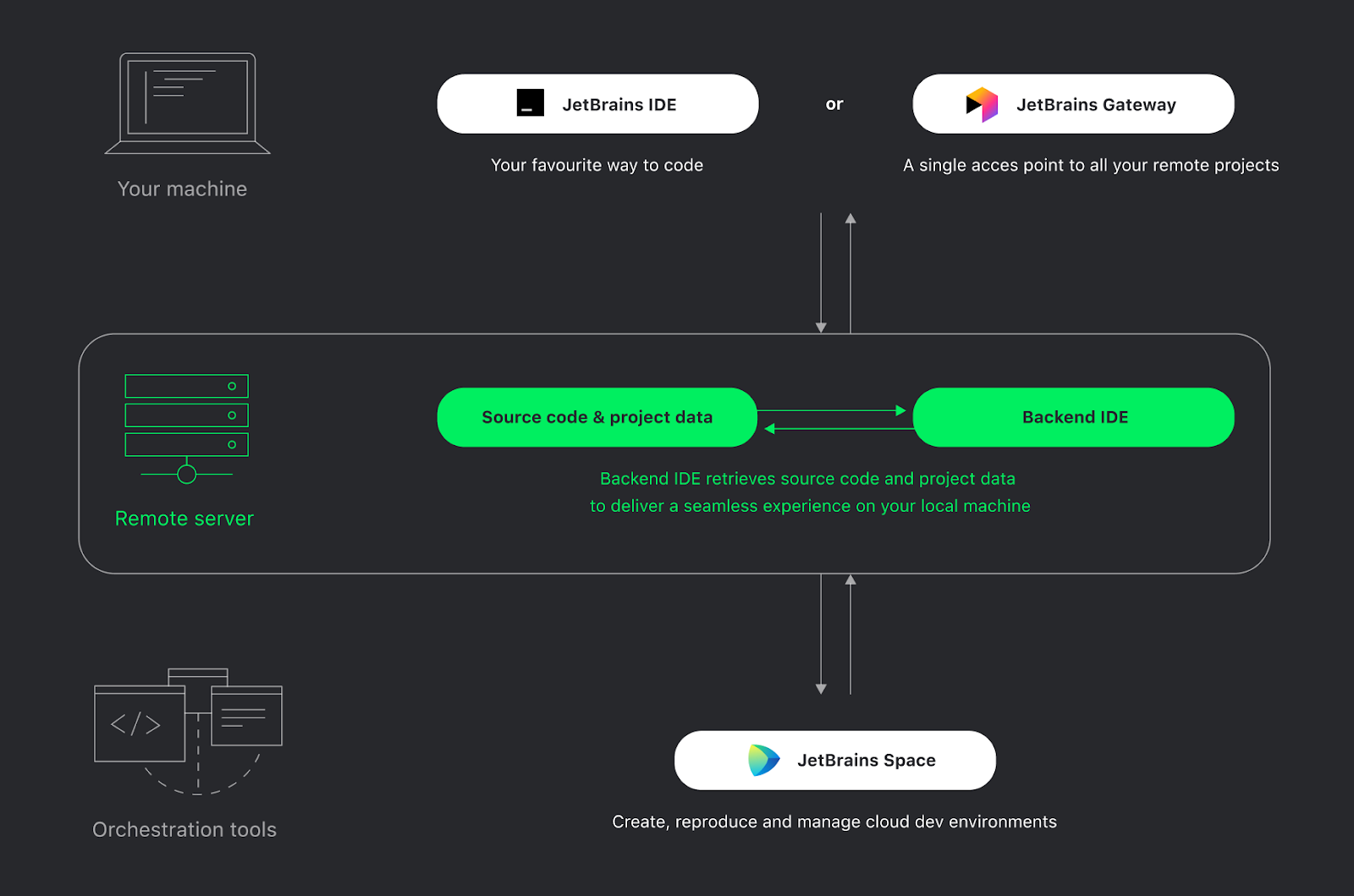
整个流程由 JetBrains Gateway 管理,这是一款全新的紧凑型独立应用,可以满足启动远程开发的所有需求。 由于它是一个独立应用,您只需要在本地安装就可以开始工作,非常适合功能较弱的笔记本电脑以及不需要安装完整 IDE 的情况。
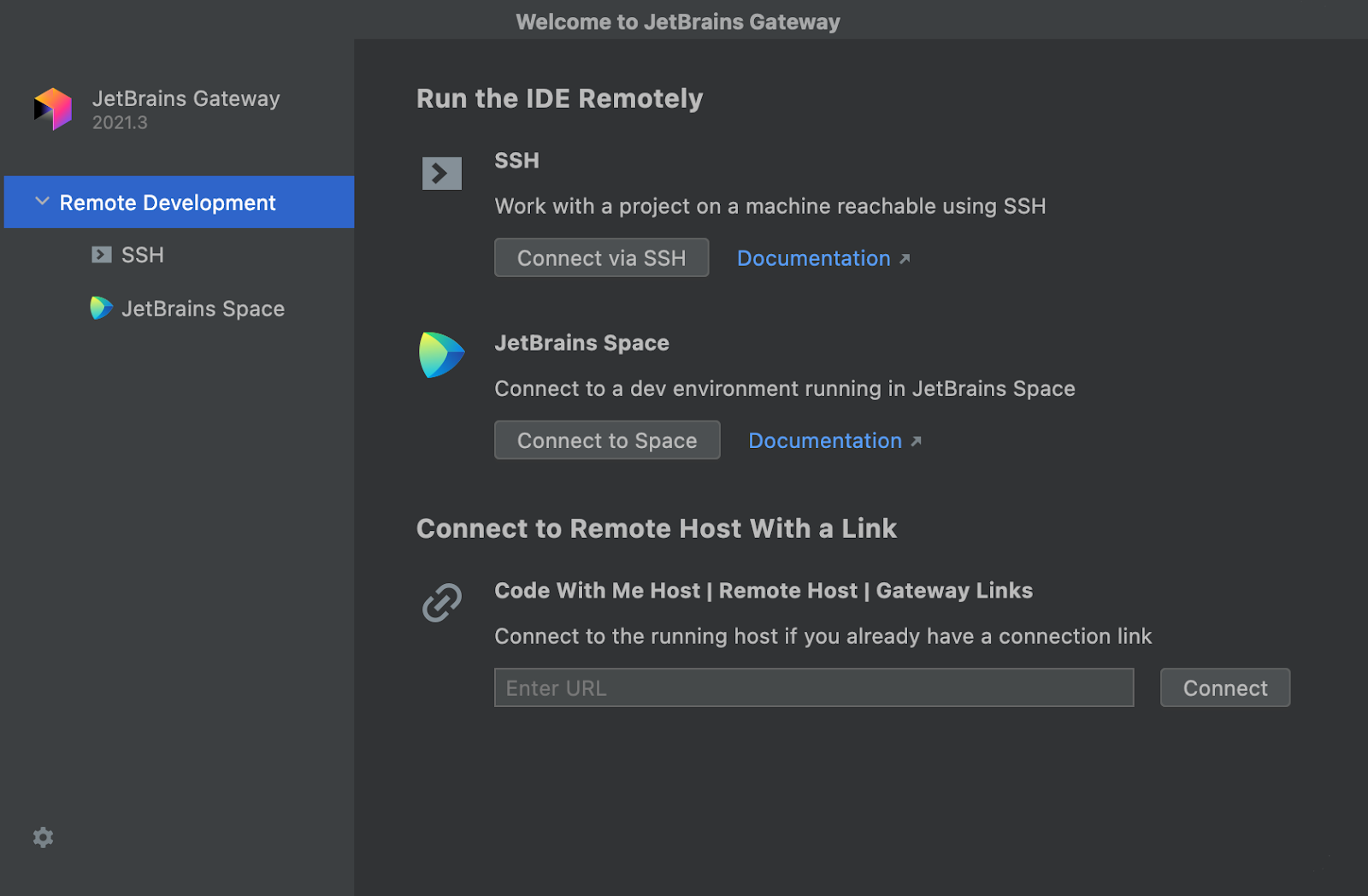
JetBrains Gateway 也作为插件与许多 JetBrains IDE 捆绑在一起。 在这个初始测试版中,您可以直接从 IntelliJ IDEA Ultimate、PyCharm Professional、GoLand、PhpStorm 和 RubyMine 的欢迎屏幕启动远程开发会话。 此外,独立版的 Gateway 应用可以安装和管理 CLion 与 WebStorm。 更多 IDE 支持即将到来。
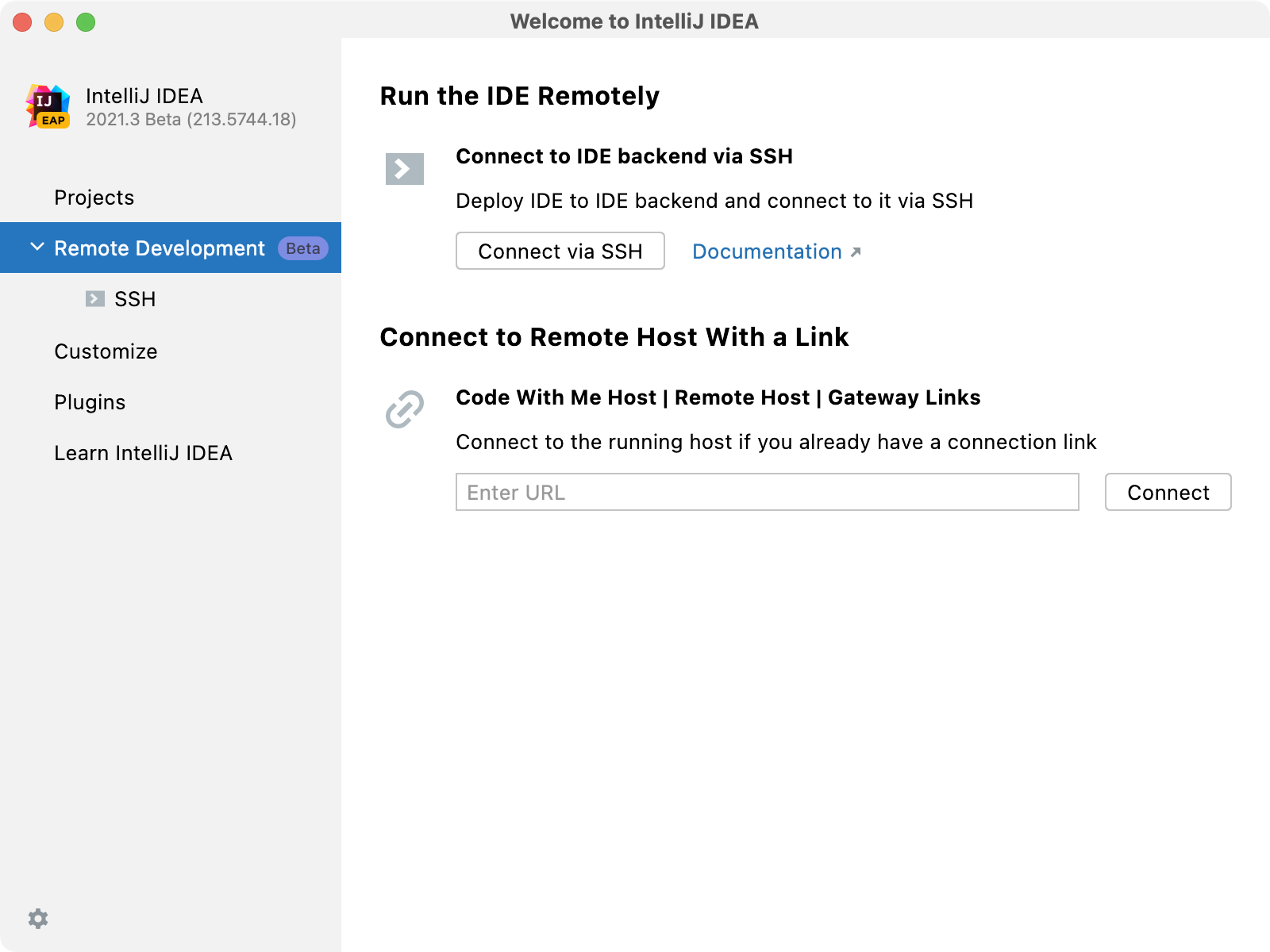
Gateway 将安装远程 IDE 后端和本地瘦客户端,并通过 SSH 将其连接。 首先,它会建立 SSH 连接。 指定主机和用户名并提供密钥或密码后,Gateway 将连接到远程服务器。 它会检查是否已经安装了 IDE 后端,如果没有,则会从 jetbrains.com 下载一个新的版本。
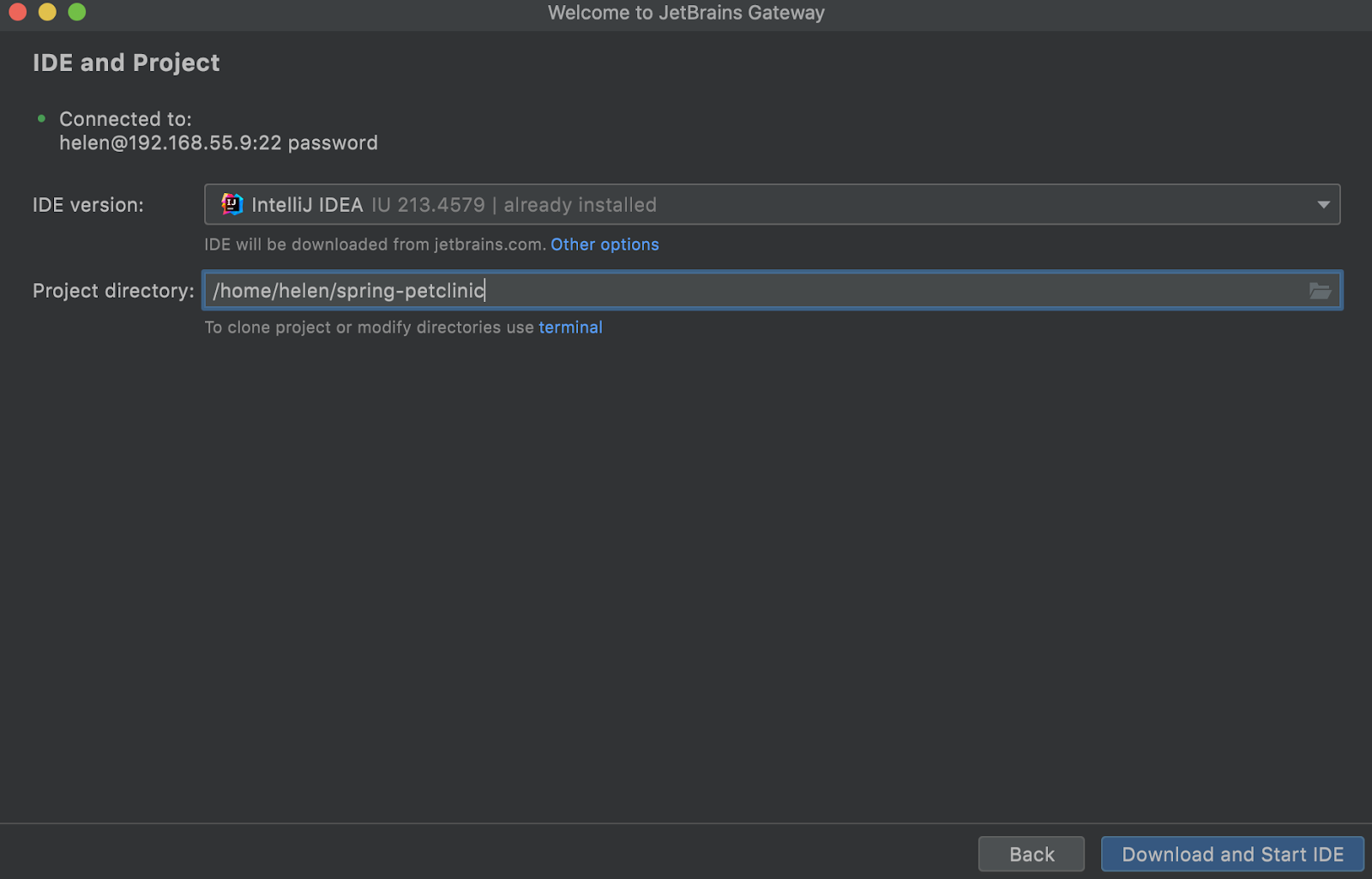
启动 IDE 后端前,Gateway 需要知道项目目录。 您可以浏览远程文件系统并选择一个目录,如果项目尚不可用,您可以使用内置终端从版本控制系统中克隆项目。
选择 IDE 版本和项目目录后,Gateway 会将 IDE 下载到远程服务器、解压缩并启动,同时加载项目。 然后它会在本地下载、缓存和启动匹配版本的 JetBrains Client。
JetBrains Client 在本地运行,并为 IDE 后端提供用户界面。 它以 IntelliJ 平台为基础,使用起来与完整的基于 IntelliJ 的 IDE 别无二致:具有与本地 IDE 相同的编辑器、代码补全、导航、检查和重构工具,但所有文件均远程托管,所有语言处理都在远程服务器上完成。 它与我们在 Code With Me 中使用的 JetBrains Client 相同,但它学会了一些新技巧。 它现在可以在富 IDE 客户端中本地显示来自 IDE 后端的所有对话框和工具窗口,从而允许访问远程 IDE 后端的所有功能。
代码处理完成后即可关闭 JetBrains Client。 IDE 后端将继续运行,后续只需点击 Gateway 最近连接列表中的链接即可重新连接。
服务器配置
到目前为止,我们还没太谈及远程服务器。 目前,远程开发需要 Linux 服务器,但这也将在未来获得更新(Client 可以在 Windows、macOS 和 Linux 上运行)。 除此之外,您可以从物理或虚拟、本地托管、数据中心或云端任意选择您喜欢的服务器。
使用虚拟机或容器的好处之一是可重现环境并在团队中共享。 为了帮助您的 DevOps 团队,JetBrains 远程开发增添了帮助程序脚本,可通过加载项目、下载依赖项、编制索引和编译来“预热”现有环境。 生成的镜像可让您立即开始编码。
如果您不想花时间编写自己的脚本,我们为软件团队和项目提供的一体化解决方案 JetBrains Space 刚刚推出了云开发环境。 任何托管在 Space 中的项目都可以很轻松地变成开发环境,支持通过加载、编译、索引来“预热”项目,然后将环境保存为快照,准备好让您开始编码。 阅读 Space 公告,了解更多详细信息。
使用独立版的JetBrains Gateway工具开始远程开发,或者下载您喜欢的基于 IntelliJ 的 IDE 的 2021.3 版本(本周发布)。 查看文档了解更多信息,同时也请分享您的体验!
常见问题解答
远程开发支持的程度如何?
您可能已经注意到屏幕截图中的“Beta”标签。 对远程开发的支持已融入 IntelliJ 平台本身,并触及所有 IDE 的大量功能。 虽然我们相信核心场景将有效运作,但不保证过程中不会出现任何问题。 尽管如此,我们还是希望尽早将这些功能交到开发者手中。
JetBrains Gateway 作为插件与许多 IDE 捆绑在一起。 其他一些 IDE(CLion 和 WebStorm)不捆绑 Gateway,因为它们在测试方面不如其他 IDE。 您仍然可以使用独立应用在这些 IDE 上试用 Gateway。
最后,还有一些 IDE 目前不支持远程开发:AppCode、DataGrip、DataSpell、Rider 和 Android Studio。 我们正在全力开展工作,希望尽快为其提供支持。
远程开发如何获得许可?
远程开发包含在现有付费订阅中。 当 Client 连接到正在运行的 IDE 后端实例时,将执行许可证检查。 自动化用例不需要许可证,例如使用 IDE 后端创建和“预热”远程服务器或服务器映像。 但是,拥有许可证才能将 IDE 后端与 JetBrains Client 交互使用。
远程开发是否包括协作开发?
尚不包括,但我们已经制定了相关计划。 远程开发以支持 Code With Me 的技术为基础,JetBrains Client 也与用于 Code With Me 会话的客户端相同。
但是,相关使用场景大不相同。 Code With Me 旨在向多个同时使用中的用户显示工具窗口和对话框,可能会提供不同的视图,而远程开发需要向单个用户显示所有工具窗口和对话框。 团队刚刚在初始版本中关注此场景。
远程开发是否提供完整的 JetBrains IDE 体验?
是! 虽然您使用的是瘦客户端和无头 IDE 后端,但所有关键功能、工具窗口和对话框都一应俱全。 丰富的语法高亮显示、导航、代码补全、检查、Alt+Enter 操作、快速修复、上下文操作、重构、运行配置、运行和调试支持、测试和工具窗口(例如 Gradle 和 Maven)和插件等均可供使用。
远程开发还包括端口转发,因此您可通过本地浏览器查看远程运行的项目。
是否提供其他 UI,例如 Web 或 iPad?
远程开发经过特殊设计,专供以 IntelliJ 平台与 JetBrains Client 配合使用,提供丰富、熟悉的客户端应用程序,涵盖 JetBrains IDE 的所有知名功能,包括主题和插件(从本地安装的 IDE 自动导入)的自定义和个性化。 通过重用 Rider 和 Code With Me 背后的方法,协议可以基于轻量级“视图模型”,带来良好的响应式用户体验。 因此,我们并未计划提供 Web 前端。
但在 Projector 上,可以通过 Web 浏览器访问 JetBrains IDE。 注意,Projector 的工作级别低于远程开发协议,因此它具有更高的 UI 延迟并将使用更多的网络带宽。 Projector 的另一个限制是其不支持从本地安装的 IDE 导入设置和插件。
是否支持插件?
IntelliJ 平台具有出色的插件生态系统,能够在远程开发中继续发挥作用。 如果插件的作用是扩展 IDE 功能,例如添加对新语言或新检查的支持和高亮显示,则可以安装在 IDE 后端。这些功能将在 JetBrains Client 中自动加载。 新检查和 Alt+Enter 操作等都将通过 Client 运行,就像在本地 IDE 中一样。 插件安装也可以通过编写 IDE 后端脚本实现自动化。
修改 IDE 的 UI(例如主题)的插件可以安装在 JetBrains Client 而不是 IDE 后端。 IdeaVim 等编辑器插件也适用于 Client。
支持哪些操作系统?
目前,JetBrains 远程开发需要 Linux 服务器,但 Client 可以在 Windows、macOS 和 Linux 上运行。 我们将在未来添加对 Windows 和 macOS 服务器的支持。
我可以在云中托管远程服务器吗?
当然可以! 远程服务器可以是办公室中的物理服务器,也可以是桌面或云中的虚拟机。 它可以创建为 Docker 镜像,IDE 后端包含用于下载依赖项、编译和等待索引完成的脚本。
是否有第三方为 JetBrains 远程开发提供编排?
JetBrains Space 是目前唯一提供远程服务器编排的工具,它使用 Dockerfile 将仓库转换为随时可用的虚拟机。 我们正在与其他提供商讨论集成问题,未来将公布更多消息。
英文博文原作者:
