

Kotlin
A concise multiplatform language developed by JetBrains
Compose Multiplatform 1.2 출시: 새로운 마우스 및 키보드 API, ProGuard 지원, 온라인 업데이트 등

이제 Compose Multiplatform 1.2를 사용할 수 있습니다! Kotlin을 위한 선언적 UI 프레임워크의 이 최신 버전은 최신 Kotlin 버전과 호환되며 데스크톱 대상을 위한 몇 가지 강력한 기능이 도입되었습니다. 구체적으로 주요 기능은 다음과 같습니다.
- 새로 추가된 ProGuard 지원을 통해 전달하기 전에 애플리케이션을 축소하고 난독화할 수 있습니다.
- 포커스 관리가 개선되어 양식 요소의 키보드 탐색이 더욱 용이해졌습니다.
- 마우스 및 키보드 입력을 처리하는 API가 개선되어 클릭과 드래그로 작동하는 액션을 더 편리하게 구현할 수 있습니다.
- 레이아웃 및 입력 필드에서 오른쪽에서 왼쪽으로 쓰는 언어(RTL)에 대한 공식 지원을 도입했습니다.
- 포커스 관리와 컨텍스트 메뉴를 위한 Swing 상호 운용성이 더욱 원활해지고 있습니다.
- Compose Gradle 플러그인의 대안으로 이제 타사 도구인 Hydraulic Conveyor를 사용하여 데스크톱 애플리케이션을 패키징할 수 있습니다. 이 도구를 사용하면 다운로드 페이지를 쉽게 빌드하고 여러 플랫폼에 대해 애플리케이션 공증을 제공하며 애플리케이션에 자동 업데이트 기능을 통합할 수 있습니다.
Compose Multiplatform 1.2의 새로운 기능을 자세히 살펴보겠습니다!
ProGuard 최적화 및 난독화 도구 지원
최신 버전의 Compose Multiplatform부터 이제 ProGuard를 사용하여 특별한 구성을 제공하지 않고도 번들 애플리케이션의 성능과 크기를 개선할 수 있습니다. ProGuard는 최적화 기술로 코드를 축소하여 최종 바이너리의 크기를 줄입니다. 또한 코드 최적화를 통해 불필요한 함수 호출이나 객체 대입을 제거하여 성능을 조금 더 향상할 수 있습니다. 필요다면 사용자가 애플리케이션에 코드 난독화를 적용할 수도 있습니다.
내부 테스트 결과, ProGuard로 애플리케이션을 처리하면 샘플 애플리케이션의 최종 배포 크기가 크게 줄어드는 것으로 나타났습니다.
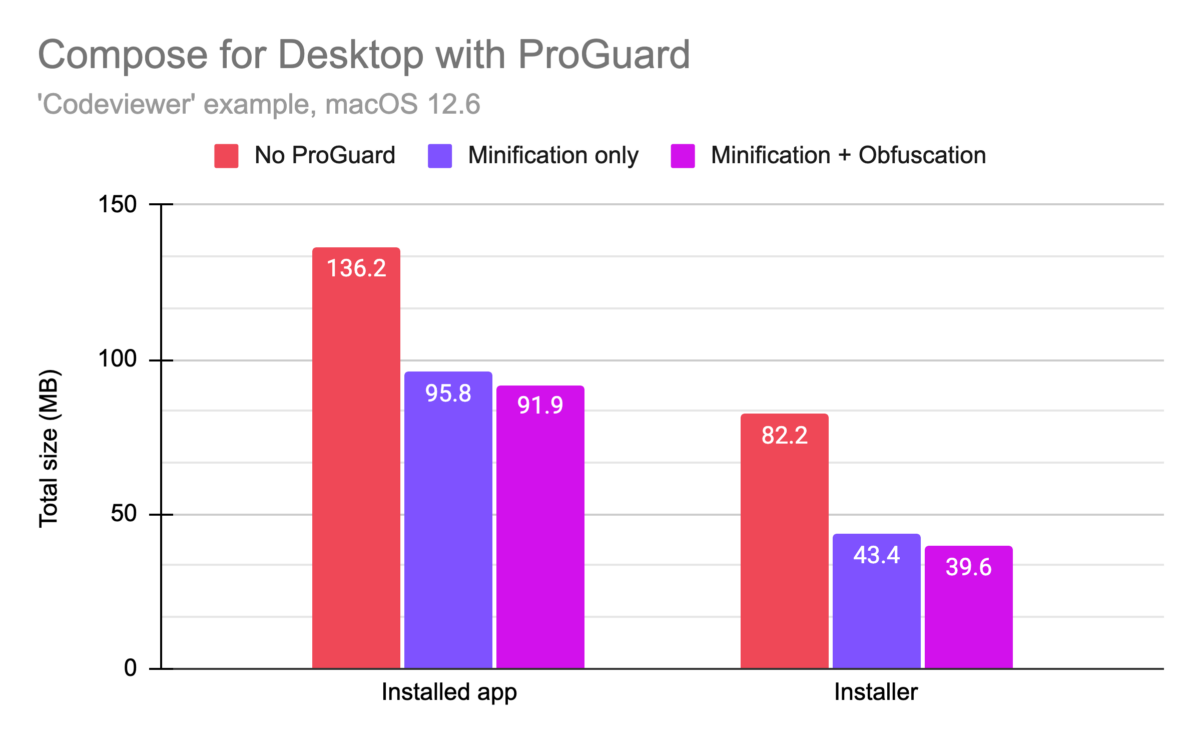
프로젝트에 대한 Gradle 구성에서 옵션을 지정하지 않아도 새로운 runReleaseDistributable 및 packageRelease<PACKAGE_FORMAT> 작업을 사용하여 ProGuard로 코드를 처리하고 이후에 실행하거나 패키징할 수 있습니다.
사용자 정의 ProGuard 규칙 제공
애플리케이션이 리플렉션을 사용하거나 런타임에 바이트코드를 생성하는 경우, 최적화 프로세스 중에 제거해서는 안 되는 클래스에 대한 지침을 ProGuard에 제공해야 할 수 있습니다. 이는 표준 ProGuard 구성 파일을 제공하고 buildTypes.release.proguard 블록의 Gradle 빌드 파일에서 이를 구성하면 됩니다.
Compose Multiplatform에서 제공하는 ProGuard 통합 기능을 자세히 알아보려면 GitHub 저장소에서 제공하는 예시 프로젝트를 살펴보세요.
키보드 탐색을 위한 향상된 포커스 관리
UI 요소의 포커스를 관리하는 부분에서 일부 동작을 새롭게 개선하여 사용자가 키보드 단축키로 요소와 입력을 보다 효과적으로 탐색하도록 했습니다. 클릭 가능한 요소와 토글 가능한 요소(제어자 Modifier.clickable 및 Modifier.toggleable 포함)가 이제 클릭 시 포커스를 요청하므로 포커스 가능한 항목 간의 탐색이 사용자가 예상하는 대로 작동합니다(클릭 후 포커스 가능한 다음 항목 선택). 또한 요소에 포커스가 맞춰지면 기본적으로 키보드 단축키를 더 쉽게 사용할 수 있도록 하는 새로운 동작도 도입했습니다.
Modifier.toggleable로 표시된 컴포저블은 이제 스페이스바를 사용하여 켜고 끌 수 있습니다.Slider컴포저블은 이제 방향키(한 번에 한 단계씩 값 증가), Page Up 및 Page Down 키(한 번에 값 범위의 10% 이동), 그리고 Home 및 End 키(값을 각 범위의 0% 또는 100%로 설정)를 사용하여 제어할 수 있습니다.DropDownMenu,CursorDropDownMenu및ContextMenu의 메뉴 항목을 이제 키보드 방향키를 이용해 탐색할 수 있습니다.
마우스 및 키보드 API 개선
또한 마우스 및 키보드 입력을 더 편리하게 사용할 수 있도록 Compose for Desktop의 실험적 API를 개선합니다. 특히 제어자 키에 더 쉽게 액세스할 수 있도록 onClick 및 onDrag 제어자를 도입합니다.
마우스 및 키보드 API는 현재 Compose Multiplatform의 데스크톱 대상에서만 사용할 수 있습니다.
새로운 onClick 제어자
현재 사용되지 않는 Modifier.mouseClickable을 대체하기 위해 Modifier.onClick을 도입합니다. 이 새로운 제어자를 사용하면 콜백을 사용하여 모든 유형의 클릭 처리를 세밀하게 제어할 수 있습니다. PointerMatcher를 사용하여 다양한 유형의 클릭(일반, 더블 클릭, 긴 클릭)과 사용 중인 버튼(마우스 왼쪽 버튼, 마우스 오른쪽 버튼, 마우스 가운데 버튼 등)을 구별할 수 있습니다. 또한 keyboardModifiers 람다 매개변수를 통해 눌러야 하는 특정 키보드 제어자 키에 대해 이러한 콜백을 조건부로 만들 수도 있습니다.
이 API를 더 자세히 살펴보고 싶은 분들을 위해 이 제어자가 제공하는 다양한 옵션의 사용법을 안내하는 튜토리얼을 준비했습니다. 여러 onClick 제어자를 개별 조건과 제어자 키에 연결할 수 있는 방법도 설명되어 있습니다.
새로운 onDrag 제어자
onDrag 제어자를 사용하여 드래그 이벤트 시 호출되는 콜백을 지정할 수 있습니다. onClick과 마찬가지로 PointerMatcher와도 작동합니다. 즉, 드래그 이벤트가 작동해야 하는 마우스 버튼과 같은 추가적인 제약 조건을 구성할 수 있습니다. 마찬가지로, 각 마우스 버튼과 작동하는 여러 onDrag 제어자를 지정할 수 있으므로 예를 들어 마우스 왼쪽 및 오른쪽 버튼에 대해 서로 다른 드래그 동작을 구현할 수 있습니다.
이는 또한 Compose Multiplatform의 Android 대상에서 볼 수 있듯이 항상 기본 버튼을 사용하는 draggable 제어자와 같은 요소와 이 실험적 API를 차별화하는 부분입니다.
이 API에 대한 자세한 정보를 알려드리기 위해 더 광범위한 사용 사례와 더불어 PointerInputScope에서 드래그 및 탭 제스처 수신과 같은 고급 기능을 보여주는 튜토리얼을 준비했습니다.
키보드 제어자 액세스
모든 컴포저블의 컨텍스트에서 이제, 현재 누른 키보드 제어자(Ctrl, Shift, Alt 등)에 대한 액세스를 제공하는 LocalWindowInfo.current.keyboardModifiers 상태를 사용할 수 있습니다. keyboardModifiers는 제어자 키를 누르거나 놓을 때 자동으로 업데이트되는 상태이므로 이러한 키보드 제어자에 종속된 컴포저블은 재구성됩니다.
오른쪽에서 왼쪽으로 쓰는 언어 및 스크립트 지원
버전 1.2부터 Compose for Desktop은 이제 오른쪽에서 왼쪽으로 쓰는 언어를 지원합니다. 기본적으로 탐지된 시스템 언어에 따라 레이아웃과 입력이 자동으로 전환됩니다. 사용 중인 스크립트의 방향에 따라 동작을 구현하는 경우, 이 정보를 노출하는 LocalLayoutDirection CompositionLocal을 사용할 수 있습니다.
Swing과의 키보드 탐색 상호 운용성 및 공유 컨텍스트 메뉴
Compose for Desktop으로 빌드된 사용자 인터페이스와 Swing으로 빌드된 사용자 인터페이스를 결합하면 버전 1.2에서 좀 더 편리해집니다. 이제 SwingPanel(Compose for Desktop 애플리케이션에 Swing 요소를 포함시킬 때 사용) 또는 ComposePanel(기존 Swing 애플리케이션에 Compose for Desktop을 포함시킬 때 사용)을 사용하면 키보드 탐색과 관련하여 작업이 원활해집니다. 예를 들어, Tab 키로 전환 시 두 UI 프레임워크의 포커스 가능한 요소가 적합하게 선택됩니다.
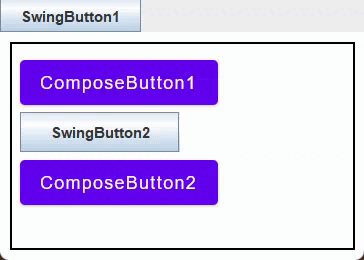
Compose for Desktop을 기존 Swing 애플리케이션에 추가하는 경우, 이제 애플리케이션의 두 부분 모두에서 텍스트 및 텍스트 필드에 대해 동일한 컨텍스트 메뉴를 사용할 수 있습니다. 이렇게 하려면 JPopupTextMenu 컴포저블을 사용하면 됩니다.
컨텍스트 메뉴에 대한 Swing 상호 운용성을 자세히 소개하고 전체 샘플을 제공하는 여러 튜토리얼도 제공됩니다.
Conveyor by Hydraulic을 통한 온라인 업데이트로도 앱 배포
버전 1.2에서는 Hydraulic의 타사 도구인 Conveyor를 사용하여 Compose Gradle 플러그인 대신 데스크톱 앱을 패키지로 생성할 수 있습니다. Conveyor는 오픈 소스 프로젝트에 무료로 제공되며 도입 기간 동안은 상업적 용도로도 무료로 제공됩니다.
Compose Gradle 플러그인과 마찬가지로 대상 플랫폼의 기본 형식으로 제공되고 자체 번들 JVM과 함께 제공되는 완전히 독립적인 애플리케이션을 만들 수 있습니다. 또한 Conveyor는 온라인 업데이트 지원, 다운로드 페이지 생성(예시), 각 플랫폼에 대한 아이콘 자동 변환 및 다양한 기타 기능도 추가합니다. 그뿐 아니라 Conveyor는 기본 도구에 종속되지 않기 때문에 모든 운영 체제에서 패키지를 빌드, 서명 및 공증할 수 있습니다.
Conveyor는 배포를 대폭 간소화하기 때문에 Compose for Desktop에 매우 적합합니다. 간소화 덕분에 더 수월하게 온라인 업데이트를 제공하고 복잡한 멀티플랫폼 CI/CD 설정을 피할 수 있습니다. Windows 및 macOS 모두에서 내부 또는 개발자 대상 앱에 대한 추가적 편의도 제공합니다. 기본 자체 서명 모드를 사용하는 경우, 생성된 다운로드 페이지에서 복사하여 붙여넣을 수 있는 명령어가 제공되므로 터미널을 통해 앱을 설치할 수 있습니다(예시).
마무리
Compose Multiplatform 최신 버전을 활용하여 멋진 애플리케이션용 UI를 제작하시기 바랍니다! 일부 사소한 변경 사항은 이 릴리스 게시물에 소개되지 않았습니다. Compose Multiplatform 1.2의 모든 변경 및 개선 사항에 대한 전체 목록을 보려면 저장소에서 변경 로그를 자유롭게 살펴보세요.
버전 1.2부터 Compose Multiplatform은 여러 버전의 Kotlin 컴파일러를 지원합니다. 데스크톱 대상은 Kotlin 1.7.10과 Kotlin 1.7.20을 모두 지원합니다. 웹 대상은 현재 Kotlin 1.7.10을 지원하며 다음 마이너 업데이트를 통해 1.7.20에 대한 지원을 제공할 예정입니다.
늘 그렇듯이 이 최신 버전의 Compose Multiplatform을 시작하는 가장 쉬운 방법은 공식 튜토리얼을 살펴보거나 IntelliJ IDEA의 Kotlin 프로젝트 마법사를 사용하여 직접 사용해보는 것입니다. 즐겁게 컴포징하세요!
기타 참고 자료
게시물 원문 작성자


Subscribe to Kotlin Blog updates
Discover more







Compose Multiplatform 1.2 Is Out: New Mouse and Keyboard APIs, ProGuard Support, Online Updates, and More

Starting today, Compose Multiplatform 1.2 is available for you to use! This latest version of the declarative UI framework for Kotlin brings compatibility with the latest Kotlin version and introduces several powerful features for the desktop target. Specifically, here are the highlights:
- The newly added ProGuard support allows you to minify and obfuscate your application before shipping.
- Focus management is being improved, resulting in better keyboard navigation through form elements.
- A reworked API for handling mouse and keyboard input makes it more convenient to implement actions that react to clicking and dragging.
- We are introducing official support for right-to-left languages (RTL) for layouts and input fields.
- Swing interoperability for focus management and context menus is becoming more seamless.
- As an alternative to the Compose Gradle Plugin, you can now package your Desktop application using the third-party tool Hydraulic Conveyor, which makes it easy to build download pages, notarize your application for multiple platforms, and integrate auto-update functionality in your application.
Let’s look at the new features in Compose Multiplatform 1.2 in detail!
Explore the Compose Multiplatform Website
Support for the ProGuard optimizer and obfuscator
Starting with the latest version of Compose Multiplatform, you can now use ProGuard to improve the performance and size of your bundled application without having to provide special configurations. ProGuard applies optimizing techniques to shrink your code, reducing the size of your final binary. It also optimizes your code, which can provide slight performance improvements by removing unnecessary function calls or object allocations. Optionally, it also allows you to apply code obfuscation to your application.
In our tests, we’ve observed that processing an application with ProGuard significantly reduced the final distribution size for our sample applications.
Even without specifying any options in your Gradle configuration for your project, you can use the new runReleaseDistributable and packageRelease<PACKAGE_FORMAT> tasks to process and subsequently run or package your code using ProGuard.
Providing custom ProGuard rules
If your application is using reflection or generates bytecode at runtime, you may need to give ProGuard instructions on which classes should not be removed during the optimization process. You can do so by providing a standard ProGuard configuration file and configuring it in your Gradle build file in the buildTypes.release.proguard block:
If you would like to take a closer look at the ProGuard integration provided in Compose Multiplatform, take a look at the example project provided in the GitHub repository.
Improved focus management for keyboard navigation
We have reworked some of the behavior when it comes to managing focus of UI elements, which influences the way users can navigate your elements and inputs via keyboard shortcuts. Both clickable and toggleable elements (with the modifiers Modifier.clickable and Modifier.toggleable) now request focus when clicked, making navigation between focusable items work as users would expect it to (selecting the next focusable item after the one that was clicked). In addition, once an element has been focused, we have also introduced new behaviors that make it easier to use keyboard shortcuts out of the box:
- Composables marked with
Modifier.toggleablecan now be toggled on and off using the spacebar. - The
Slidercomposable can now be controlled via the arrow keys (incrementing values one step at a time), the Page Up and Page Down keys (moving 10% of the value range at a time), and the Home and End keys (set the value to 0% or 100% of the range respectively). - Menu items from
DropDownMenu,CursorDropDownMenu, andContextMenucan now be navigated via the keyboard arrows.
Mouse and keyboard API improvements
We’re also refining Compose for Desktop’s experimental APIs for working with mouse and keyboard input more conveniently. Specifically, we’re introducing the onClick and onDrag modifiers, and making it easier to access modifier keys.
Please note that the mouse and keyboard API is only available on the Desktop target of Compose Multiplatform at the moment.
New onClick modifier
As a replacement for the now deprecated Modifier.mouseClickable, we’re introducing Modifier.onClick. This new modifier gives you fine-grained control over handling clicks of any type using callbacks. Using a PointerMatcher, you can distinguish between different types of clicks (regular, double-click, long click) and the button being used (left mouse button, right mouse button, middle mouse button, etc.). You also have the option to make these callbacks conditional on specific keyboard modifier keys that need to be pressed via the keyboardModifiers lambda parameter.
If you want to take a look at this API in more detail, we have prepared a tutorial that guides you through using the different options exposed by this modifier, and that also explains how you can chain multiple onClick modifiers to separate different conditions and modifier keys.
New onDrag modifier
Using the onDrag modifier, you can specify a callback that is called on drag events. Just like onClick, it works with a PointerMatcher, meaning you can configure additional constraints, such as which mouse button the drag event should work with. Likewise, you can specify multiple onDrag modifiers that work with different mouse buttons, allowing you to implement different drag behavior for the left and right mouse buttons, for example.
This also sets this experimental API apart from elements such as the draggable modifier that can be found in the Android target for Compose Multiplatform, which always uses the primary button.
For more information on this API, we have provided a tutorial that includes more extensive usage examples and also illustrates advanced functionality like listening for drag and tap gestures in a PointerInputScope.
Accessing keyboard modifiers
In the context of any composable, you can now use the LocalWindowInfo.current.keyboardModifiers state which provides access to the currently pressed keyboard modifiers (Ctrl, Shift, Alt, or others). Since keyboardModifiers is a state that automatically updates when any modifier keys are pressed or released, composables that are dependent on these keyboard modifiers will recompose.
Support for right-to-left languages and scripts
Starting with version 1.2, Compose for Desktop now supports right-to-left languages. By default, it automatically switches layout and inputs according to the detected system language. If you are implementing behavior that depends on the direction of the script being used, you can use the LocalLayoutDirection CompositionLocal which exposes this information.
Keyboard navigation interoperability and shared context menus with Swing
Combining user interfaces built with Compose for Desktop and those built with Swing becomes a bit more convenient with version 1.2. Using a SwingPanel (which allows you to embed Swing elements in a Compose for Desktop application) or a ComposePanel (embedding Compose for Desktop in your existing Swing applications) now works seamlessly when it comes to keyboard navigation – focusable elements from both UI frameworks now get selected properly when switching via the Tab key.
If you are adding Compose for Desktop to an existing Swing application, you can now use the same context menu for text and text fields across both parts of your application. To do so, you can use the JPopupTextMenu composable.
We also provide a number of tutorials that provide more details and full samples on Swing interoperability for context menus.
Alternative app distribution with online updates via Conveyor by Hydraulic
With version 1.2, you can use the third-party tool Conveyor by Hydraulic to package your desktop app as an alternative to the Compose Gradle Plugin. Conveyor is free for open-source projects, and is also free for commercial use during its introductory period.
Like with the Compose Gradle Plugin, you can create entirely self-contained applications that come in the native formats of the platforms you are targeting and that come with their own bundled JVM. On top of that, Conveyor adds support for online updates, generating a download page (example), automatic conversion of your icons for the respective platforms, and various other features. Additionally, because Conveyor does not rely on native tooling, you can build, sign, and notarize packages from any operating system.
Conveyor is a great fit for Compose for Desktop, because it drastically simplifies distribution. That makes it smoother to provide online updates and avoid complex multi-platform CI/CD setups. On both Windows and macOS, it also provides extra conveniences for internal or developer-targeted apps: When using the default self-signing mode, the generated download page provides your users with copy-pastable commands to install the app from the terminal (example).
Wrapping up
We hope you enjoy the latest version of Compose Multiplatform and continue to build beautiful UIs for your applications! Some smaller changes didn’t make it into this release post – for a full list of all changes and improvements in Compose Multiplatform 1.2, feel free to take a look at the changelog in the repository.
Starting from version 1.2, Compose Multiplatform comes with support for multiple versions of the Kotlin compiler: The desktop target supports both Kotlin 1.7.10 and Kotlin 1.7.20. The web target currently supports Kotlin 1.7.10, and will provide support for 1.7.20 within the scope of the next minor update.
As usual, the easiest way to get started with this latest version of Compose Multiplatform is to take a look at the official tutorials – or to start exploring on your own using the Kotlin Project Wizard in IntelliJ IDEA. Have fun composing!
Explore the Compose Multiplatform Website
See also