

Представляем MPS 2020.3

Встречайте MPS 2020.3! Несколько месяцев мы работали над тем, чтобы сделать MPS еще удобнее, и исправляли проблемы, о которых вы нам сообщали. Скачайте MPS 2020.3 на нашем сайте или с помощью приложения Toolbox.

Новый макрос генератора
Мы добавили новый макрос $CALL-SITE$. Он упрощает вставку узла, на который указывает макрос SWITCH/CALL, в указанное место в вызванном шаблоне. Раньше узел с прикрепленным макросом SWITCH/CALL обычно игнорировался. Теперь, если вызванный template/switch пытается использовать «call site node», то узел обрабатывается как обычный шаблон, и результат передается в вызванный template/switch как неявный аргумент, который можно вставить в желаемое место.
Вот как выглядит вызов шаблона reduce_Comment, служащего «местом вызова» шаблона reduce_MethodDeclaration:

Если мы заглянем в шаблон, увидим, что там есть call site node с оператором $CALL-SITE$ в теле метода:
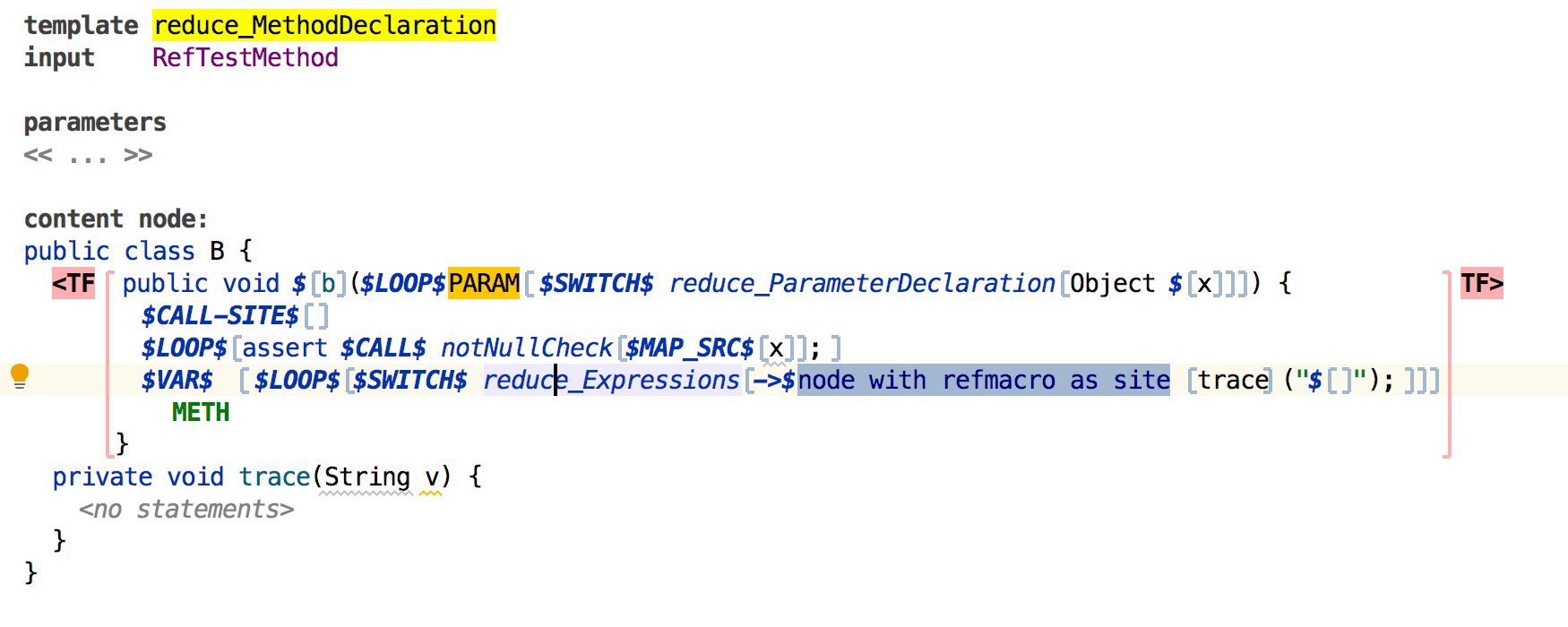
Также теперь есть вызов переключателя reduce_Expressions, параметризованного узлом шаблона (вызов метода трассировки) с помощью макроса свойства и макроса ссылки (который обеспечивает то, что вызов метода указывает на правильное объявление метода в другом месте). Внутри переключателя $CALL-SITE$ заменяет вызов метода-заполнителя на тот, который является call site node:
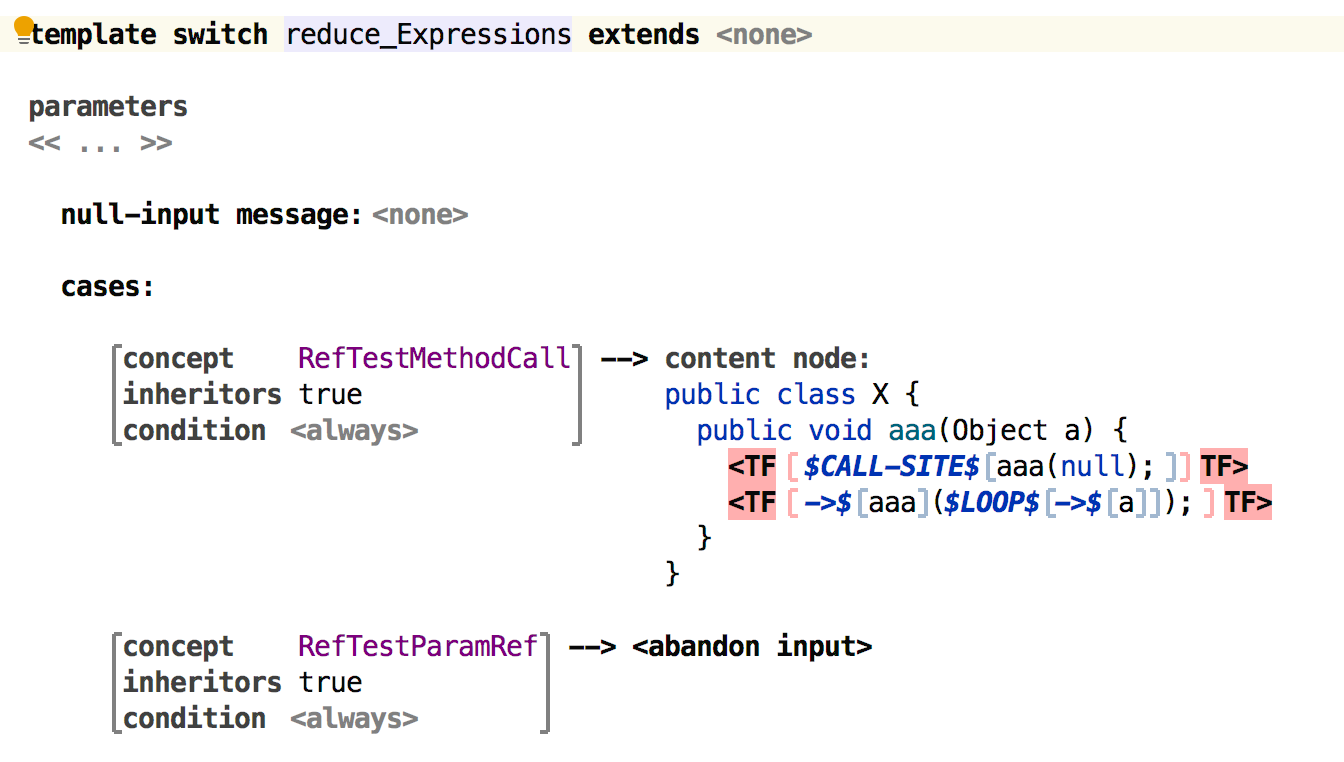
В объявлениях шаблона и переключателя есть флаг, который специально переключается, чтобы указать, что должен использоваться call site node. Использовать макрос $CALL-SITE$ внутри шаблона/переключателя, который не указывает на необходимость получения $CALL-SITE$, будет ошибкой. Нет необходимости указывать явный аргумент в CALL/SWITCH —генератор MPS может определить, нужен ли вызываемому шаблону/переключателю call site, и вычисляет шаблон, включая макросы, CALL/SWITCH перед обработкой.
Эта функциональность полезна в таких сценариях, как приведение условных типов, например в выражениях IF needCast (Type), ELSE, или в преобразованиях, когда есть несколько источников выражения, которые могут служить входными данными, например switch { case Double : Double.valueOf(expression); case Integer : Integer.valueOf(expression, 16); …}. Поэтому нецелесообразно иметь специальный переключатель/шаблон для каждого случая.
Динамическая подсветка в редакторе
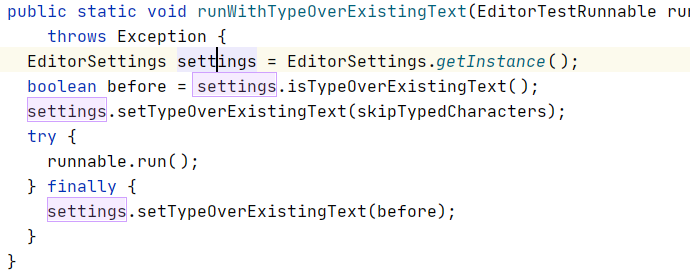
В редакторе появилась долгожданная динамическая подсветка. Эта функция очень похожа на действие Highlight Usages (Ctrl/Cmd+Shift+F7). Разница в том, что динамическая подсветка срабатывает автоматически при вводе кода или навигации по нему. Ссылки на узел, находящийся под курсором, подсвечиваются в редактируемом документе практически сразу. Вы по-прежнему можете использовать действие Highlight Usages, чтобы видеть использования выбранного узла, когда навигируетесь в другое место. При этом динамическая подсветка продолжит выделять использования узла под курсором.
Функция включается и выключается в настройках редактора MPS (опция Highlight selected node).
Улучшенный switch-оператор в BaseLanguage
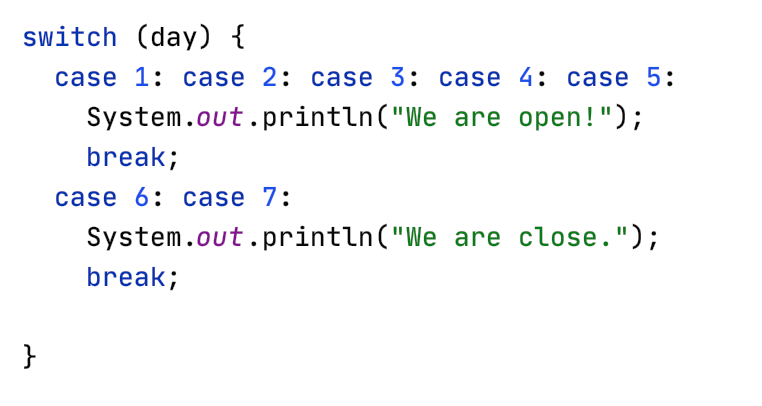
В дополнение к улучшениям в редакторе, концепт switch теперь поддерживает использование нескольких case для одного и того же оператора.
Полоса ошибки на панели Project
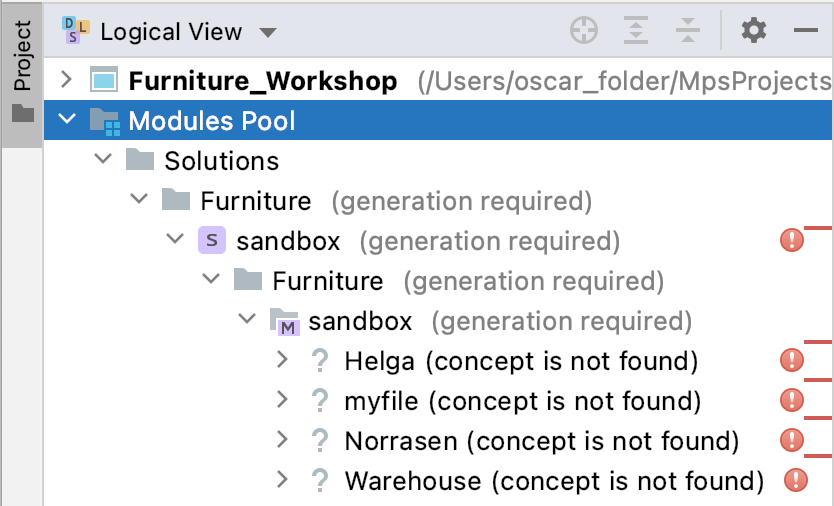
На панели Project ошибки, предупреждения и сообщения отображаются по-новому. Полосы ошибок помогают упорядочить сообщения. Вы можете отключить их с помощью кнопки в настройках Logical View.
Изменения в обработке фасетов модулей
Вы больше не обязаны использовать какой-то определенный фасет модуля с любым модулем. Фасеты, связанные с модулем, записываются в файл дескриптора модуля, который теперь является основным источником информации. В предыдущих версиях мы уже сделали фасет Tests необязательным, теперь это касается и последнего фасета — Java. Обратите внимание, что снятие галочки с фасета Java в модуле Language исключит язык из механизма загрузки классов, и все будет работать по-другому. Мы внесли это изменение, чтобы улучшить поддержку других языков.
Улучшенная аннотация корня в VCS
Старый алгоритм корневых аннотаций использовал результаты, полученные из текстового файла модели. Раньше он работал только для моделей с сохранением текста и не всегда корректно. Благодаря новому подходу аннотация строится путем сравнения моделей из разных версий.
Каждую ячейку в редакторе теперь можно аннотировать с помощью опции Annotate cells: 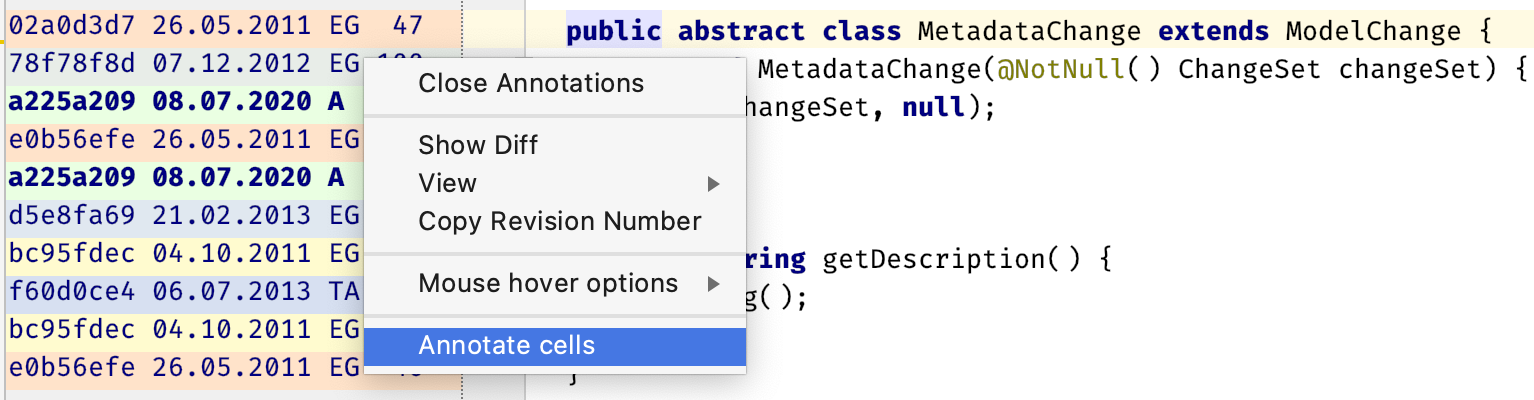
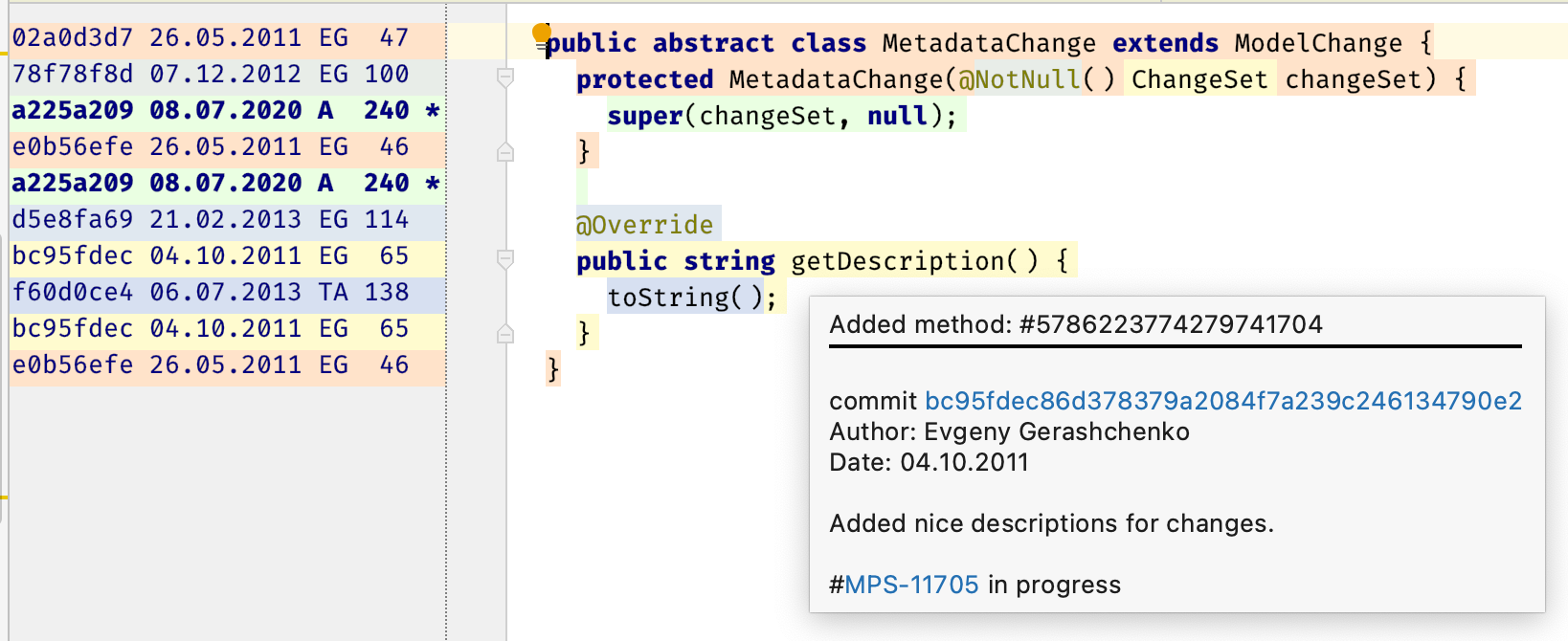
В результате вы увидите последние изменения каждой ячейки во всплывающей подсказке:
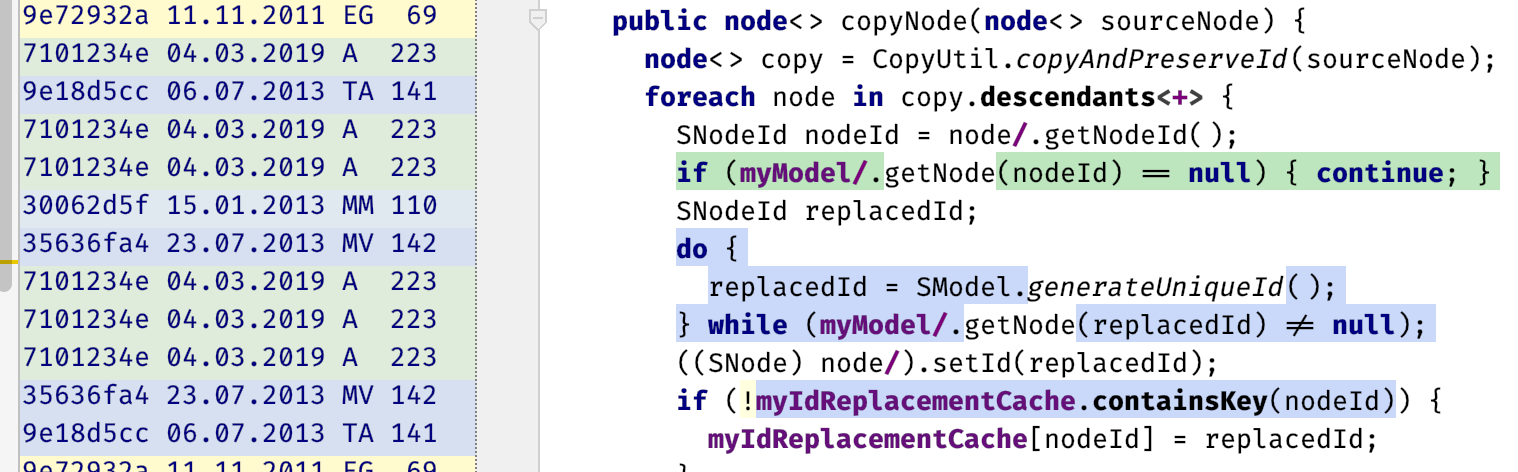
Вы можете выбрать версию в столбце Annotation, и MPS подсветит все ячейки, в которые были внесены изменения:
Отслеживание перемещенных узлов в окне Diff
Предыдущий алгоритм расчета различий между двумя моделями не мог обнаружить некоторые типы изменений. Перемещение узла рассматривалось как два независимых изменения: вставка и удаление. Теперь это отображается как одно действие. Кроме того, можно отследить изменения внутри перемещаемого фрагмента:
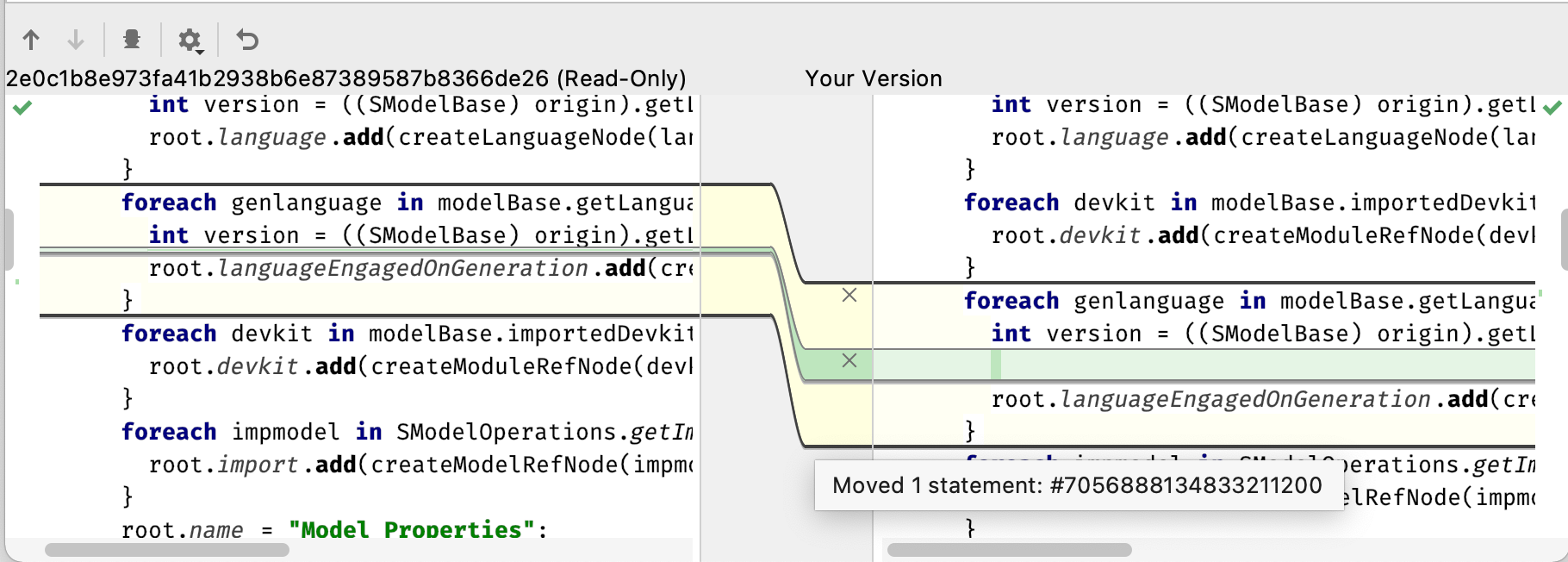
Вы можете выбрать, следует отслеживать перемещенные узлы в окне Diff или нет: 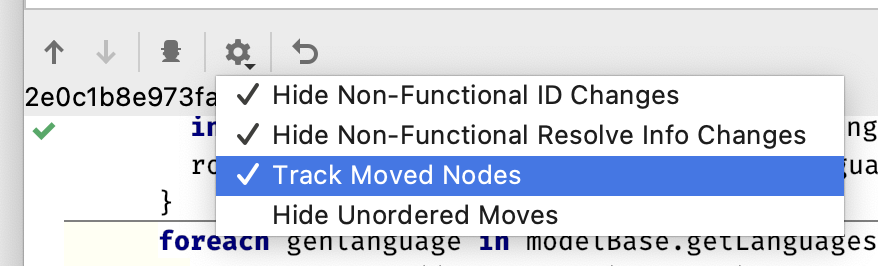
Иногда порядок узлов одного уровня не имеет значения. Вы можете скрыть несущественные перестановки, используя новую опцию Hide Unordered Moves.
Обновленный начальный экран
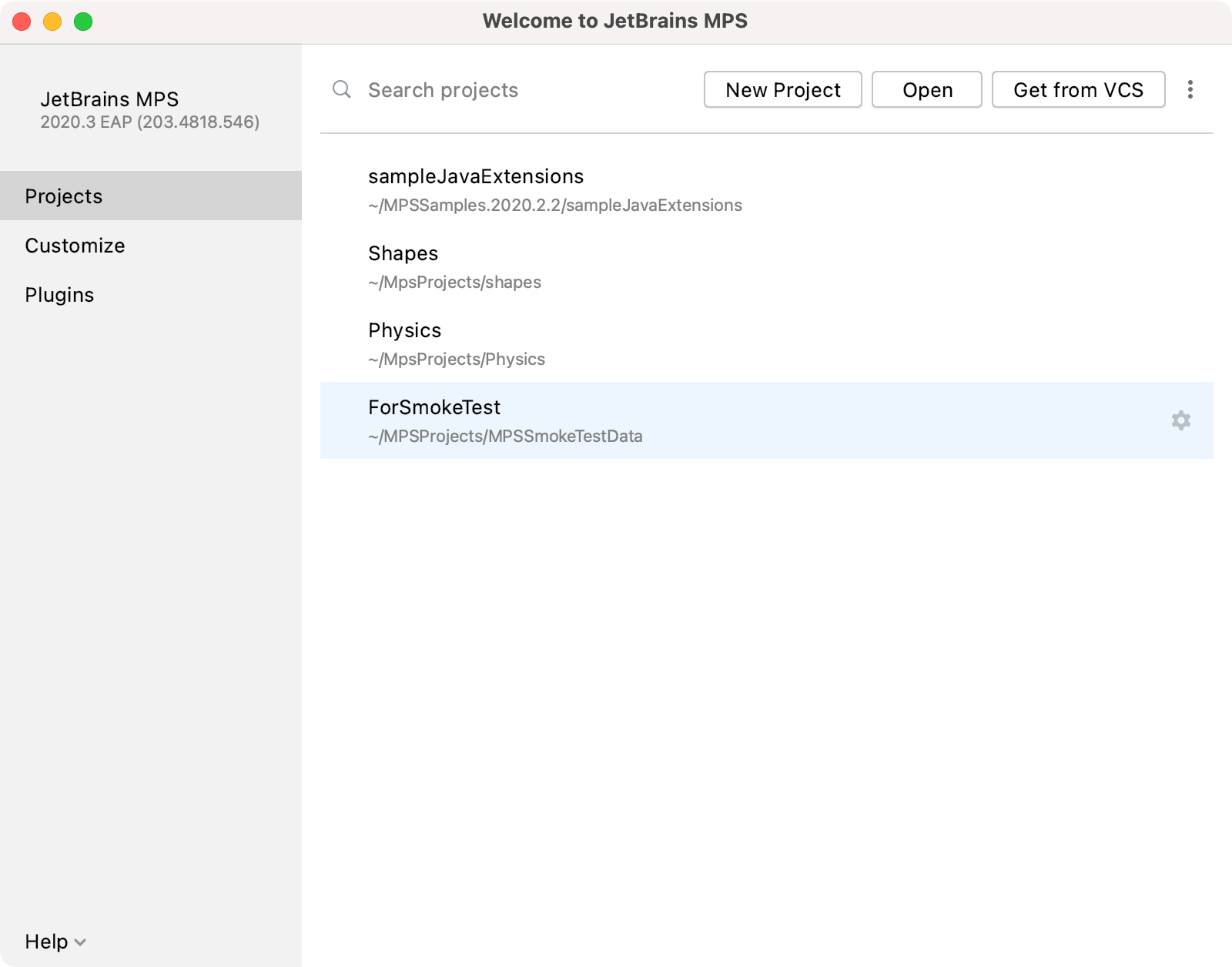
Начальный экран MPS выглядит по-новому. Теперь там можно не только выбрать проект, но и настроить MPS в соответствии с вашими потребностями. На странице Projects теперь больше места — она вмещает больше проектов, которые легко искать через поле поиска. На странице Customization можно настроить основные параметры интерфейса, например тему и шрифт, параметры импорта и общего доступа.
Другие улучшения
Обновленное меню VCS
Меню VCS теперь называется в соответствии с той системой контроля версий, которую вы используете. Если у вас в проекте используется только Git, меню VCS будет выглядеть так:
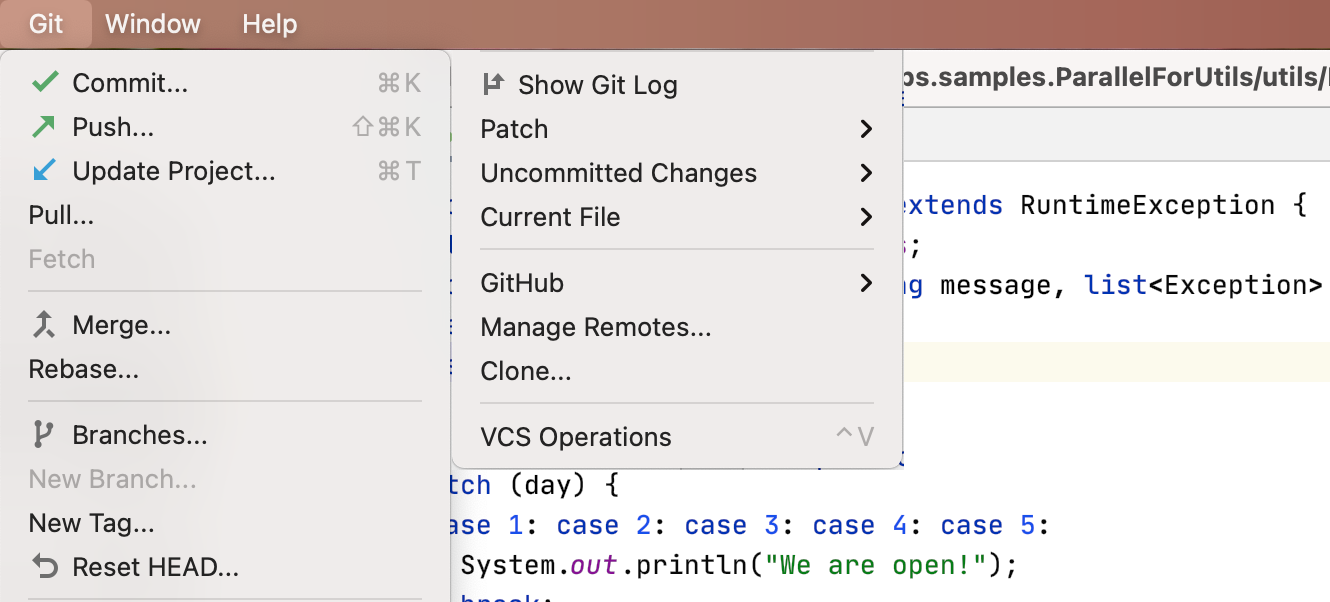
Еще мы улучшили его внешний вид и убрали из него все действия, кроме самых актуальных. Теперь легко получить доступ к ключевым функциям Git — они больше не спрятаны в подменю.
Кнопка Commit and Push
Две самые популярные кнопки — Commit и Commit and Push… — теперь отображаются в окне Commit. Вы можете запушить изменения в удаленный репозиторий сразу после коммита, и больше не нужно прокручивать раскрывающийся список, чтобы добраться до кнопки Commit and Push.
Улучшенные ветки
Некоторые улучшения в этой версии касаются работы с ветками. Теперь MPS автоматически исправляет недопустимые символы в именах веток, и вы видите все действия, связанные с текущей веткой.
Удобное управление вкладками в редакторе
При работе над большим проектом удобно держать открытыми несколько вкладок. Теперь вы можете разделить главный экран редактора по горизонтали или по вертикали, просто перетащив вкладку в удобное место. Редактор подсветит, где она может быть закреплена. Закрепленные вкладки теперь отображаются в самом начале панели вкладок.
Кроме того, мы исправили множество ошибок. Очень ждем ваших отзывов в комментариях и баг-репортов в нашем трекере.
Хорошего дня и будьте здоровы!
Ваша команда MPS
The Drive to Develop
Оригинал статьи опубликован на habr.com:
https://habr.com/ru/company/JetBrains/blog/536854/
Subscribe to MPS Blog updates
Discover more




MPS 2020.3 is now available

Over the past few months we have been working to make MPS more usable, and we’ve been fixing issues reported by users. In this blog post, we describe this version’s new functionality, and you can also watch our screencast with the main features.
New generator macro
There’s a new macro named $CALL-SITE$ that facilitates the insertion of a node attributed with a SWITCH/CALL macro into a designated place in the invoked template. Prior to the change, the template node with a SWITCH/CALL macro attached was generally ignored. Now if an invoked template/switch tries to use ‘call site node’, the node is processed as a regular template and the outcome is supplied to the invoked template/switch as an implicit argument that can be inserted into the desired location.
Here we see the invocation of the reduce_Comment template serving as a ‘call site’ for the reduce_MethodDeclaration template:
If we take a look into the template, there’s a supplied call site node with a $CALL-SITE$ statement in the method body:
There’s also now an invocation of the reduce_Expressions switch, parameterized with a template node (trace method call) with a property macro and reference macro (that makes the method call point to a proper method declaration elsewhere). Inside the switch, $CALL-SITE$ replaces a placeholder method call with the one that comes as a ‘call site node’:
Template and Switch declarations have a flag, which is toggled by intention, that indicates that it would like to use the call site node. It’s an error to use the $CALL-SITE$ macro inside a template/switch that didn’t flag the need to get $CALL-SITE$. There’s no need to specify an explicit argument in CALL/SWITCH – the MPS generator can tell if the template/switch being invoked needs a call site and further evaluates the template, including the macros, of CALL/SWITCH prior to processing it.
This functionality comes in handy in scenarios like conditional type casts likeIF needCast (Type) expression ELSE expression or conversions when there are multiple sources of expression that may serve as an input such as switch { case Double : Double.valueOf(expression); case Integer : Integer.valueOf(expression, 16); …} and it’s therefore impractical to have a dedicated switch/template for each case.
Dynamic usages highlighting in the editor
Dynamic highlighting, a long-awaited feature, has arrived. This feature is very similar to the existing Highlight Usages action (Ctrl/Cmd+Shift+F7). The difference is that dynamic highlighting works automatically as you type or navigate through the code. References to the node under the cursor are highlighted in the edited document almost immediately. You can still use the original Highlight Usages action to “pin” usages of the currently selected node while you navigate away from it. When you do, dynamic highlighting will continue to highlight the node under the cursor.
This feature can be turned on or off in the MPS Editor settings with the Highlight selected node checkbox.
Improved switch statement in BaseLanguage
In addition to some editor improvements, the switch concept now supports using multiple cases for the same statement.
Error strip on project pane
We are introducing a new way to display errors, warnings, and messages in the Project pane. The Error strip helps to organize the messages on the Project pane. You can deactivate it via the Logical View setting button.
Changes to how module facets are handled
MPS no longer forces you to use any specific module facet with a given module. Facets associated with a module are recorded inside the module descriptor file, which is now the ultimate source of information. We had already made the Tests facet completely optional in previous releases, and now the last one, Java, will no longer be enforced. Please note however, that unchecking the Java module facet in the Language module properties will exclude the language from the class loading mechanism and render a completely different experience. We’ve implemented this change to facilitate unobtrusive support for target languages other than Java.
Improved root annotation in VCS
The old root annotation algorithm used the results of the annotation obtained from the model text file. It worked for text-persisted models only, and in the majority of cases it was not always correct. With the new approach, the annotation is constructed by comparing the models from different revisions.
Each cell in the editor can now be annotated using the Annotate cells popup option:
As a result, you can see the latest change for each editor cell in the cell tooltip dialog:
It is also possible to highlight all the cells that have had changes made to them for a selected revision in the Annotation column:
Tracking moved nodes in the Diff dialog window
The previous algorithm for calculating changes between the two models could not detect certain types of changes. Node movement was detected as two independent changes: insertion and deletion. It is now possible to show the node movement as one movement. Furthermore, it is also possible to detect internal changes inside the moving piece:
You can choose whether to track moved nodes or not in the Diff dialog window:
Sometimes the order of the sibling nodes is not important. You can hide unimportant permutations of such siblings using the new “Hide Unordered Moves” option.
New welcome screen
We’ve updated the look and feel of the Welcome screen. It now includes not only project selection but also a variety of dialogs to help you customize your IDE to your needs. First and foremost, the Projects page has more space, making room for extra projects. It is also easier to search for the desired project from the search field. The Customization page takes you through the primary interface settings, like the color theme, IDE font, import actions, and sharing preferences.
Other improvements
VCS menu reordering
The VCS menu has been renamed to match the version control system that you are currently using. For example, if your project only uses Git, the VCS menu now looks like this:
We’ve made the menu neater and more discoverable by keeping the most useful actions for versioning your project. You can now easily access key Git features that are no longer hidden in a submenu.
Commit and Push button
Now the two most popular buttons – Commit and Commit and Push… – are explicitly shown on the Commit screen. You can push the changes to the remote repository immediately after the commit, you no longer have to scroll through a drop-down list to reach the Commit and Push button.
Improved branches
This release comes with several enhancements for branches. The IDE now automatically corrects unaccepted symbols in the names of new branches and you can now see all the actions related to the current branch.
Splitting the editor with drag and drop tabs
Having several tabs open is always convenient while working on a big project. With MPS 2020.3, you are able to split the main editor screen either horizontally or vertically by dragging and dropping a tab to the desired position. When you are dragging a tab, the editor will highlight possible locations to drop it. The IDE displays pinned tabs at the beginning of the tab bar.
We fixed and investigated a long list of bugs. Let us know what you think in the comment section and report any problems to our Issue Tracker. Download MPS 2020.3 and give it a try, or install it using the Toolbox App.
Stay safe and have a great day!
Your JetBrains MPS team
The Drive to Develop
