DataGrip turns 10. Hidden gems of DataGrip.

Looking back
Hello, friends!
10 years ago to this very day, DataGrip was born. That’s right, on December 16, 2015, the first-ever version of DataGrip was released!
But the origins of DataGrip go back even further. We had already been working to create a database IDE for quite some time by then, and its codename was 0xdbe. Some of you aficionados really liked it, and so did we! But business is business, so we decided to change the name to something more accessible.
Here’s how DataGrip 1.0 looked:
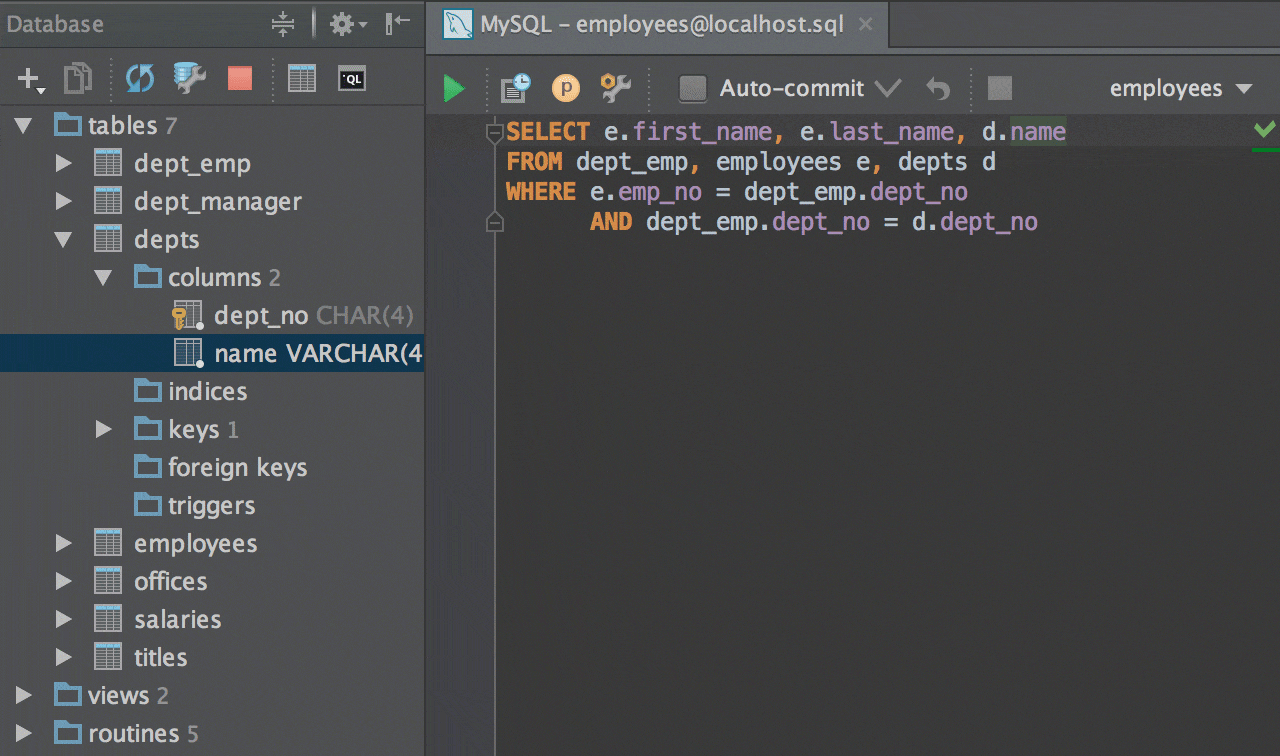
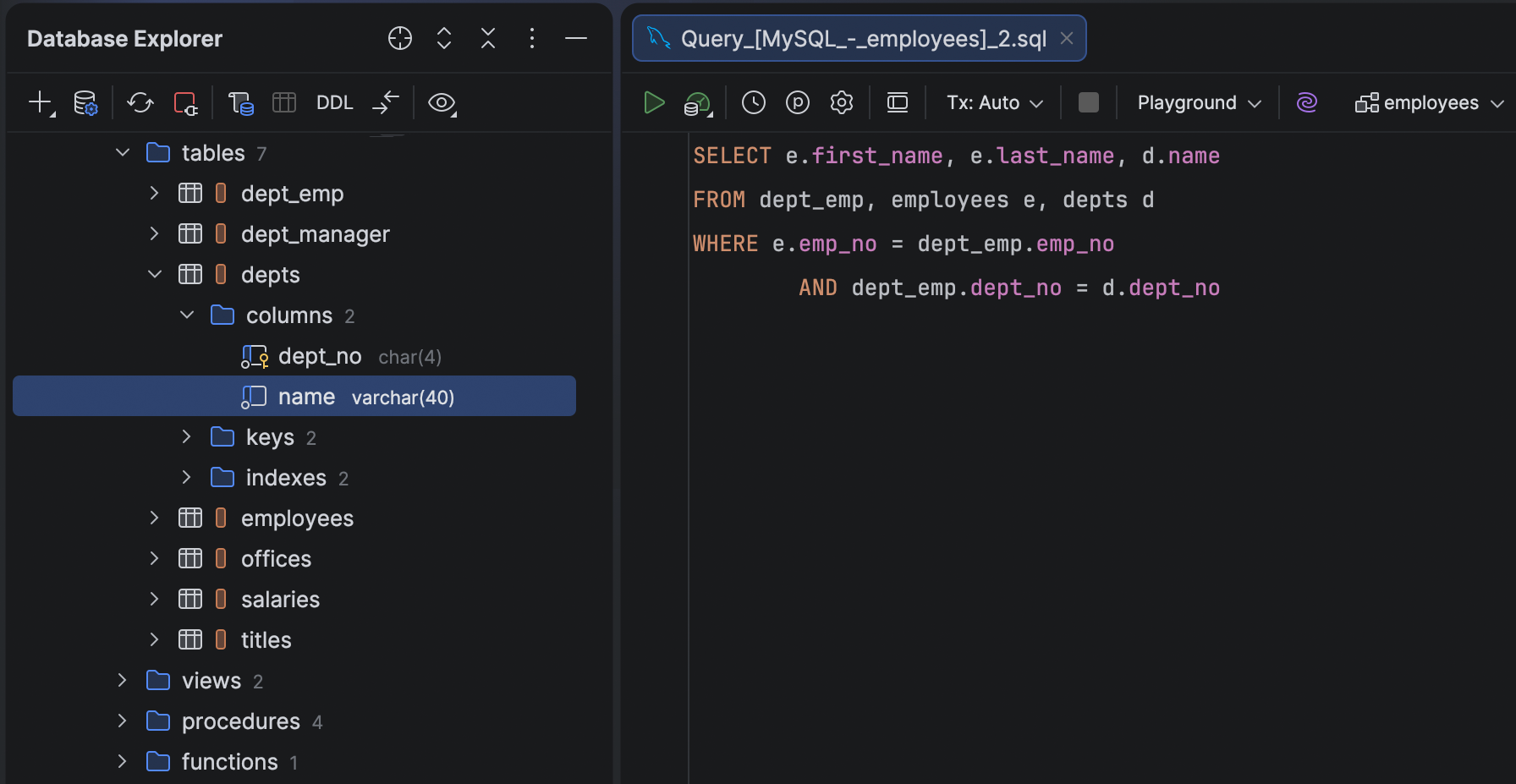
It’s hard to imagine that this UI once felt slick and modern, but that’s a good reminder that 10 years is a long time. We actually tried to recreate the same IDE state in late 2025. Here’s the result:
We would like to thank you, our valued users, for being with us for so many years – for reporting issues in our tracker, for the heated discussions about flow-breaking features (one of which is even happening right now), and for recommending our tool to others. If anyone reading this post has been using DataGrip for 10 consecutive years, starting with version 1.0, please let us know in the comments section.
Birthdays are a time to receive presents, but today we’ve decided to give one instead. To celebrate the occasion, we’ve put together a list of 10 hidden DataGrip gems for you!
The hidden gems
These are ten features that even people on the DataGrip team have never heard about ?
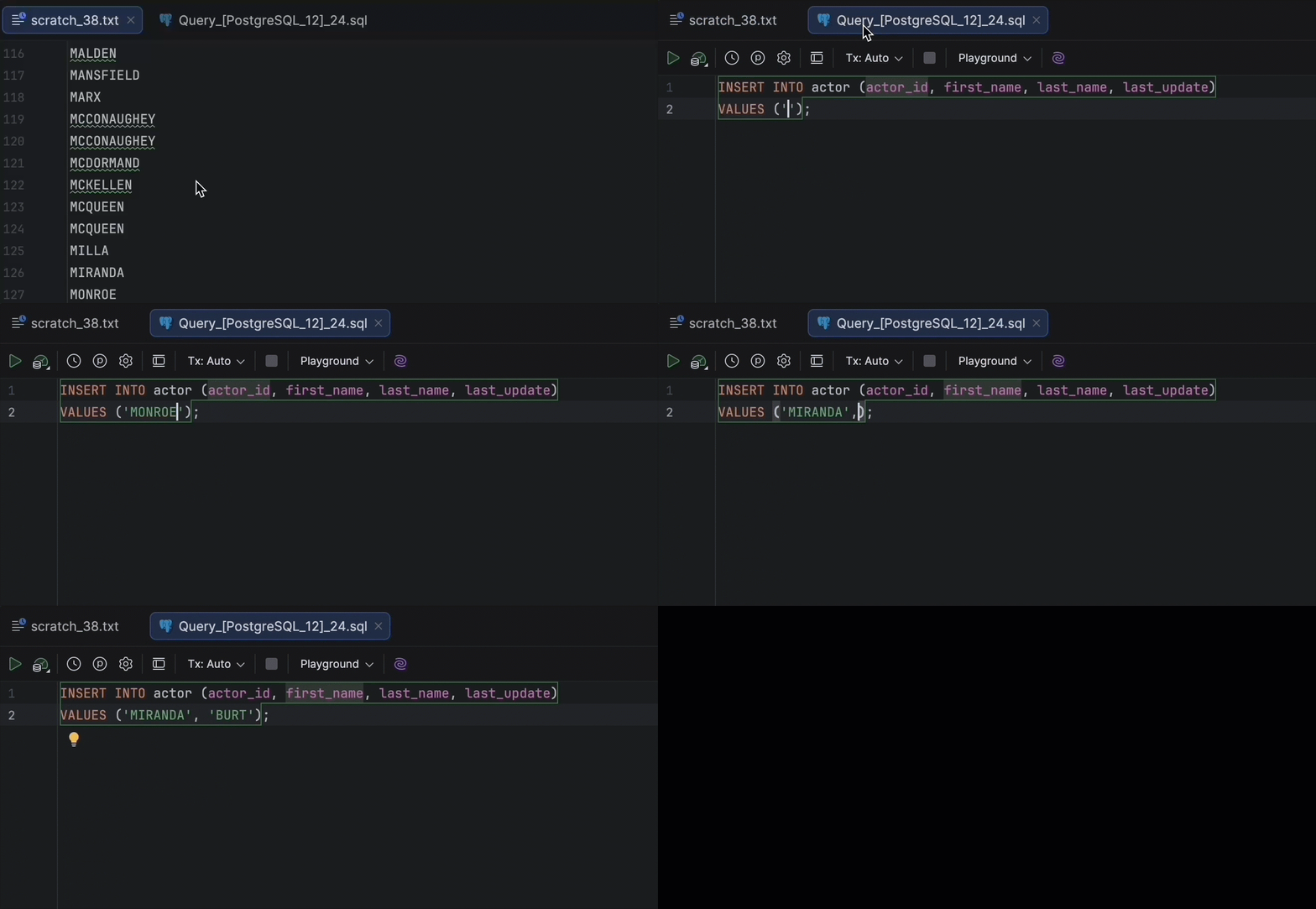
1. Completion of words from open files: Alt/Opt+/
Let’s start with a text editor feature that has existed for decades in the IntelliJ Platform: cyclic word completion.
This feature helps you complete any word from the currently open files.
Press Alt/Opt+/ to search for matching words and repeat until you find the one you need. In SQL, this is especially useful for completing values inside INSERT statements: Just keep all the possible values in an open scratch file!
2. Recent Locations
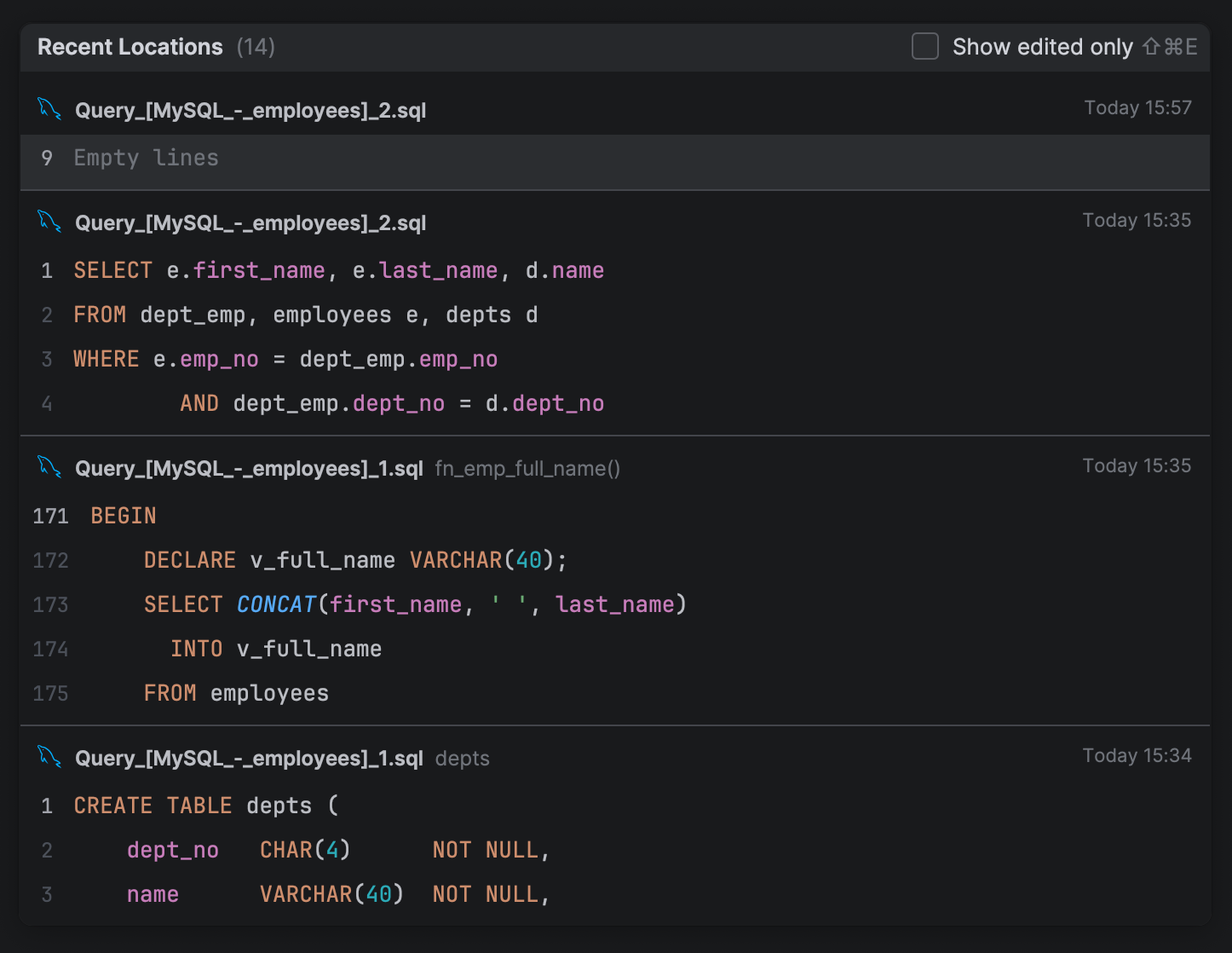
Some of you already know about the Recent Files (Ctrl/Cmd+E) feature. It helps a lot when you need to reopen something you’ve accidentally closed. But it has a sister feature: Recent Locations.
This pop-up allows you to search for a specific change, or a recently viewed or edited piece of text – most likely, your latest SQL query.
Invoke it using Ctrl/Cmd+Shift+E, and the list of recently viewed files will display not only the file name but also code snippets around the area you last viewed in the file. Invoke the same shortcut again, and only the changed files will remain visible.
The best part? Speed search works here, meaning you can type code to filter the results even further.
3. Background image
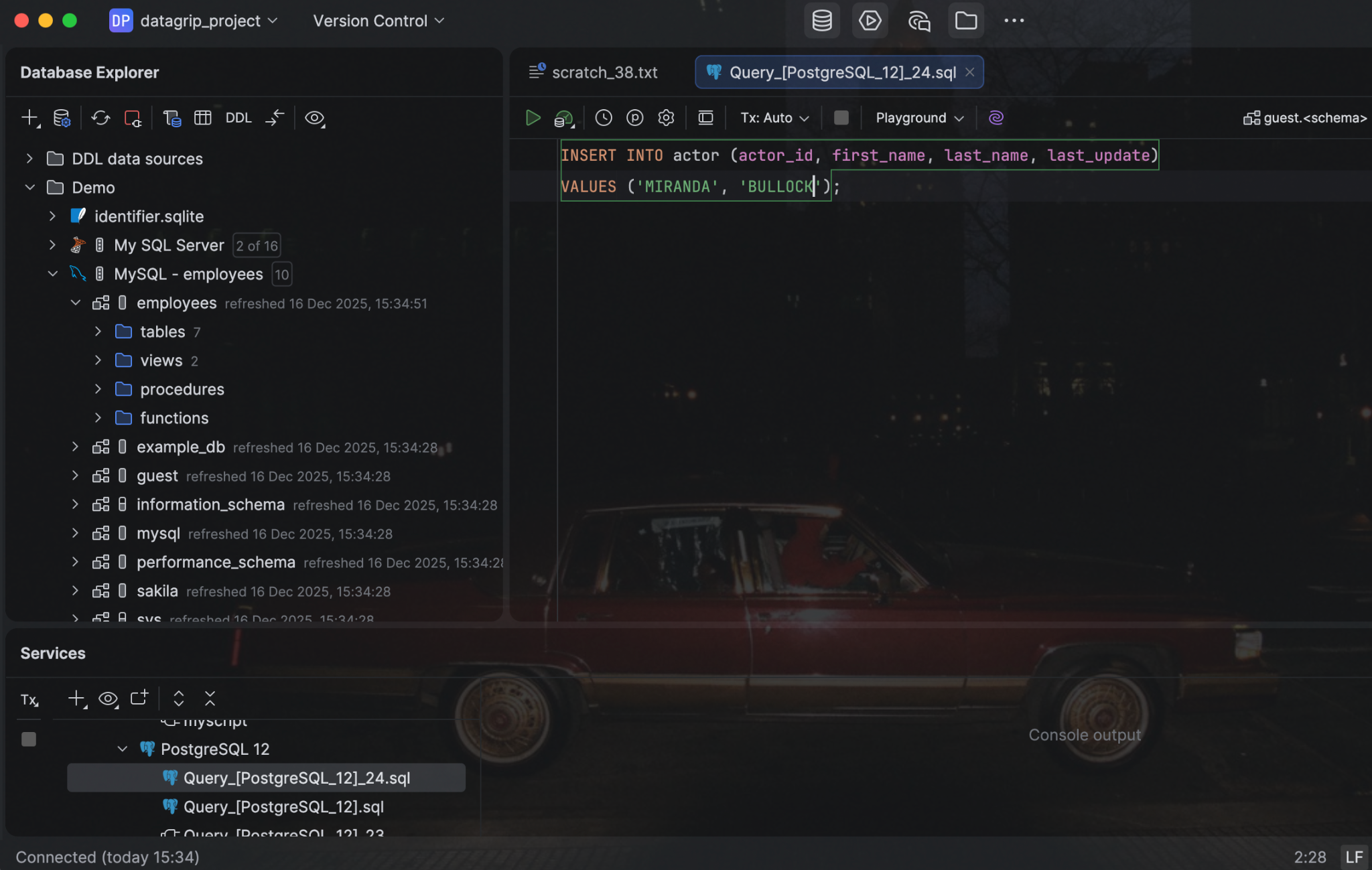
This one is for those of you who love to customize everything under the sun. You can set any image as a custom background for the editor and all tool windows in DataGrip. To configure this, go to Settings | Appearance & Behavior | Appearance | UI Options | Background Image.
4. Generating schema dump with the SQL generator
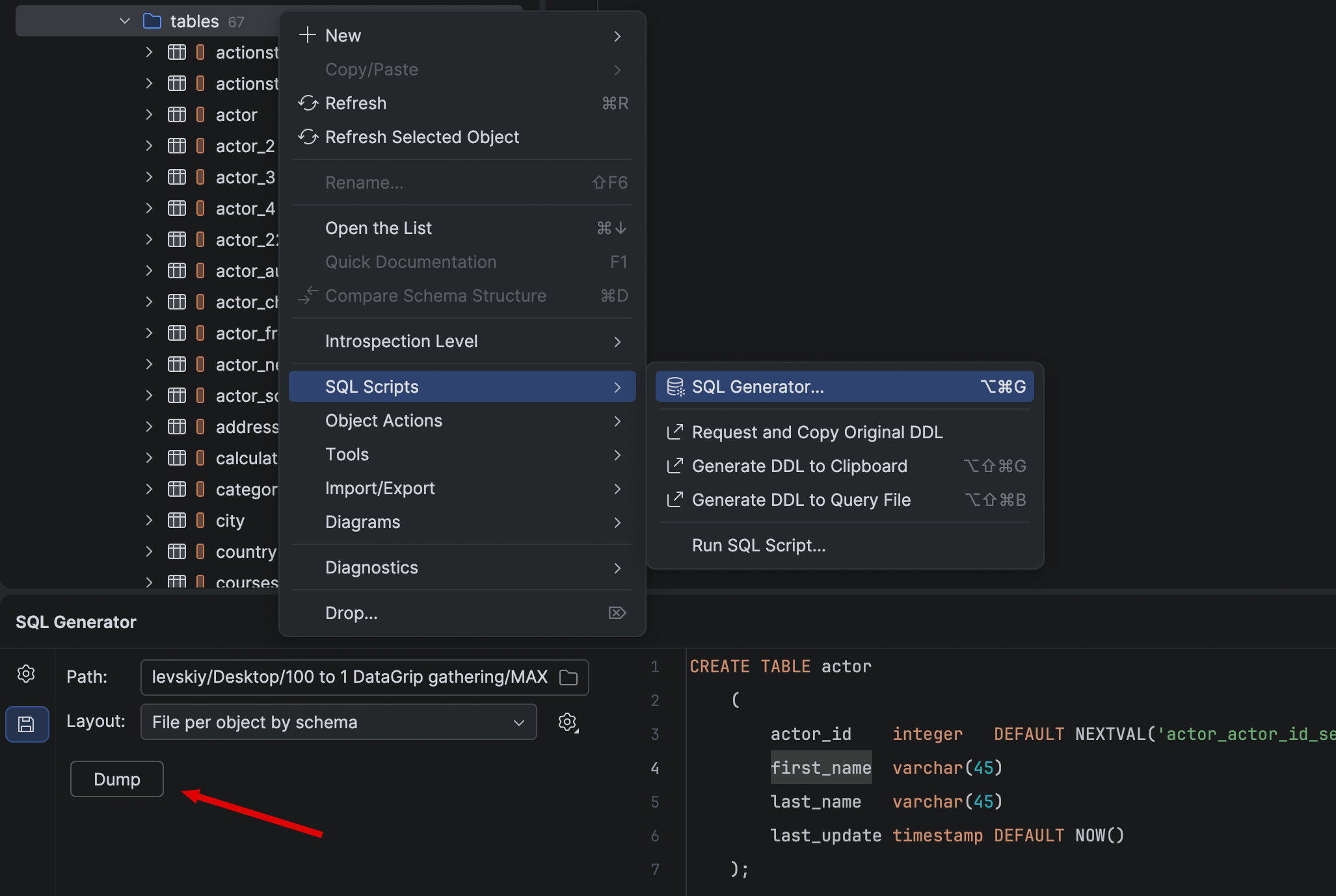
The SQL generator is a powerful mechanism for generating a DDL statement for any kind of object or set of objects. You can invoke it either from the database tree or directly from the code editor. To do so, simply use the shortcut Ctrl/Cmd+Alt/Opt+G.
What’s less obvious is that you can dump the generated objects into files. This makes a lot of sense when working with an entire schema!
All you have to do is invoke the SQL generator on the schema, switch to File Output Options, define the layout, and click Dump. Et voila! Your schema dump is ready.
5. Copy-pasting data sources
As easy as it sounds! Ctrl/Cmd+C copies your data source, and Ctrl/Cmd+V pastes it into any node of the database explorer. This is perfect for duplicating data sources or quickly creating similar ones.
But the real gem is that your clipboard contains nothing more than an XML snippet describing your data source. This means it can be shared across different IDEs or machines! Send it to your colleague in Slack, and they’ll be able to connect to this data source by pasting the XML into their database explorer. The only thing that isn’t copied is the password; that needs to be re-entered.
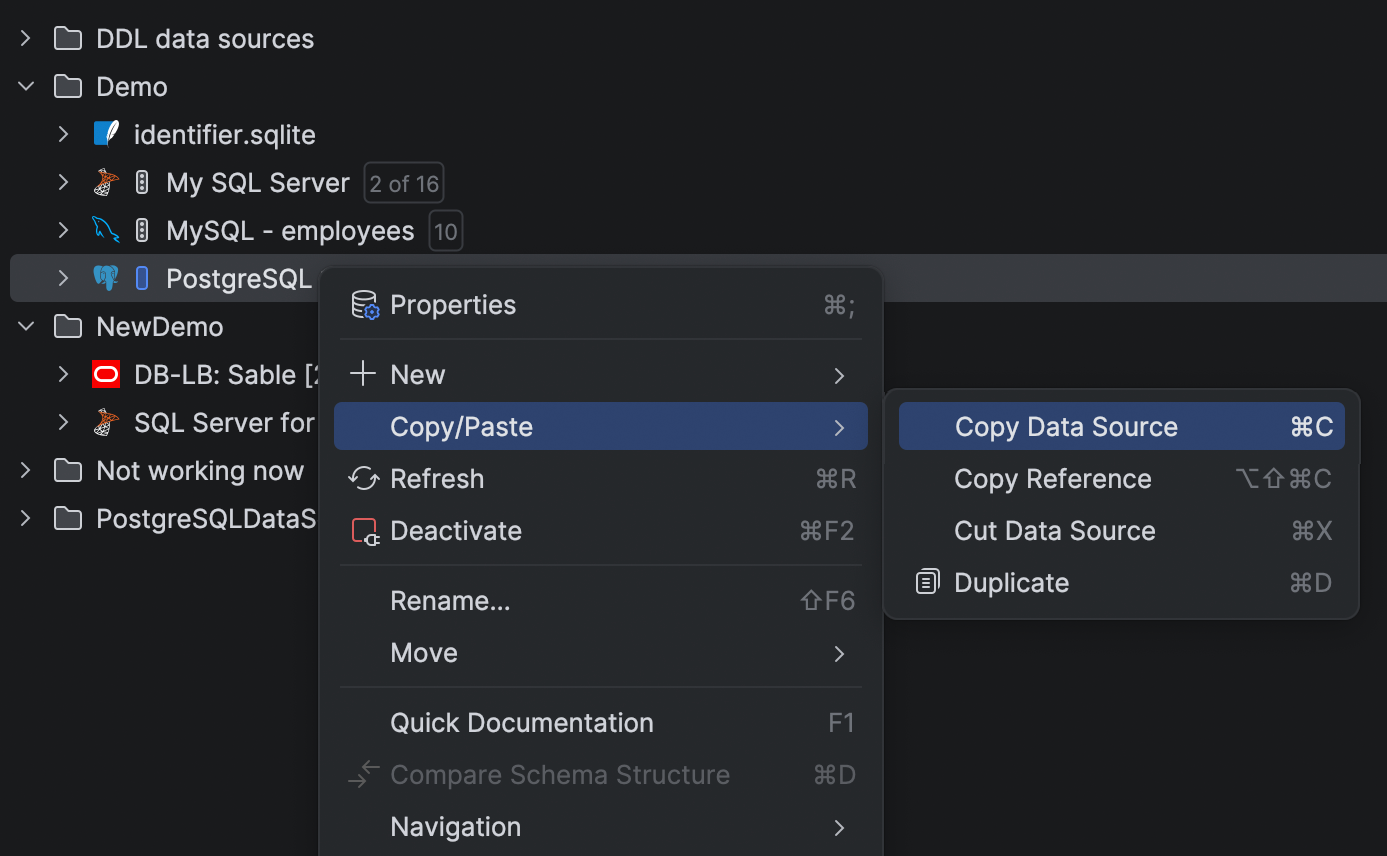
More tips on how to share data sources are here.
6. Local history for folders in the Files tool window
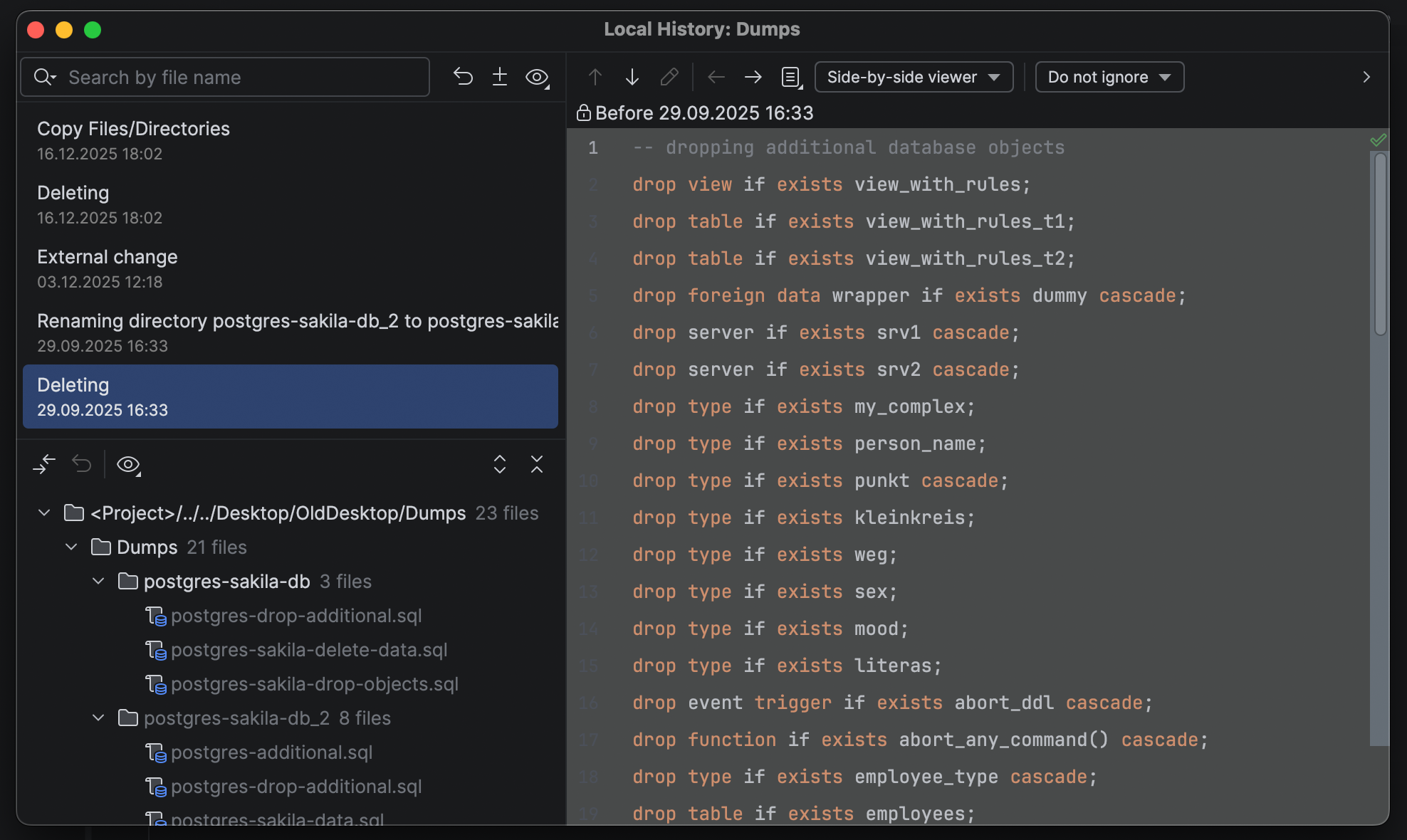
Accidentally deleted a file or even an entire folder? Not only does the famous Local History feature let you go back in time within a text file, but it can also restore files and folders themselves!
To do that, just right-click on a folder in the Files tool window and select Show History | Local History.
7. Regions for SQL in the File Structure popup
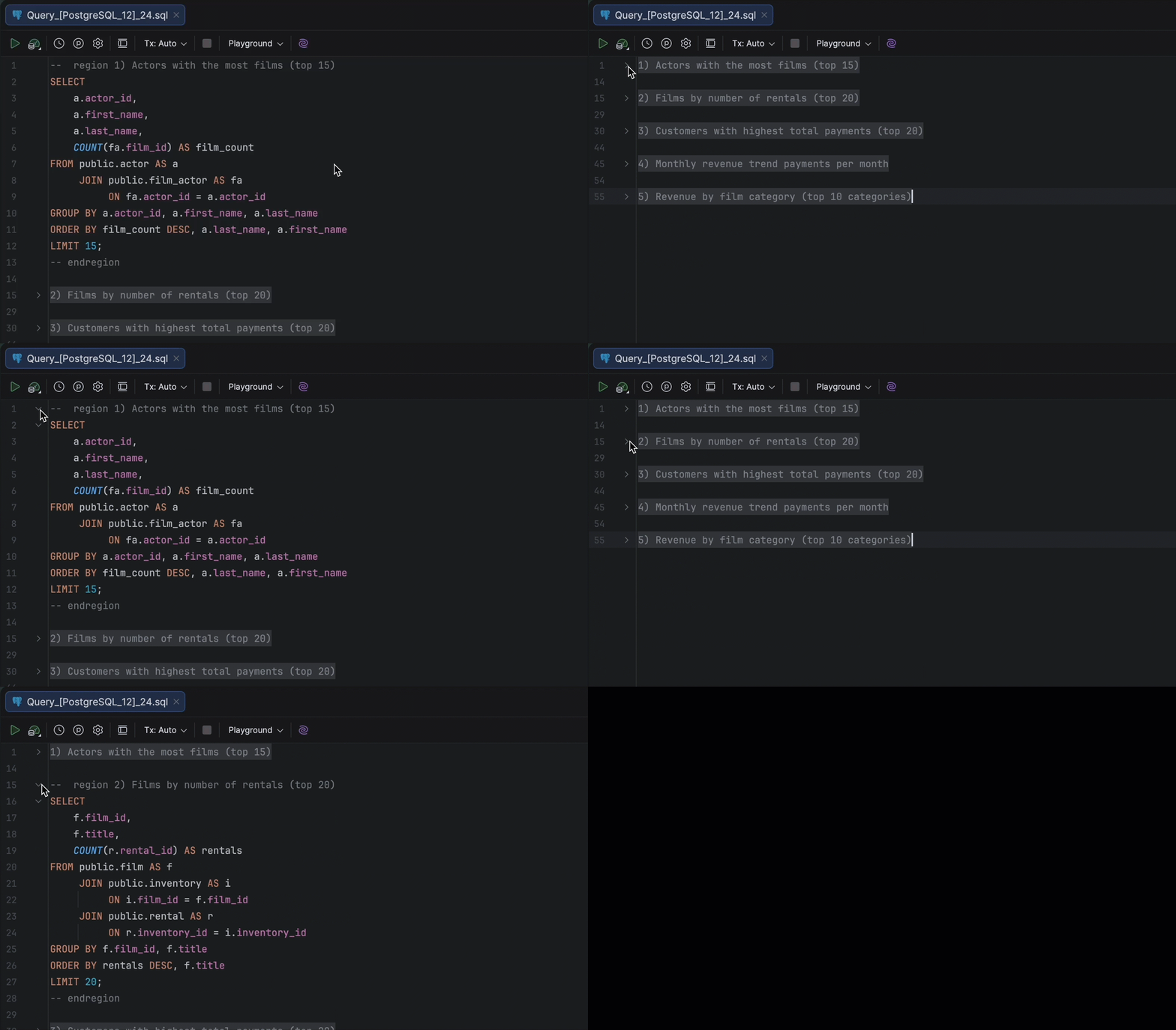
The custom region folding feature in DataGrip lets you define your own collapsible sections in SQL code using specially formatted comments. This helps you hide or show these blocks by Ctrl/Cmd+Minus and Ctrl/Cmd+Plus.
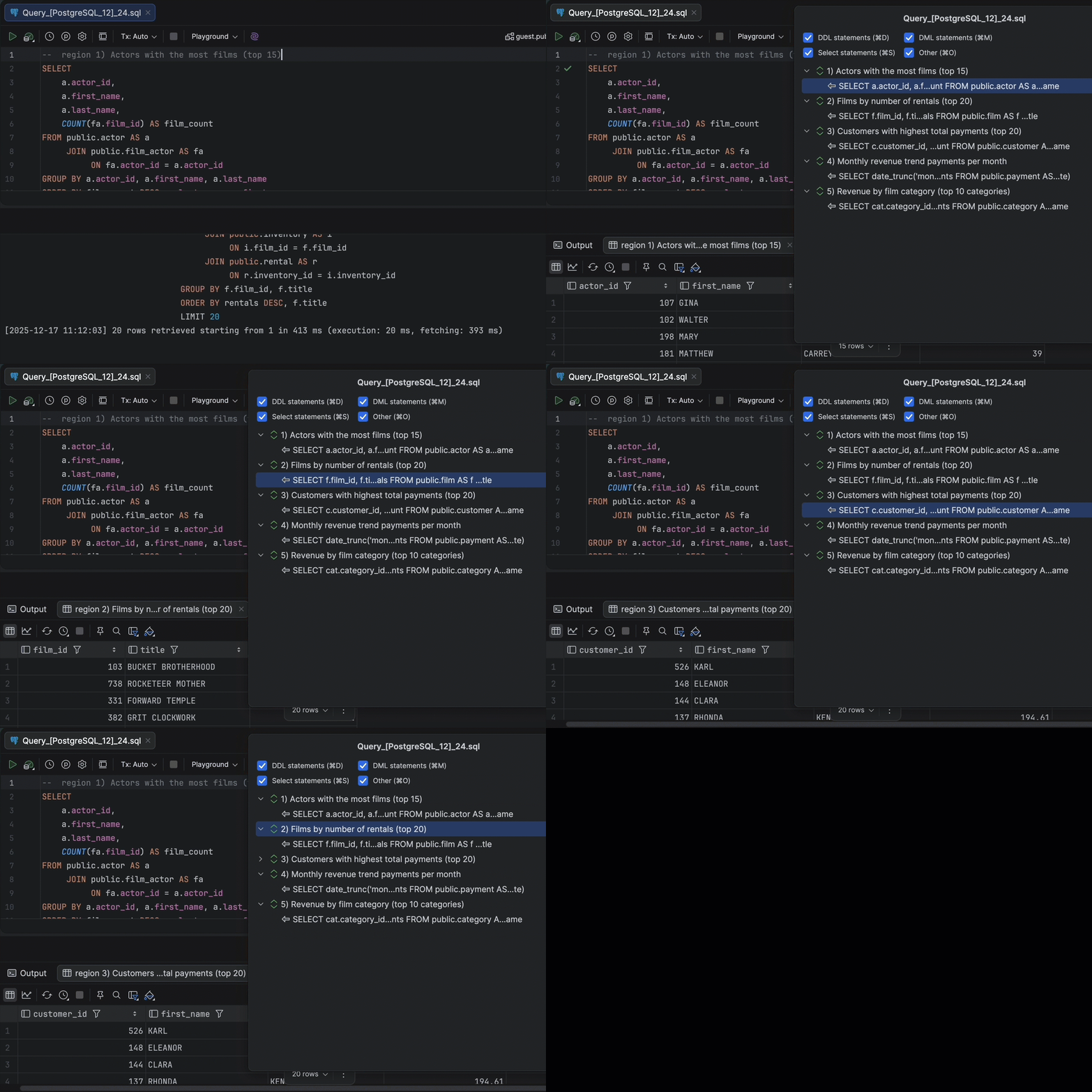
Even more importantly, however, you can see the labels in the File Structure pop-up. Press Ctrl/Cmd+F12 to see the list of your queries – or regions of queries!
What’s especially cool is that you can run your SQL code with Ctrl/Cmd+Enter right from there!
8. Node as a table in the database explorer
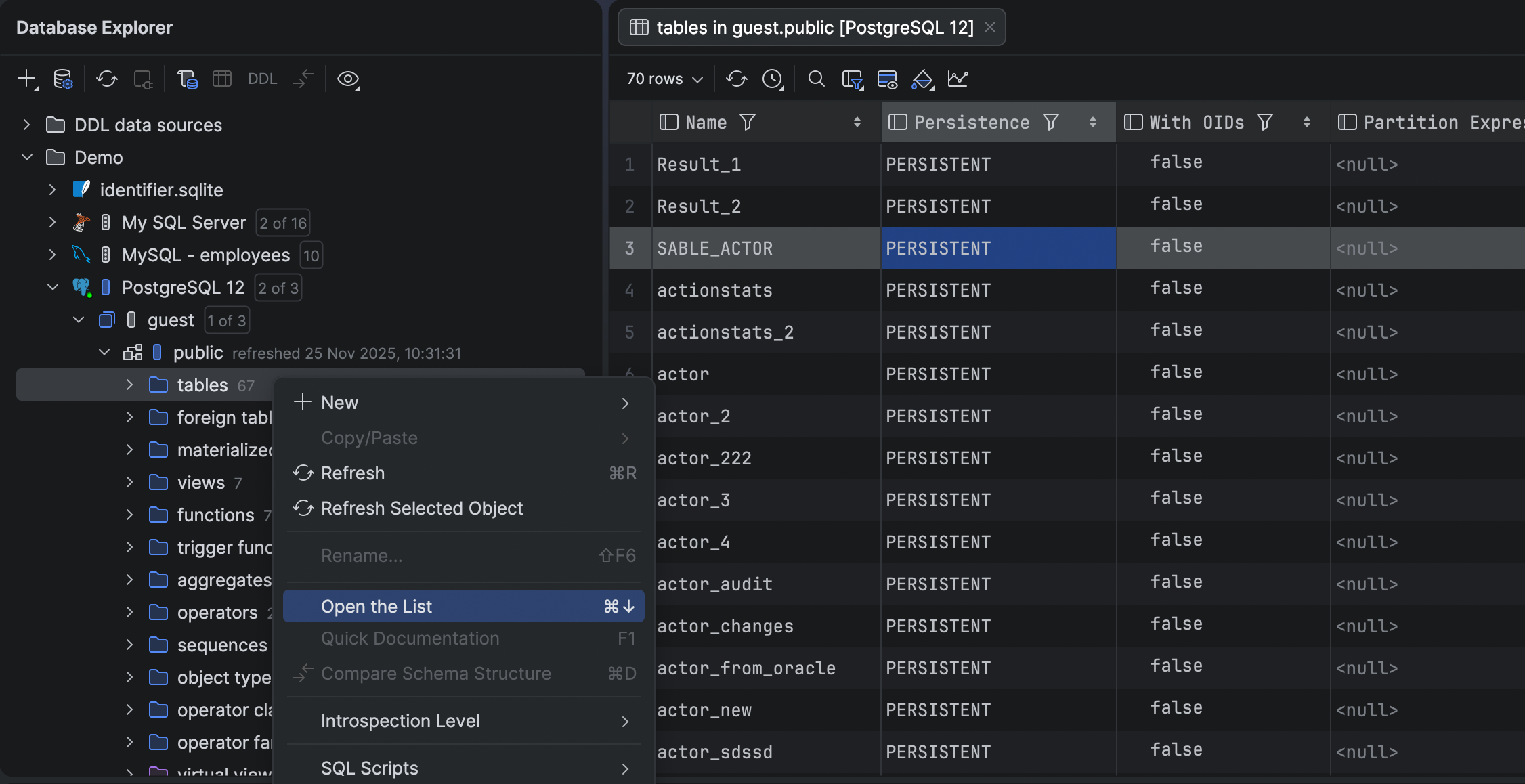
In the database explorer, each node can be presented as a table. For example, you can get a list of all tables in a schema with their properties. Just press F4 on the tables node.
All the data editor features are available to you: search, filtering, exporting, and more.
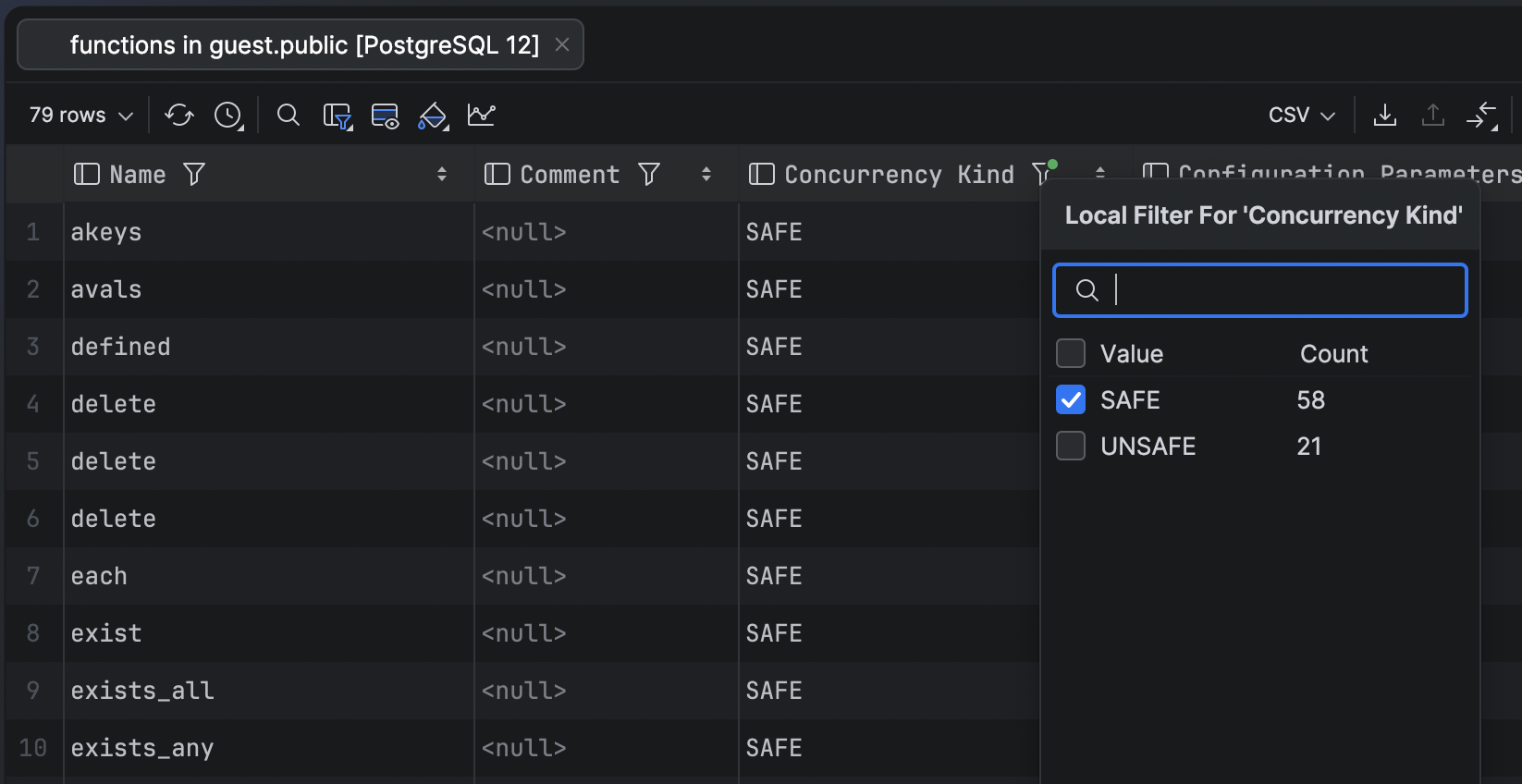
What if you want to see the list of all PostgreSQL functions with unsafe concurrency kind? Sure, you could write a query, but it’s much easier in DataGrip: just open the node as a table and use a local filter!
9. Calculator
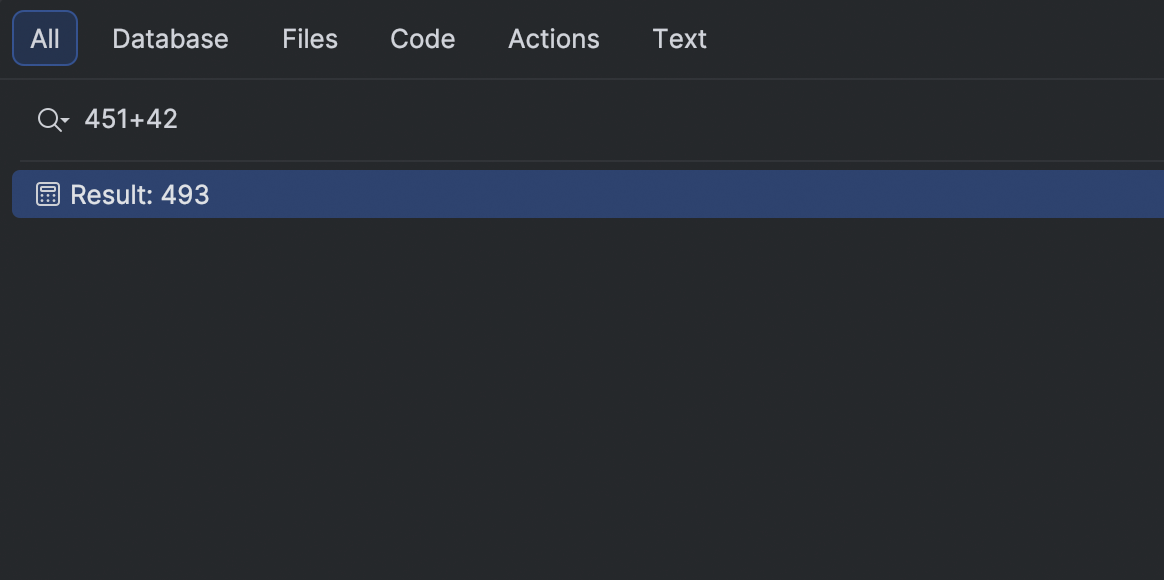
This may not be the most useful feature, but we bet it’s the most hidden one. The All tab in Search Everywhere has a calculator! Simply paste the expression you need into the search field to retrieve the result.
10. Ability to attach a database object in the AI chat
Writing any feature digest post in 2025 is impossible without mentioning AI. Today’s hidden gem in that category is the ability to attach database objects to the chat.
The database context you provide can be even more specific than the schema. You can attach the database object you need to work with – for example, a table or a view. This can be particularly useful when you’re working with larger schemas.
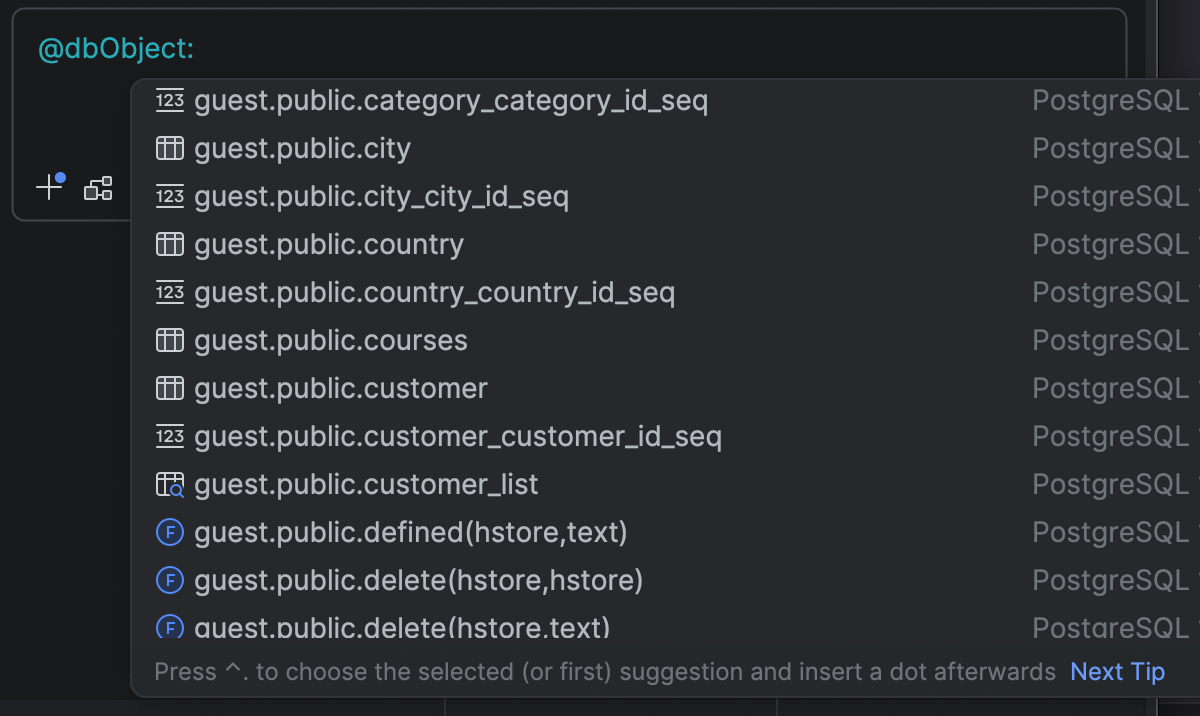
To attach a database object, type @ or # in the input field, select or type dbObject:, and then select the object you want to attach from the list.
That’s it for today! Let us know in the comments section how many of these features you were already aware of.
Develop with pleasure! ?
The DataGrip team