JetBrains AI
Supercharge your tools with AI-powered features inside many JetBrains products
Next Edit Suggestions: Now Generally Available

The next edit suggestions feature is now enabled in all JetBrains IDEs for JetBrains AI Pro, AI Ultimate, and AI Enterprise subscribers.
Yes, you read that right! JetBrains-native diff suggestions are available right in your editor. Global support for optimized latency. Out-of-the-box IDE actions for reliability. And the best part? It doesn’t consume your AI quota.
What are next edit suggestions?
Like the suggestions provided by AI code completion, next edit suggestions (NES) appear as you type. The difference is that NES can be proposed beyond the immediate vicinity of your caret, and they can modify existing code instead of exclusively adding new code. This feature is a natural extension of code completion, and together they comprise the in-flow Tab-Tab experience.


The NES feature runs silently in the background, generating suggestions as you modify your code. It then gives you the option to review and decide whether to accept them in a small in-editor diff view (the NES UI). The feature adapts how it presents the suggestions, showing them to you in the least intrusive way to avoid interfering with your work. Large changes appear in a dedicated diff view, while smaller suggestions are shown in a larger popup.
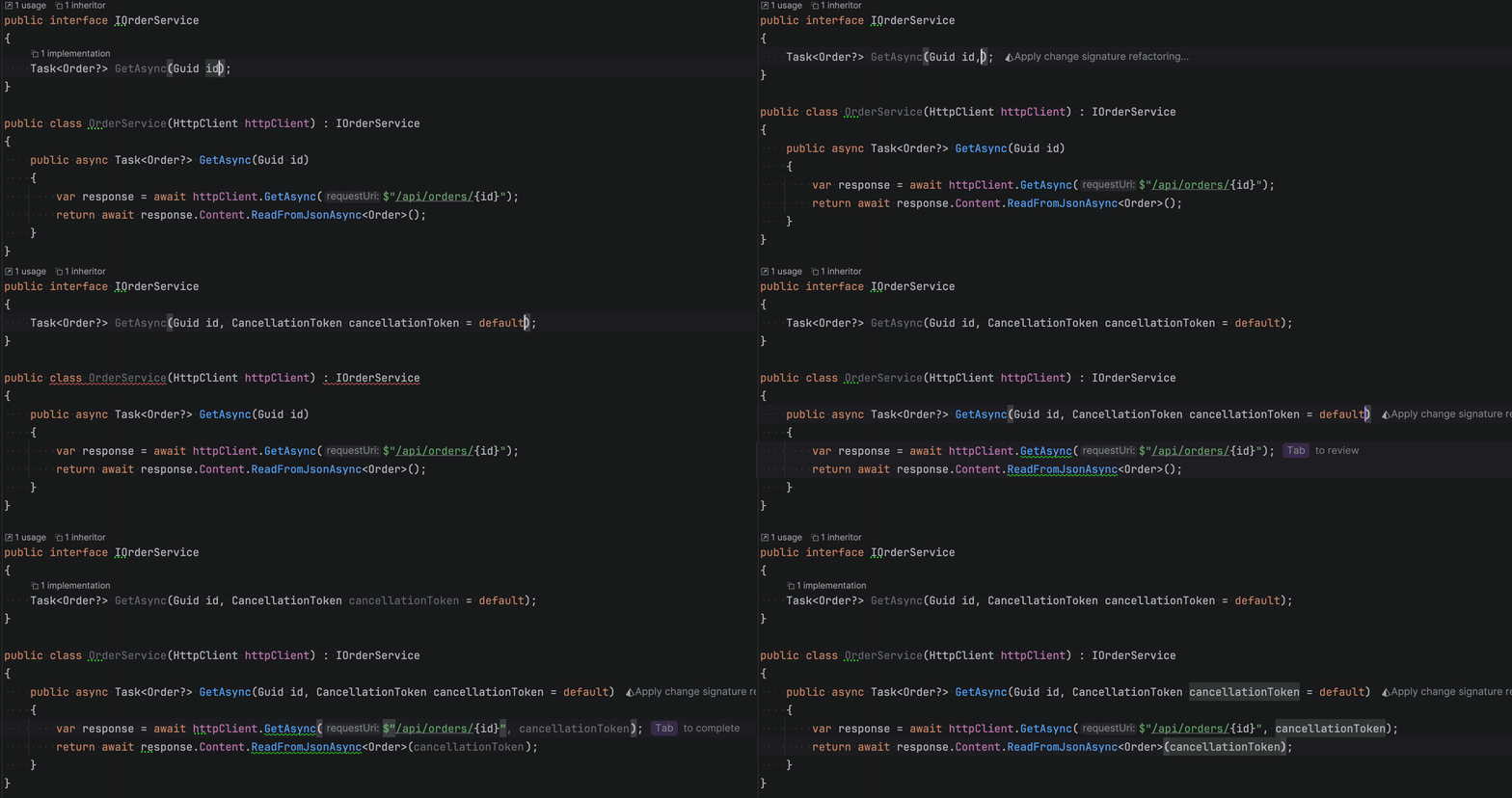
Overall, NES provide a smart code editing experience. Let’s agree to share responsibilities as follows: you can simply type and continue development as you used to, and we suggest small digestible diffs that help you do your job faster. Deal?
Who can use NES?
With the latest AI Assistant update, next edit suggestions are enabled by default for all users with AI Pro, AI Ultimate, or AI Enterprise subscriptions. Unlike AI code completion, the next edit suggestions feature is currently unavailable for AI Free license holders. Stay tuned, though – we are actively working on bringing it to a wider audience!
You can always learn more about which AI features are available in different pricing tiers on our official page.
How do NES work?
Trust us, there is a lot we could say about the internals, but we’ll try to keep things simple here.
Long story short, next edit suggestions are where AI meets ? the intelligence of JetBrains IDEs. Under the hood, the feature calls our cloud-based custom AI model and leverages deterministic IDE actions where possible.
AI model
Currently, at their core, NES rely mostly on suggestions provided by a model fine-tuned specifically for this task.
Much like Mellum, the model is a small language model (SLM) that leverages cloud GPU infrastructure to provide the best possible latency all around the world. Unlike Mellum, however, the underlying model is bigger and leverages a different type of context: the history of your recent changes as opposed to the current file and RAG.
Bigger does not always mean slower! Our inference pipelines differ for code completion and next edit suggestions generation. NES employ several inference tricks that keep latency under 200 ms for the majority of requests, even at the busiest times of the day ?. If you ever thought that completion in JetBrains IDEs was slow, it’s time to reconsider!
IDE actions (code insights)
Developers love our IDEs because of their reliability, and next edit suggestions put that aspect at your fingertips.
As part of their pipeline, when invoked, NES look for available code insights provided by the IDE and show them in the NES UI if they are appropriate. One of the easiest ways to see this interaction at work would be to look at a suggestion that renames an identifier in a file. The next edit suggestion will activate the IDE’s Rename refactoring, and usages will be conveniently updated. This even works with multi-file search!
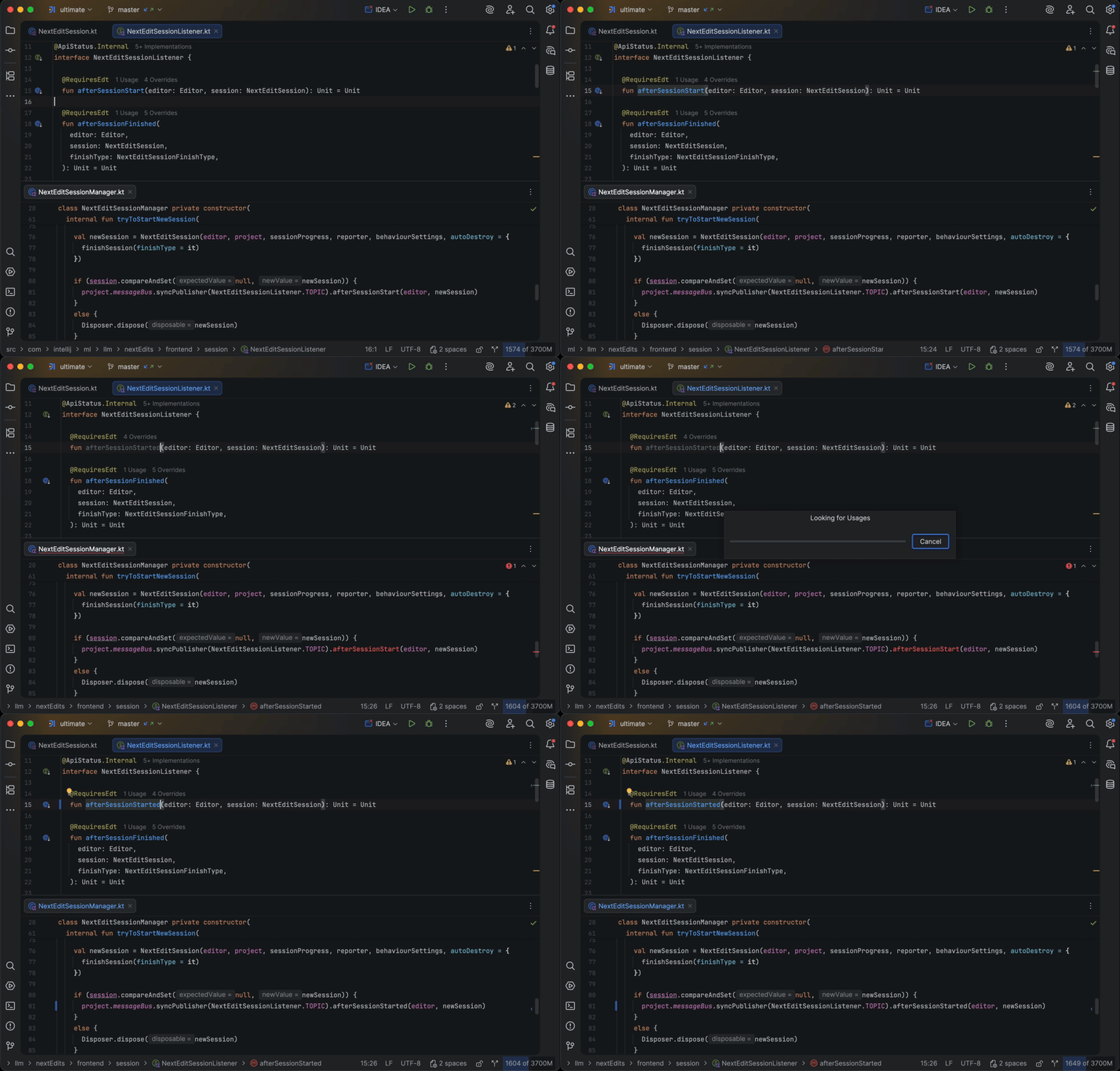
The integration between next edit suggestions and IDE code insights is not yet fully complete. Because even frontier models struggle with out-of-distribution tools, or even just having a large number of tools in general, we are intentionally adding new IDE actions to NES slowly. We are prioritizing the ones that are useful the most often, as well as the ones the models can use most effectively. Let us know in the comments which IDE actions you would find useful in NES!
Summary
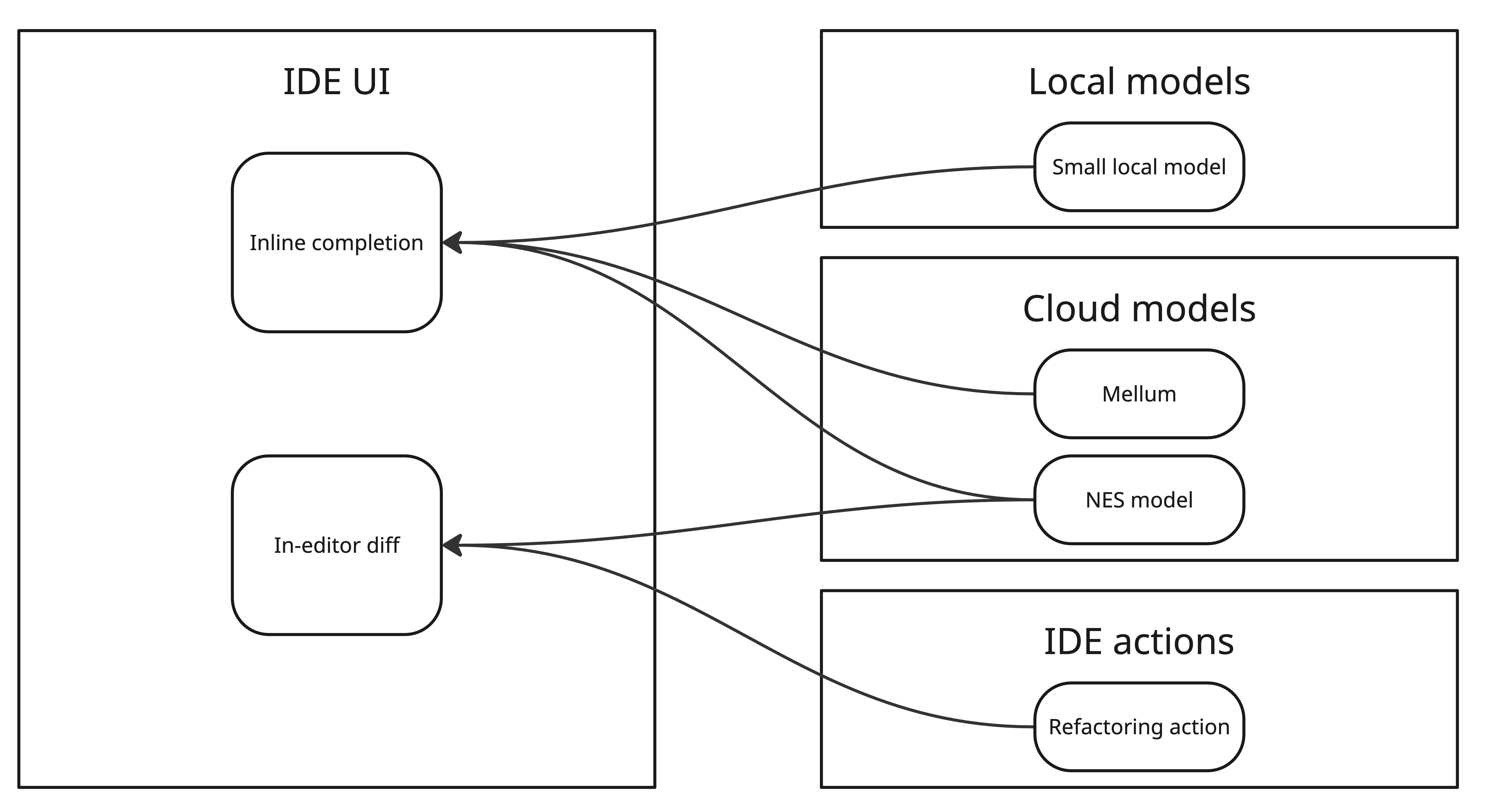
Next edit suggestions don’t replace the existing forms of code completion, but complement them, ensuring the best speed and relevance. Where code completion provides suggestions for new material, the next edit suggetions model works in the field of, well, edits. It is optimised to propose changes to existing code, but sometimes the best edit is simply to add something new. In those cases, the suggestions will look like completions because they are presented the same way – as inline gray text.
The simple scheme below explains which suggestion provider can be handled by which UI.
Settings panel update
In addition to enabling this new feature, we are redesigning the settings for AI code completion and next edit suggestions. Shortly after the start of the new year, the settings for these features will be simplified. Instead of having to navigate multiple views, you will be able to view everything on a single screen, with all the most important options available.
Here’s a sneak peek of the new design:
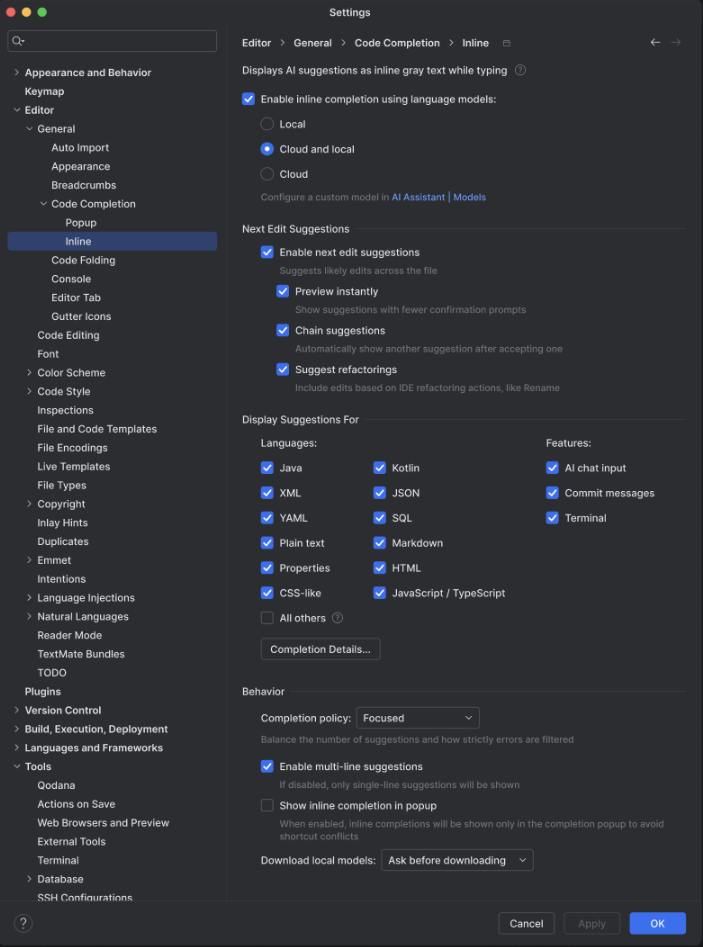
As you can see, the settings for local completion, cloud-based completion, and next edit suggestions are all combined on a single page where you can decide what you want and what you don’t.
AI code completion and NES cheat sheet
Deciding which types of suggestions to enable may feel a bit overwhelming, so we’ve put together a short cheat sheet to help clarify which settings to enable in the new settings panel, depending on your preferred workflow.
Case 1: You don’t want AI in your editor
Simply turn off inline completion and next edit suggestions on this panel. We’ll make sure you don’t see any results of matrix multiplications.
Case 2: You don’t want cloud-based suggestions
Just turn on inline completion with local models. Those models are already bundled into your IDE and work without an internet connection. Good ol’ full line code completion will have your back.
If you want your own local solution, you can plug any open-source model into the IDE via LM Studio or Ollama. This option is available on the AI Assistant | Models settings page. Note that, currently, this option only works for code completion. We will closely monitor the level of quality that is possible with local inference for NES, with the aim of eventually including it as well.
Case 3: You like completion but NES seem off
In this case, the best solution is to turn on inline completion with the Cloud and local models option and make sure that next edit suggestions are turned off. You will get the best from the Mellum model, and the IDE will automatically fall back to local models if your internet connection is unstable.
Case 4: You like full-blown in-editor AI assistance
Turn on both cloud models for inline completion and next edit suggestions to get code snippet suggestions as you modify your source code.
What’s next for NES?
Here is a quick look at some of the improvements we’re already working on:
- Smarter and more precise suggestions
- More IDE actions for NES to use
- Longer tab sequences
Many other developments are on our radar, and we’ll keep you updated as they come closer to fruition.
Thank-you note
While you update your AI Assistant and GPUs go brrr, we would like to thank everyone who participated in the open Beta test for the next edit suggestions feature this fall.
Over the last few months, the feature has been available to JetBrains AI subscribers who were willing to try it and share anonymous usage statistics. With your help, we were able to make sure the feature was ready and properly prepare the cloud infrastructure for a full-scale release. Thank you so much! ❤️
Tab–Tab,
Your AI completion team