Kotlin
A concise multiplatform language developed by JetBrains
A New Default Project Structure for Kotlin Multiplatform

We are updating the default project structure for Kotlin Multiplatform projects to give modules clearer responsibilities, better align with conventions used by other build systems and frameworks, and reflect the changes in Android Gradle Plugin 9.0.
You’ll see this project structure in newly created projects generated by our tools, in the official documentation, and in samples for Kotlin Multiplatform.
These changes are already live in the KMP wizard, both in your IDE (with the Kotlin Multiplatform plugin installed) and on kmp.jetbrains.com. We’re also working on updating our sample projects and other learning materials to match this new structure. You can already check out kotlinconf-app, KMP-App-Template, or RSS Reader as a reference.
To get support for AGP 9.0 in IntelliJ IDEA, update to 2026.1.2 or newer, and use the latest version of the Android plugin.
This post explains the changes that we’re making, why we’re changing the structure, and how you can update existing projects.
What’s changing
With our previous structure, most projects had a single composeApp Gradle module that contained a Kotlin Multiplatform library and also acted as an application for one or more platforms, containing their entry points and other related configuration.
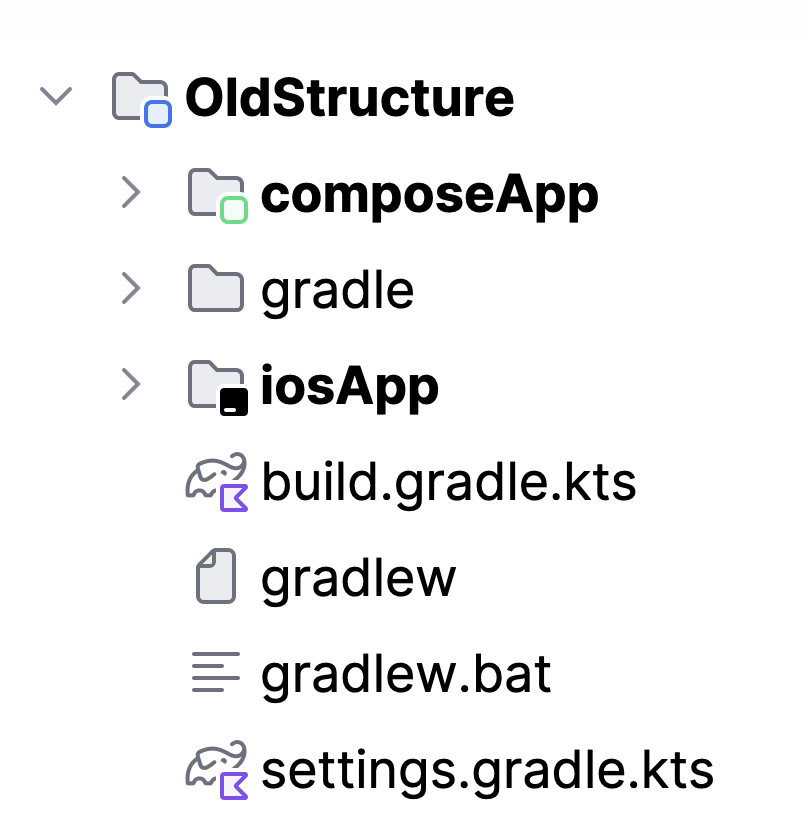
In the Project view, this looked like:
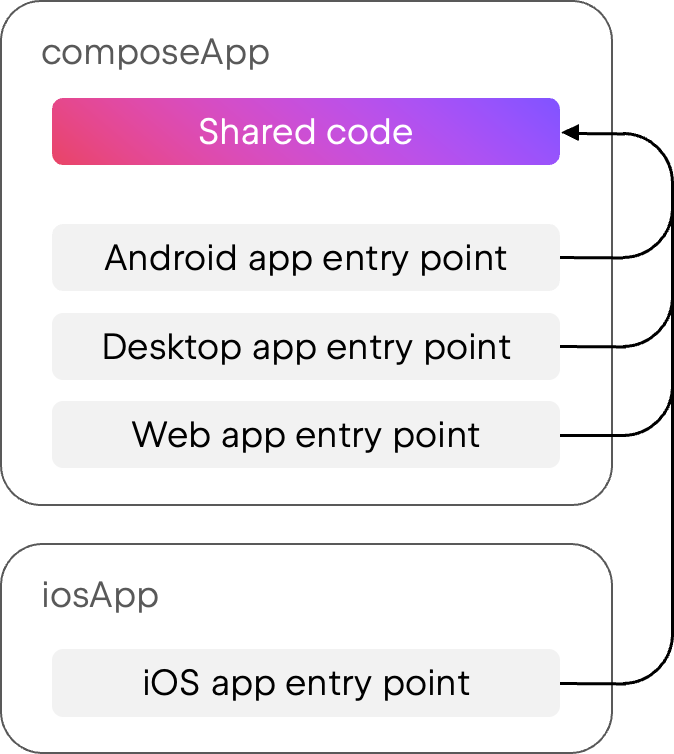
Our new default structure has a shared module with a single, clear responsibility: It’s a Kotlin Multiplatform library containing the shared code. Then, for each platform where you want to build a runnable application on top of the shared library code, you’ll have separate application modules such as androidApp, desktopApp, and webApp.
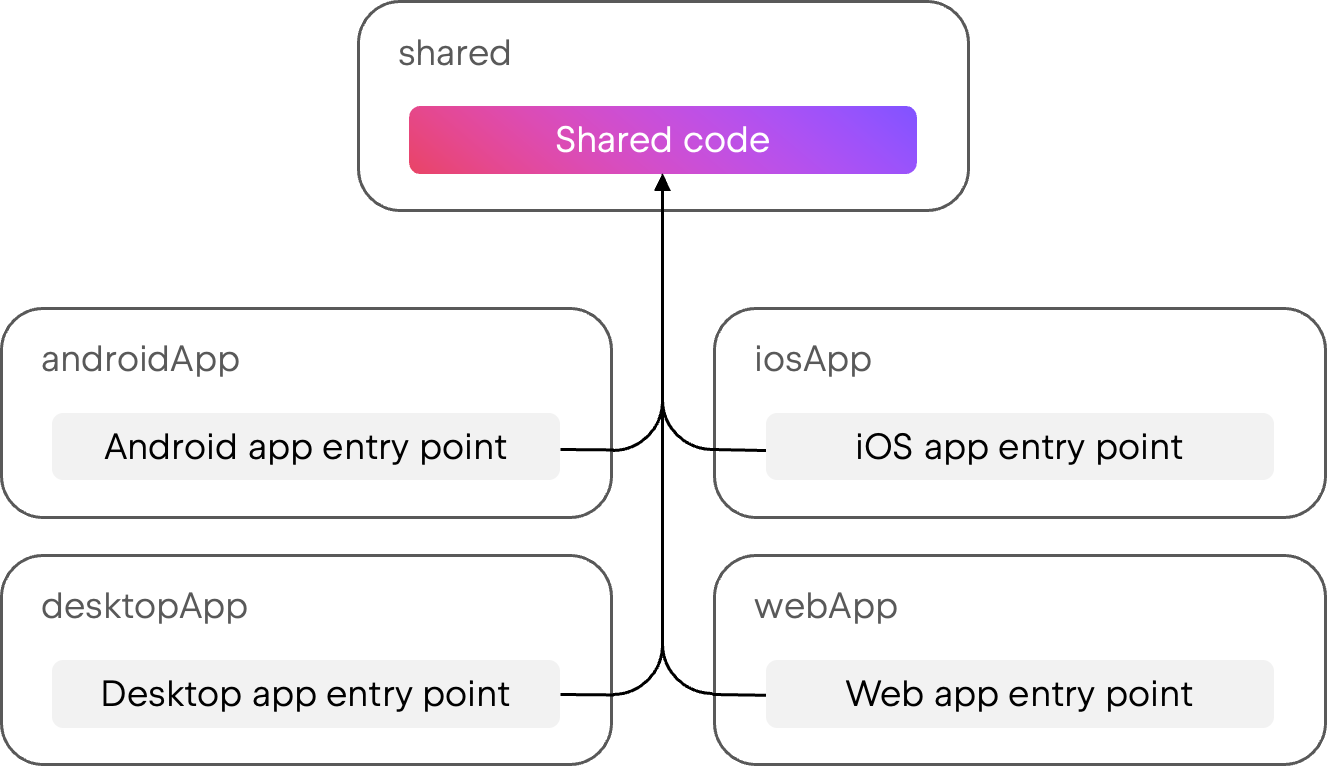
The new structure looks like this in the Project view:
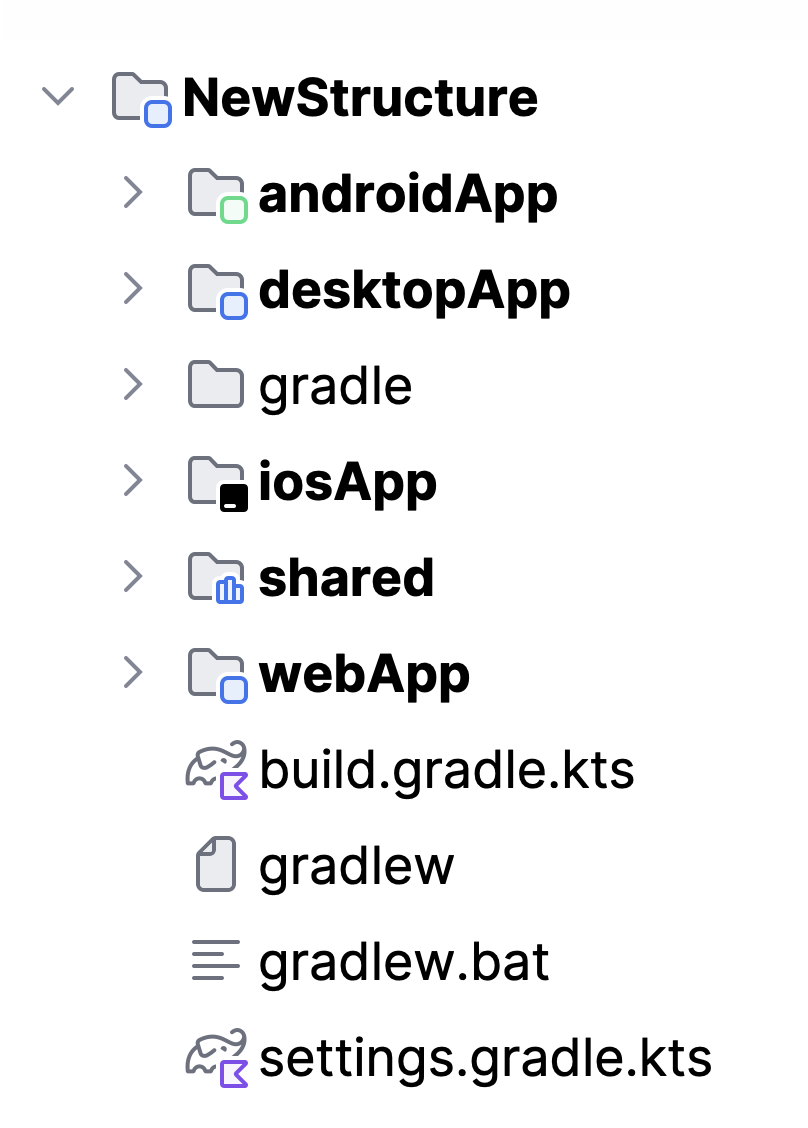
Why we’re making changes
The composeApp module in the old structure had several different responsibilities. As a result, it contained a lot of configuration, including platform-specific packaging details for all platforms. This could make it difficult to tell which parts were setting up a Kotlin Multiplatform library and which parts were setting up the applications themselves.
If you chose not to share UI on a client platform (for example, to use SwiftUI for your iOS application), the old structure included an additional shared module besides composeApp. This was a significant change to the module structure, but it only happened in certain configurations.
There was also asymmetry when it came to iOS apps. Because they require an Xcode project that consumes the shared code, iOS applications were already in a separate iosApp folder, while the rest of the applications built on the shared code were all co-located in composeApp.
Android Gradle Plugin 9.0 requires the entry point of the Android application to be in a separate module from the shared code, as it no longer supports applying the Android application Gradle plugin in a multiplatform module.
Finally, we previously had a different structure for Gradle-based and Amper-based projects. While Gradle supports multiple applications configured in a single module, Amper allows only one product per module, so Amper-based projects already used separate modules for each application.
Goals of the new structure
Based on the points above, we created the new structure with these goals in mind:
- Providing an initial setup for projects where each module has a clear responsibility and single purpose. It should always be clear where a given piece of code or build configuration should be placed in the project.
- Keeping the structure as consistent as possible across the different configurations that the wizard allows: different sets of target platforms, having a server application or not, and choosing native or shared UI for clients.
- Making it easy to modularize the project further, to go from a single multiplatform module to several ones as desired.
Adapting to other configurations
The examples above show the new project structure for a Compose Multiplatform application that shares its UI across Android, iOS, desktop, and web platforms. In other configurations, the structure will adapt as required, with minimal changes.
Configurations with native UI
Kotlin Multiplatform supports using native UI on top of shared Kotlin code. For example, you can choose to use SwiftUI for your iOS app while using Compose Multiplatform for other platforms. In this case, you’ll write shared business logic code that’s used by all platforms, and shared UI code that’s only used by certain platforms.
In this configuration, the new structure will have two shared modules instead of one: sharedLogic and sharedUI. While sharedLogic is consumed by all applications and doesn’t have Compose dependencies, sharedUI is only consumed by those that use Compose Multiplatform for their UI.
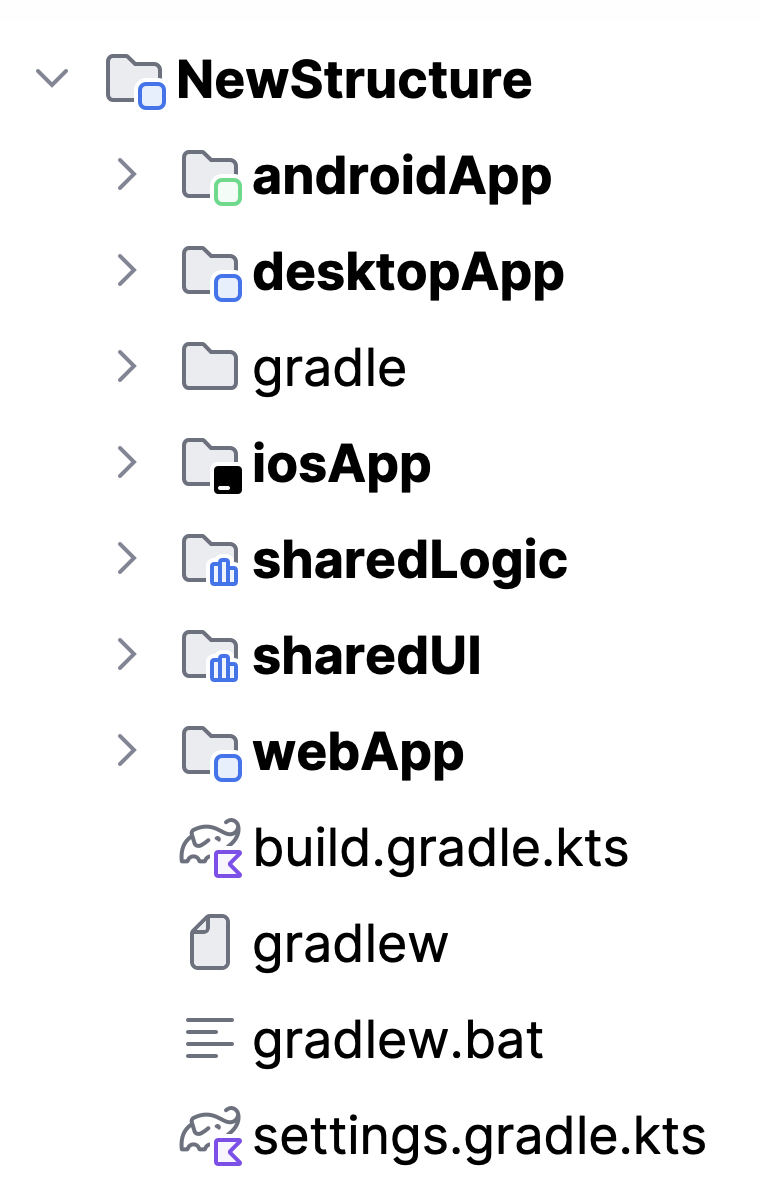
It’s still easy to decide which module to write your shared code in: If all your platforms will use it, including those with native UI implementations, it should go in sharedLogic. If only platforms using Compose Multiplatform need that code, it should go in sharedUI.
Configurations with a server included
For projects that also target server-side Kotlin, the new structure adds a server module and moves all client-side modules into a nested app folder. An additional core module in the project root lets you share code between server-side and client-side code, such as models and validation logic.
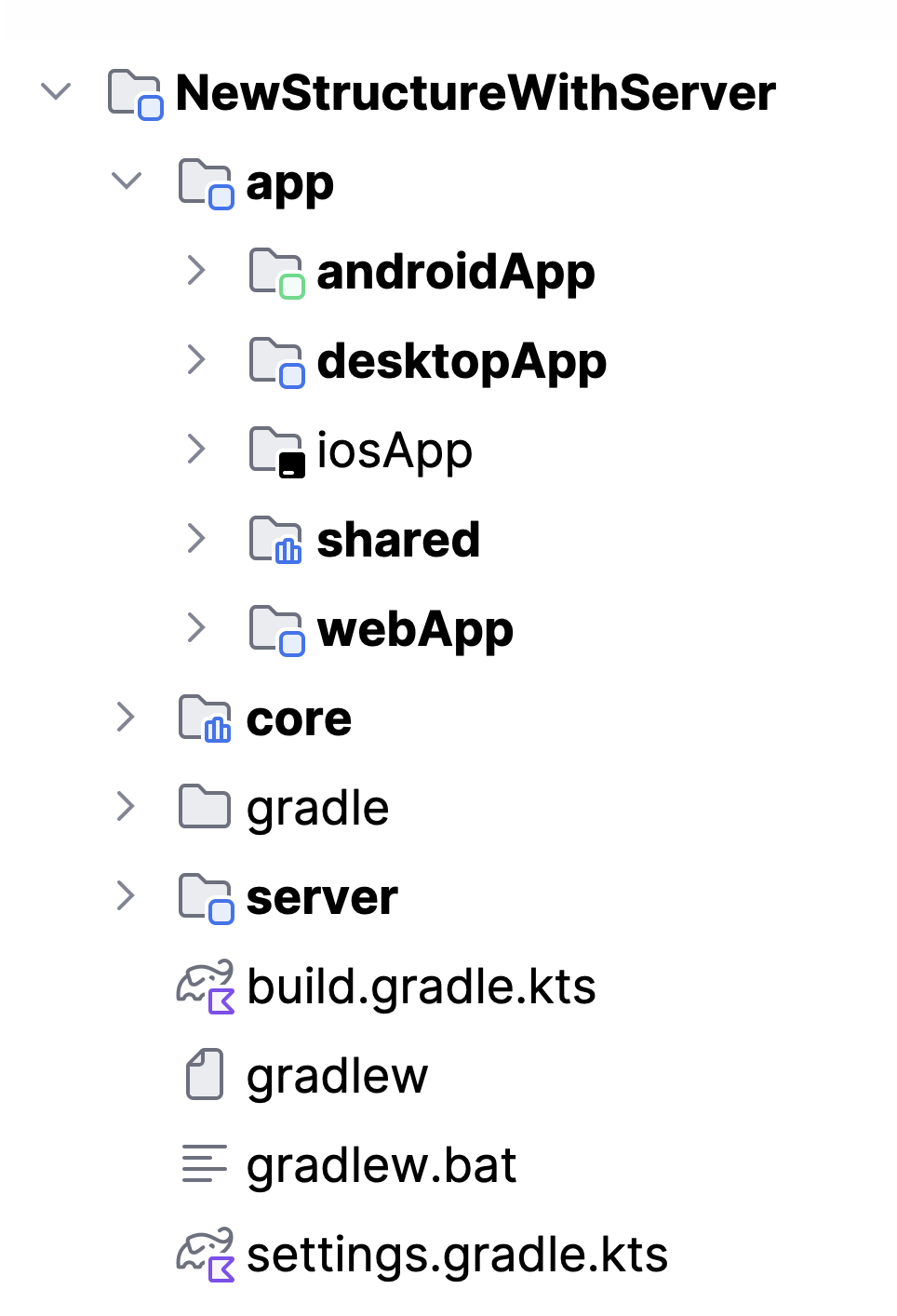
Updating existing projects
While we’re changing the default structure for newly created projects, existing projects aren’t required to adopt the same exact structure. If you want to migrate an existing project to match this new default structure, you can use the migration guide, which shows you how to introduce new modules for each entry point.
Note that the changes related to Android Gradle Plugin 9.0, however, are mandatory for all existing multiplatform projects that target Android. You can learn more about these changes and how to update your projects in this blog post.
To get support for AGP 9.0 in IntelliJ IDEA, update to 2026.1.2 or newer, and use the latest version of the Android plugin.
Get started with KMP today
To create a new project with the updated structure, go to kmp.new or use the Kotlin Multiplatform wizard in your IDE (available in both IntelliJ IDEA and Android Studio with the Kotlin Multiplatform plugin installed).
If you’re looking for examples of the new structure in action, take a look at kotlinconf-app, KMP-App-Template, or RSS Reader.