Scala Plugin
Scala Plugin for IntelliJ IDEA and Android Studio
Markdown in Scaladoc is now supported by IntelliJ IDEA!

This blog post is available as well as a YouTube video.
In Scala 2, Scaladoc used Wikidoc syntax, which has advanced features like templates, categories, and metadata. These are useful for organizing and structuring large volumes of documentation, but they are rarely used in code comments. On the other hand, Markdown offers a simpler, more readable syntax; in many cases, you can read it as raw text without any issues. Markdown is also much more popular and already used in README files and other documentation files, so it simply makes sense to use it in Scaladoc as well.
The best example of this is probably how tables are written in Markdown.
As you can see, the raw version of the table is simply a table made in ASCII which, at least in case the data is short and simple, can be read without rendering.
In Scala 3, both Wikidoc and Markdown are supported, but Markdown has been chosen as the default syntax. In other words, if you add a documentation comment (i.e. one starting with a slash and two asterisks, /** … */) to a class, method, or field declaration, by default we will assume its formatted with Markdown.
Markdown syntax
In the new release, IntelliJ Scala Plugin provides support for the new Scaladoc. That means all the following syntax features are supported:
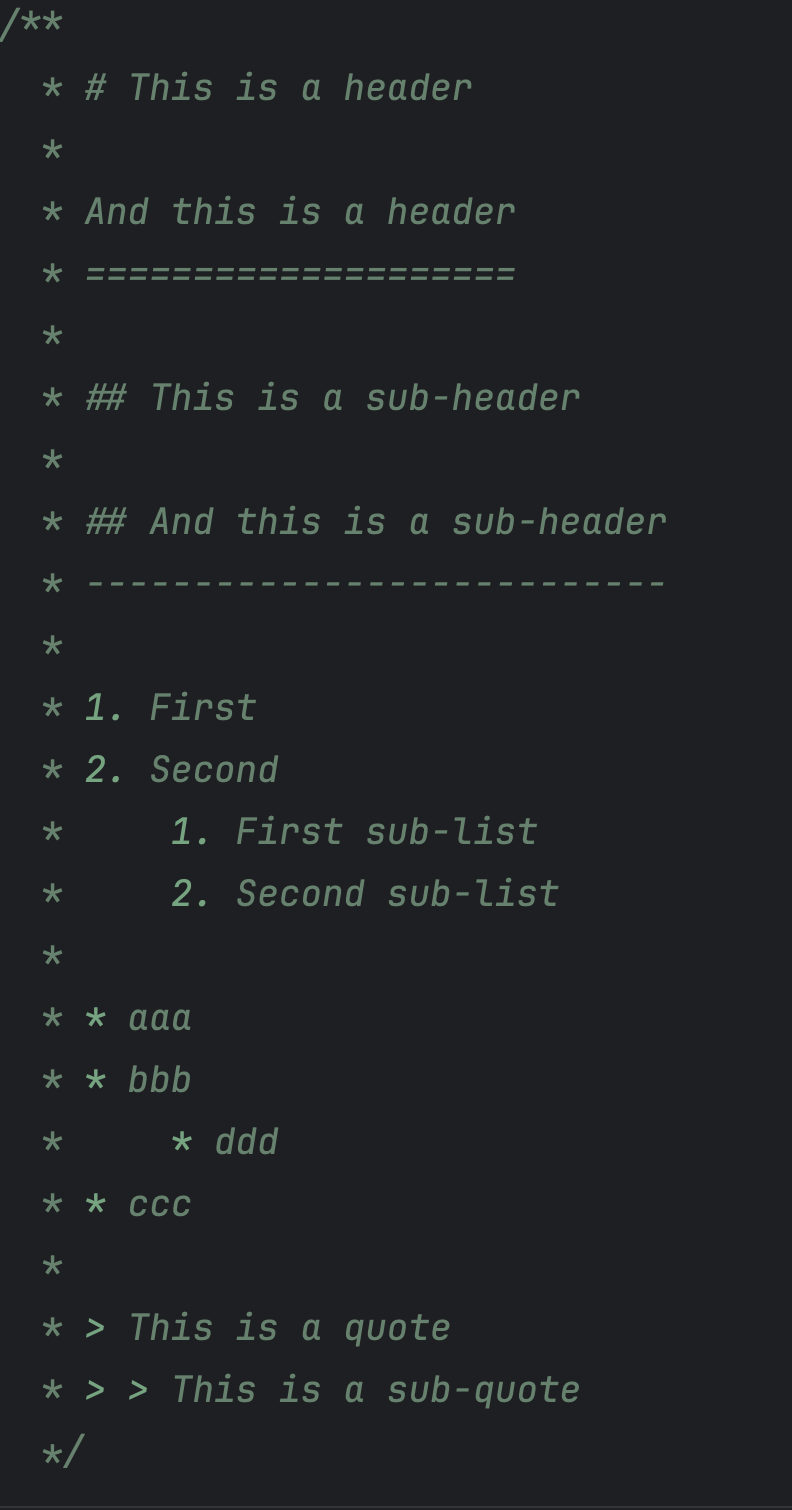
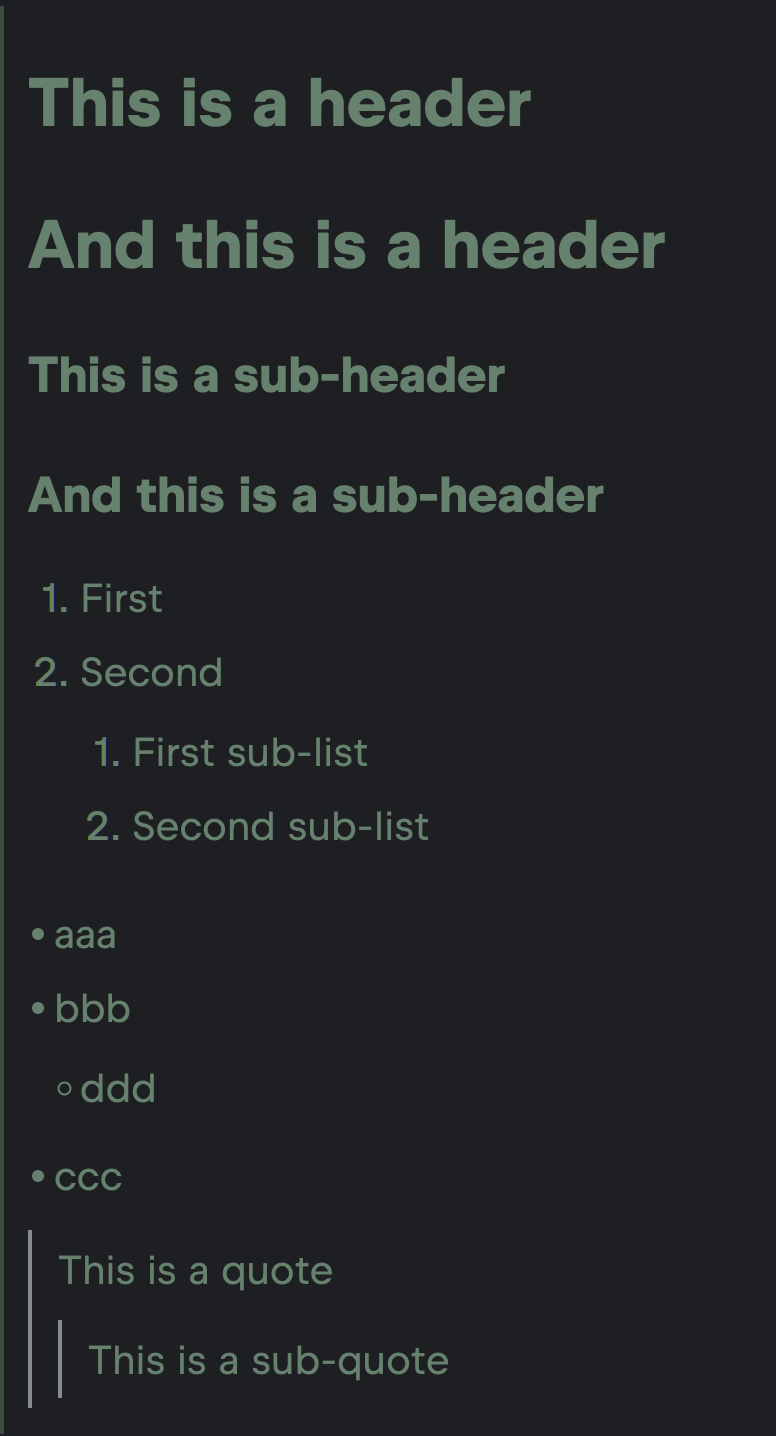
- Headers starting with a hash (#) in front of it, as well as headers made by underlining the text with the equality signs (=) in the next line.
- Smaller, “sub-chapter”, headers with multiple hashes or with the hyphens (-) in the next line.
- Ordered and unordered lists – on top of rendering them, the Scala plugin also automatically generates new indices and bullet points when you write them. You can make sub-lists too: When rendered, the ordered list will have deeper indentation for its sub-lists, while a sub-list of the unordered one will have different bullet points.
- Block quotes with the “greater than” sign (>). If you start writing multiline quotes, the Scala Plugin will automatically generate signs for the next lines. Just as with lists, you can also write nested block quotes.
 |  |
- Bold, italic, and bold italic font, made with either asterisks (*) or underscore (_) signs. If you type just one asterisk or one underscore sign, the Scala Plugin will generate the other, closing one, and whatever you type between them will be rendered in italics. If you use two asterisks or two underscores on one side, the text in the middle will become bold. If you use three, the text will be rendered both italic and bold.
- Same for strike-through text, made with two tildes (~~).
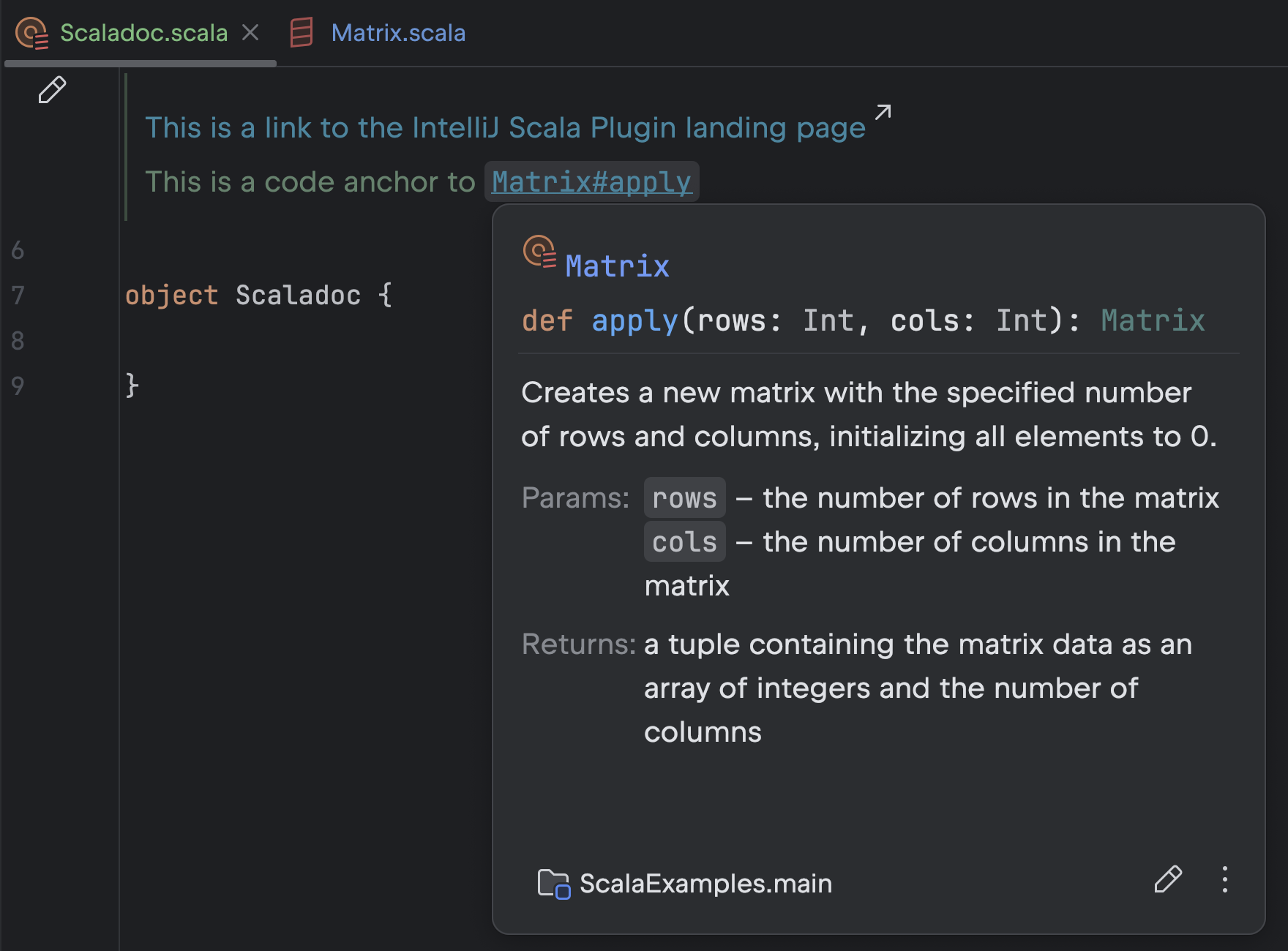
- Links with [link](text). If you render it and click it, IntelliJ IDEA will open your default web browser and direct you to the given webpage.
- Code anchors with [[name]]. The text within double square brackets should be a name of an existing class, trait, etc. While you write it, the Scala Plugin will display a code completion popup to help you find it. After rendering, you will see the anchor highlighted as if it was a link, but when you click on it, instead of redirecting you to that element, the Scala Plugin will display the documentation comment attached to it.
- Horizontal lines, made with an empty line followed by three hyphens (—). The empty line is important because otherwise the line made of hyphens will be understood as a sub-chapter header.
- Inline code – both started with upper ticks and the <code> tag.
- Multiline code blocks – both started with curly braces {{{ … }}} and backticks “` … “`.
- And tables, which we already discussed above, but there’s one more thing to add – with the following syntax you can control the text alignment within the table’s columns:
Backward compatibility
If you want to switch back to the old wikidoc syntax, put the @syntax wiki directive in the directives section at the end of the comment block. This is important because the @syntax directive is treated similarly to other directives like @param and @return and should be put together with them. If you make a mistake and put it at the top or inside the comment, everything below the directive will fail to render.
How to render
There are three ways to render Scaladoc in IntelliJ IDEA with the Scala Plugin:
- Click the gutter icon to the left of the first Scaladoc line. The documentation will render directly in the editor.
- Hover the cursor over the comment block. A popup with rendered content will appear.
- If the comment block is attached to a code element, such as a class or a method, you can hover the cursor over its name, regardless if it’s its definition or a call to it from another place in the code. This will also display a popup with rendered content.
For more information, you can refer to the following sources:
- Scaladoc | Style Guide | Scala Documentation
- Guide to Scaladoc | Baeldung on Scala
- Scaladoc for Library Authors | Scaladoc | Scala Documentation
Happy developing!
The Scala team at JetBrains