
IntelliJ IDEA
IntelliJ IDEA – the Leading IDE for Professional Development in Java and Kotlin
Spring Data JDBC Made Easy with IntelliJ IDEA


IntelliJ IDEA is well-known for its Spring Framework support. The IDE helps with bean navigation, on-the-go bean injection, Spring Data methods completion, and assistance with generating HTTP requests for controllers. One of the areas that IDEA is good at is dealing with JPA. You, as a developer, can:
- Generate entities based on DB tables.
- Create diff scripts for Liquibase and Flyway on model changes.
- Compare two DB versions and generate a diff script.
Before IntelliJ IDEA 2025.3, dealing with Spring Data JDBC required more effort. After creating a table or adding a field, you had to update the code manually or invoke an AI. Finally, we introduce first-class support for Spring Data JDBC. This means the IDE now understands your JDBC entities just as well as it understands JPA and provides the same functionality. Whether you prefer creating a DB schema first or building a proper object model, you can leverage IDEA’s features for your work.
In this article, we’ll try to answer the most common questions that usually come up in different daily tasks. We’ll use the following domain model containing Courses, Students and Enrollments as an example.
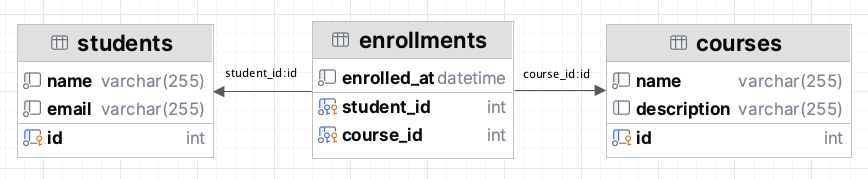
create table courses
(
   id          int primary key auto_increment,
   name        varchar(255) not null,
   description text
);

create table students
(
   id    int primary key auto_increment,
   name  varchar(255) not null,
   email varchar(255) not null unique
);

create table enrollments
(
   student_id  int       not null,
   course_id   int       not null,
   enrolled_at timestamp not null,
   primary key (student_id, course_id),
   foreign key (student_id) references students (id),
   foreign key (course_id) references courses (id)
);
Getting Started
Q: How do I connect IntelliJ IDEA to my database for reverse engineering and diff?
A: Click on the Database tool window → Click on “+” icon → Data Source → MySQL
Provide database connection properties and click on Test Connection to verify the connectivity. Click OK to connect to your database.
If you have datasource properties configured in your application.properties/yml file then you can register DataSource by simply clicking on the gutter icon.
On the other hand, if you have DataSource registered in the Database tool window, then you can simply drag the connection onto the application.properties/yml file to configure the datasource properties.
Q: How does IntelliJ IDEA detect Spring Data JDBC entities and repositories?
A: IntelliJ IDEA detects classes with @Id (org.springframework.data.annotation.Id) annotated properties as Spring Data JDBC entities.
Any interface that extends either org.springframework.data.repository.Repository or any of its sub-interfaces(CrudRepository, ListCrudRepository, PagingAndSortingRepository, etc.) will be automatically detected as Spring Data Repositories.
Q: IDEA does not detect my entity, what should I do?
A: In case the automatic detection of entities is not working (for example, currently records with @Id properties without @Table annotation are not automatically detected), then you can explicitly mark them as Spring Data JDBC entities by adding @Table annotation on the class/record or by adding them to Mapping Context as follows:
Q: DB-first or code-first: which workflow should I choose for Spring Data JDBC?
A: From Spring Data Documentation:
All Spring Data modules are inspired by the concepts of “repository”, “aggregate”, and “aggregate root” from Domain Driven Design. These are possibly even more important for Spring Data JDBC, because they are, to some extent, contrary to normal practice when working with relational databases.
While using Spring Data JDBC, it is recommended to follow DDD and start with domain models/entities first.
Q: When should I use IntelliJ IDEA’s built-in Spring Data JDBC features instead of asking an AI to generate code?
A: You can use AI planning mode to brainstorm the design and use IntelliJ IDEA’s built-in code generation feature to deterministically generate code.
If you are following the code-first approach, you can generate the models using AI and use IntelliJ IDEA to generate Flyway/Liquibase migrations from the entities.
Conversely, if you are following the database-first approach, then you can generate Entities from the existing schema deterministically without any AI and its associated cost.
Q: What are the current limitations vs JPA support (and where does the IDE intentionally stay hands-off)?
A: IntelliJ IDEA provides all the necessary support for working with Spring Data JPA and Spring Data JDBC. So, it boils down to the comparison of Spring Data JDBC vs Spring Data JPA features.
IntelliJ IDEA provides support for both Spring Data JPA and Spring Data JDBC with the following:
- Generating entities from an existing database schema
- Initializing Flyway/Liquibase migrations from entities
- Generating database migrations from code changes
- Synchronizing database changes into entities
- Autocompletion of Spring Data Repository methods
- On-demand creation of Spring Data Repository methods
Schema Evolution and Migration
Q: How do I generate @Table entities from an existing database schema?
A: In the Database tool window, right-click on the DataSource connection and select “Create JDBC Entities from DB…”, select the Target package, select the tables you want to generate entities for, and click OK.
Q: How does IntelliJ IDEA handle composite keys during reverse engineering?
A: While generating Spring Data JDBC entities from the existing schema, for composite keys IntelliJ IDEA generates a class for the ComposeKey and uses @Embedded annotation to define the primary key.
In our example, the enrollments table composite key EnrollmentId is generated as follows:
public class EnrollmentId {
   private Integer studentId = 0;
   private Integer courseId = 0;

   // setters and getters
}

@Table(name = "enrollments")
public class Enrollment {
   @Id
   @Embedded.Nullable
   private EnrollmentId id;

   private Instant enrolledAt = Instant.now();

   public Enrollment(@Nullable EnrollmentId id, Instant enrolledAt) {
       this.id = id;
       this.enrolledAt = enrolledAt;
   }

   // setters and getters
}
Q: I started with the code-first approach. Can IntelliJ IDEA generate migrations from entities?
A: Yes. You can generate Flyway or Liquibase Migrations from the entities. Using the entity gutter icon, invoke Flyway/Liquibase Init Migration action, choose the entities and DataSource and generate the migrations.
Q: Can IntelliJ IDEA generate migrations from my code changes?
A: IntelliJ IDEA can generate Flyway and Liquibase migrations from the code changes (adding new entities, changing or adding entity properties).
Q: What changes should I review manually before applying generated migrations?
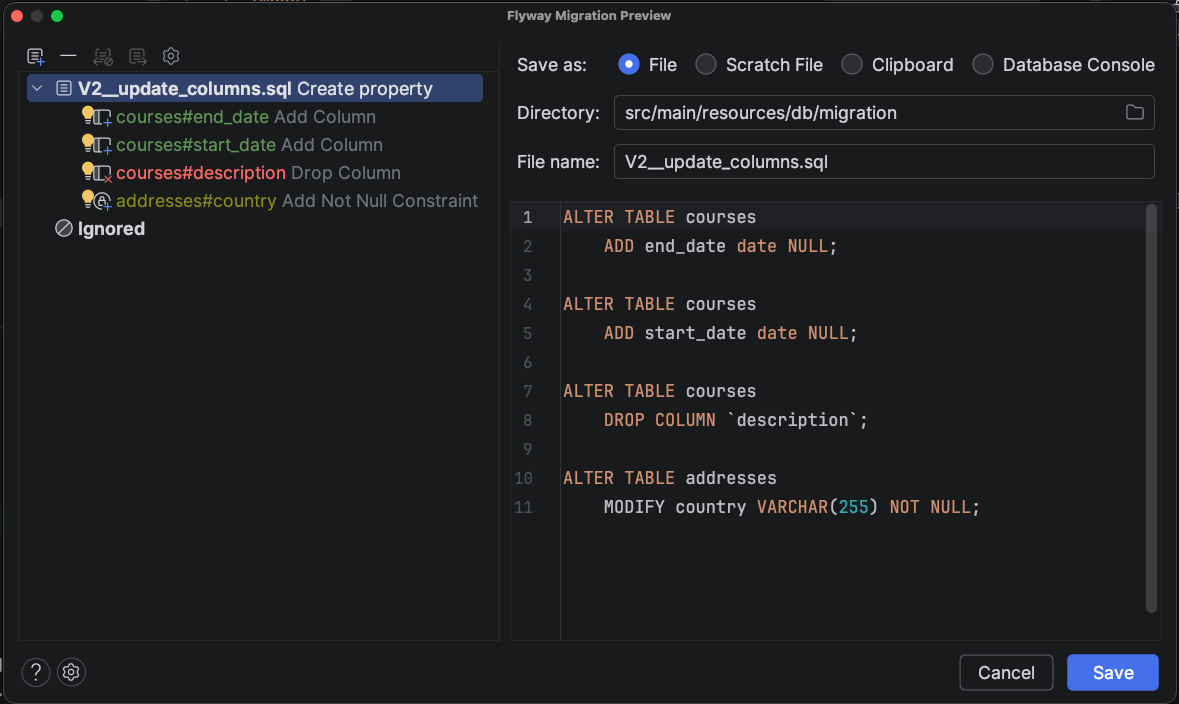
A: In short, ALL. While IntelliJ IDEA detects the database dialect and generates the appropriate database migration scripts, it is better to review before applying.
You should also pay attention to the migration change color codes (green, yellow, red) that represent safe, needs attention and dangerous types. The safe operations mostly create new resources(tables, columns, etc) that can be easily reverted. The needs attention type changes alter the schema (rename tables or columns, change datatypes, etc) that could have a significant impact on the application. The dangerous type changes are irreversible, such as dropping a column or table, which should be carefully evaluated and performed with the utmost care.
Q: How does the “Diff & migration scripts” feature handle complex changes, such as renaming a column or changing a data type, between my @Table model and the DB?
A: When generating migration scripts, IntelliJ IDEA shows the different types of operation in different color codes(green, yellow, red) to represent safe, needs attention and dangerous types.
For migrations like renaming a column name or modifying data types, IntelliJ IDEA offers suggestion to rename the column name or update datatype instead of creating a new column and dropping the old column.
Working with Spring Data
Q: In DDD, we focus on “Aggregate Roots.” How does IDEA help me stay within those boundaries?
A: According to DDD principles, an entity should be associated with only one aggregate root. In IntelliJ IDEA, if you try to associate the same entity with multiple aggregates, it will show an inspection warning and provide quick fixes.
Q: How do I create a Spring Data JDBC repository?
A: You can create Spring Data JDBC Repository by using right-click → Spring Component (Java) → RepositoryName.
Productivity Hacks
Q: Can I add multiple missing columns to an entity in one go?
A: You can add the missing columns to an entity by right-clicking on Table → Create Entity Attributes From DB and select all the missing columns.
You can also add one column at a time using column auto completion support.
Q: How do I quickly create a repository and inject it into a service (end-to-end flow)?
A: A simpler way is to just start typing the {entityName}Repo and IntelliJ IDEA will show an option to create Repository. It will create the Repository and automatically inject in the current bean. Similarly, you can inject any existing bean and start using it by just start typing the Spring bean name.
Q: How “smart” is the derived method completion?
A: IntelliJ IDEA provides autocompletion for finder methods based on the field names of entity classes and Spring Data JDBC supported keywords.
You don’t even need to create the Repository methods ahead of time. Wherever you are using the repository, you can start typing the finder method using the autocomplete feature, and IntelliJ IDEA will create that method automatically in the repository.
Conclusion
First-class Spring Data JDBC support in IntelliJ IDEA reduces manual work in everyday JDBC tasks. If you prefer a code-first approach, the IDE helps you keep your aggregates and domain model consistent and can generate migration scripts for Flyway or Liquibase that you can review and apply. If you work DB-first, reverse engineering helps you bring database changes back into code with fewer steps.
AI can definitely help you draft migrations or mappings, but it should not be the source of truth. IntelliJ IDEA inspections and database tools help you verify changes early, before they ship.
Give it a try in your project, and let us know what works well and what you want to see next.