IntelliJ IDEA
IntelliJ IDEA – the Leading IDE for Professional Development in Java and Kotlin
Java 26 in IntelliJ IDEA


The Java release cadence means we get a new Java version every six months. Java 26 was released on March 17, 2026. At JetBrains, we are committed to supporting the latest technologies in IntelliJ IDEA and adding useful enhancements for both stable and preview features. In this blog post, we will give you an overview of what Java 26 delivers and how it is supported in IntelliJ IDEA.
Java 26 delivers ten JEPs, of which five are final. There are no new stable language features in this release, but there are meaningful performance improvements and new library additions. In addition, several preview features continue to mature.
We are also happy to share that a JetBrains colleague contributed a small but useful improvement to the Java platform.
Before diving in, let’s start by setting up IntelliJ IDEA to use Java 26.
Using Java 26 in IntelliJ IDEA (setup)
Java 26 support is available in IntelliJ IDEA.
To use Java 26, you will need to download the JDK. You can do so from inside IntelliJ IDEA or by using tools like SDKMAN!
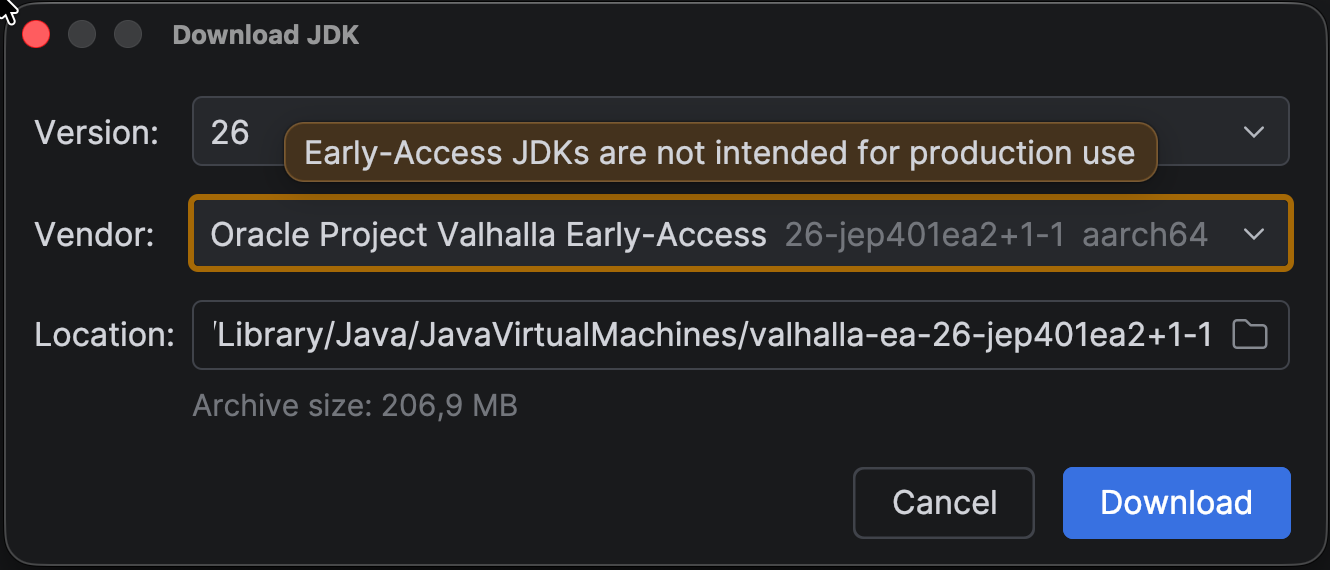
To download a JDK from IntelliJ IDEA, open the Project Structure, go to the tab Project Settings | Project, open the drop-down menu in the SDK field, and select Download JDK. In the Download JDK popup that opens, set Version to 26, and in the Vendor field, select the vendor you want to use.
Note that you can also download early access builds from inside IntelliJ IDEA. For example, Java 26 also introduced a new build of Project Valhalla, which is also available for download.
IntelliJ IDEA already has support for value classes from Project Valhalla, as demonstrated in the What’s New In IntelliJ IDEA 2025.3 video:
If you use SDKMAN! or asdf to manage your JDKs, IntelliJ IDEA can read the .sdkmanrc or .tool-versions file in your project and configure the JDK automatically when you open the file. For example, if you are using SDKMAN! and the JDK version specified in the .sdkmanrc file is not yet installed, an inlay hint will appear in the file, allowing you to download it directly from the IDE by running the relevant SDKMAN! command.
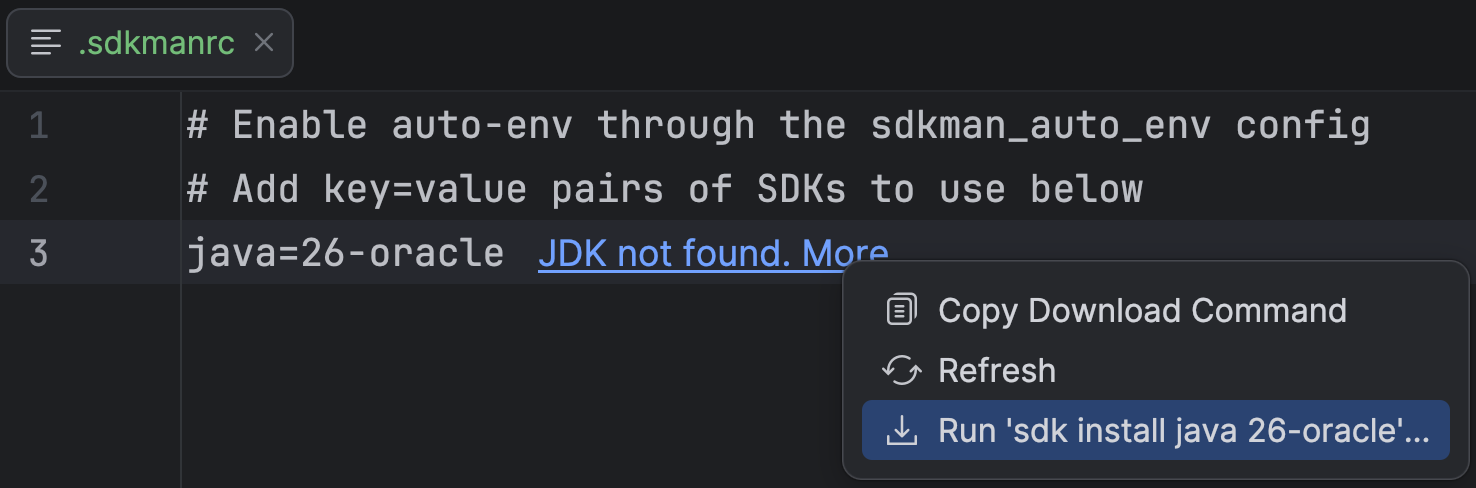
If it is already installed but not yet configured for the project, there will be an inlay hint Set as project JDK. Click the inlay hint to set the mentioned JDK version for the project. Once set, there will be an inlay hint Project JDK (26). Click the link to open the Project Structure popup where the SDK is set.
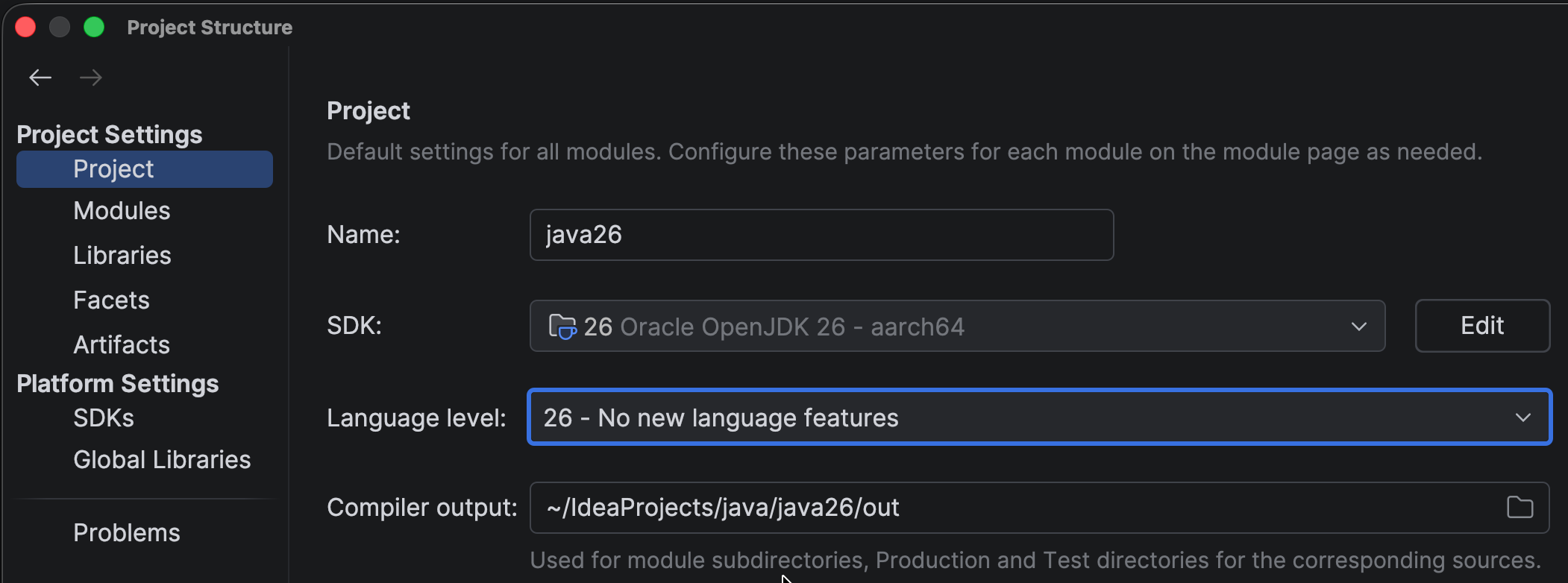
Make sure to configure IntelliJ IDEA to use the right language level. To use Java 26 stable features, set Language level to 26 – No new language features. As mentioned, Java 26 introduces no new stable language features, hence this description.
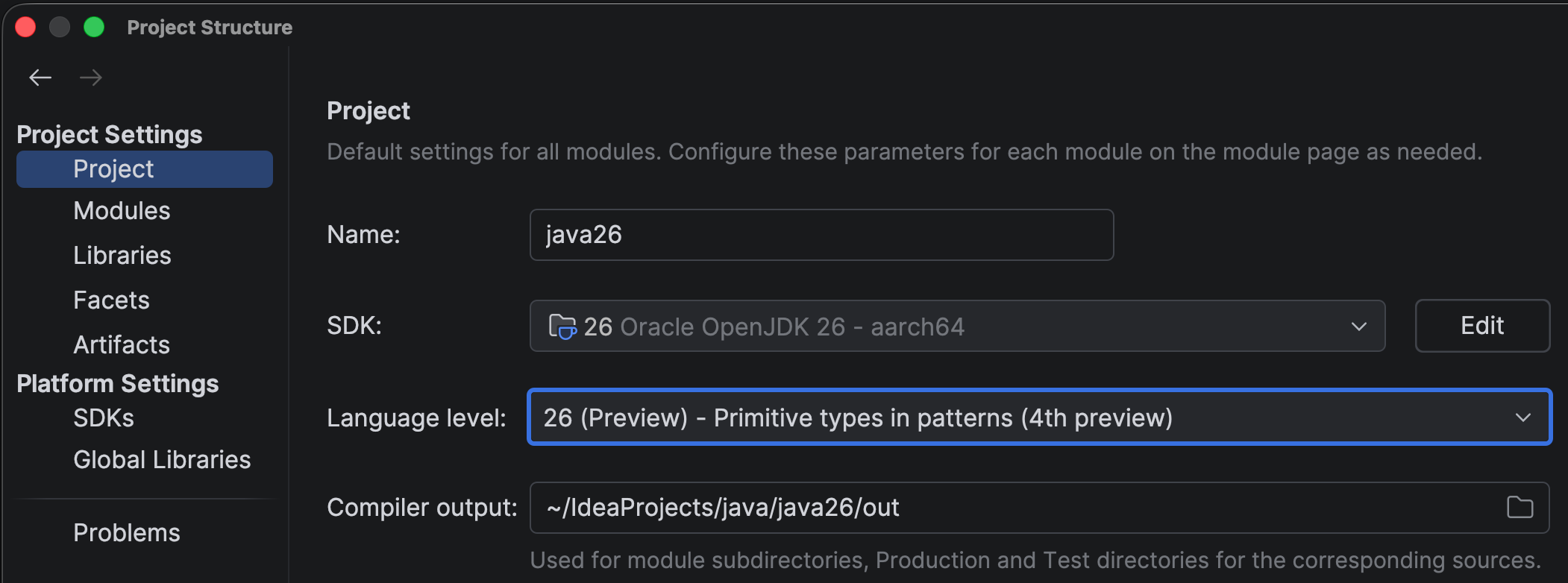
To try out preview features, set Language level to 26 (Preview) – Primitive types in patterns (4th preview). Setting the right language level means that IntelliJ IDEA will show support for this language level in the editor, including inspections and quick-fixes. Usage of preview features will be highlighted as such, as you might not want to use preview features in production code yet.
When you set the language level to Java 26 (either stable or preview), IntelliJ IDEA will show you all relevant inspections. To see which inspections were added in the last version of IntelliJ IDEA, open Settings | Editor | Inspections, click on the Filter Inspections button, and select Show New Inspections in IDEA 2026.1.
A full list of inspections is available on Inspectopedia. In upcoming releases of IntelliJ IDEA, we will continue to add more inspections for Java language support, based on current and new language features.
New stable features in Java 26
Let’s take a quick look at the features Java 26 introduces.
JEP 516: Ahead-of-Time Object Caching with Any GC
Java continues to improve startup time and warmup performance, as part of Project Leyden. JEP 516 extends the HotSpot JVM’s ahead-of-time (AOT) cache to work with any garbage collector, including the low-latency ZGC, by storing cached Java objects in a GC-agnostic format and loading them sequentially into memory at startup.
JEP 517: HTTP/3 for the HTTP Client API
Update the HTTP Client API, introduced in Java 11, to support the HTTP/3 protocol, to make it possible for libraries and applications to interact with HTTP/3 servers with minimal changes to the code. This allows applications using the HTTP Client API to benefit from improvements offered by the HTTP/3 protocol, such as potentially faster handshakes, more reliable transport, and avoidance of network congestion issues. The HTTP/3 protocol is already supported by most web browsers and almost 40% of all websites.
JEP 522: G1 GC: Improve Throughput by Reducing Synchronization
This JEP improves application throughput for applications using the G1 garbage collector by reducing the synchronization required between application threads and GC threads.
JEP 500: Prepare to Make Final Mean Final
JDK 26 introduces warnings when deep reflection is used to mutate a final field, aiming to prepare developers for a future release where final truly means final, making Java programs both safer and potentially faster. Applications that rely on this pattern can update their code ahead of the eventual restriction, or selectively opt back in where truly needed.
JEP 504: Remove the Applet API
The Applet API, deprecated for removal since JDK 17, has been removed. Neither modern browsers nor recent JDK releases still support applets.
Preview features in Java 26
With Java’s release cadence of six months, new language features are often released as preview features. This gives developers a chance to try out new features and provide their feedback before these features become final. A preview feature may go through multiple rounds, either with or without changes, before it is finalized as a standard part of the language.
IntelliJ IDEA strives to support preview features, allowing you to experiment with them before they become final. Because of how these features work, IntelliJ IDEA is committed to only supporting preview features for the current JDK. To enable preview features, set Language level to 26 (Preview) – Primitive types in patterns (4th preview).
Java 26 contains four preview features and one incubator feature. There are several changes to the preview features in Java 26, compared to Java 25.
JEP 530: Primitive Types in Patterns, instanceof, and switch (Fourth Preview)
This feature enhances pattern matching to support all primitive types in pattern contexts, including instanceof and switch. This feature lifts some of the existing limitations in pattern matching, making it possible to match, test, and safely convert primitive values in these constructs. Removing the need for unsafe manual casts (which might cause subtle bugs) and range checks, this feature improves code safety and readability. This feature is previewed again, with some changes since Java 25, which add some constraints (see JEP for details).
For a quick example of using primitive types in switch expressions with guard patterns, see Java 24 and IntelliJ IDEA. For a longer explanation of the feature, see the section Primitive Types in Patterns, instanceof, and switch (Preview Feature) in Java 23 and IntelliJ IDEA. Note that there are some changes to this feature in the latest preview.
For more background information on this feature, watch the following video:
JEP 526: Lazy Constants (Second Preview)
As Java programmers, we are aware that we should strive for immutability, as it offers many benefits. Since an immutable object can be in only one state, it can be safely shared across multiple threads. The current way to manage immutability is to declare fields final. However, final fields must be set eagerly, either during construction for instance fields or during class initialization for static fields. This initialization leads to longer startup times and might not even be necessary if the fields are not actually used.
Lazy constants offer greater flexibility as to the timing of their initialization. They are, as the name implies, initialized lazily. A lazy constant is a java.lang.LazyConstant object holding a single immutable value that is set only when first needed. The JVM treats them as true constants and applies the same performance optimizations.
To be eligible for constant folding (the process of simplifying constant expressions at compile time), a lazy constant must be stored in a final field. IntelliJ IDEA 2026.1 adds an inspection and quick-fix to make a LazyConstant final.
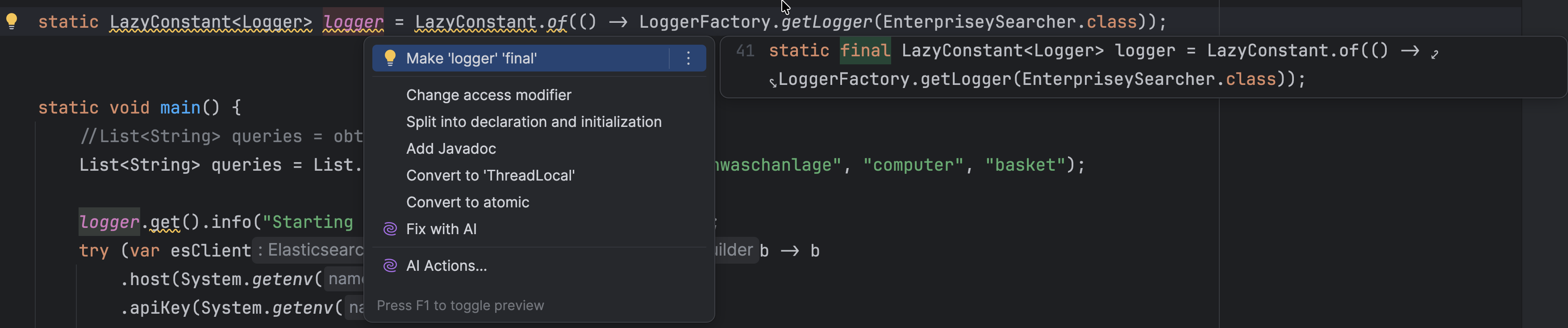
There are some changes to this feature compared to Java 25, mainly focusing on high-level use cases, removing low-level methods, and renaming the feature accordingly – from stable values to lazy constants.
JEP 525: Structured Concurrency (Sixth Preview)
Structured concurrency gives us better “idioms” for multithreaded code, which expresses the synchronous way of thinking. This makes concurrent code easier to understand and reason about. In addition, it helps to eliminate thread leaks and cancellation delays. It treats a group of related tasks running in different threads as a single unit of work, improving observability, cancellation, and error handling in concurrent code.
IntelliJ IDEA has a live template sts to add structured concurrency to your code. If you know a live template exists, you can use it by name.
IntelliJ IDEA 2026.1 includes some improvements to the debugger regarding virtual threads. Virtual threads are grouped into containers representing their scopes, making it easy to see which threads are virtual and which are platform threads. Any virtual thread without its own container is placed under the Root container. This grouping is new and gives you a clear view of the structure in structured concurrency.
For background information on structured concurrency, watch the following video:
Note that there have been changes to this preview feature since the video was recorded.
JEP 524: PEM Encodings of Cryptographic Objects (Second Preview)
This JEP provides a preview API for encoding and decoding cryptographic objects to/from the Privacy-Enhanced Mail (PEM) format. The second preview contains some changes compared to the previous version.
Incubator features in Java 26
Incubator features are experimental APIs made available for developers to try out and provide feedback on. Unlike preview features, incubator APIs may change significantly or even be removed in future releases and are not intended for production use.
To use an incubator feature, you’ll need to explicitly add the module while you run it. To use Vector API, add the following: --add-modules jdk.incubator.vector.
If you are running your program from IntelliJ IDEA, you can add this to the run configurations for your application. Select the run configuration for your program and click the three dots for More Actions. Select Edit… to open the Run/Debug Configurations. Click the link Modify Options, and in the Add Run Options popup, select Add VM Options. A new field will appear with the hint VM Options. Add the option --add-modules jdk.incubator.vector to that field.
JEP 529: Vector API (Eleventh Incubator)
This JEP introduces an API that allows developers to express vector computations that reliably compile to optimal vector instructions on supported CPUs. Vector operations enable more work to be performed in a single CPU cycle, which can result in significant performance gains.
This eleventh incubator contains no substantial changes compared to the previous version. The Vector API will continue to incubate until the necessary features from Project Valhalla are available, at which point it will be adapted and promoted to preview.
For background information on Vector API, watch the following video:
Contributions to the Java platform
When we spot an opportunity to make Java safer or less error-prone, we, of course, try to provide useful features in IntelliJ IDEA to help you write better code. But we also try to contribute improvements back to the platform.
Our colleague Tagir Valeev – author of 100 Java Mistakes and How to Avoid Them – contributed two new default methods to java.util.Comparator: min(T, T) and max(T, T). These make it straightforward to find the lesser or greater of two objects using a given comparator, without needing verbose workarounds. You can find more details in JDK-8356995. We are happy to see this change accepted into the platform!
Conclusion
Java 26 may not be an LTS release, but it brings meaningful performance improvements, useful library additions, and continues to evolve several important preview features. IntelliJ IDEA supports Java 26 from day one, so you can start taking advantage of everything this release has to offer right away.
IntelliJ IDEA will continue to support the latest Java features. As always, please let us know if you have any feedback.