TeamCity
Powerful CI/CD for DevOps-centric teams
Say Goodbye to “It Works on My Machine”: A Look at TeamCity’s Pretested Commits

This article was brought to you by Adeyinka Adegbenro, draft.dev.
Developers know the frustration well. Code works perfectly on their laptop, then breaks the moment it hits staging or production. It’s easy to miss subtle environment differences that expose latent bugs like race conditions, platform-specific failures, timeouts on large datasets, flaky tests, and memory issues.
Some issues only appear in shared environments, and local checks can’t catch everything. That’s why failures should be caught before code hits the shared repo, so only green commits reach the branch.
In this article, you’ll learn how TeamCity’s pretested commits feature stops broken code from reaching your repository. We’ll explain what pretested (gated) commits are and walk through TeamCity’s workflow using remote runs and IDE integration.
The problem: Broken builds from unverified commits
In software development, unverified commits are common. They speed up individual workflows yet also increase the risk of failed builds.
Typically, developers run local tests, commit their changes, and push to a shared repository before peer review or validation by the continuous integration server. If there’s an error (especially one caused by differences between local and production environments), it can disrupt the entire team’s workflow.
Take database connections. Locally, you might connect one service to your DB and stay well within the database’s max connection limits. But in production, several worker processes connect to the same database, quickly hitting the maximum number of connection limits and triggering timeouts.
When these differences go unnoticed, the result is often a cascading chain of failures. Anyone who pulled that branch as their base now has bad code. Other developers who depend on that branch might also have to spend time debugging the code, especially if the original developer who introduced the bug is not available. This is a massive waste of time and resources, and it could have been avoided by enforcing a pretested commit workflow that uses the validation of a powerful CI server like TeamCity.
Over time, if the main branch is frequently broken, developers become hesitant to pull their latest changes for fear that they could be unstable. This loss of confidence can lead to developers working in isolation and eventually result in multiple merge conflicts, which defeats the whole purpose of using version control as a tool for collaborative development.
What are pretested commits in TeamCity?
TeamCity’s pretested commits, also known as gated or delayed commits, reverse the build-after-commit workflow. Instead of the typical edit, commit, push, and build flow where you hope that the build passes on the continuous integration platform’s server, it’s flipped. You edit the code and then build the change on the TeamCity servers before committing it.
The CI build includes code compilation, tests, linting, and any other predetermined checks defined in your build configuration. If that build fails, the code is not committed, and the developer can fix the issue without affecting the entire team’s process. But if the code build passes the tests, TeamCity or the developer can automatically commit the changes to version control.
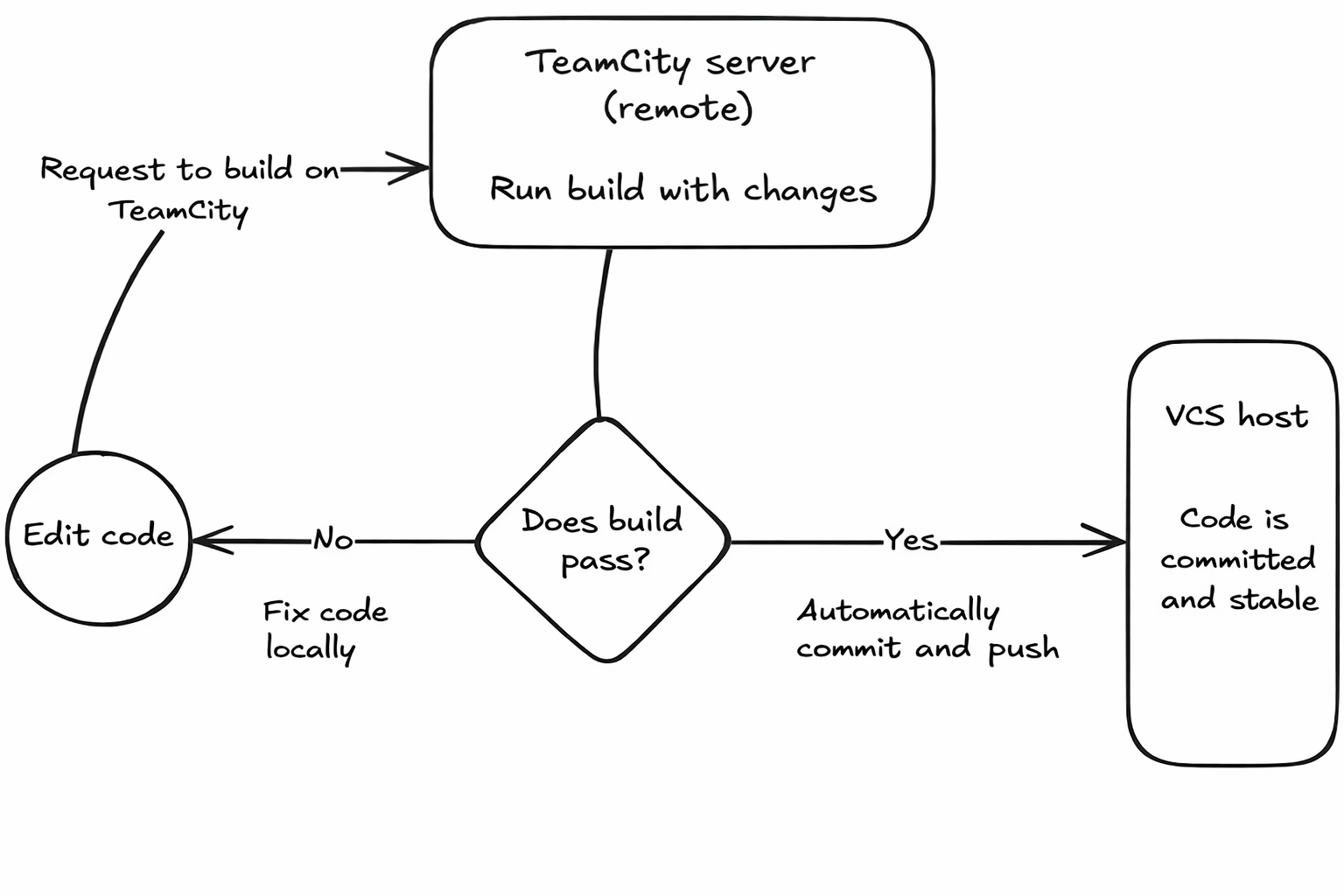
The pretested commit workflow
The pretested commit workflow guarantees code quality by running a full build and test cycle before changes hit the main branch. The implementation varies significantly depending on the type of version control system (VCS) being used.
For distributed systems like Git, pretested commits are built around feature branches, so there’s no need to apply patches directly to the main branch. This keeps parallel development safe through local, isolated testing and committing. TeamCity can test against a temporary patch of staged changes you made locally, but stops short of performing the final automatic commit to avoid race conditions. Instead, it uses dedicated validation branches through what is known as the branch remote run.
The workflow described below is built around Git.
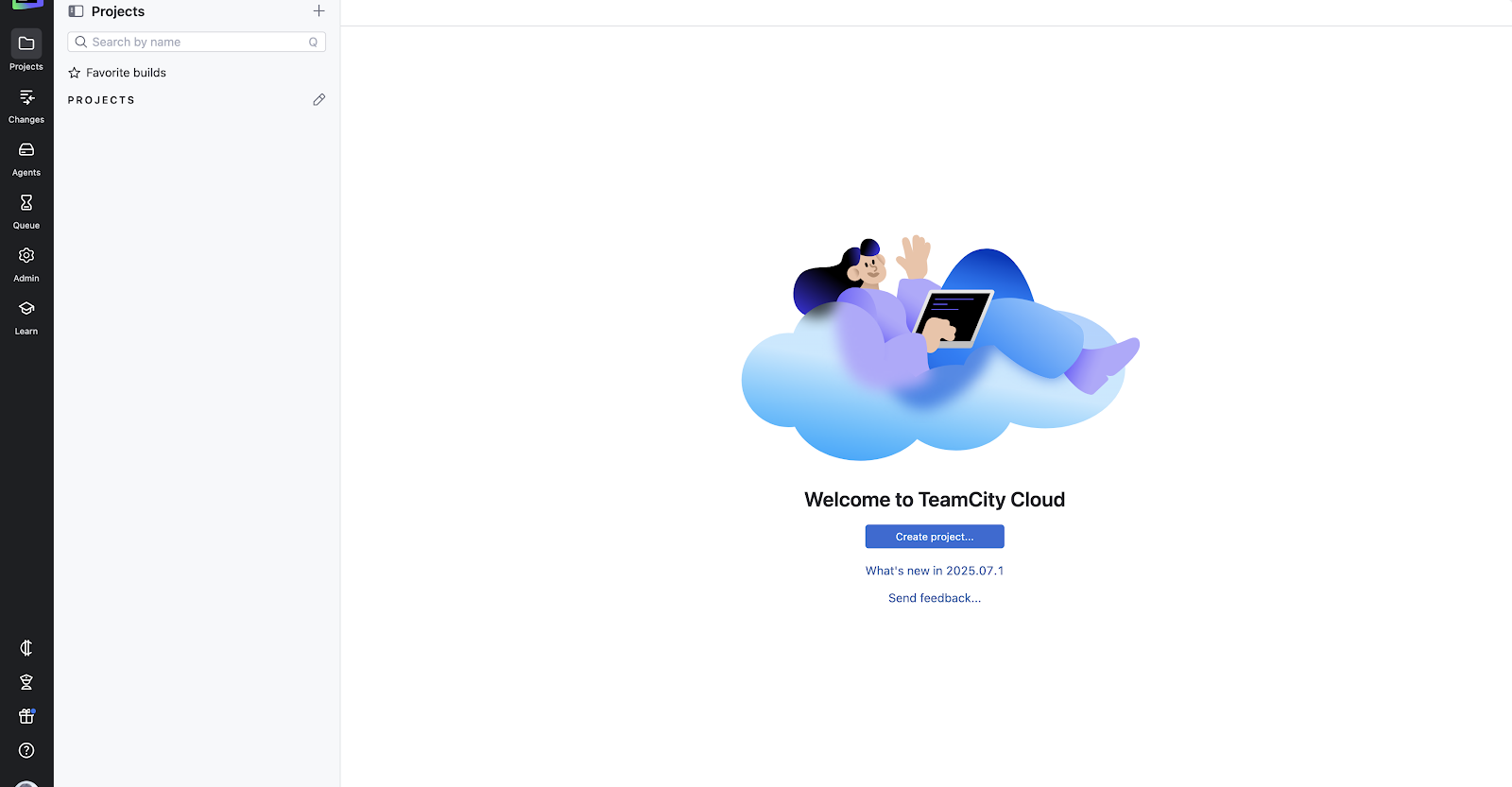
Create a project
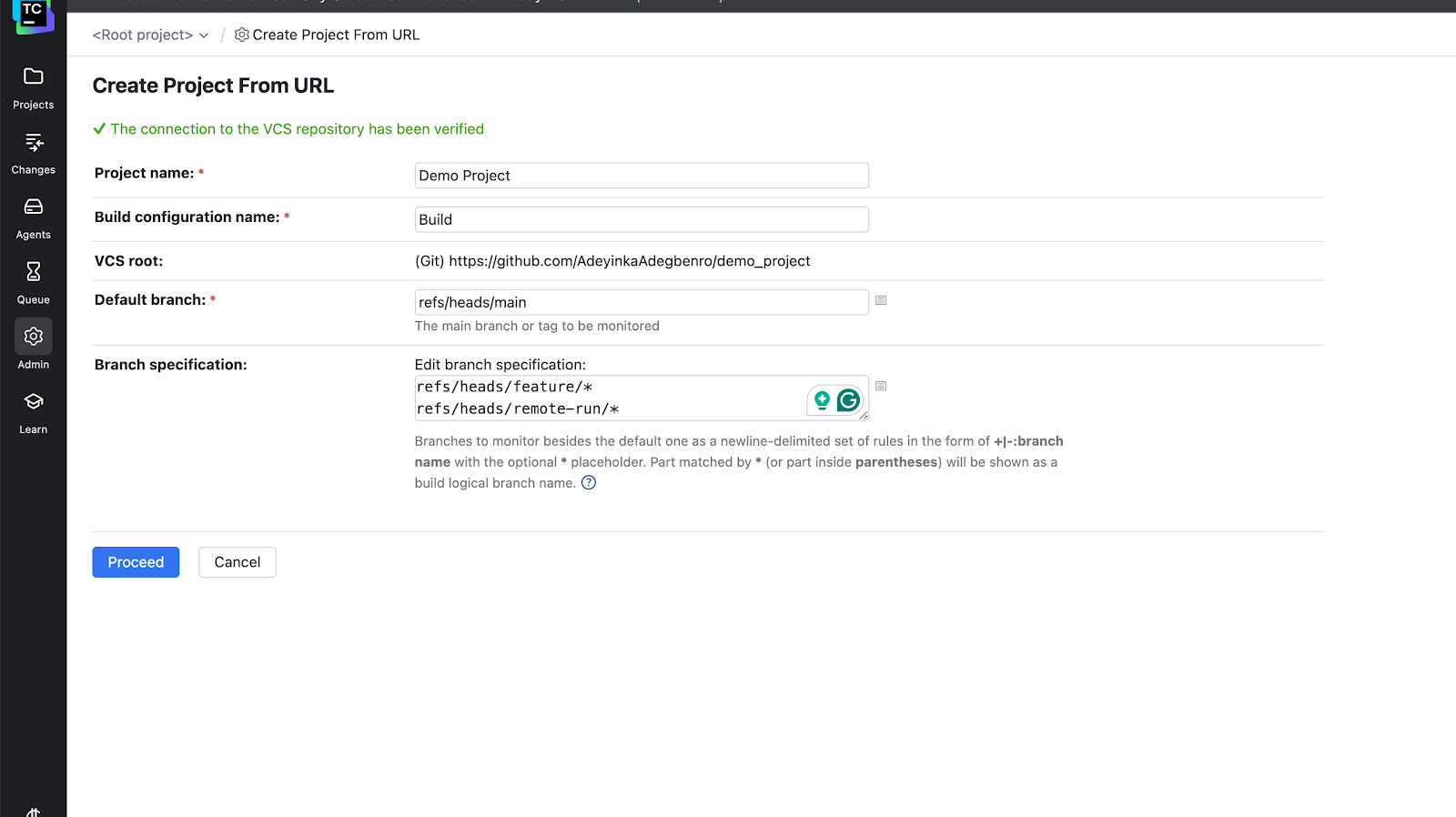
Once you have a TeamCity instance, you need to create a project either manually or by entering the repository URL (e.g., git@github.com:your-org/your-repo.git) of an existing project. If you select the repository option, you’ll be prompted to log in to the version control host (e.g. GitHub, GitLab, or Bitbucket), and you’ll need to provide the necessary authentication credentials:
Configure the project
Next, you’ll need to enter some preliminary settings: the build name, the default branch name, and the branch specifications. For most Git projects, the default branch is either refs/heads/main or refs/heads/master.
In the branch specification option, make sure you enter at least one branch, with each branch on a new line. This tells TeamCity which branches to monitor for changes. Here’s a sample branch specification:
// Default branch

refs/heads/main

// Regular feature branches

refs/heads/feature/*
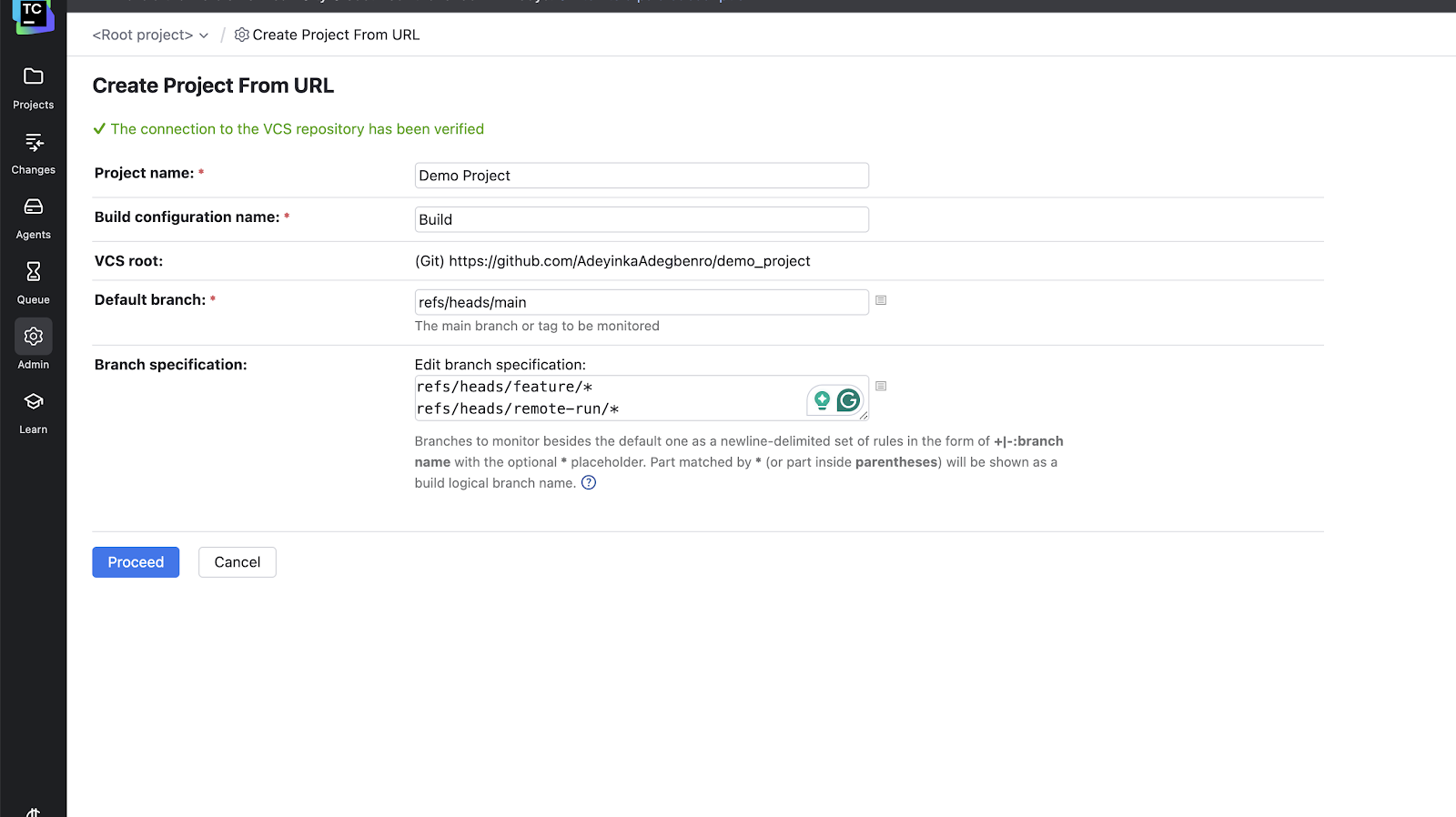
Click Proceed to continue to the build step.
Add your build steps
After clicking Proceed, you have to add build steps by clicking the Build Steps tab on your build page. The build steps define the actual sequence of commands required to validate the code. These steps run regardless of the branch type (main or feature/*). A minimal command-line build configuration for a hypothetical Node.js project might look like this:
set -e

npm install # Download and install required packages for the project.

npm run build # Compile source code (e.g., TypeScript, Babel, webpack) into deployable artifacts.

npm run test # Execute all unit and integration tests. The build will fail if any test fails.

npm run lint # run linting checks for files
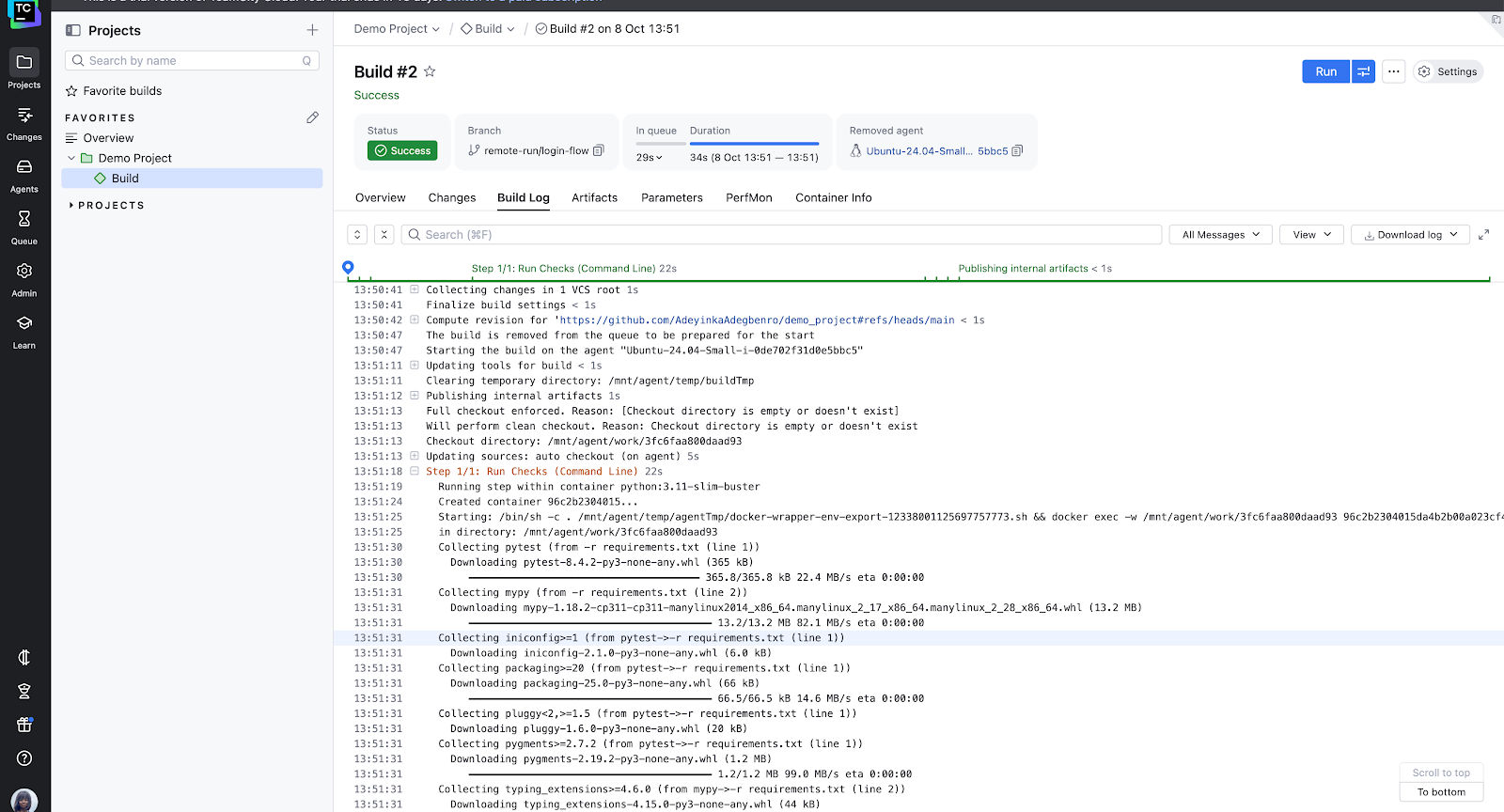
Don’t forget to save your changes and run the build to make sure it works on the default branch.
Pretest validation
After you’ve added build steps, developers need to work on their isolated feature branch locally, making and committing changes frequently (e.g. a branch named feature/login-flow). To initiate the pretest, the developer pushes their local feature branch to the remote repository remote-run/ prefix. TeamCity automatically watches any branches with the prefix remote-run and will run an automatic build once code is pushed there.
# Pushes feature/login-flow to the remote as remote-run/login-flow

git push origin feature/login-flow:remote-run/login-flow
Integration
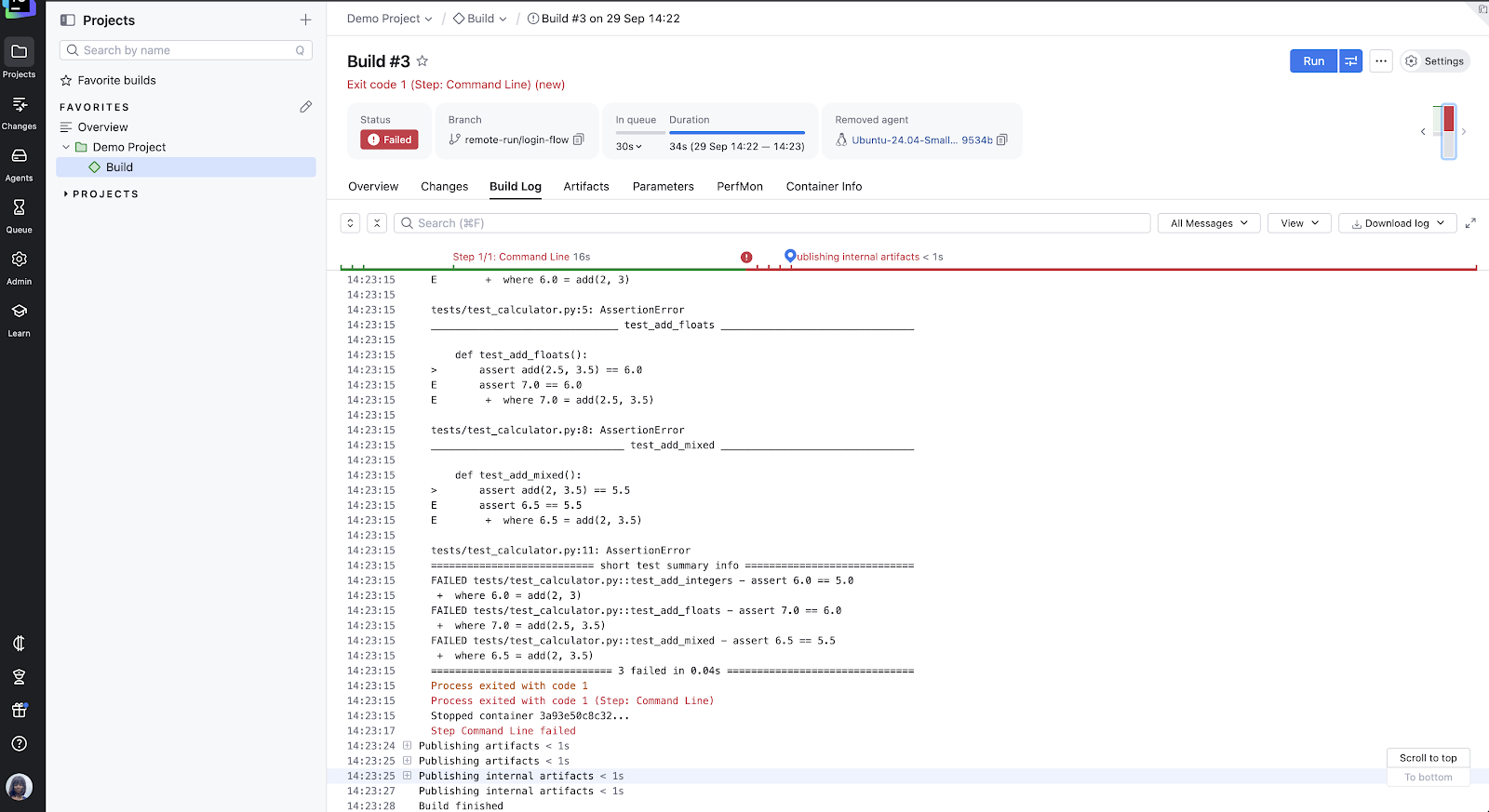
Once the remote-run/login-flow build completes, the status dictates the next step. If it fails, the developer reviews the build log, fixes the issues locally on their feature branch, and repeats the push to the temporary remote-run/login-flow branch.
If the build is successful, the developer deletes the temporary remote branch. The feature branch (feature/login-flow) is now proven stable and is ready for the final action:
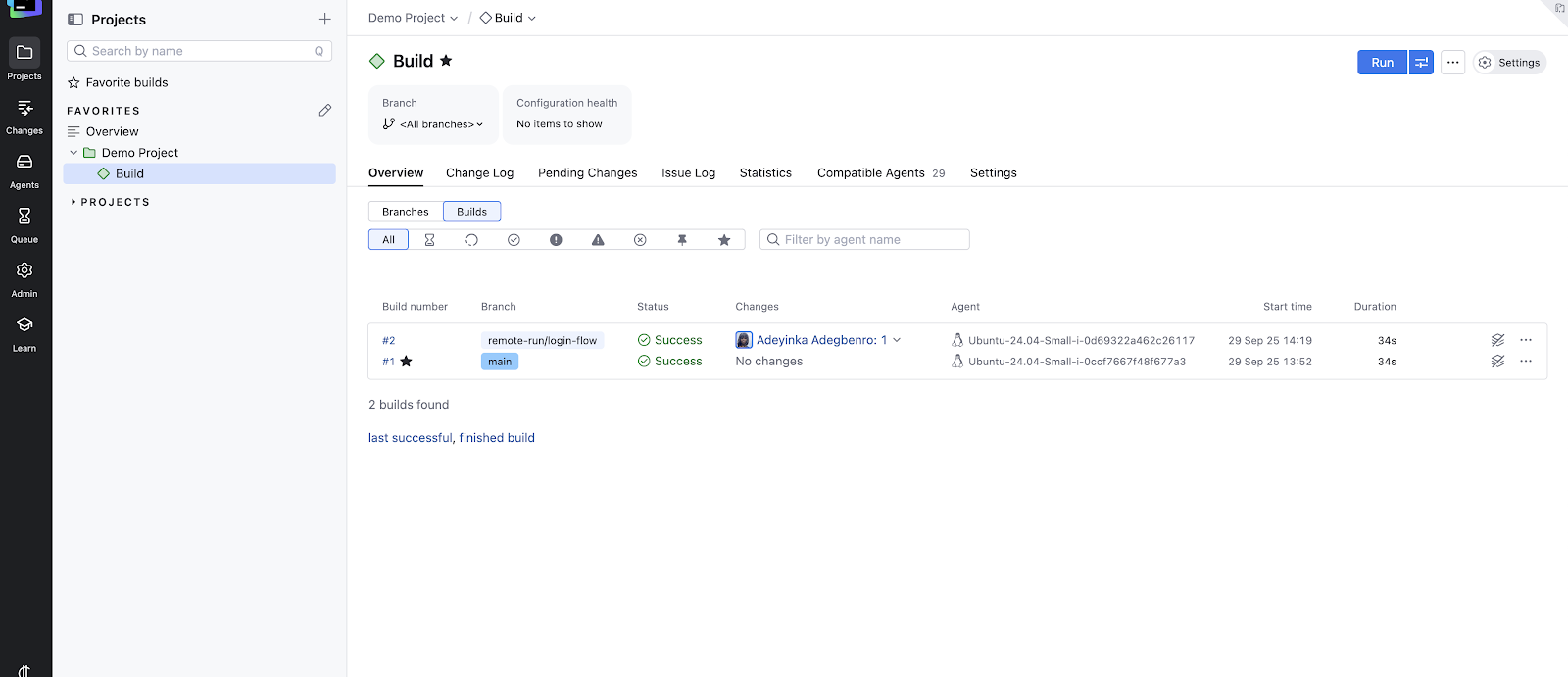
The developer can now commit and merge with the main branch or create a pull request from their pretested feature branch.
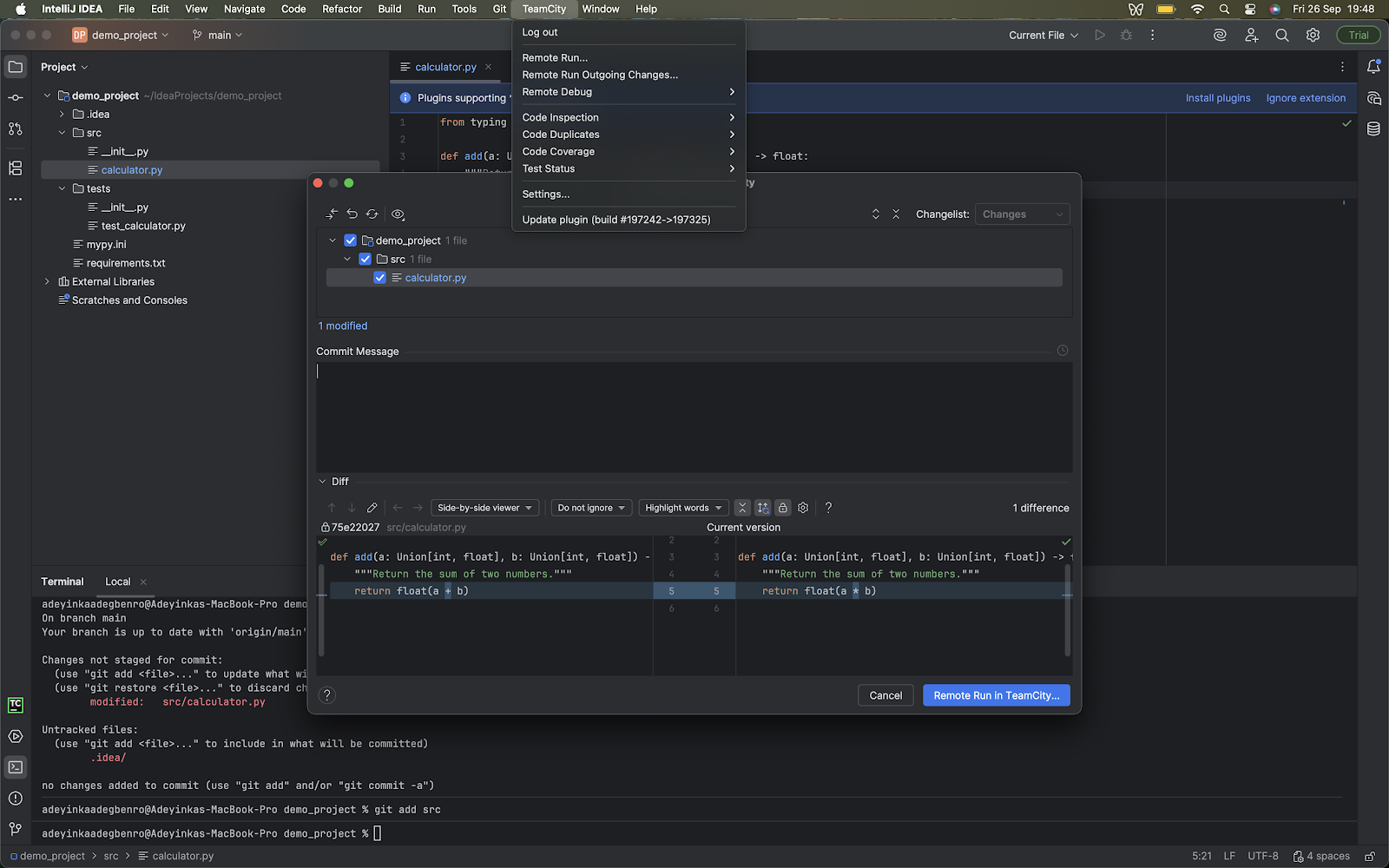
In centralized version control systems like SVN or Perforce, TeamCity’s remote run feature allows developers to validate uncommitted local changes using a patch (a bundle of uncommitted changes). A developer uses an IDE like IntelliJ IDEA and the TeamCity plugin to send a patch to the build server, then TeamCity builds and tests the patch. If that’s successful, TeamCity automatically commits the changes to the main repository, completing the pretested commit.
The benefits of using pretested commits
Pretested commits shift the verification from the developer’s machine to the team’s agreed CI environments. Code only gets added to the main branch after passing the specified checks, so failed builds never disrupt other people’s work.
This keeps integration clean and catches regressions early. Everyone gets a stable base to branch from. You know the latest version actually works, and you won’t have to spend hours chasing errors introduced by someone else’s build.
It also cuts down on frustration. When teams aren’t wasting time fixing someone else’s mistakes, they can focus on their own features. And because you get immediate feedback during pretesting, you catch your own issues before they become someone else’s problem.
These benefits add up. Your commit history stays focused on real progress instead of getting cluttered with commit messages like “fixed typo”, “fixed linting issue”, “added missing dependency that caused build failure”, or “added type checks”. Reviewers can focus on meaningful code changes instead of other noise. Your project history tells the story of how the code evolved, not how often it broke.
Ultimately, pretested commits support continuous delivery goals, especially for agile teams that ship frequently and rely on stable releases. Teams can rest easy knowing that their production code has gone through automated, enforced checks.
VCS and configuration considerations
To get pretested commits running smoothly in TeamCity, there are a few version control and configuration details you should pay attention to:
- Extensive VCS integrations: TeamCity supports all major version control platforms. Centralized systems such as Subversion, Perforce, and TFVC can use remote run in the IDE, while distributed systems like Git (GitHub, GitLab, Bitbucket, or Azure DevOps) and Mercurial use the branch remote run.
- IDE plugin setup: Using the pretested commit feature within an IDE (remote run) depends on the installation of the TeamCity IDE plugin. The plugin lets you select local, uncommitted changes and send them directly to the TeamCity server for verification.
- Branch specifications: Your build configurations in the TeamCity UI need proper branch specifications (e.g.
+:refs/heads/*) so that TeamCity knows which branches to monitor and test automatically. - Parameters and secrets: Define all build parameters (especially secure secrets) at the project or build configuration level in the TeamCity UI. TeamCity will securely insert them during the personal build. This separation ensures the code remains clean of sensitive configuration details. Parameter settings can be found in the project and build settings, after enabling the Settings mode in the upper-right corner of your dashboard.
- Matching repository URLs: If you’re using remote run in the IDE, make sure the repository URL configured in IntelliJ IDEA (or your IDE) matches exactly what is defined in the TeamCity server site. Even small differences (e.g.
https://github.com/acct/repo.gitvs.https://github.com/acct/repo) can prevent TeamCity from recognizing the patch as belonging to the right VCS root. - Build triggers: Triggers let you control when your builds run under the specific circumstances/events that you have configured in the settings. For example, you can skip triggering a build if a certain user commits changes or if a phrase is present in a commit message. Configure this in the Triggers tab of your build settings.
- Build configuration: Make sure you match your build configuration as close as possible to your branch/commit workflow for consistency. This helps make sure that the logic used to test a developer’s changes is similar to that used for the final merge made to the main branch. For example, if your main branch runs database migrations, your personal build should include the same setup.
When to use pretested commits vs. alternatives
Pretested commits are powerful, but they’re not always the right tool for every project. You need to consider project size, branch stability, and how long your tests take to run before incorporating them in your workflow.
Pretested commits work best for teams with a single stable branch where stability is important. They’re also a good fit when you have solid automated tests, and you’re pushing toward continuous integration and delivery.
If your test suites and checks are large, take a long time (i.e. 15 minutes), take up memory, or use production-grade data, running pretested commits remotely frees up developers’ machines and keeps them productive.
But if your team relies heavily on feature branches and long-lived branch workflows, pull requests and merge gates may be a better fit. And if your test suite is incomplete or flaky, pretested commits won’t help much; they’re only as good as the tests backing them up.
Code reviews and staging environments, used along with pretested commits, may be helpful for exploratory testing of the kinks that the flaky test suites cannot cover. Manual commits with quick feedback may be simpler for small teams, solo developers, or teams with tiny codebases.
It’s not always a question of choosing one or the other. Pretested commits can be layered on top of existing workflows. For example, a feature branch might have multiple developers contributing. Each developer uses pretested commits to ensure that only passing commits reach the shared feature branch. Once the feature is complete, the team still opens a PR to merge into main (or master). At that stage, the PR process provides an additional layer of code review and CI checks before the final merge.
Conclusion
Pretested commits give teams a way to guarantee that only tested, working code enters the main branch. This shifts the responsibility of integration checks onto the CI server, allowing developers to focus on writing features and trust that the system enforces quality.
While this workflow isn’t the best fit for every team, it can be transformative for environments where stability and continuous delivery are priorities. Keep in mind that a pretested commit workflow is only as good as its tests and checks. If your tests are unreliable, errors can slip through the cracks and cause problems.
JetBrains TeamCity gives teams everything they need to automatically enforce quality checks, from IDE plugins that let you trigger remote runs directly to flexible branch remote runs.
If you’re currently using Jenkins and want to explore how to switch to TeamCity, check out our migration planning kit. For a deeper dive into platform capabilities, JetBrains also has detailed resources you can explore.