

WebStorm 2020.3: поддержка Git-стейджинга, Tailwind CSS и многое другое

Мы рады представить последнее крупное обновление WebStorm в этом году. В версию 2020.3 вошло много долгожданных улучшений, в частности поддержка Tailwind CSS, возможность синхронизировать тему IDE с системными настройками и поддержка Git-стейджинга.

Если у вас есть всего пара минут, чтобы ознакомиться с возможностями WebStorm 2020.3, смотрите видео, в котором наш девелопер-адвокат Пол Эверитт рассказывает о самых важных нововведениях. А если вам нужны подробности, читайте этот пост.
Вот основные улучшения в разных частях IDE:
- Интерфейс и поведение: обновленный начальный экран, синхронизация темы IDE с системными настройками, удобное управление вкладками, возможность открывать файлы в WebStorm по умолчанию и многое другое.
- Фреймворки и технологии: поддержка Tailwind CSS, быстрое создание React-компонентов, улучшения для Vue.js, полная поддержка pnpm и многое другое.
- JavaScript и TypeScript: объединение окон TypeScript и Problems, улучшенное форматирование сложных шаблонных литералов с CSS и HTML, новые возможности отладки и автодополнения.
- Инструменты: поддержка совместного редактирования кода, учебный курс по основам WebStorm, улучшенный спелл-чекер, а также преобразование cURL в HTTP-клиенте.
- Контроль версий: поддержка Git-стейджинга, переработанное меню VCS и улучшения для работы с ветками.
- Навигация: быстрый предпросмотр файлов, более информативная панель навигации и улучшенный диалог Search Everywhere.
Интерфейс и поведение
Обновленный начальный экран и ускоренный запуск
Мы продолжаем улучшать внешний вид WebStorm и на этот раз переработали экран приветствия. Нашей задачей было упростить начальную настройку IDE и управление ключевыми настройками. Что же изменилось?
Мы отказались от мастера настройки: если вы запускаете WebStorm впервые, вы увидите только диалоги License и Privacy Policy. На вкладке Projects вы найдете свои проекты, а кнопки New Project, Open и Get from VCS отобразятся в правом верхнем углу.
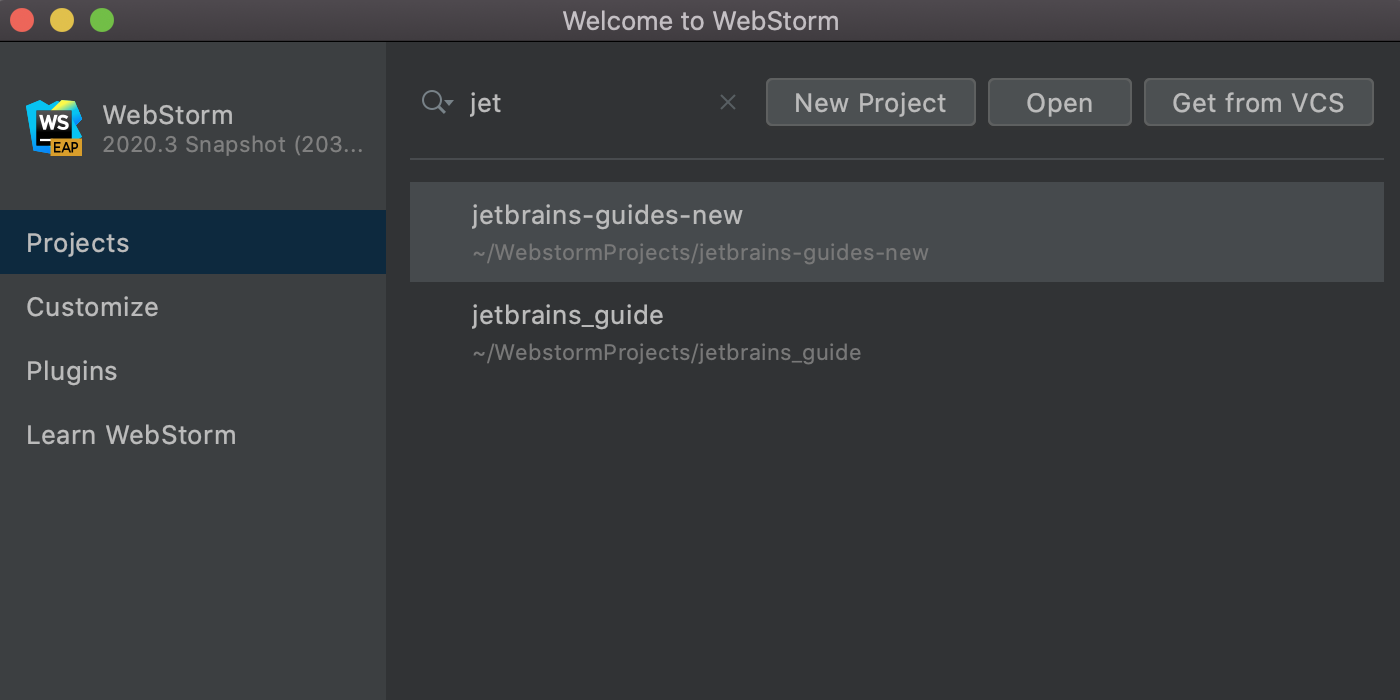
В левой части экрана приветствия есть и другие вкладки. На вкладке Customize можно настроить самые популярные параметры, например темы и шрифты IDE. Вкладка Plugins позволяет посмотреть список доступных плагинов и установить нужные.
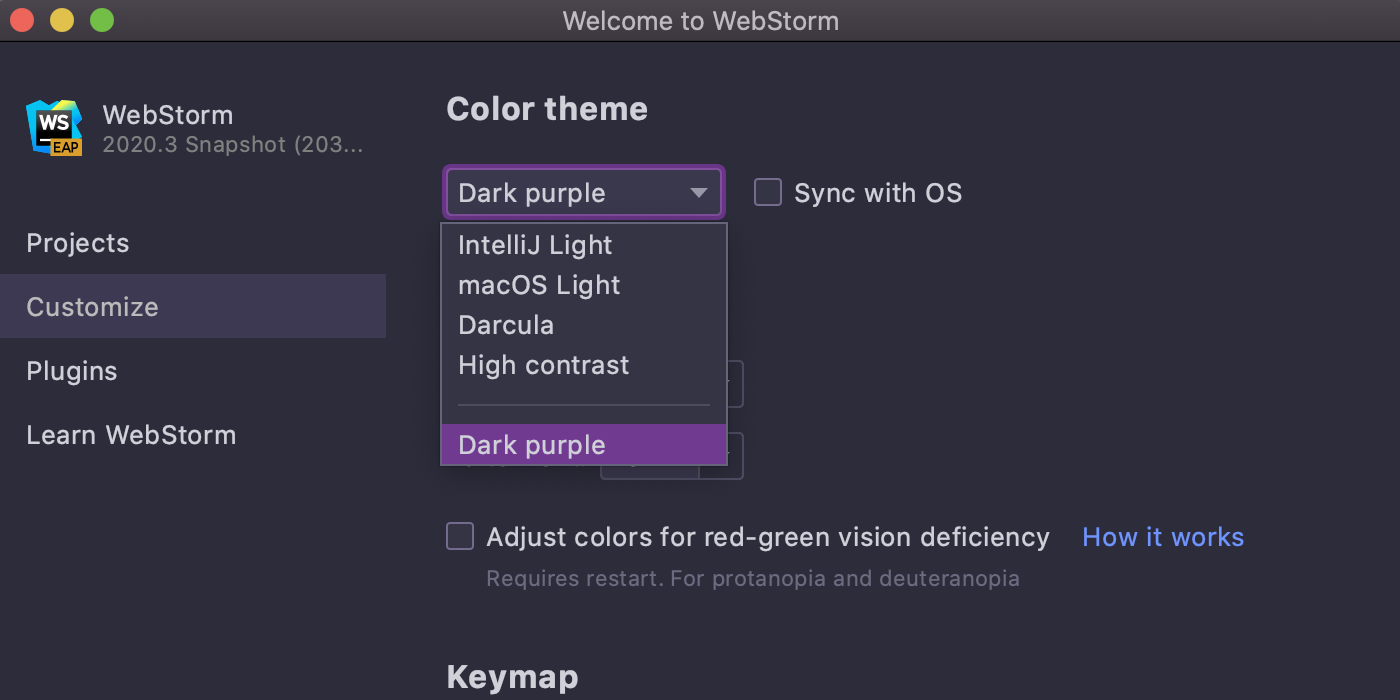
И последняя вкладка — Learn WebStorm. Отсюда вы можете перейти к онлайн-документации и другим полезным ресурсам, например к видеоурокам и списку сочетаний клавиш, а также к интерактивному учебному курсу.
Синхронизация темы IDE c системными настройками
Еще одно важное улучшение — возможность синхронизировать тему IDE с настройками операционной системы. Пока что эта опция доступна только на Windows и macOS, но мы планируем добавить ее и на Linux.
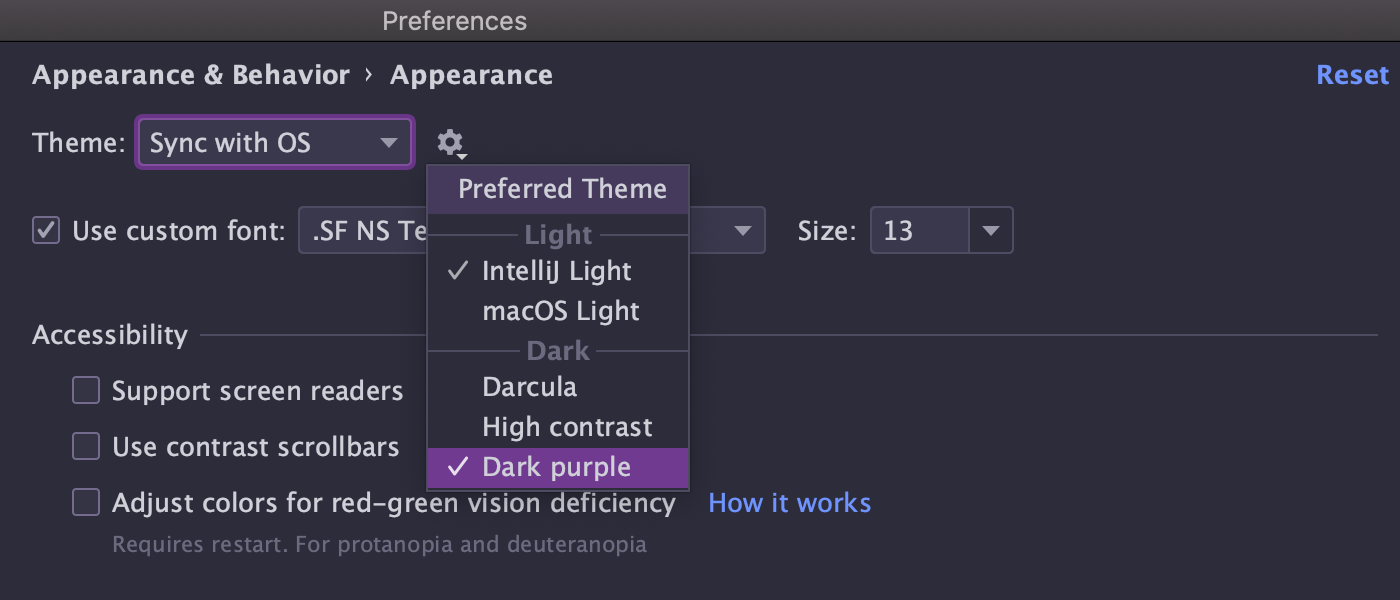
Чтобы настроить синхронизацию, перейдите в меню Preferences/Settings | Appearance & Behavior | Appearance и выберите опцию Sync with OS. Нажмите на иконку шестеренки рядом с Sync with OS, чтобы выбрать предпочтительную тему.
Оптимизация работы с вкладками редактора
Работать с вкладками редактора стало еще удобнее.
Теперь можно разделить главный экран редактора по горизонтали или по вертикали, просто перетащив вкладку в удобное место. Действия по разделению по-прежнему доступны в контекстном меню вкладки.
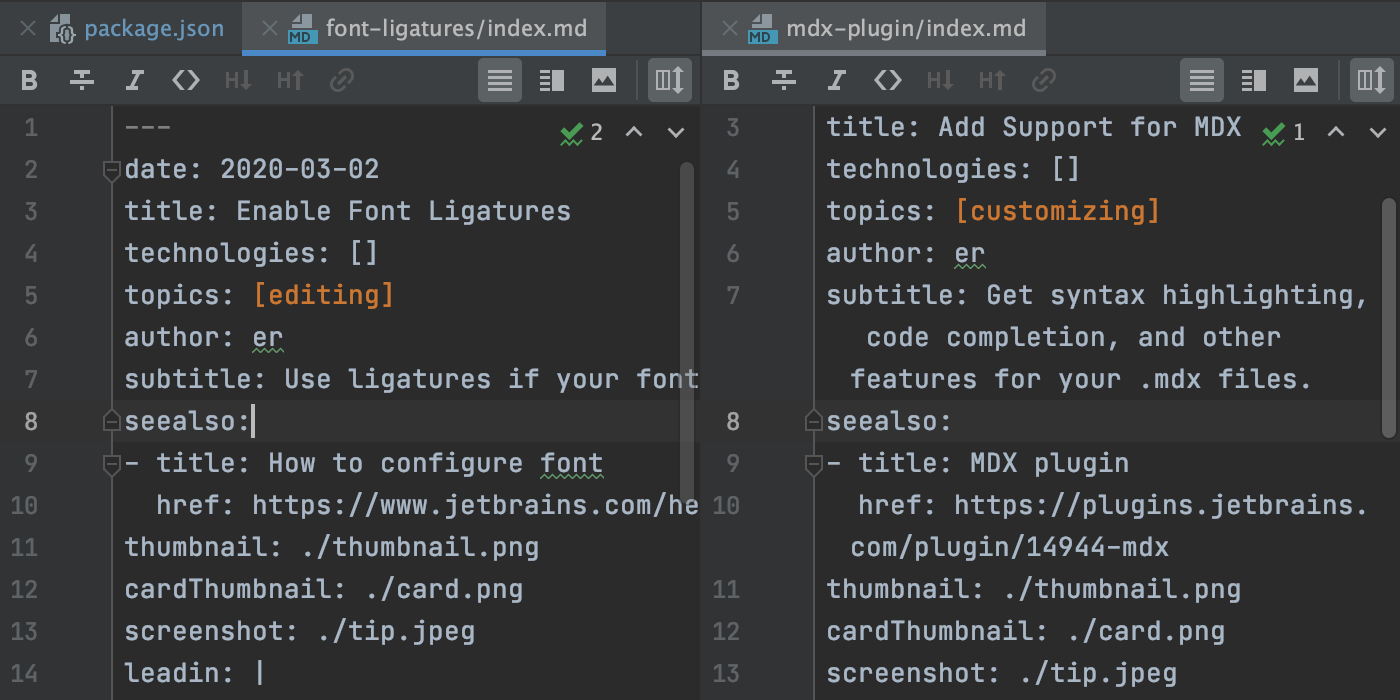
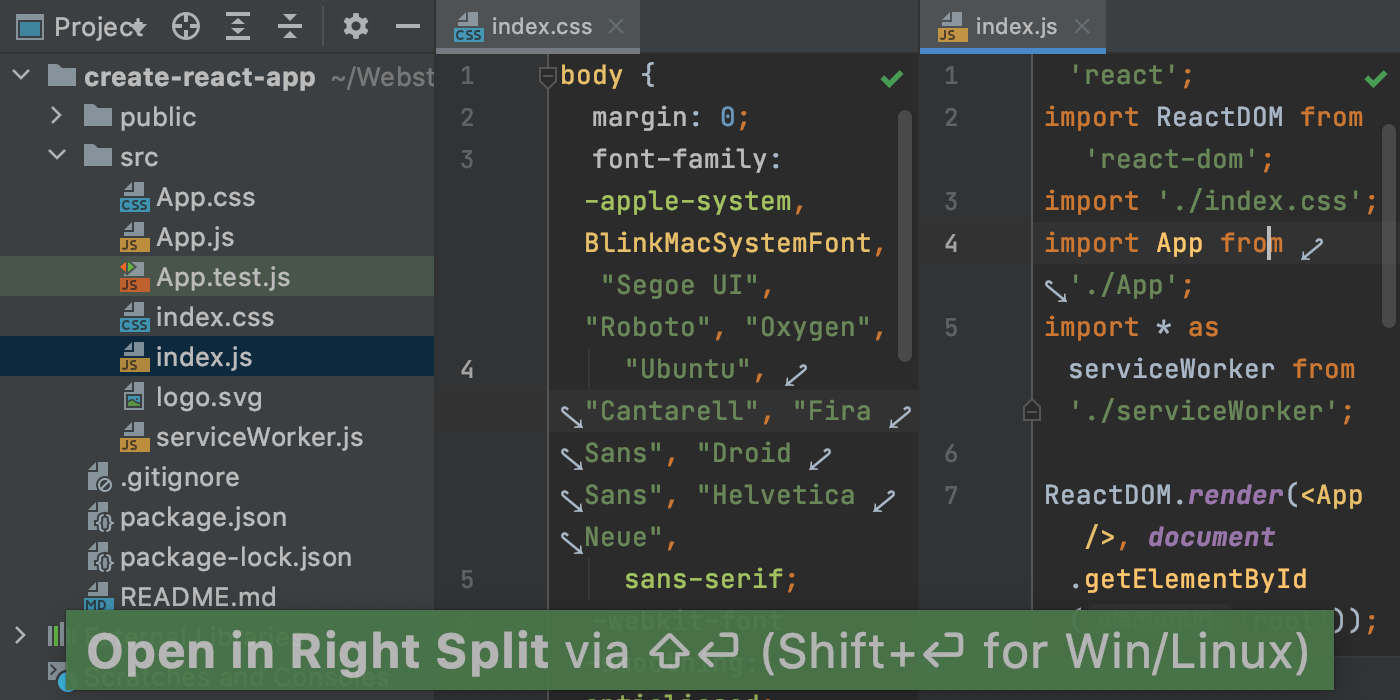
Еще мы добавили действие Open in Right Split: можно открыть еще один файл параллельнно с тем, над которым вы уже работаете. Подробнее
Закрепленные вкладки теперь помечаются специальной иконкой и отображаются в самом начале панели вкладок — вам не придется их долго искать. Если у вас часто бывает открыто много вкладок, можете собрать все закрепленные вкладки в отдельный ряд: перейдите в Preferences/Settings | Editor | General | Editor Tabs и поставьте галочку напротив Show pinned tabs in a separate row.

Открытие файлов при помощи WebStorm
Если вы хотите, чтобы файлы определенных типов по умолчанию открывались в WebStorm, вы можете легко настроить это прямо из IDE. Просто зайдите в Preferences / Settings | Editor | File Types и выберите опцию Associate File Types with WebStorm. Выберите, какие типы файлов следует открывать в WebStorm, и нажмите OK.
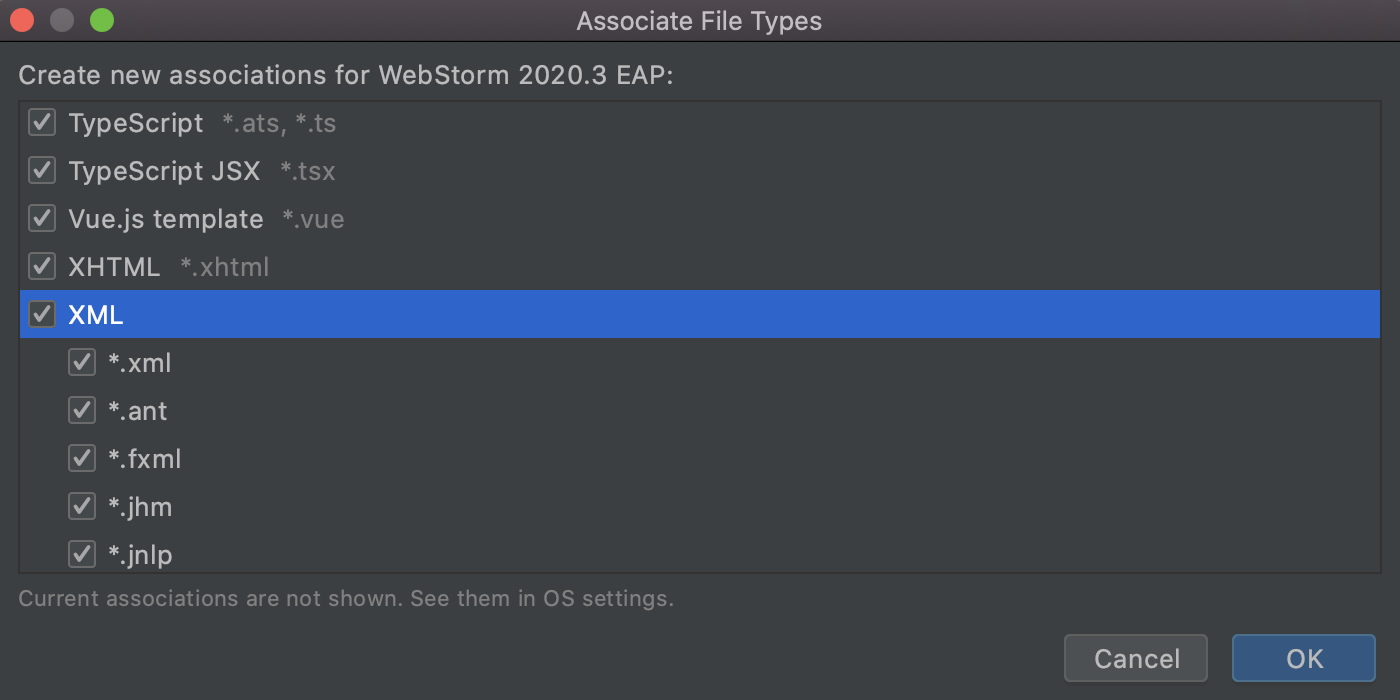
В зависимости от операционной системы, чтобы изменения вступили в силу, может потребоваться перезагрузить компьютер. Выбранные расширения файлов останутся неизменными при переходе на новую версию IDE.
Многофайловые шаблоны
Теперь можно добавлять пользовательские шаблоны, которые создают сразу несколько файлов. Это удобно, если, например, вместе с файлом .js вам нужно создать тестовый файл.
Чтобы попробовать эту возможность, в разделе Preferences/Settings | Editor | File and Code Templates кликните на значок +, чтобы создать новый шаблон, а затем нажмите на значок Create Child Template File рядом с плюсом. Вы увидите, что под родительским файлом появится новый узел.
В поле File name можно указать паттерн для генерации имени файла и пути к нему с использованием поддерживаемого синтаксиса.
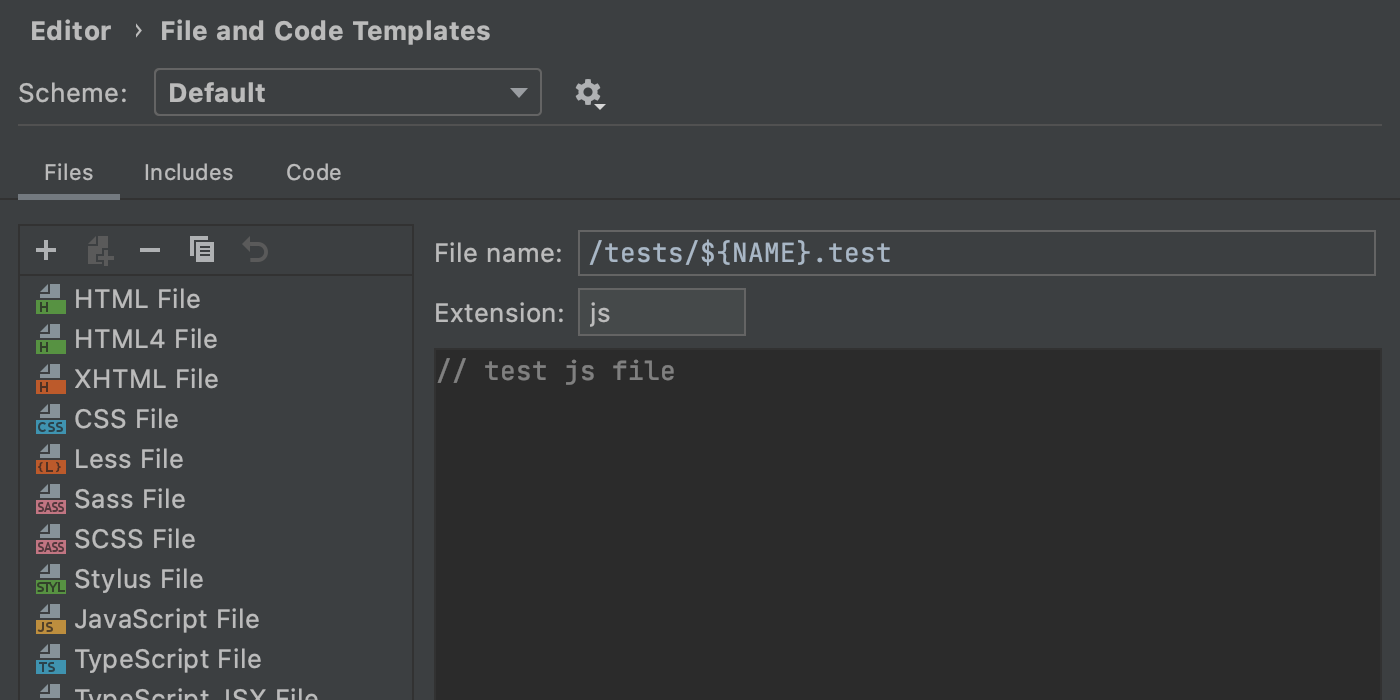
После сохранения такого шаблона можете использовать его как обычно.
Среди других улучшений: новый режим чтения, альтернативные сочетания клавиш для macOS, кнопка «Развернуть все» на панели Project и новое действие для транспонирования символов (чтобы попробовать, нажмите Shift+Shift и введите transpose).
Фреймворки и технологии
Поддержка Tailwind CSS
В WebStorm наконец появилась долгожданная поддержка Tailwind CSS. Давайте посмотрим, как она поможет вам работать с популярным фреймворком более эффективно.
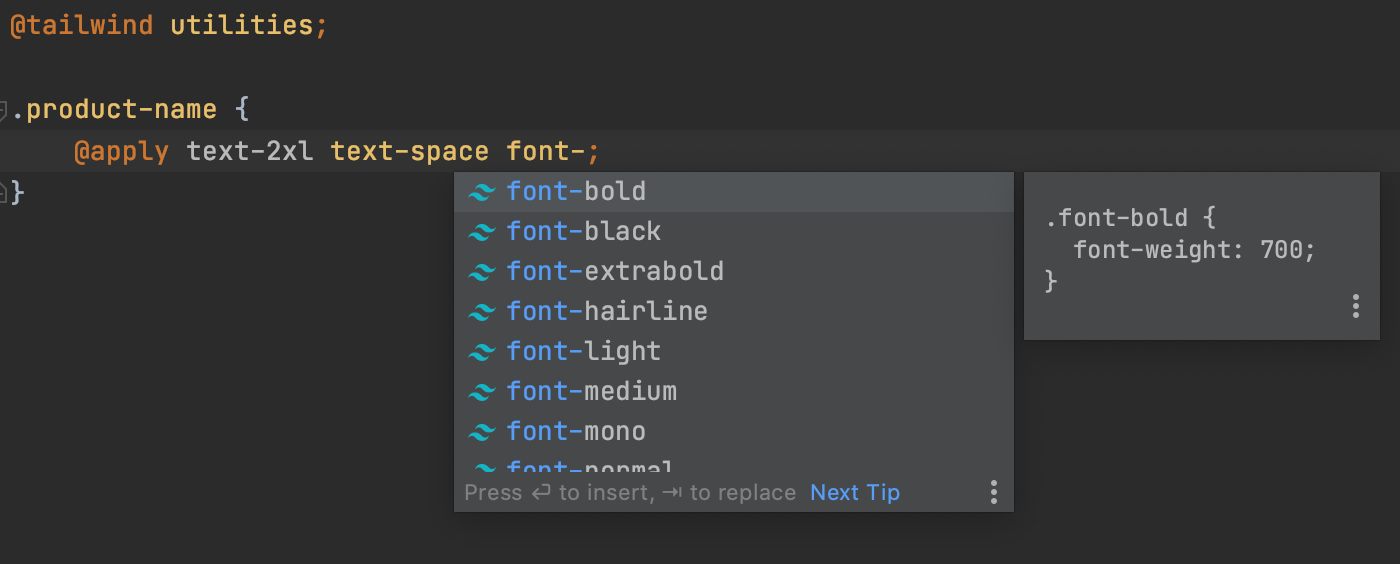
IDE предложит автодополнение для классов Tailwind в HTML-файлах и после директивы @apply. Вы также увидите варианты автодополнения для псевдоклассов.
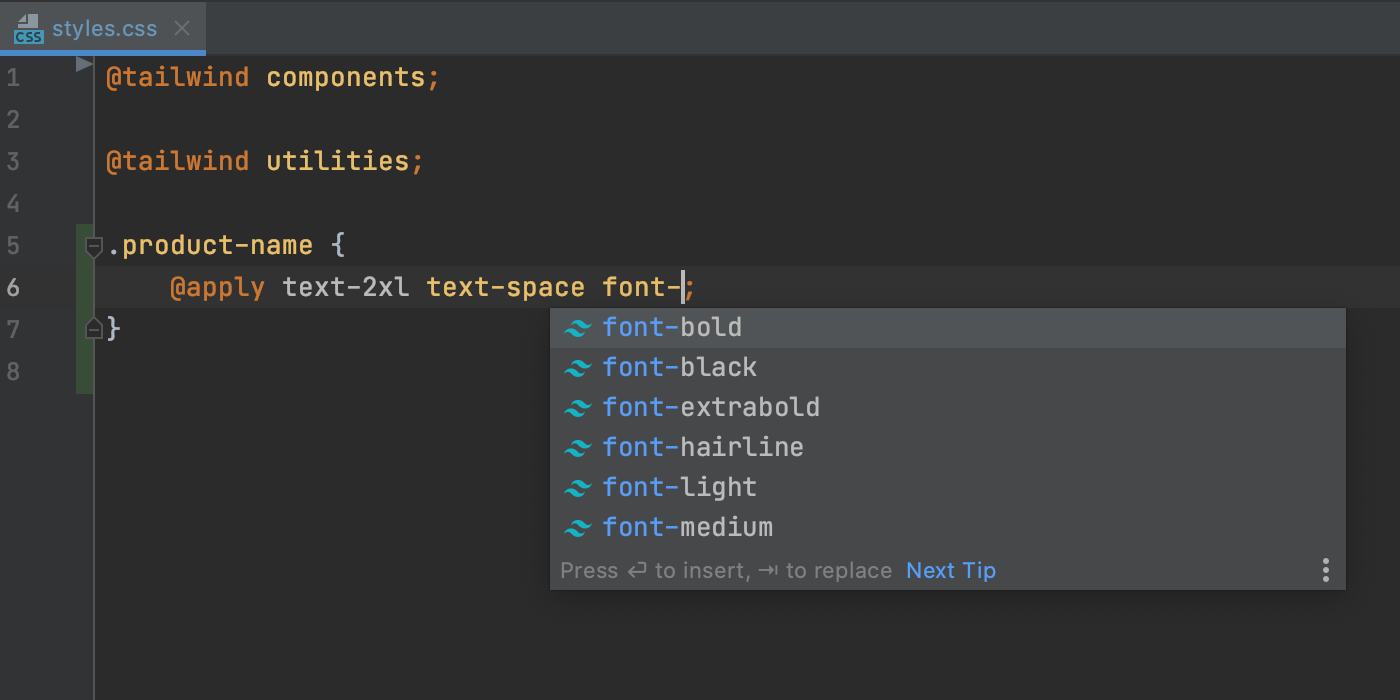
Если навести курсор на класс в файле HTML или CSS, WebStorm покажет превью ожидаемого CSS. Вы также увидите это превью при автодополнении с помощью всплывающего окна Documentation (F1/Ctrl+Q).
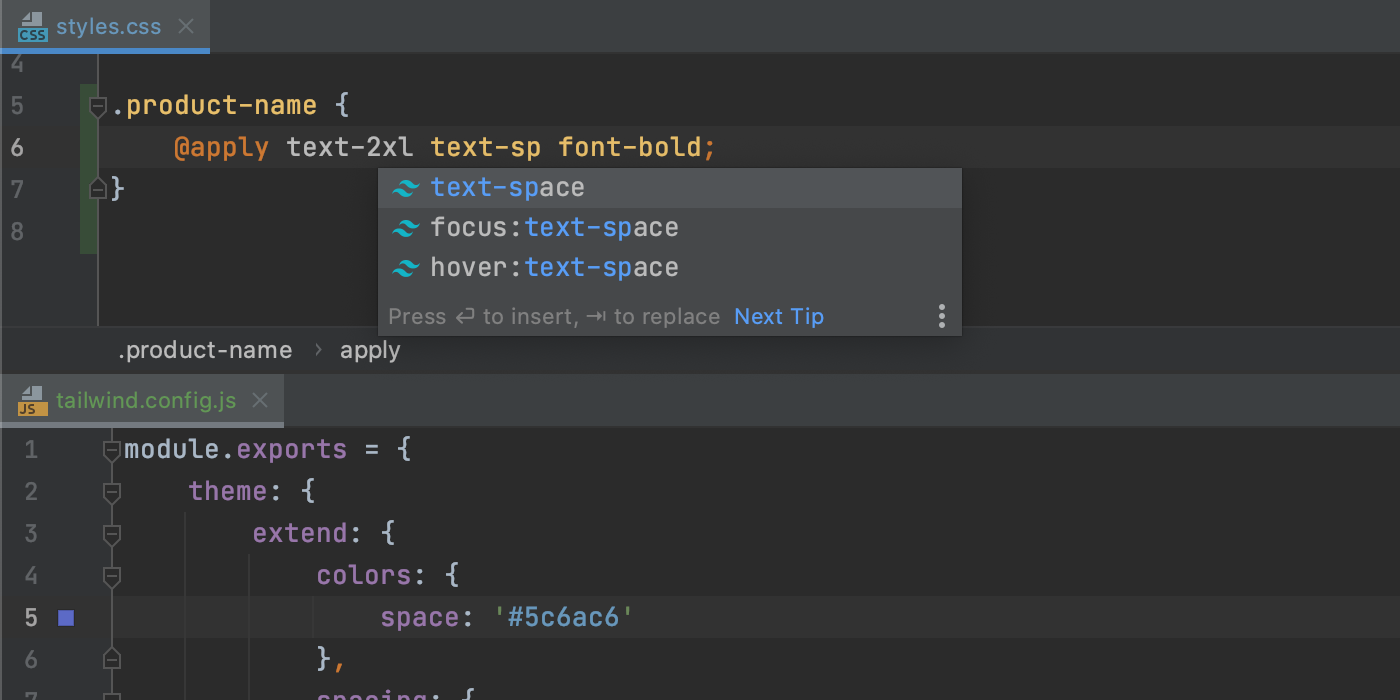
Кроме того, WebStorm поможет в работе с пользовательскими настройками файлов tailwind.config.js. IDE анализирует эти файлы, и автодополнение работает в соответствии с вашими настройками. Например, если вы определяете кастомную тему с новыми цветами, в контектсном меню автодополнения появятся классы с именем нового цвета.
Пока это все, что вошло в поддержку Tailwind CSS. Пробуйте эти функции и делитесь с нами своим мнением! В дальнейшем мы планируем расширять поддержку.
Быстрое создание React-компонентов
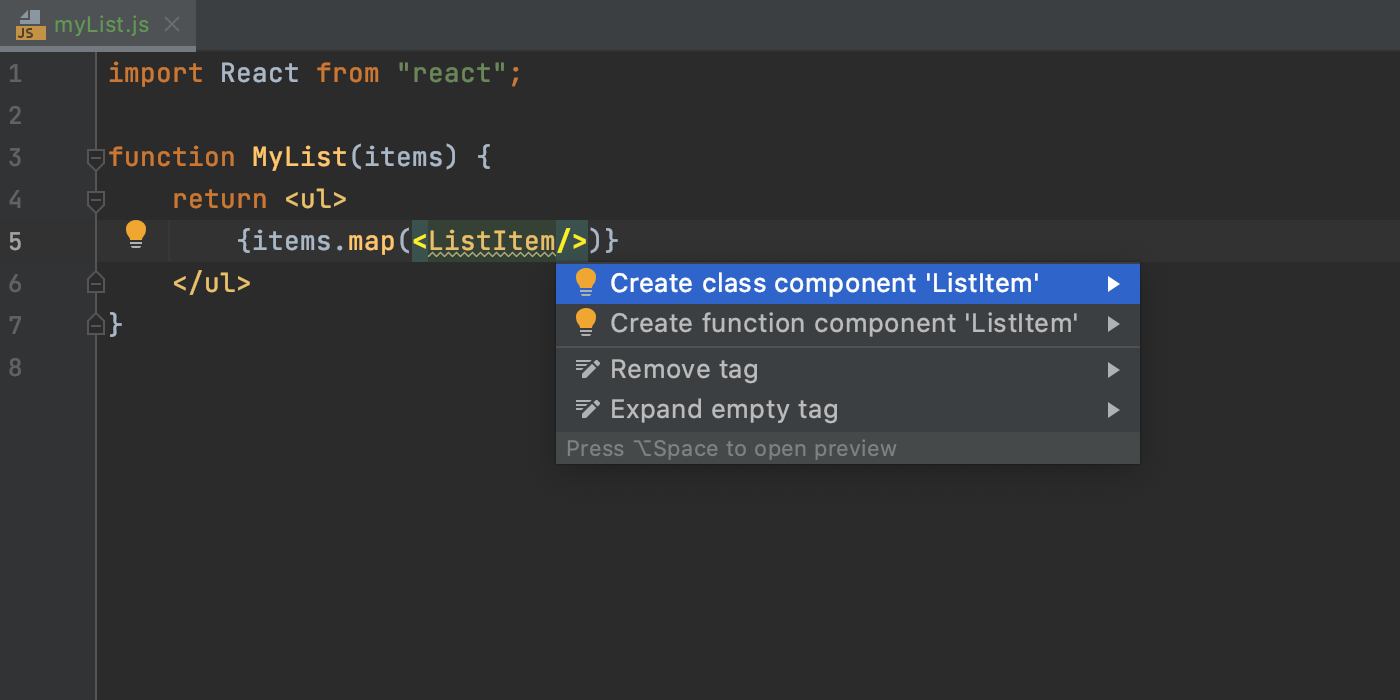
Как вы, возможно, знаете, WebStorm постоянно проверяет правильность указанных переменных и полей. Теперь, если у вас есть нереализованный React-компонент, IDE создаст необходимую конструкцию кода за вас. Поставьте курсор на нужный компонент, нажмите Alt+Enter и выберите нужный вариант. Готово!
Улучшения для Vue.js
На этот релиз мы не планировали больших обновлений поддержки Vue, но все же кое-что реализовали.
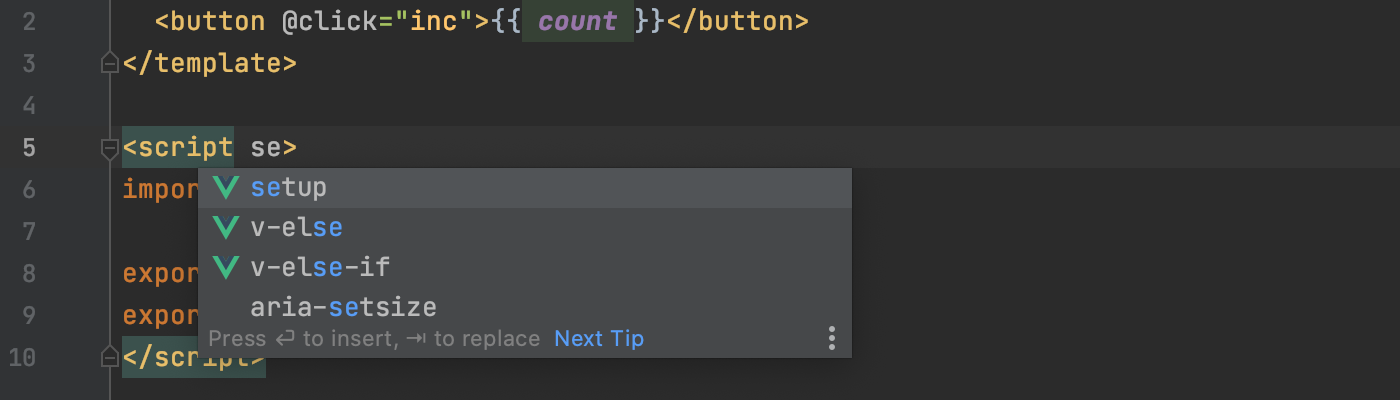
Во-первых, мы исправили ряд проблем, связанных с Vue 3. В частности, WebStorm теперь поддерживает синтаксис <script setup>.
Во-вторых, IDE теперь корректно применяет правила форматирования ESLint в проектах Vue и обеспечивает улучшенную интеграцию с TypeScript. О других улучшениях, связанных с Vue, читайте в примечаниях к релизу.
Улучшенная работа с Markdown
В этой версии мы значительно улучшили процесс работы с файлами .md.
Теперь вы можете изменить форматирование в Markdown-файлах в соответствии с популярными руководствами по стилю Markdown. Для этого нажмите ⌘⌥L / Ctrl+Alt+L. Изменить настройки связанных стилей кода можно в меню в Preferences/Settings | Editor | Code Style | Markdown.
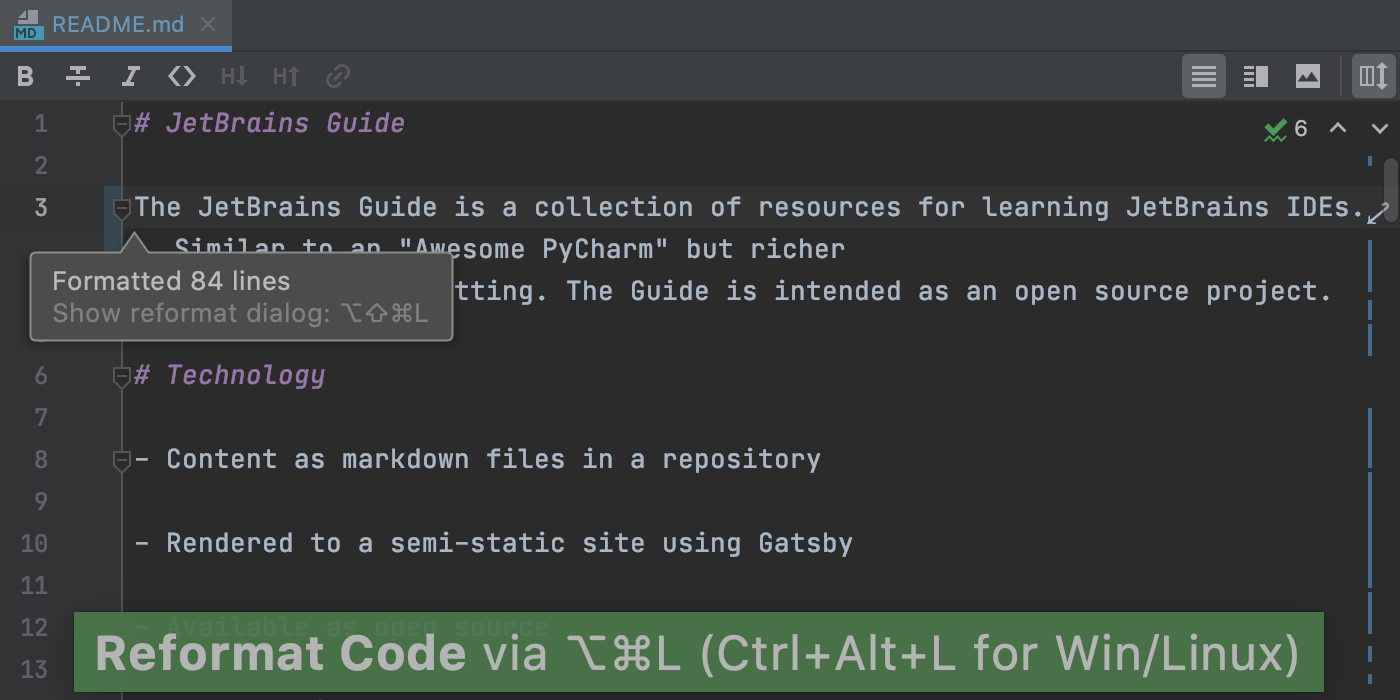
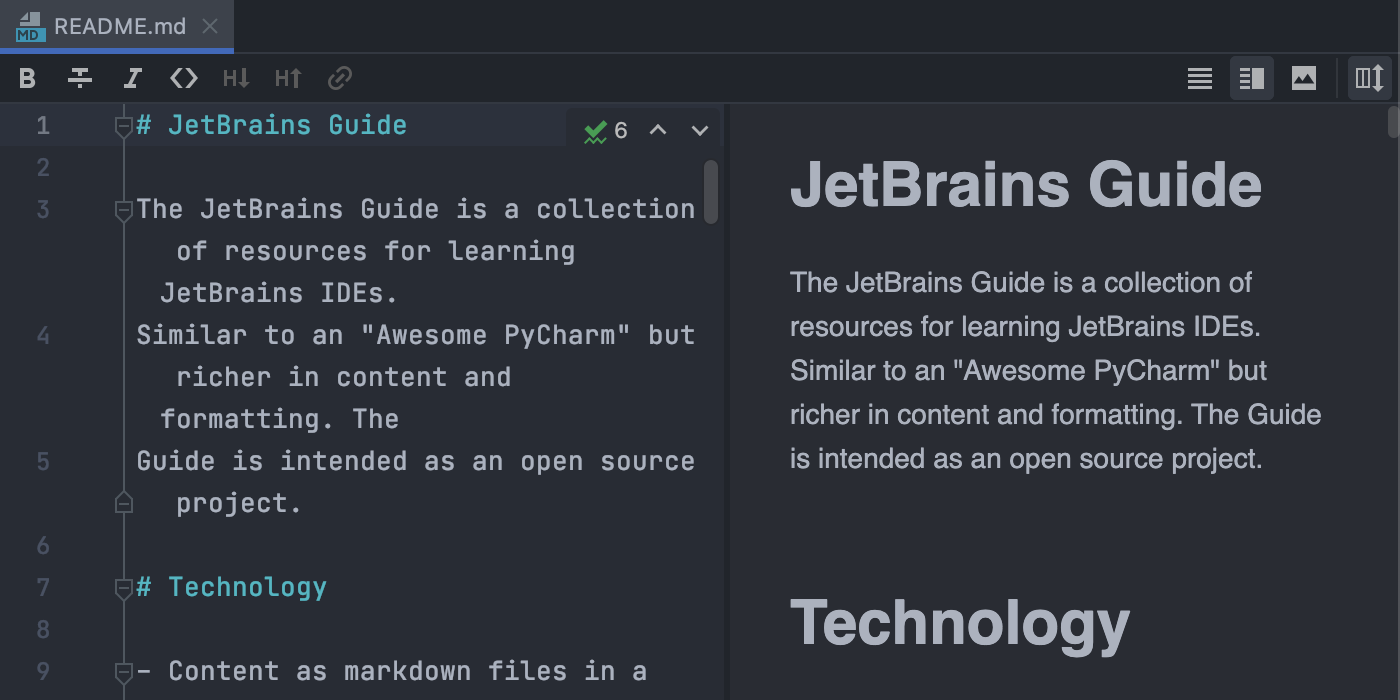
При переключении на кастомную тему интерфейса WebStorm автоматически меняет цвет панели предварительного просмотра.
Мы также добавили поддержку Mermaid.js, популярного инструмента для построения графиков и диаграмм. Вы можете включить ее в Preferences/Settings | Languages & Frameworks | Markdown.
Наконец, если нажать кнопку Auto-Scroll Preview в правом верхнем углу панели предварительного просмотра, прокрутка панели будет синхронизирована с прокруткой редактора.
Полная поддержка pnpm
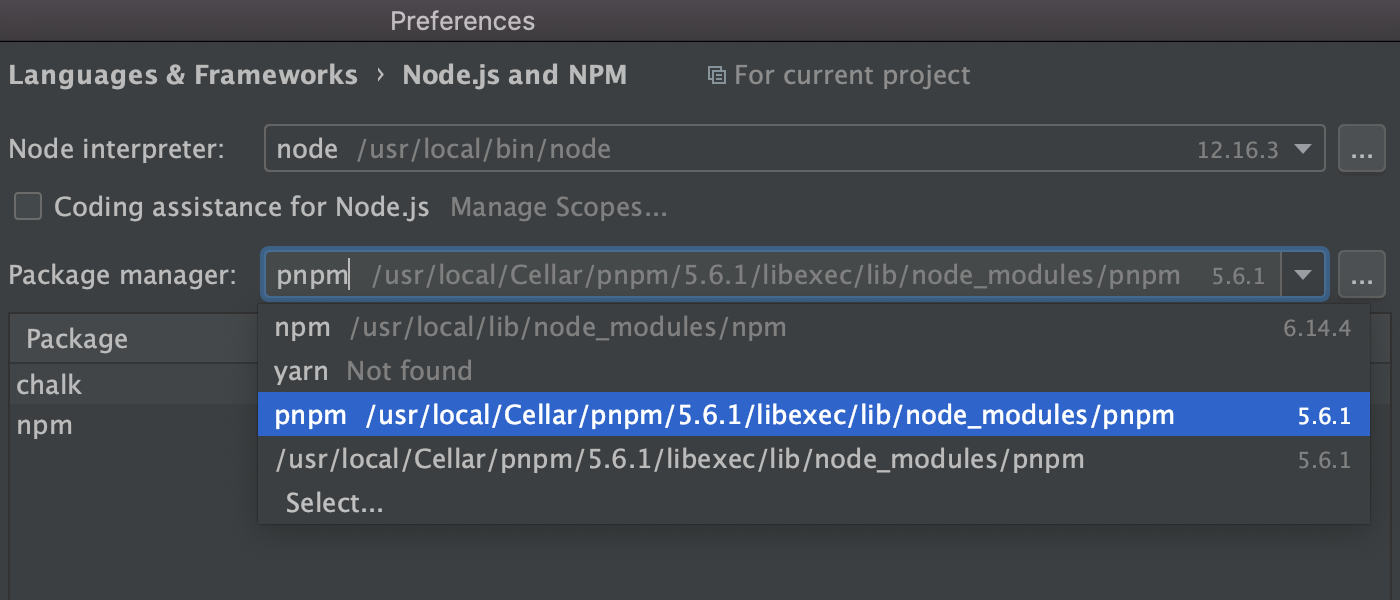
Теперь WebStorm полностью поддерживает менеджер зависимостей pnpm наряду с npm и yarn. В течение года мы постепенно улучшали поддержку pnpm и завершили работу в v2020.3.
Если у вас установлен pnpm и вы откроете проект с pnpm-lock файлом, WebStorm поменяет менеджер зависимостей автоматически. Также мы добавили pnpm в список менеджеров зависимостей: Preferences/Settings | Languages and Frameworks | Node.js and NPM. Возможность запускать и отлаживать скрипты и предупреждение Run ‘pnpm install’ были реализованы еще в предыдущей версии.
Пожалуй, это главные улучшения в поддержке фреймворков и технологий. Мы также добавили базовую поддержку сложной конфигурации webpack и сделали конфигурацию ESLint более гибкой.
JavaScript и TypeScript
Объединение окон TypeScript и Problems
Мы интегрировали TypeScript language service с окном Problems и убрали окно TypeScript. Это значит, что вы можете просматривать все ошибки в одном месте — на вкладке Project Errors в окне Problems.
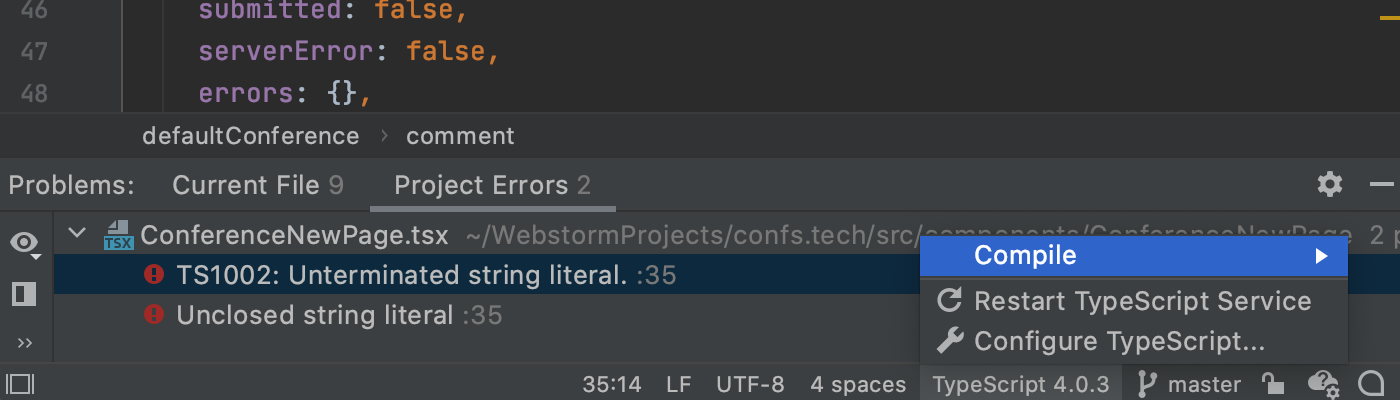
Действия, которые ранее были доступны в окне TypeScript, теперь можно найти в отдельном виджете на строке состояния. Оттуда можно скомпилировать код, перезапустить языковую службу и перейти к настройкам TypeScript.
Правильное форматирование для шаблонных литералов с CSS и HTML
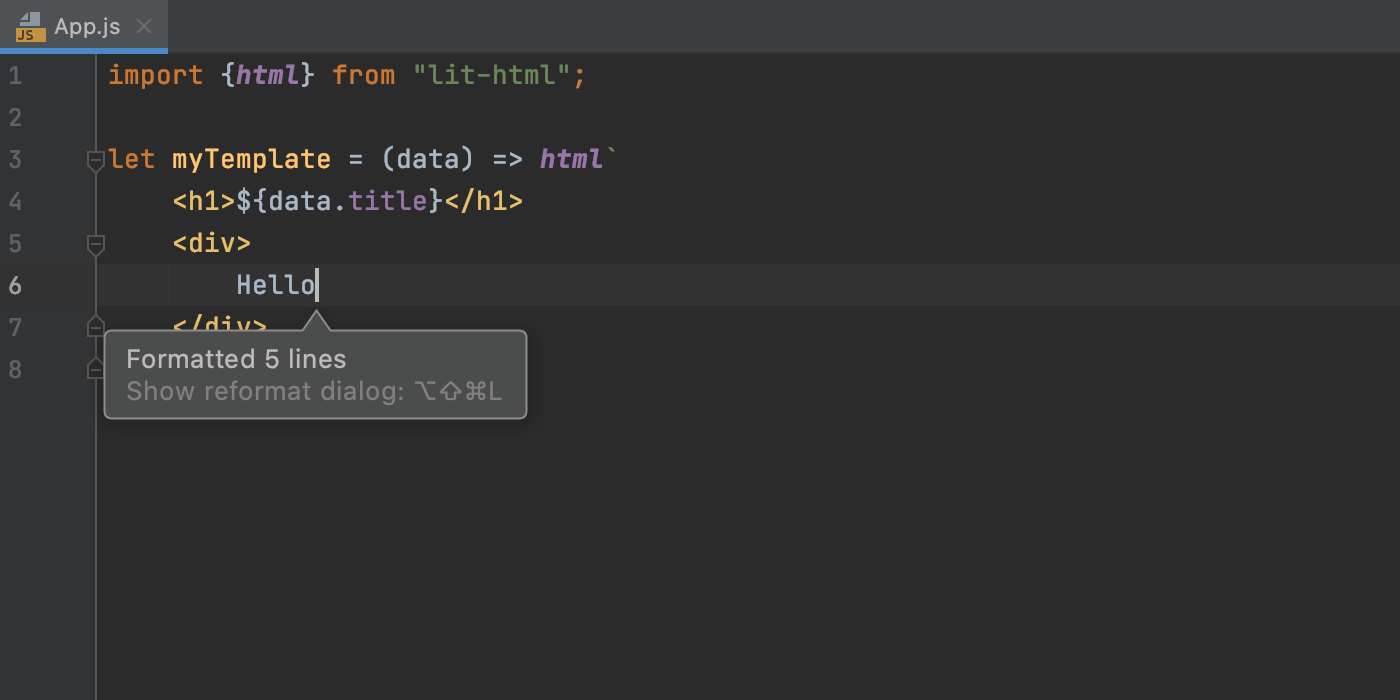
Поскольку такие библиотеки, как styled-components и lit-html, становятся все популярнее, довольно много CSS и HTML-кода пишется внутри шаблонных литералов JavaScript. Эти блоки также могут содержать интерполяцию выражений с использованием JavaScript.
Новая версия WebStorm поддерживает форматирование многострочных блоков CSS и HTML с фрагментами JavaScript. Теперь IDE сама расставляет отступы при добавлении кода в сложные шаблонные литералы и при переформатировании кода.
Более удобный процесс отладки
Вы наверняка знаете, что при остановке программы в точке останова, WebStorm показывает подсказки со значениями переменных. Мы сделали эти подсказки более полезными.
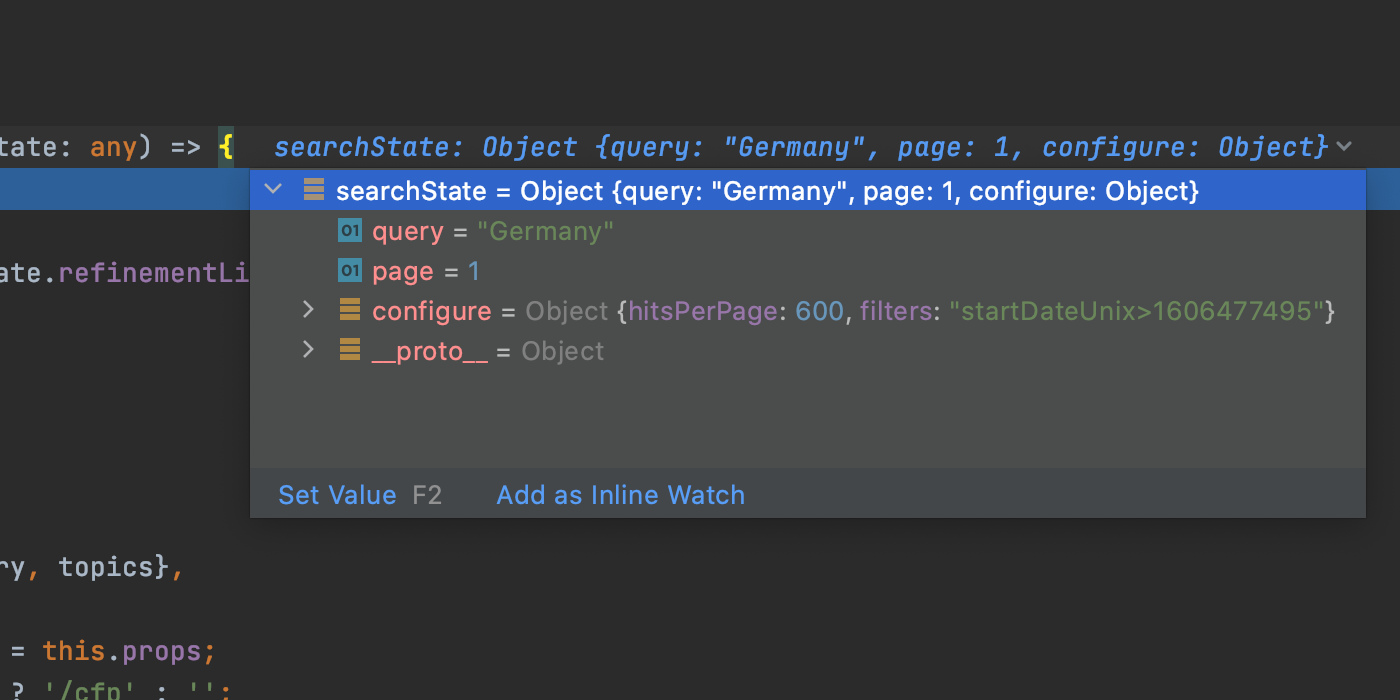
Во-первых, они стали интерактивными: нажмите на подсказку, чтобы увидеть все поля переменной. Более того, вы можете изменить значения переменной в раскрывающемся списке, нажав Set Value.
Еще одно обновление касается watches. Раньше watches находились на вкладке Variables в окне Debug. При пошаговой отладке и переходе в другой контекст watches могли превратиться в ошибки.
Хотя вы все еще можете добавлять watches таким образом, в версии 2020.3 мы решили упомянутую проблему, добавив inline watches. Теперь вы можете привязать watch expression к определенному месту в коде: нажмите Add as Inline Watch в том же окне. Вы также можете вызвать действие Add Inline Watch через контекстное меню.

Наконец, мы объединили Step Into и Smart Step Into в одно действие. Подробнее
Улучшенное автодополнение строк
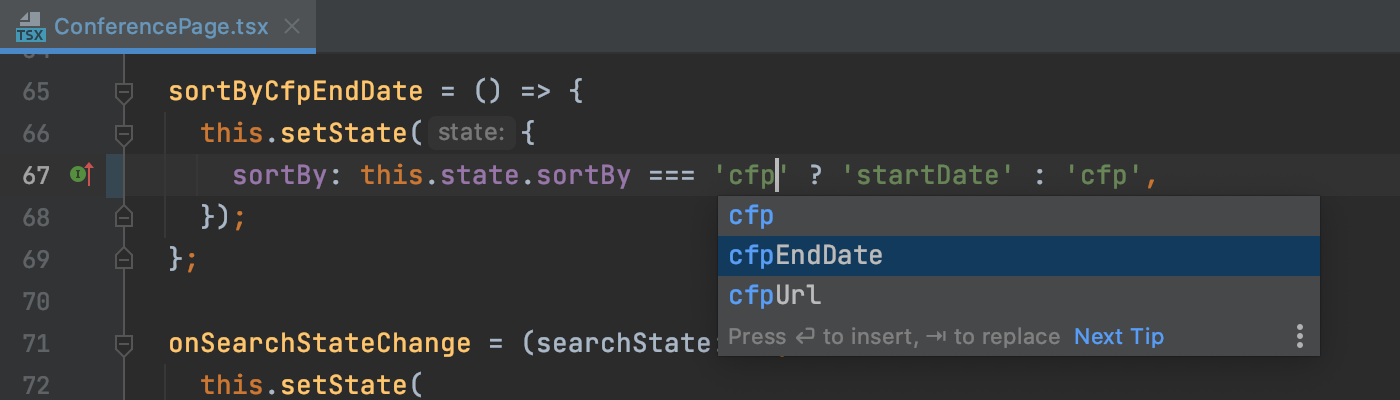
Мы улучшили атодополнение для работы со строками JavaScript и TypeScript. Теперь IDE предлагает подставить содержимое, используемое в других строках проекта. Это удобно при работе со строковыми параметрами.
Инструменты
Поддержка нового инструмента для совместной разработки
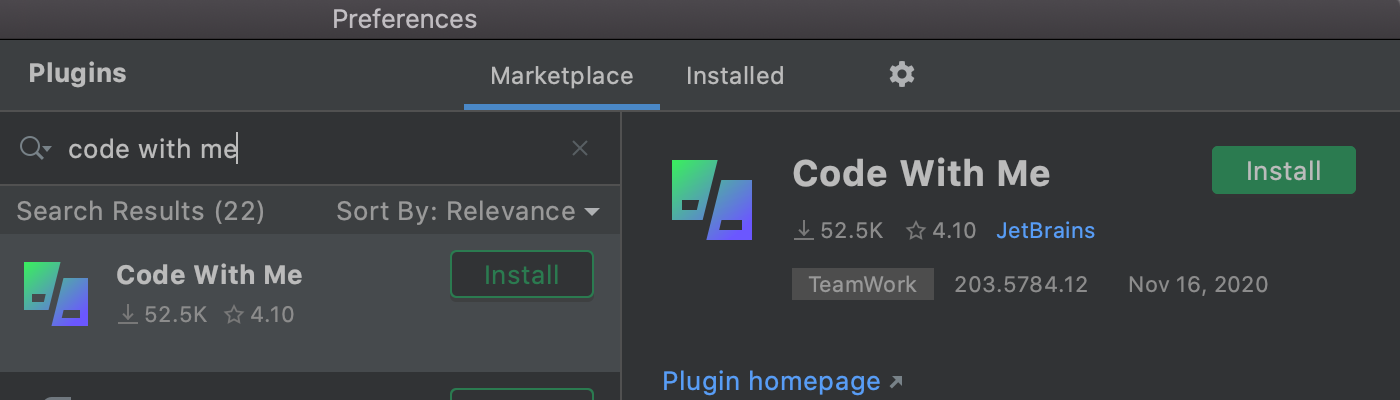
WebStorm 2020.3 поддерживает Code With Me (EAP) — наш новый инструмент для совместной удаленной разработки и парного программирования. С помощью него вы и ваша команда можете вместе работать над проектами прямо из своих IDE. Чтобы попробовать Code With Me, установите соответствующий плагин в Preferences / Settings | Plugins.
Встроенный обучающий курс по основам WebStorm
Чтобы помочь вам привыкнуть к базовой функциональности WebStorm, мы разработали интерактивный обучающий курс. С помощью него вы научитесь навигироваться по проекту, выполнять рефакторинг и другие повседневные операции в IDE. Перейти к курсу можно из вкладки Learn WebStorm на начальном экране либо через Help | IDE Features Trainer в главном меню.

Курс состоит из модулей, каждый из которых включает в себя несколько уроков, которые научат вас решать конкретные задачи. Не обязательно проходить все уроки — можете выбрать только те, которые будут вам полезны.
Расширенная проверка правописания
Исправлять ошибки теперь можно еще быстрее: наведите курсор на ошибку — во всплывающем окне вы увидите объяснение и вариант исправления. Чтобы увидеть полный список действий, доступных в текущем контексте, кликните More actions или нажмите Alt+Enter.
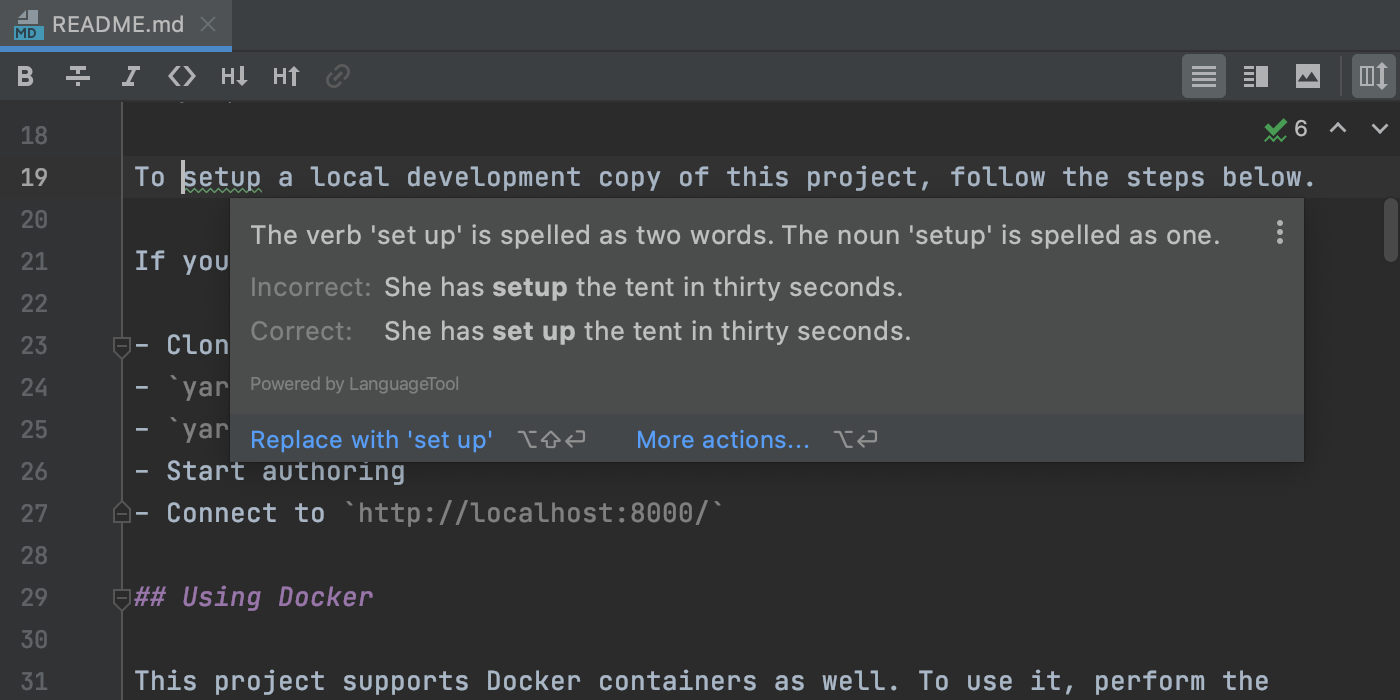
Движок для проверки грамматики теперь поддерживает больше языков и обеспечивает более высокое качество проверки.
Преобразование cURL в HTTP-клиенте
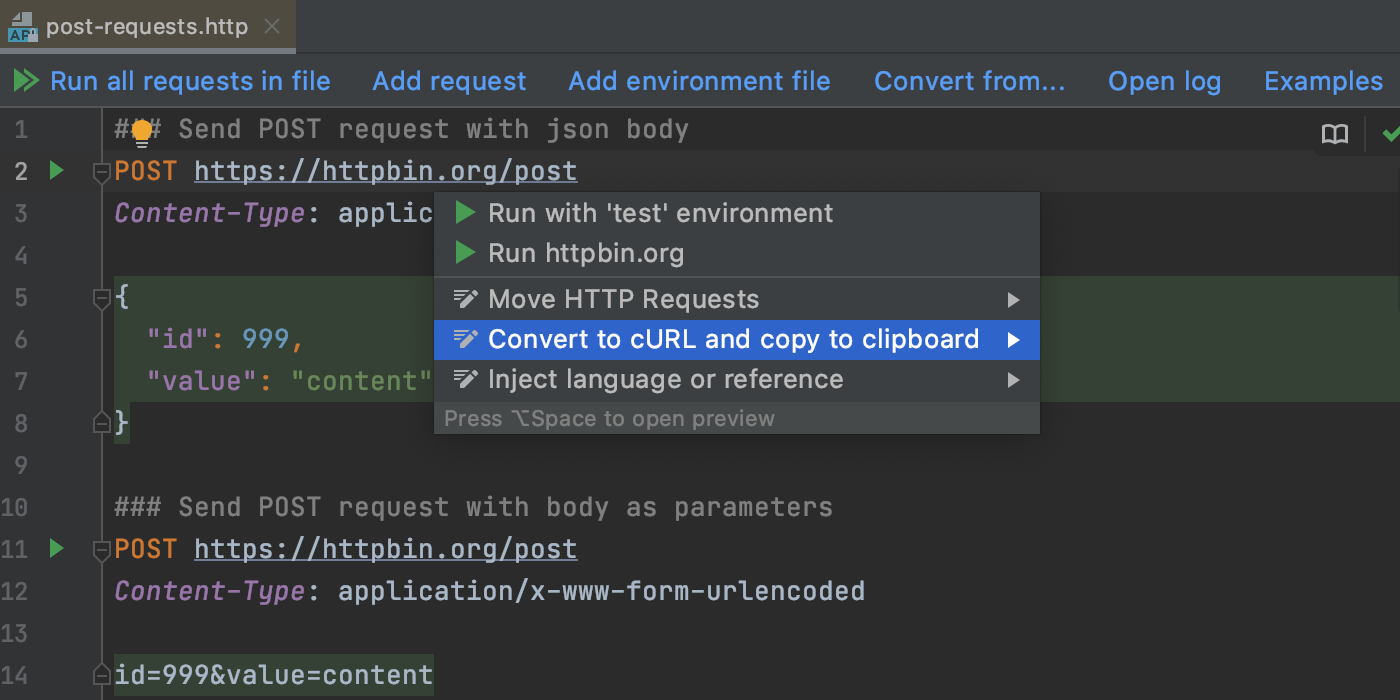
Теперь вы можете экспортировать HTTP-запросы в cURL. Для этого нажмите Alt+Enter в редакторе HTTP-запросов и выберите опцию Convert to cURL and copy to clipboard.
WebStorm 2020.3 включает несколько улучшений режима LightEdit и возможность поделиться шаблонами конфигурации запуска с коллегами.
Система контроля версий
Поддержка Git-стейджинга
Внимание: эта функциональность доступна только в окне Commit. Чтобы ее активировать, выберите опцию Use non-modal commit interface в меню Preferences/Settings | Version Control | Commit.
В WebStorm появилась поддержка Git-стейджинга. Чтобы включить ее, зайдите в Preferences/Settings | Version Control | Git и поставьте галочку напротив Enable staging area. Как только вы это сделаете, поддержка списка изменений будет отключена.
Вернувшись в окно Commit, вы увидите все измененные файлы в коммите (добавленные и не добавленные). Нажмите на значок +, чтобы добавить файлы. Файлы появятся в новом узле Staged.
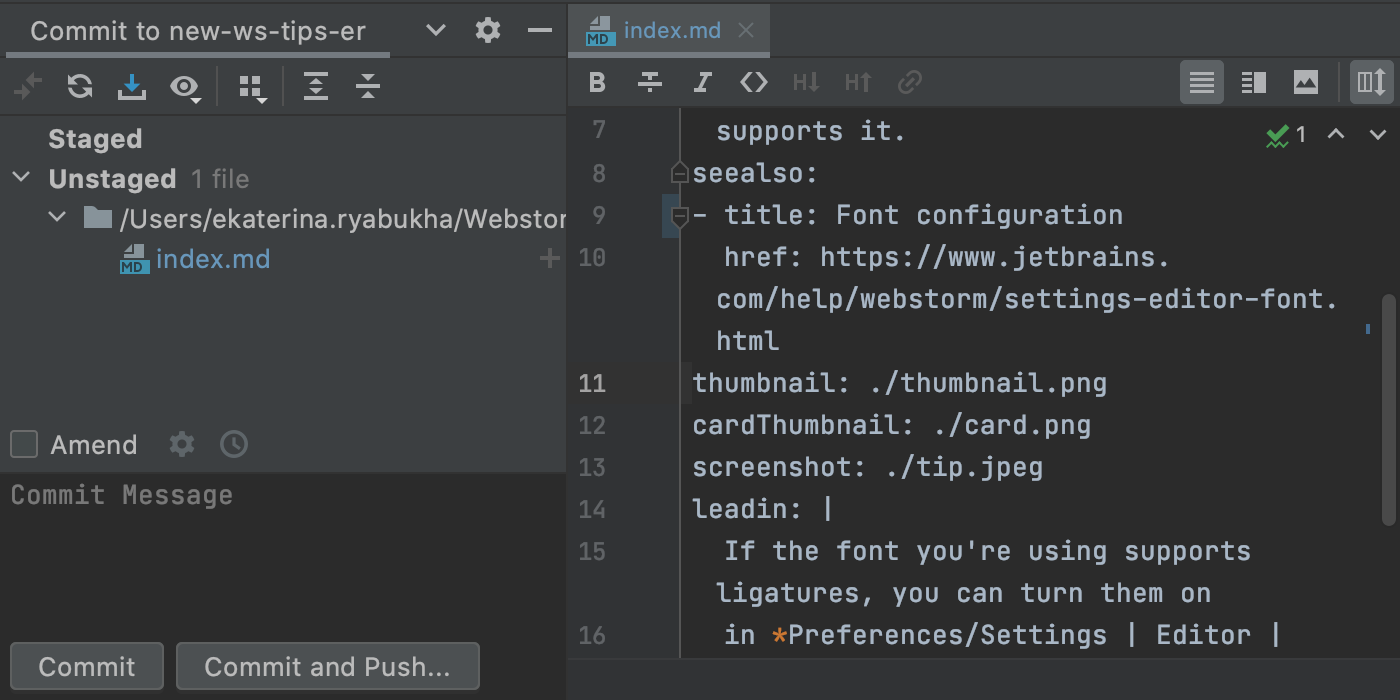
Вы также можете добавлять файлы на стейджинг через поле редактора или вкладку Diff.
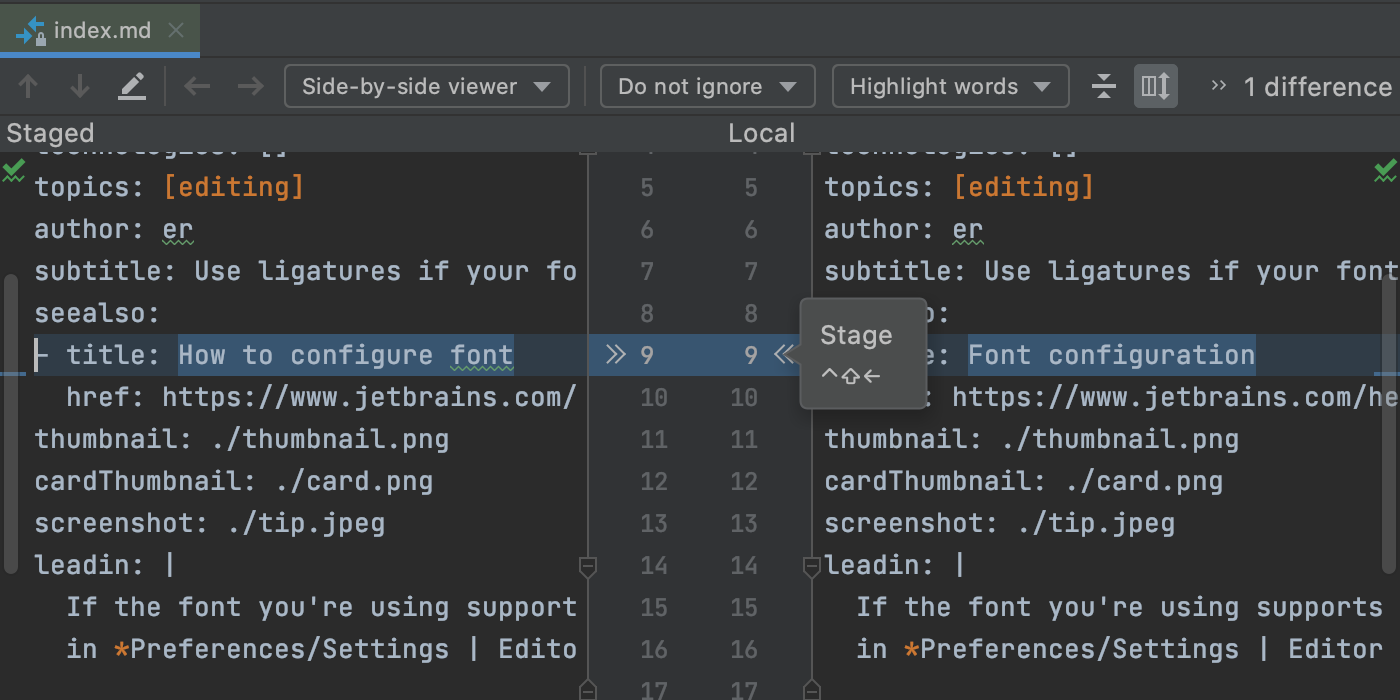
Нажмите Commit, чтобы закоммитить все файлы со стейджинга.
Оптимизация работы с ветками
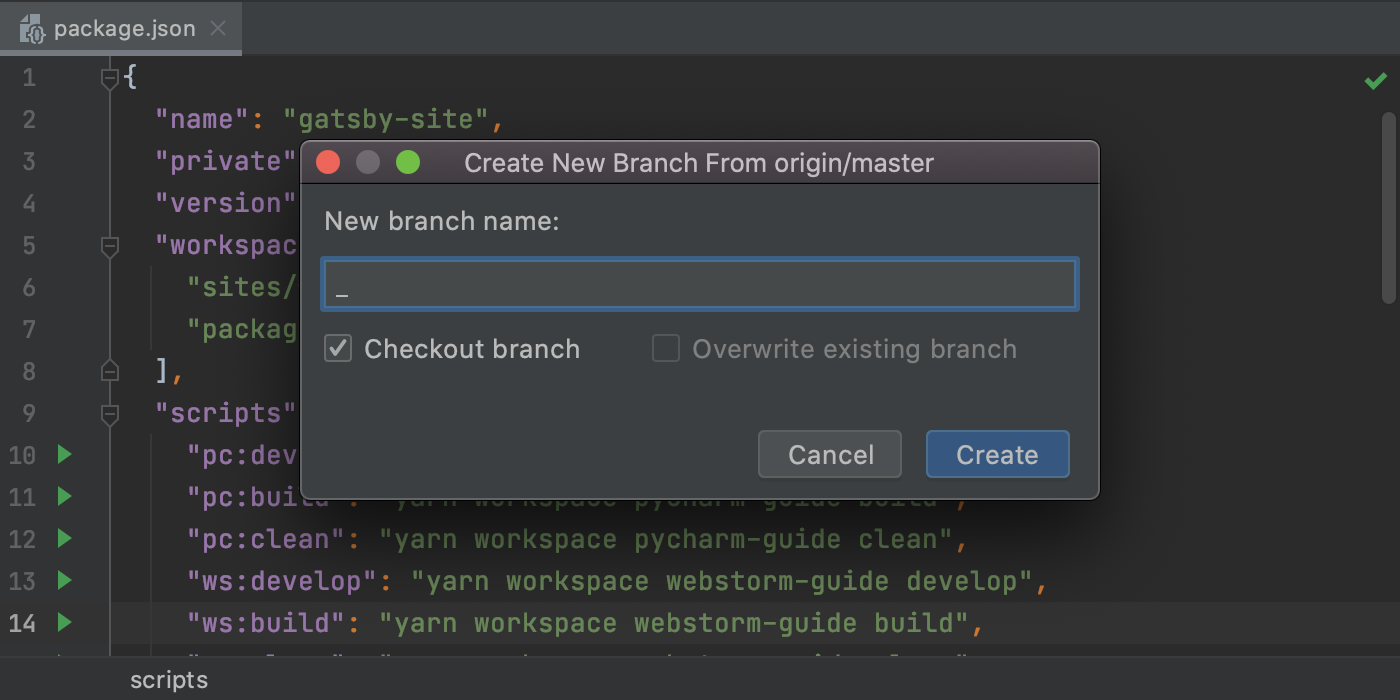
Несколько улучшений в этой версии касаются работы с ветками. Во-первых, WebStorm автоматически корректирует недопустимые символы в именах новых веток.
Во-вторых, IDE показывает все действия, доступные для текущей ветки и любых других.
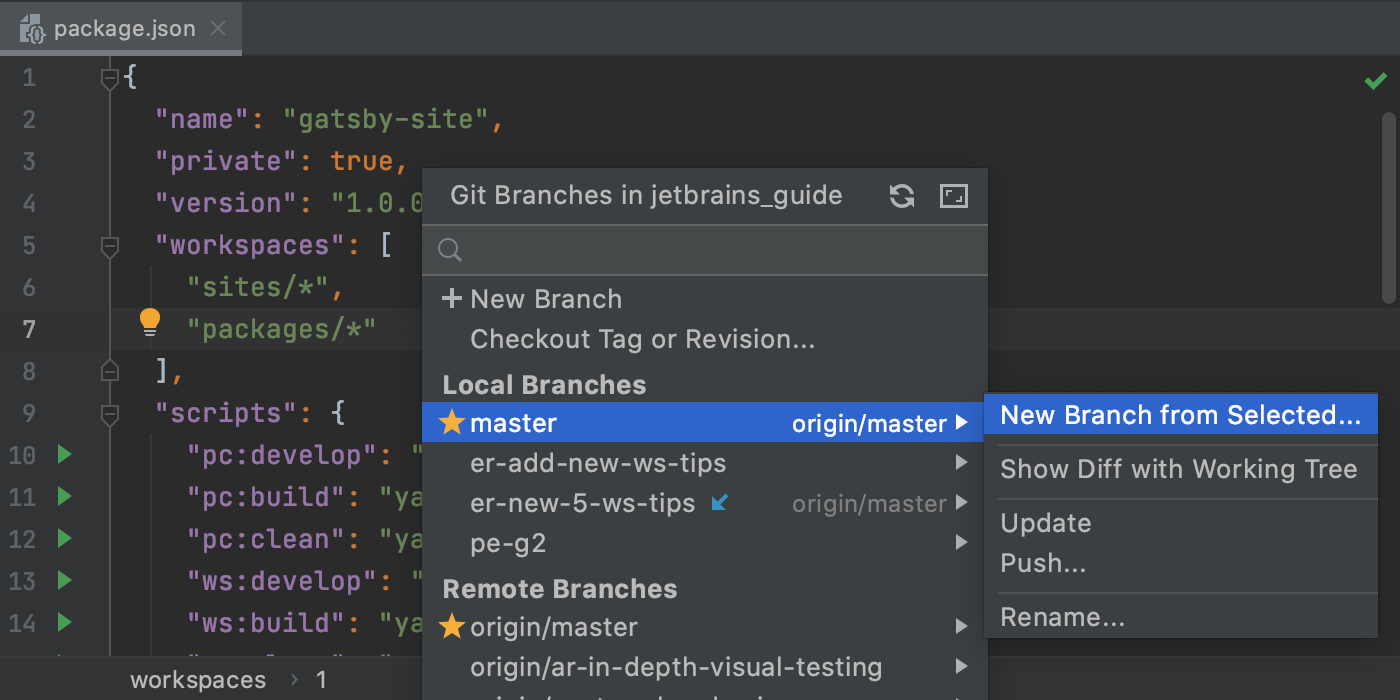
В-третьих, для удаленных ветвей мы переименовали действия Merge into Current и Rebase Current onto Selected в Pull into Current Using Merge и Pull into Current Using Rebase соответственно.
Обновленное меню VCS
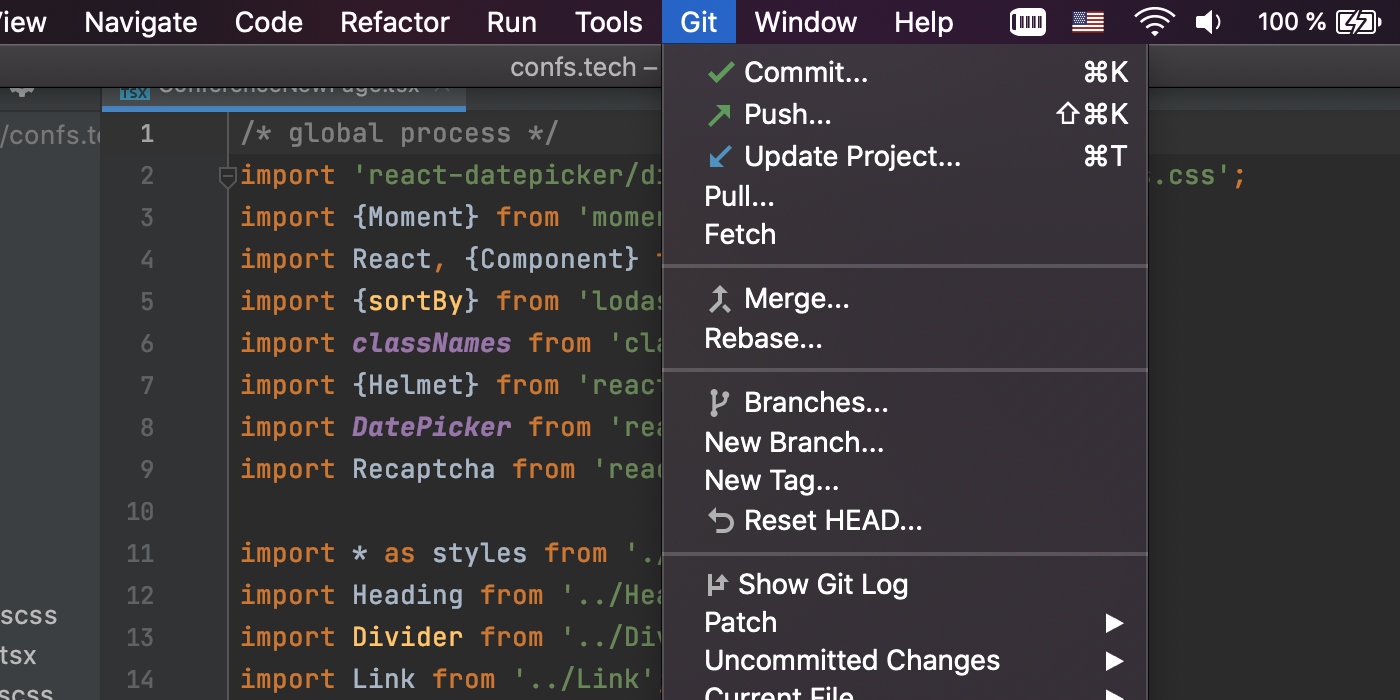
Меню VCS теперь называется в соответствии с системой контроля версий, которую вы используете. Мы сделали это, потому что, говоря о системе контроля версий, люди чаще используют слово Git, а не VCS. Также мы изменили порядок элементов в этом меню — наиболее популярные действия теперь можно запускать быстрее.
Навигация
Быстрый предпросмотр файлов
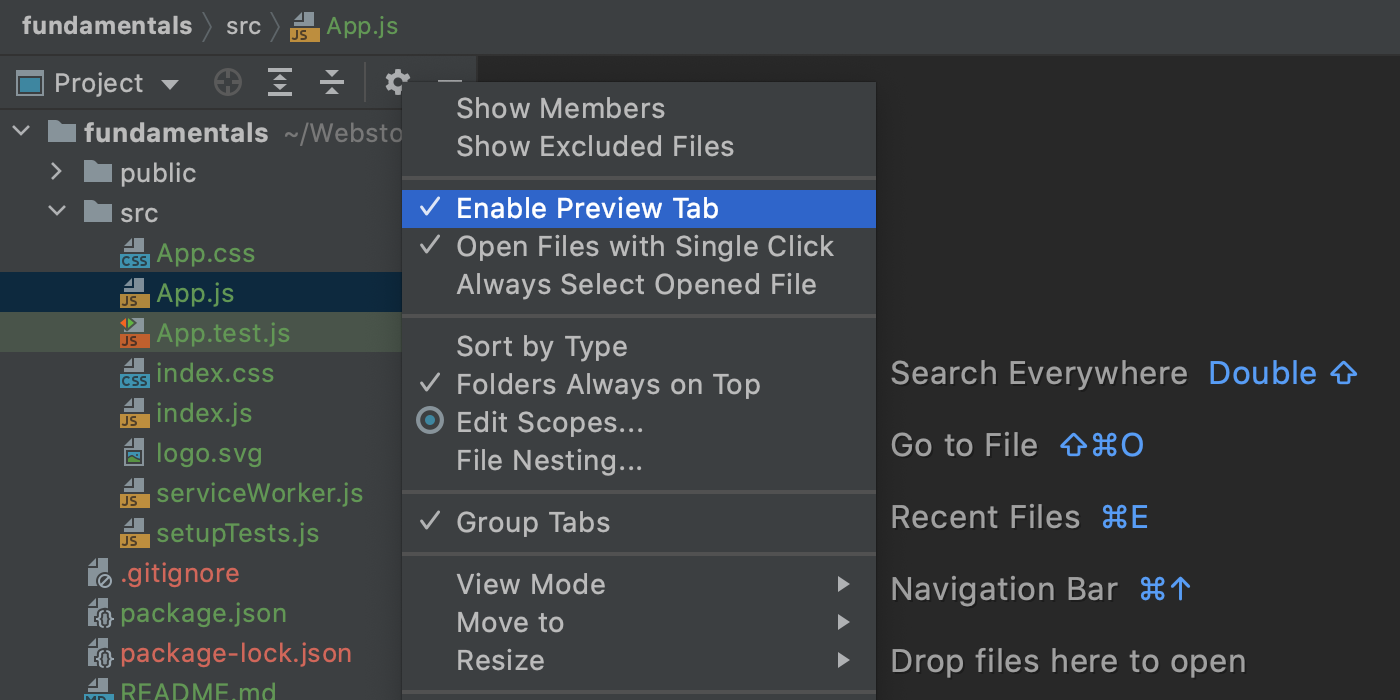
Появилась возможность предварительного просмотра файлов, выбранных в окне Project. Чтобы включить эту функцию, нажмите на значок шестеренки на панели Project и активируйте опции Enable Preview Tab и Open Files with Single Click. Если вы начинаете редактировать файл, открытый в превью, вкладка превращается в обычную.
Улучшенная панель навигации
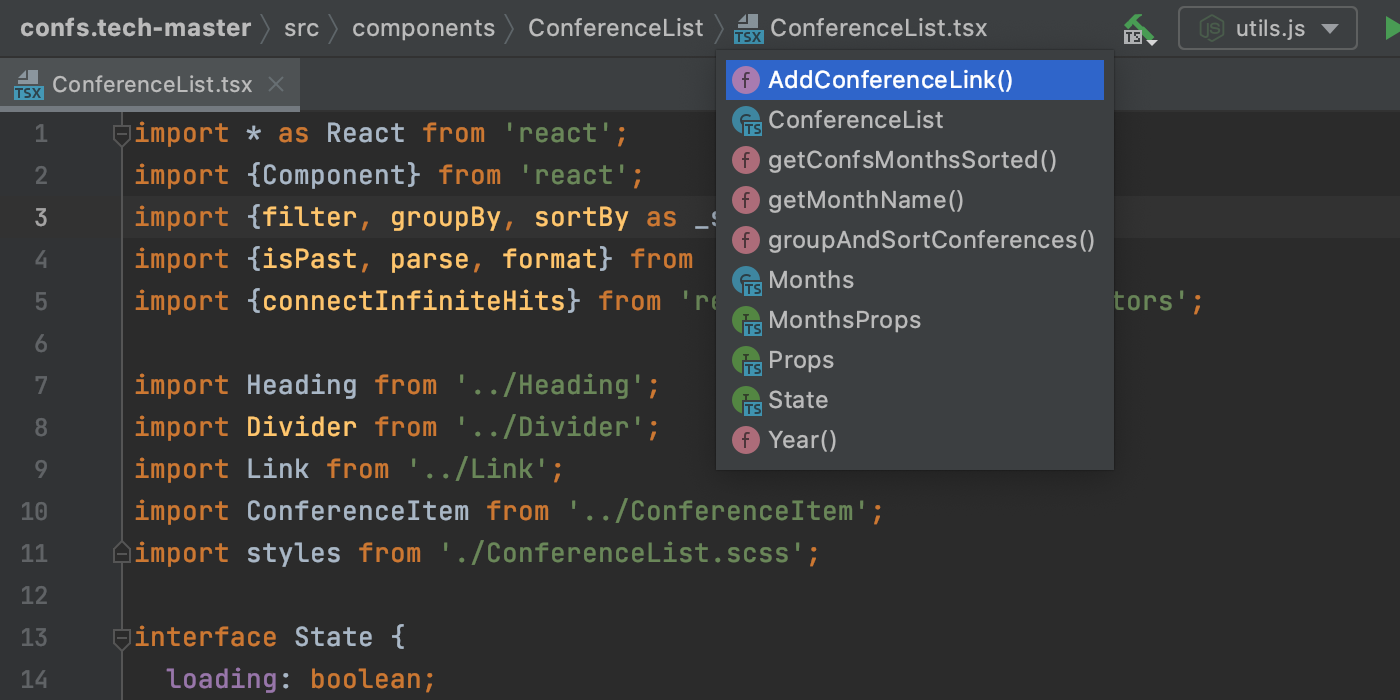
Панель Navigation — это альтернатива окну Project, позволяющая быстро просматривать структуру проекта и открывать нужные файлы. Теперь из нее также можно переходить к различным элементам кода в файлах JavaScript и TypeScript.
Search Everywhere стал еще мощнее
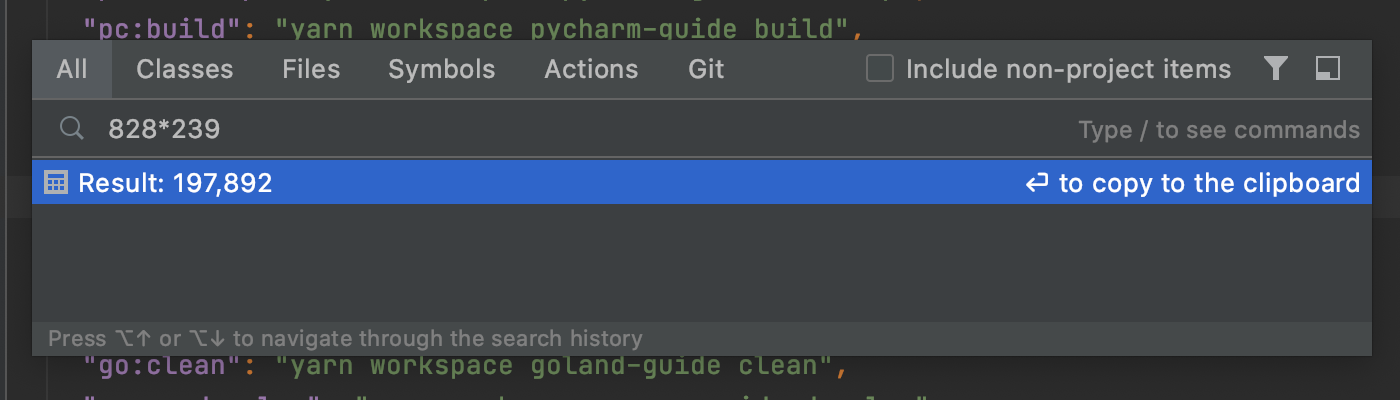
Окно Search Everywhere (Shift+Shift) стало более функциональным. Во-первых, его можно использовать в качестве простого калькулятора так же, как общесистемный поиск на вашем компьютере. Результаты вычислений отображаются прямо в окне.
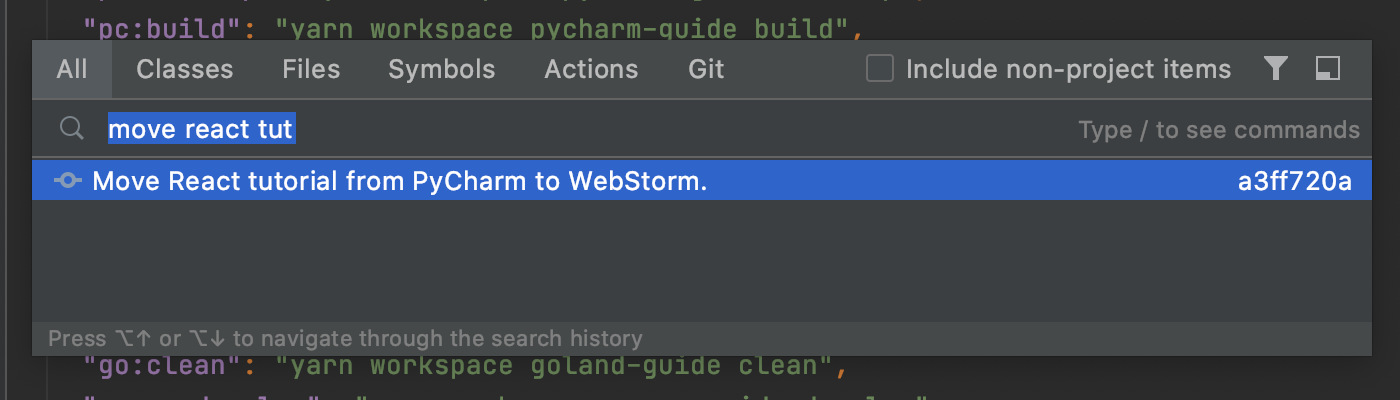
Во-вторых, теперь вы можете искать данные в Git, в том числе информацию о ветках и коммитах.
Кроме того, результаты теперь группируются не по типу, а по релевантности поисковому запросу.
Это только основные улучшения. Полный список новых возможностей WebStorm 2020.3 вы найдете в примечаниях к релизу. Сообщайте нам об обнаруженных ошибках через баг-трекер — мы очень ценим вашу помощь.
Ваша команда WebStorm
The Drive to Develop
Subscribe to WebStorm Blog updates
Discover more






WebStorm 2020.3: Tailwind CSS, Git Staging, and More

WebStorm 2020.3, the last major update of the year, is here! This update is packed with many long-awaited enhancements, including support for Tailwind CSS, the ability to sync your IDE theme with your OS settings, and Git staging.
If you only have a few minutes to explore what’s new in WebStorm 2020.3, watch this video where Paul Everitt, Developer Advocate at JetBrains, walks you through the most notable changes. If you feel like diving deeper, read on!
The new features and improvements fall into these categories:
- Look and Feel: a new Welcome screen, the ability to sync the IDE theme with your OS settings, improvements for working with tabs, the option to open files with WebStorm by default, and more.
- Frameworks and Technologies: Tailwind CSS support, the ability to create React components from usages, enhancements for Vue.js, full support for pnpm, and more.
- JavaScript and TypeScript: integrated TypeScript and Problems tool windows, better formatting for complex template literals with CSS and HTML, an improved debugging experience, and better completion suggestions for strings.
- Tools: support for our collaborative development tool, a training course on WebStorm basics, better spelling and grammar checking, and cURL conversion in the HTTP client.
- Version Control: Git staging support, rearranged VCS menu, and improvements for working with branches.
- Navigation: quick file preview, a more helpful Navigation bar, and more powerful Search Everywhere.
Look and Feel
Reworked Welcome screen and faster initial setup
We’re continuing to improve WebStorm’s look and feel. First of all, we’ve updated the Welcome screen. The main goals behind this change were to simplify the initial setup of the IDE and make it easier to manage some of the key settings. Let’s see what’s changed.
When you start WebStorm for the very first time, you will no longer see the configuration wizard – only the Privacy Policy and License dialogs will be shown. As soon as you open your projects, they will be displayed on the right, with the New Project, Open, and Get from VCS buttons shown in the top right corner.
On the left-hand side of the Welcome screen, you’ll find the Customize and Plugins tabs. The Customize tab lets you tweak the most commonly used settings, like IDE themes and fonts. The Plugins tab provides quick access to the list of available plugins and allows you to install them.
Lastly, there’s the Learn WebStorm tab. From this tab, you can jump to our online help, as well as some other resources, such as WebStorm educational videos and the keymap reference card. It also provides access to an interactive training course.
IDE theme synced with OS settings
Another improvement involving the look and feel is the ability to sync your IDE theme with the OS settings. For now, this improvement is available only for macOS and Windows users, but we plan to implement it for Linux users later, too.
To try out the new functionality, go to Preferences/Settings | Appearance & Behavior | Appearance and select the Sync with OS option there. Click on the gear icon next to the Theme drop-down menu to choose the preferred light and dark themes.
Improvements for working with tabs
With WebStorm 2020.3, we’ve made working with tabs more convenient.
First, you can split the editor by dragging a tab to the desired place and dropping it there. The split actions within the tab’s context menu are still available, too.
We’ve also implemented a new Open in Right Split action. This action will help you open new files without losing sight of the file you’re currently working with. You can find more information about how it works in this blog post.
Finally, pinned tabs are now marked with a special icon and shown at the beginning of the tab bar so you can find them faster. Also, if you tend to open a lot of tabs, you can now keep all your pinned tabs in a separate row. To do this, go to Preferences/Settings | Editor | General | Editor Tabs and tick Show pinned tabs in a separate row.
Make WebStorm open specific files by default
Making WebStorm the default application for specific file types is now simple. Go to Preferences/Settings | Editor | File Types and click the Associate File Types with WebStorm button. Then select the file extensions you want to open with WebStorm and click OK.
Depending on your OS, you might need to restart the machine for changes to be applied. The selected file extension associations will remain unchanged when you upgrade to a newer version of your IDE.
Custom multi-file templates
We’ve implemented the ability to add custom file templates that create several files at once. This can be handy when, for example, you need to add a .js file along with a test file for it.
To give this new functionality a try, go to Preferences/Settings | Editor | File and Code Templates, click + to create a new template, and then click the Create Child Template File icon next to +. You’ll see a new node appear under the parent file.
In the File name field, you can specify a pattern for generating a file name and a path to it using the supported syntax.
Once you’ve saved the new template, you can start using it as usual.
Other notable improvements to WebStorm’s look and feel include a new Reader mode, an alternative keymap for macOS, the Expand All button for the Project view, and a new action for transposing characters (press Shift+Shift and look for transpose to try it out).
Frameworks and Technologies
Tailwind CSS support
One of the most long-awaited improvements, support for Tailwind CSS, has finally landed in WebStorm! Let’s see how this can help you work with this popular framework more efficiently.
First, you can now expect WebStorm to autocomplete Tailwind classes in your HTML files and after the @apply directive. You’ll also see completion suggestions for pseudo-class variants.
If you hover over a class in your HTML and CSS files, the IDE will show you a preview of the resulting CSS. You can also see this preview when autocompleting your code with the help of the Documentation popup (F1/Ctrl+Q).
Besides that, WebStorm now supports the customizations you make using tailwind.config.js files. The IDE analyzes those files and provides completion based on your customizations. If you define a custom theme with new colors, for example, you’ll see newly generated classes with the name of the custom color in the completion popup.
That’s all for now about Tailwind CSS support. Please try the existing features and share your feedback with us! We plan to improve this support further.
Create a React component from its usage
As you might know, WebStorm constantly checks that referenced variables and fields are valid. When they aren’t, the IDE can suggest creating the relevant code construct for you. Now it can do this for React components, too. Place the caret at an unresolved component, press Alt+Enter, and then select the corresponding inspection. That’s it!
Enhancements for Vue.js
We didn’t have any big updates to Vue support planned for this release, but there’s still a little something to help you work with Vue better.
First, we’ve fixed a number of issues related to Vue 3. For example, WebStorm now supports the newly introduced <script setup> syntax.
Besides that, we’ve made the IDE correctly apply ESLint code style rules in Vue projects, and we’ve improved the integration with the TypeScript language service. To learn about other Vue-specific improvements, check out our release notes.
Markdown editing and preview enhancements
With WebStorm 2020.3, we’ve significantly improved the experience of working with .md files.
You can now reformat the content of your .md files to be in line with popular Markdown style guides. To do so, press ⌘⌥L / Ctrl+Alt+L. You can modify the related code style settings in Preferences/Settings | Editor | Code Style | Markdown.
Whenever you switch to a custom UI theme, WebStorm will automatically change the color of the preview pane.
We’ve also added support for Mermaid.js, a popular diagramming and charting tool. You can turn it on in Preferences/Settings | Languages & Frameworks | Markdown.
Finally, if you click the Auto-Scroll Preview button in the top right corner of the preview pane, that pane will be synced to scroll along with the editor.
Full support for pnpm
WebStorm now fully supports the pnpm package manager, along with npm and yarn. Over the last year, we’ve been gradually adding improvements around pnpm support. With v2020.3, we’ve put the finishing touches on it.
If you open a project with a pnpm-lock file and have pnpm installed on your machine, WebStorm will automatically change the package manager for this project to pnpm. Also, there’s now a dedicated pnpm option in the list of package managers under Preferences/Settings | Languages and Frameworks | Node.js and NPM. Other things like the ability to run and debug scripts or the Run ‘pnpm install’ warning were already introduced in v2020.2.
That’s it for the largest improvements to frameworks and technologies. We’ve also added basic support for multiple webpack configs and made ESLint configuration more flexible.
JavaScript and TypeScript
Integrated TypeScript and Problems tool windows
We’ve integrated the TypeScript language service into the Problems tool window and removed the dedicated TypeScript tool window. We made this change to help you review all the critical problems in your code from one place. All the errors reported by the service can now be found under the Project Errors tab of the Problems tool window.
To access the buttons that were previously available in the TypeScript tool window, you can use a new TypeScript widget on the status bar. From there, you can compile your code, restart the language service, and jump to TypeScript settings.
Better formatting for template literals with CSS and HTML
With libraries like styled-components and lit-html becoming more popular, quite a lot of CSS and HTML code is now written inside JavaScript template literals. These blocks in JavaScript code can also have expression interpolations with JavaScript in them.
Starting with v2020.3, WebStorm will properly support code formatting in JavaScript for multiline CSS and HTML blocks with JavaScript inside them. The IDE will indent correctly when you add code in these more complex template literals or reformat your code.
Improved debugging experience
You might already know that when execution is stopped on a breakpoint, WebStorm shows you hints with the values of the variables right next to their usage. To make these hints more helpful, we’ve introduced some improvements.
First, the inline hints are now interactive. You can click on them to see all the fields that belong to the variable. You can also change the variable values inside the drop-down list by clicking Set Value.
Another update affects watches. Previously, your watches were kept under the Variables tab of the Debug tool window. When you stepped through the code and moved to a different context, the watches could turn into errors.
Though you can still add watches this way, in v2020.3 we’ve solved the issues mentioned above by adding inline watches. Now, you can tie your watch expression to the place in the code where it is relevant. For this, click on Add as Inline Watch in the same popup. Alternatively, you can use the Add Inline Watch action from the context menu.
Lastly, we’ve merged the Step Into and Smart Step Into actions into one. You can find more information about this change here.
Better completion suggestions for strings
When working with strings in JavaScript and TypeScript, you’ll see a minor improvement to code completion. The IDE now suggests the content used in other strings in your project. This may be handy when working with string parameters.
Tools
Support for our collaborative development tool
WebStorm 2020.3 supports Code With Me (EAP), our new tool for collaborative development and pair programming. This tool lets you share projects with others so you can work on them together in real time. To try Code With Me, install the corresponding plugin from Preferences / Settings | Plugins.
Built-in training course on WebStorm basics
From now on, WebStorm will come bundled with the learning plugin and will include an interactive training course. This course can help you learn how to do a variety of common tasks, such as refactoring code, navigating through projects, and more. You can find it under the Learn WebStorm tab on the Welcome screen or by going to Help | IDE Features Trainer from the main menu.
The course is divided into several modules, each with a number of lessons that teach you how to do a specific task. There is no need to go through all the lessons – you can choose to do only the ones you find most relevant.
Improved spelling and grammar checking
You can now address grammar and spelling issues faster – hover over problems and you’ll get a popup with an explanation and a suggested fix. To see the full list of actions available in the current context, click More actions or press Alt+Enter.
We’ve also updated to a new version of the grammar checking engine with support for more languages and higher quality grammar checks.
cURL conversion in the HTTP client
You can now export an HTTP request to cURL. For this, press Alt+Enter in the HTTP request editor and select Convert to cURL and copy to clipboard.
WebStorm 2020.3 also comes with several improvements to LightEdit mode and the ability to share run configuration templates with others.
Version Control
Support for the Git staging area
Note: This functionality is only available for the Commit tool window. You can enable it by ticking Use non-modal commit interface in Preferences/Settings | Version Control | Commit.
With this update, we’ve introduced support for the Git staging area. To turn it on, tick the Enable staging area checkbox in Preferences/Settings | Version Control | Git. Once you do, the support for changelists will be disabled.
If you go back to the commit UI, you’ll see that it contains staged and unstaged files. When you’re ready to stage a file, simply click the + icon next to it. The file will appear under the Staged node.
You can also stage changes right from the gutter or when using the Show Diff feature.
When you click Commit, all staged files will be committed.
Improved work with branches
Several enhancements in this release touch upon branches. First, the IDE now automatically corrects unaccepted symbols in the names of new branches, helping you create branches in line with the accepted format.
Second, the IDE will now show you all the actions available for the currently selected branch, just like it would for other branches.
Finally, for remote branches, we’ve renamed the Merge into Current and Rebase Current onto Selected actions as Pull into Current Using Merge and Pull into Current Using Rebase, respectively.
Rearranged VCS menu
The VCS group under the main menu is now named after the version control system you are using. We made this change as terms like Git are used more commonly than VCS and should be clearer for more people. We’ve also rearranged the items under Git in the main menu to make the most common Git operations easier to access.
Navigation
Quick file preview
You can now preview files in the editor whenever you select them in the Project view! To turn this feature on, click the gear icon in the Project view and select both Enable Preview Tab and Open Files with Single Click. If you start editing a file opened this way, it will stop being a preview and will become an ordinary file.
More helpful Navigation bar
The Navigation bar, a quick alternative to the Project tool window, is one of the handiest navigation features available in WebStorm. It lets you go through the structure of your project and open specific files. Starting with v2020.3, the Navigation bar will also let you jump to specific code elements in your JavaScript and TypeScript files.
More powerful Search Everywhere
With v2020.3, the Shift+Shift popup will become even more helpful. First of all, you can now do some math from it, similar to how you would do this using the system-wide search on your machine. The results will appear right in the popup.
The popup will also let you look for Git data, including information about branches and commits.
Besides that, all the findings are now grouped based on their relevance to the search query instead of their type.
Those are the most notable highlights. For the full list of new features and enhancements available in WebStorm 2020.3, see the release notes. Please share your feedback with us and report any issues you encounter to our issue tracker.
The WebStorm team
