

WebStorm 2020.2: возможность использовать Prettier по умолчанию, поддержка Nuxt.js и удобная работа с пул-реквестами GitHub

Мы рады представить второе крупное обновление WebStorm в этом году. В нем вы найдете долгожданную возможность использовать Prettier в качестве форматера по умолчанию, лучшую в своем классе поддержку Vue (теперь мы действительно можем это сказать!), новые intention-действия для JavaScript, полную поддержку пул-реквестов GitHub и многое другое.

Если у вас есть всего пара минут, чтобы узнать о возможностях WebStorm 2020.2, смотрите видео, в котором наш девелопер-адвокат Пол Эверитт рассказывает о самых важных нововведениях. А если вам нужны подробности, читайте этот пост.
Вот основные улучшения в разных частях IDE:
- Фреймворки и технологии: возможность использовать Prettier в качестве форматера по умолчанию, множество улучшений для Vue.js и поддержка Git, установленного в WSL 2.
- JavaScript и TypeScript: новые intention-действия, рендеринг комментариев JSDoc, автодополнение на основе машинного обучения и улучшения в отладчике.
- HTML и файлы стилей: улучшенная поддержка модульной системы Sass, поддержка WebP и автодополнение CSS-селекторов в методах querySelector.
- Управление версиями: расширенная поддержка пул-реквестов GitHub, переработанные диалоги Git-действий и возможность объединять коммиты на вкладке Log.
- Редактирование кода: новые инструменты для нахождения проблем в коде и возможность добавить нескольких курсоров в конец выбранных строк.
Фреймворки и технологии
Использование Prettier в качестве форматера по умолчанию
Мы продолжаем делать работу с Prettier в WebStorm еще удобнее. Чтобы Prettier использовался по умолчанию вместо встроенного форматера, нужно просто отметить галочкой опцию On code reformat в настройках Preferences/Settings | Languages & Frameworks | JavaScript | Prettier.
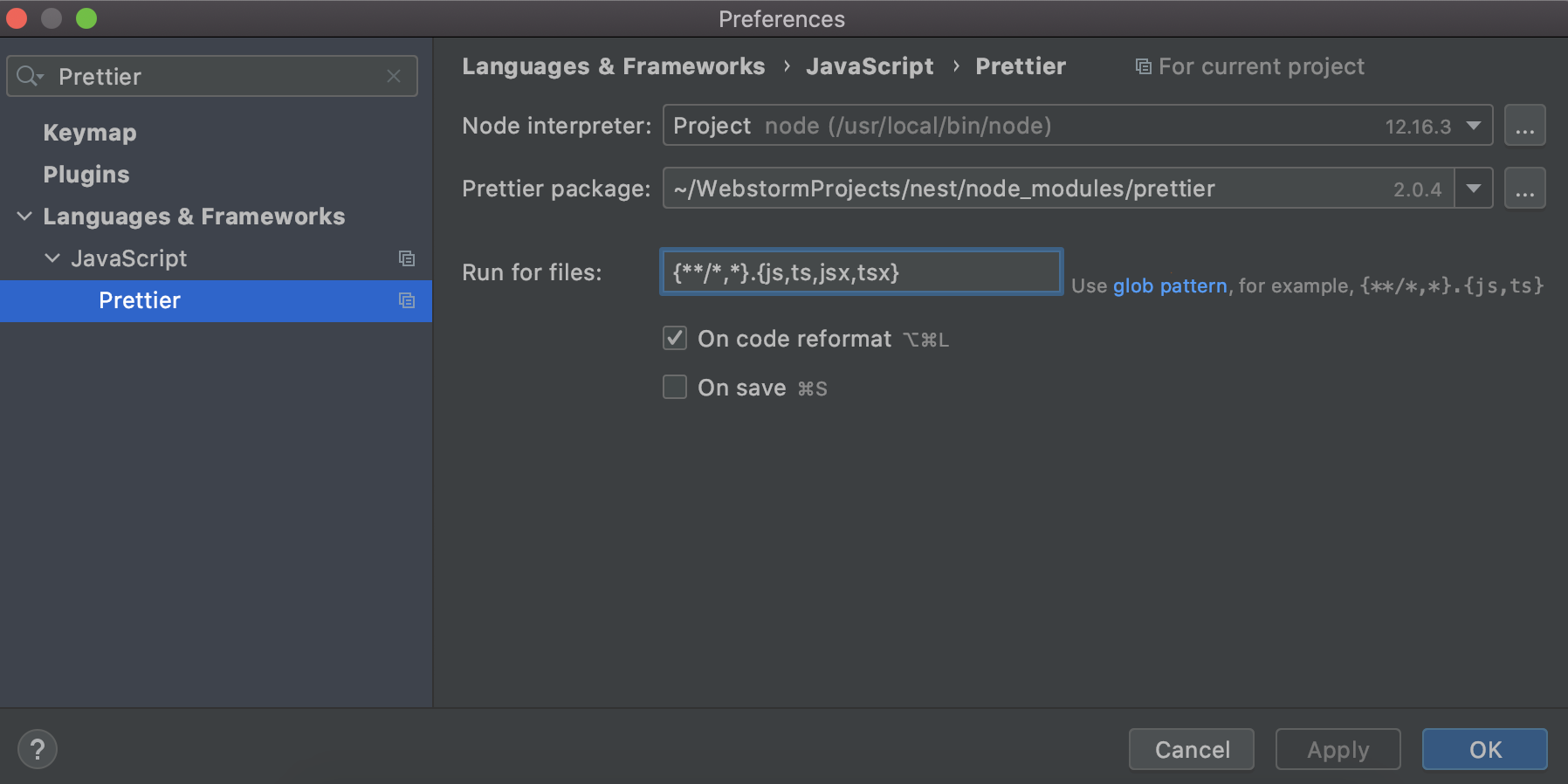
Если эта опция включена, Prettier будет вызываться всякий раз, когда вы используете стандартное действие форматирования. По умолчанию это работает только для файлов .js, .ts, .jsx и .tsx, которые вы редактировали в проекте (как и запуск Prettier при сохранении файла). Чтобы применить форматирование к другим типам файлов или ограничить область его применения определенными директориями, можно изменить стандартную конфигурацию, используя glob patterns.
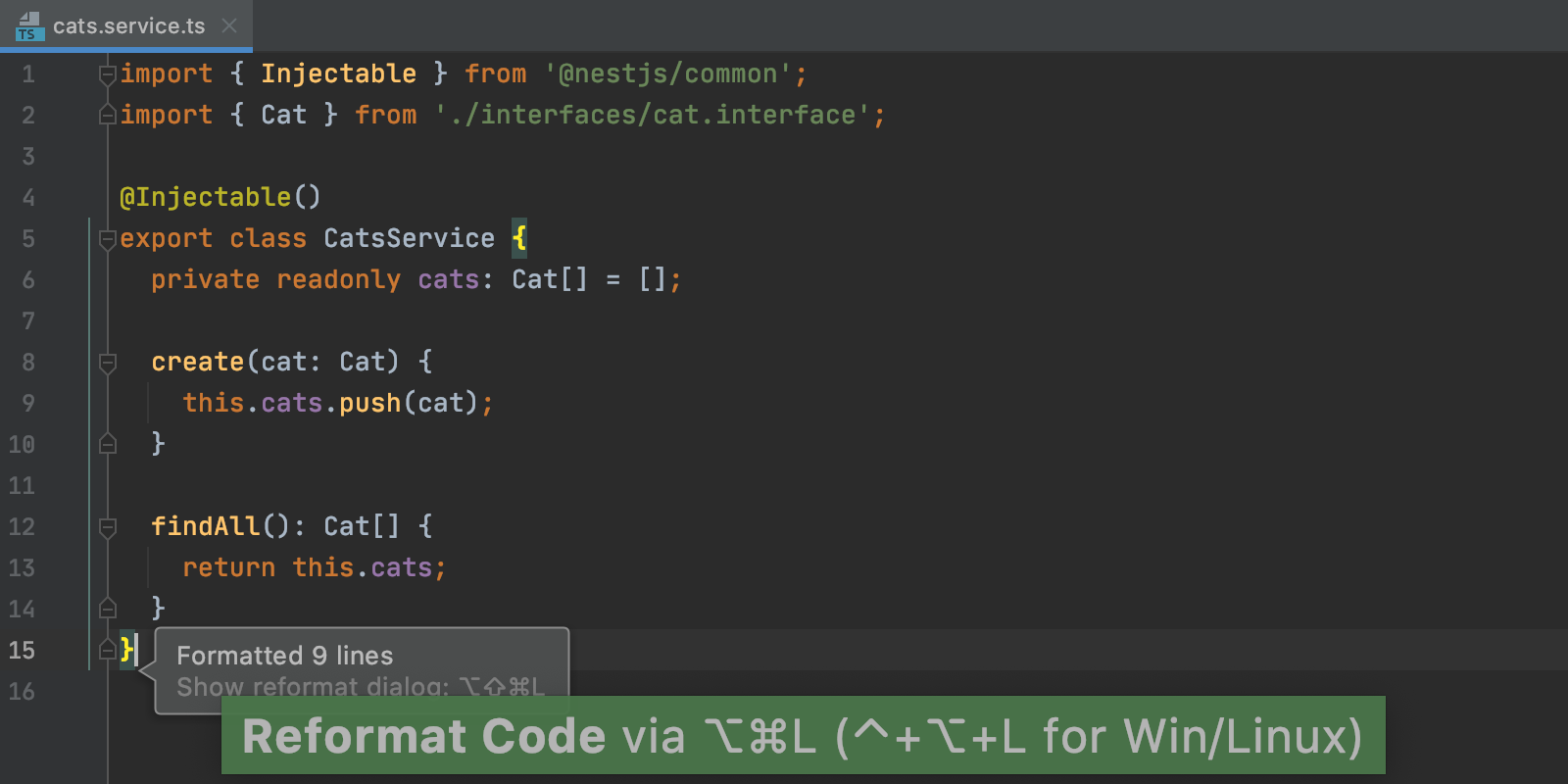
Если вы хотите использовать Prettier по умолчанию во всех новых проектах, перейдите в раздел File | New Projects Settings | Preferences/Settings for New Projects в главном меню, выберите там опцию On Code Reformat и при необходимости обновите список типов файлов по умолчанию.
Если вы предпочитаете работать по-старому, используя встроенный форматер и действие Reformat with Prettier, и привыкли к кастомному сочетанию клавиш, не переживайте, все это будет работать как раньше. Но мы рекомендуем попробовать новый способ: возможно, с ним вам будет удобнее.
Первоклассная поддержка Vue
Весь последний год мы активно работали над тем, чтобы максимально улучшить поддержку Vue в WebStorm, и в этом релизе добавили несколько финальных штрихов. Надеемся, теперь работать с проектами Vue в WebStorm станет еще удобнее. В дополнение к существующей функциональности версия 2020.2 включает в себя поддержку Nuxt.js, специальный раздел настроек стиля кода Vue и другие улучшения.
Поддержка Nuxt.js
Если вы используете Nuxt 2.9.0 или более свежую версию и у вас не установлен пакет @nuxt/types, WebStorm предупредит об этом и предложит установить его в качестве зависимости. Мы рекомендуем сделать это, чтобы получать более точные варианты автодополнения.
При работе с файлами nuxt.config.js WebStorm будет предлагать правильные варианты автодополнения. По наведению курсора мыши откроется всплывающее окно документации, в котором отображается информация о типах Nuxt options, используемых в файле.
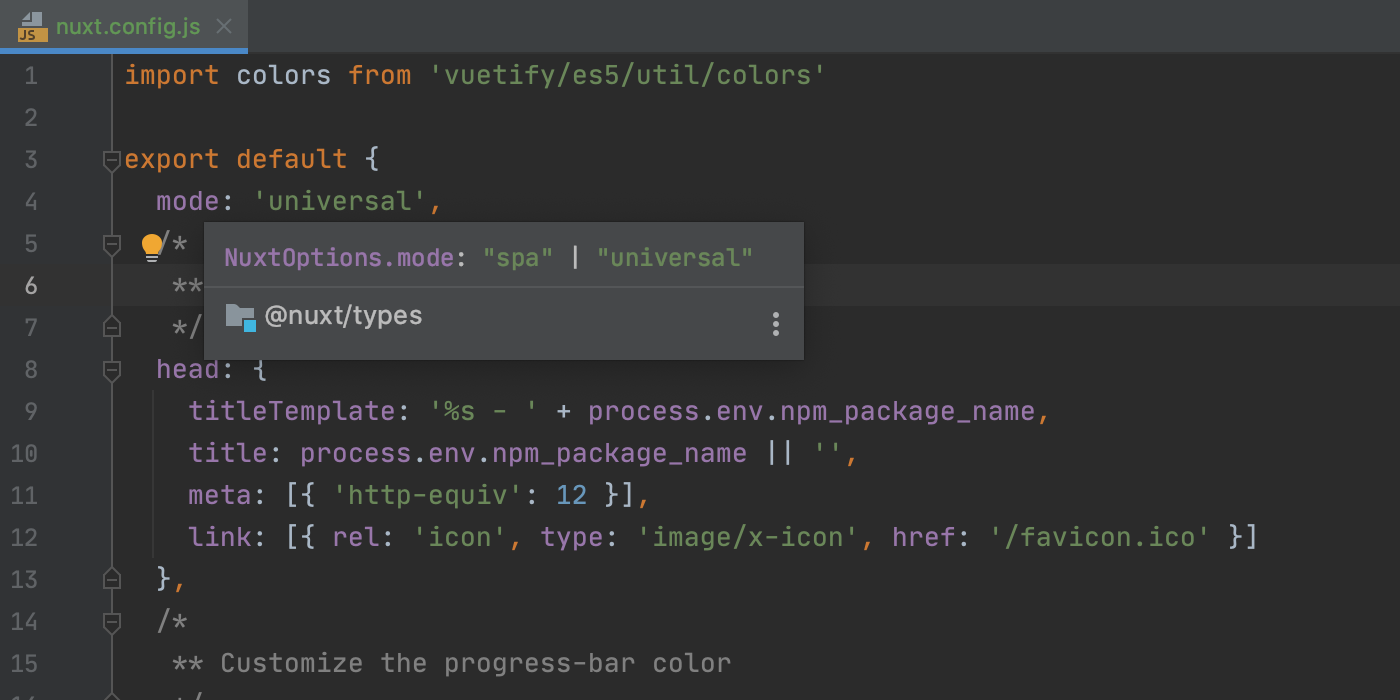
Кроме того, поддерживается специфичная для Nuxt конфигурация webpack. Начиная с Nuxt.js 2.12.0, WebStorm автоматически находит файл конфигурации webpack и использует соответствующие правила разрешения модуля при автодополнении. Для более старых версий вы можете скопировать этот скрипт и указать на него в WebStorm — результат будет тот же.
WebStorm теперь правильно обрабатывает ссылки на Vuex store и предоставляет для них автодополнение.
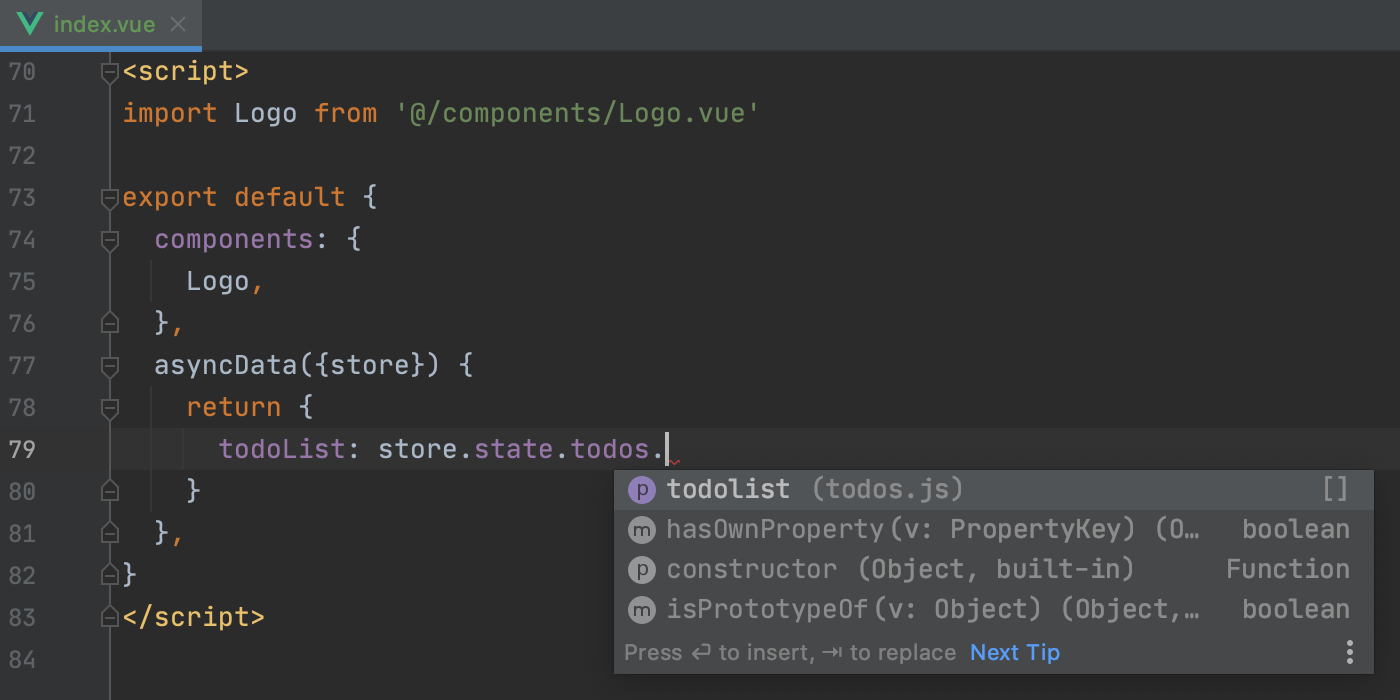
Наконец, все изображения в директории static, на которые есть ссылки в шаблонах Vue, тоже обрабатываются корректно.
Специализированные настройки стиля кода
В WebStorm 2020.2 добавлен специальный раздел настроек для конфигурации форматирования файлов Vue. Вы найдете его в Preferences/Settings | Editor | Code Style | Vue.
Теперь можно быстро выбрать, какой отступ должен быть у верхнеуровневых тегов, и указать, должен ли отступ быть одинаковым для всего файла Vue или зависеть от языковых настроек. По умолчанию отступы используются только для содержимого <template>, и они единообразны по всему файлу.
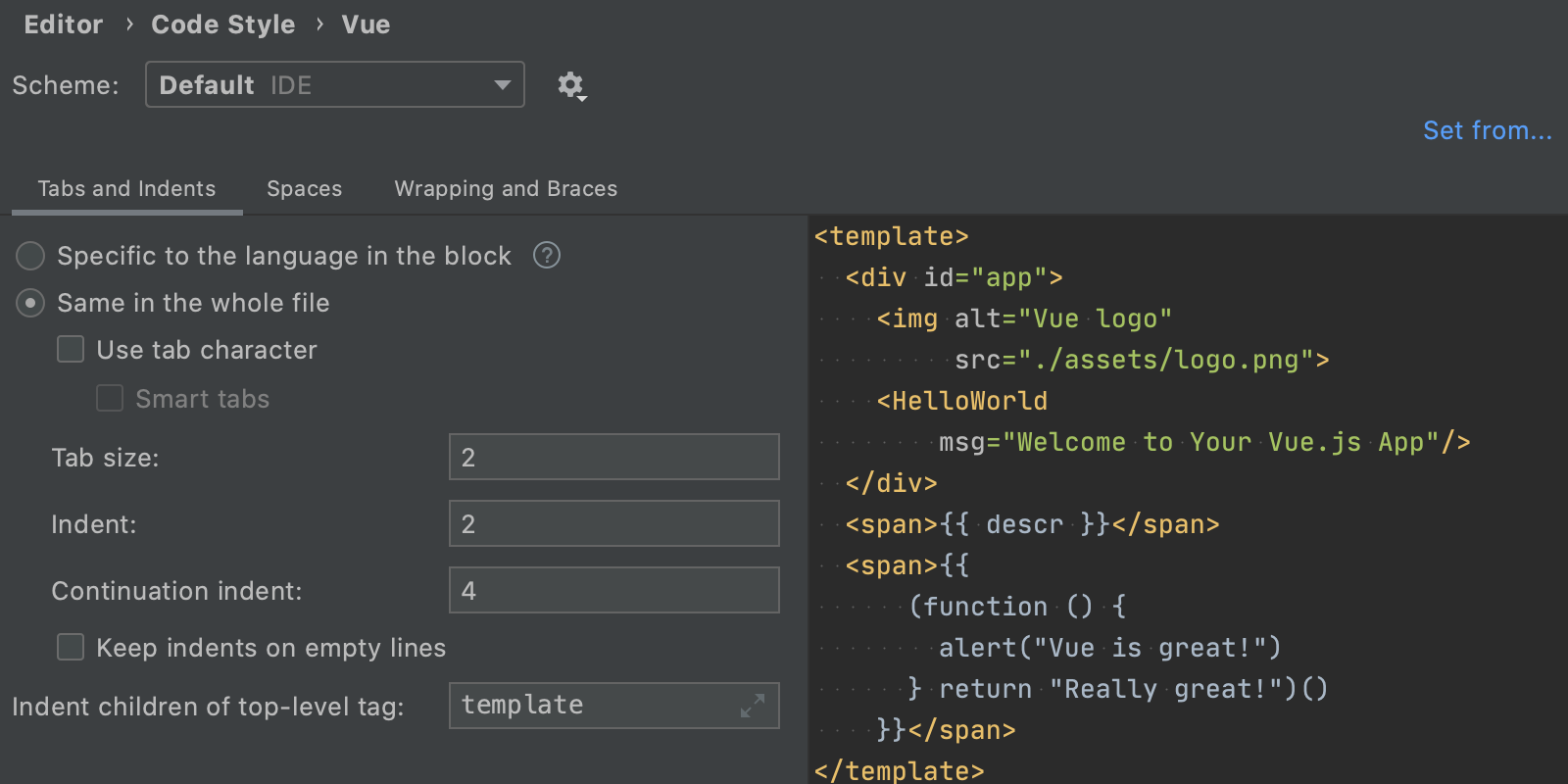
Вы также можете изменить способ форматирования интерполяций. Чтобы настроить любые другие параметры стиля кода, перейдите в раздел Preferences/Settings | Editor | Code Style.
Другие улучшения для Vue
Помимо этих изменений, есть еще кое-что:
- Мы улучшили работу языковой службы TypeScript с файлами .vue. Теперь они обрабатываются точно так же, как файлы .ts и .tsx. Импорты из Vue-файлов в другие файлы Vue или TypeScript больше не вызывают проблем.
- WebStorm теперь поддерживает Vuelidate, валидацию на основе модулей.
- Все отображенные символы из Vuex store корректно разрешаются для функций/свойств в
this., показывая правильное количество аргументов и правильные типы. - При создании компонента с помощью
Vue.extend()и использовании однофайловых компонентов, все свойства данных разрешаются должным образом. - Мы внесли небольшое улучшение в автодополнение свойств экземпляра: теперь поддерживаются
$data,$propsи$options.
Поддержка Git в WSL 2
WSL становится важной частью процесса разработки на Windows, и мы работаем над поддержкой необходимых рабочих процессов в наших IDE. В первом и втором баг-фиксах для WebStorm 2020.1 мы исправили много известных проблем, связанных с Node.js в WSL. Теперь же мы реализовали недостающую поддержку Git, установленного в WSL 2.
IDE переключается между исполняемыми файлами Git в зависимости от расположения проекта. При открытии проекта из WSL WebStorm автоматически переключится на Git в WSL, и вы сможете пользоваться всей функциональностью IDE, связанной с Git.
WebStorm 2020.2 позволят использовать Git из WSL 2, который изначально доступен в майском обновлении Windows 10, версия 2004. IDE не поддерживает WSL 1, потому что Git из WSL 1 не возвращает надежный вывод при вызове из Windows. Это может привести к некорректным результатам работы команд Git.
JavaScript и TypeScript
Новые intention-действия для циклов
Как и всегда, мы добавили несколько новых intention-действий, которые помогут вам выполнять рутинные задачи немного быстрее. Первые три предназначены для циклов. Как обычно, используйте Alt+Enter чтобы увидеть intention-действия, доступные в текущем контексте.
Например, можно быстро преобразовать цикл for с числовым индексом в перебирающий метод forEach.
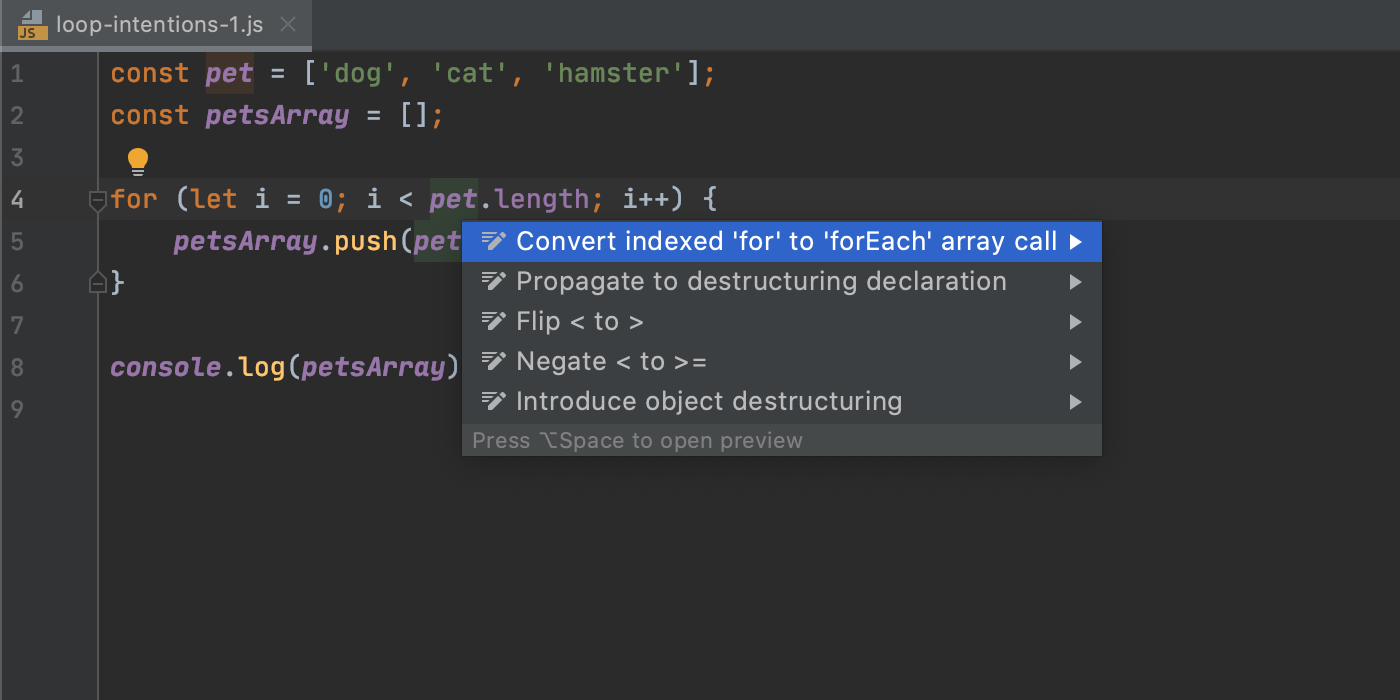
О других intention-действиях для циклов читайте в нашем блоге.
Преобразование в optional chaining и nullish coalescing
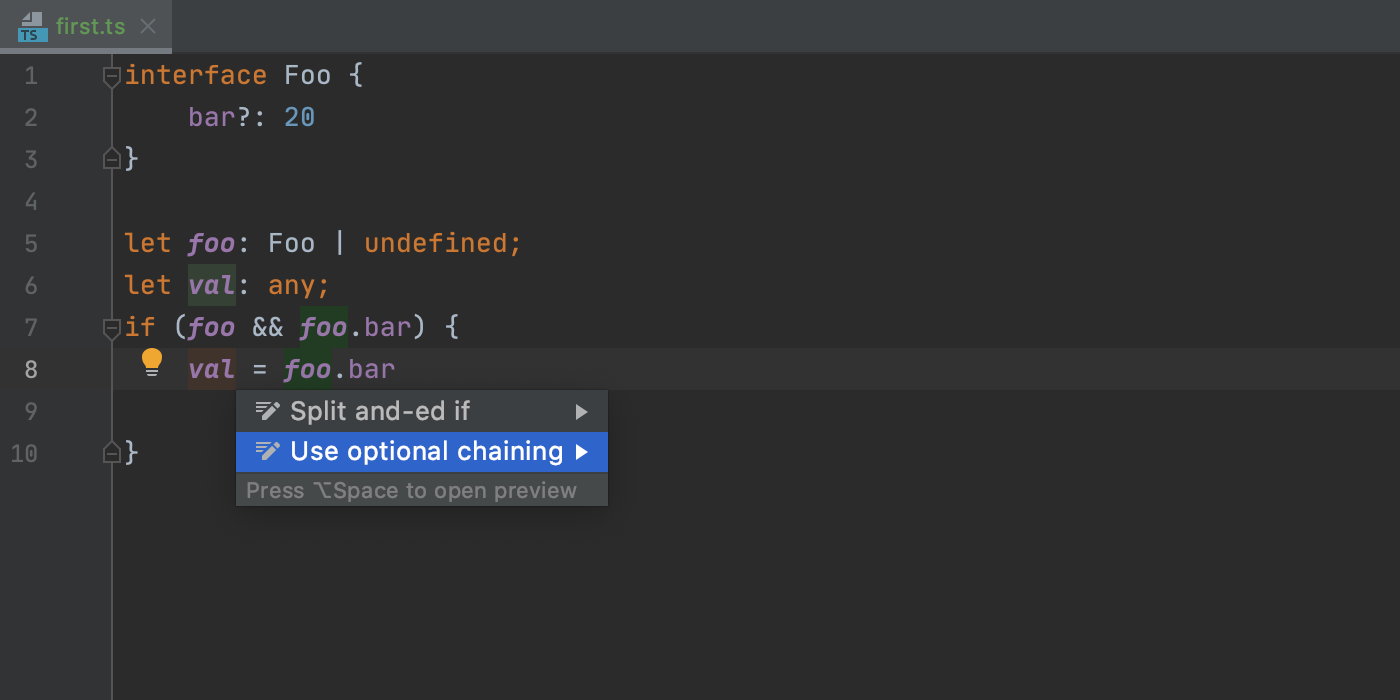
В этой версии мы увеличили число случаев, в которых можно преобразовать существующий код в optional chaining и/или nullish coalescing с помощью нового intention-действия.
Теперь его можно использовать в условных выражениях if/else, применять к логическим операторам в таких выражениях, а также к вложенным операторам if. Попробуйте сами: нажмите Alt+Enter на выражении, которое нужно преобразовать, и выберите соответствующее действие.
Рендеринг комментариев JSDoc в редакторе
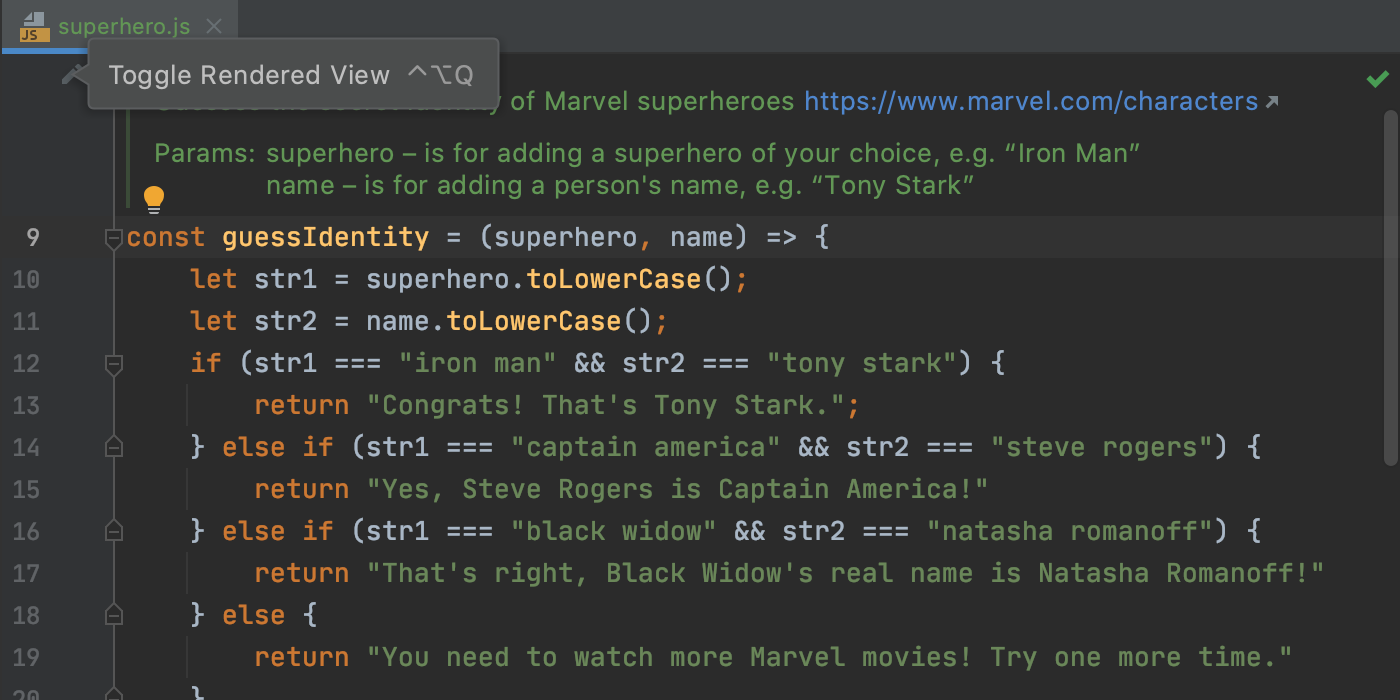
Из-за большого количества тегов читать комментарии JSDoc бывает непросто. Поэтому мы добавили рендеринг документации прямо в редактор, и теперь все отображается четко и понятно.
Чтобы посмотреть, как это работает, нажмите на новую иконку справа от комментария. Вы также можете отредактировать размер шрифта, нажав на комментарий правой кнопкой мыши.
Экспериментальное автодополнение на основе машинного обучения
В прошлом году мы начали искать способы повысить актуальность вариантов автодополнения с помощью алгоритмов машинного обучения. Мы продолжаем работать в этом направлении, но уже добились неплохих результатов и рады сообщить, что в версии 2020.2 вы можете оценить автодополнение на основе машинного обучения.
Чтобы включить эту функциональность, установите флажки Rank completion suggestions based on Machine Learning и JavaScript и/или TypeScript в разделе Preferences/Settings | Editor | General | Code Completion.
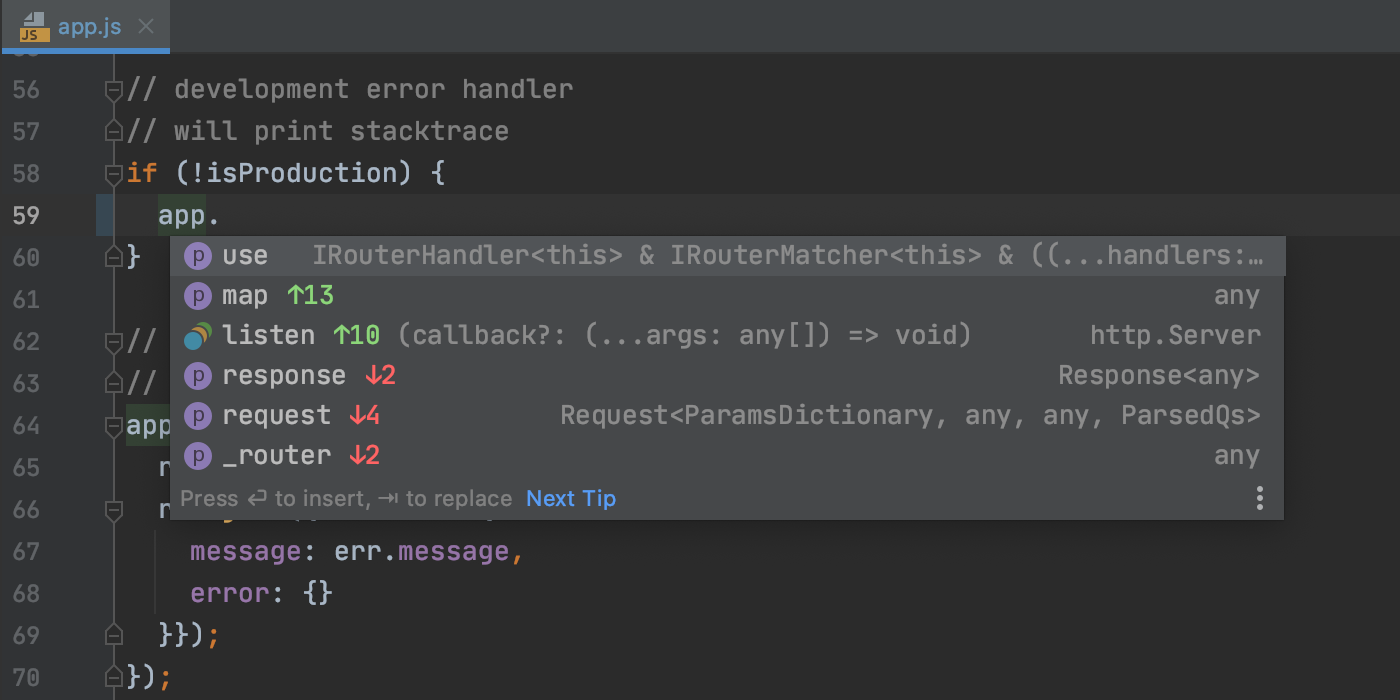
Безопасность ваших данных для нас превыше всего, поэтому мы гарантируем, что при включенном автодополнении на основе машинного обучения ваш код и личные данные никуда не отправляются. Если вы используете EAP-билды, мы собираем исключительно анонимизированные данные о том, как вы пользуетесь автодополнением. А в случае стабильных версий, вроде этой, даже такие данные никуда не отправляются.
Отладка из окон Run и Terminal
Теперь WebStorm позволяет запускать сеансы отладки из окон Run и Terminal.
Так, если вы запустите скрипт, например npm start, используя окно npm или встроенный терминал, и нажмете на http-ссылку в выводе скрипта, удерживая Cmd/Ctrl+Shift, IDE начнет сеанс отладки JavaScript.
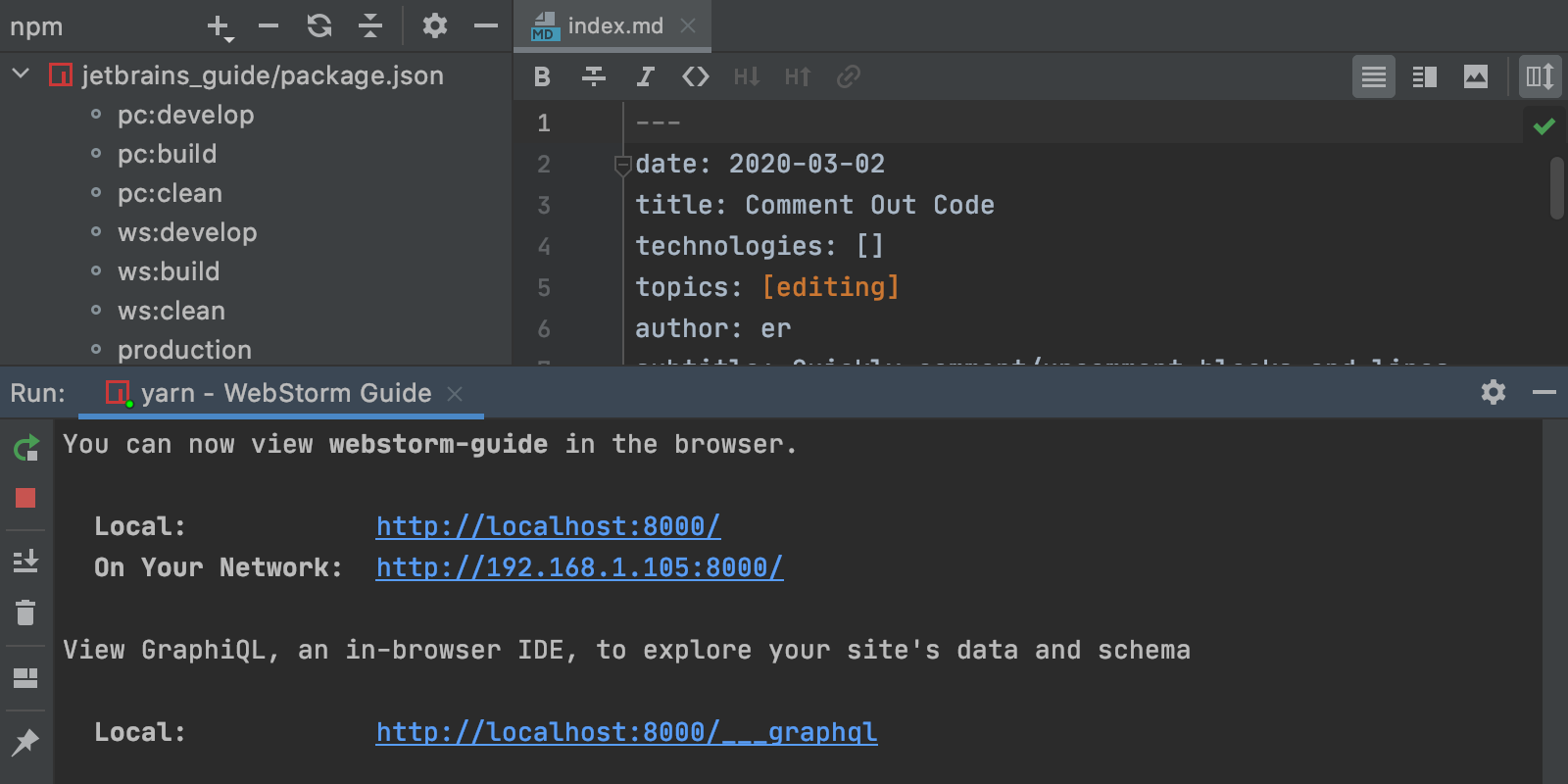
Для ссылок ws:// IDE начнет сеанс отладки Node.js, используя конфигурацию Attach to Node.js. Запустите команду node или nodemon в режиме отладки, используя флаг –inspect или –inspect-brk, и повторите шаги, описанные выше.
Подробная информация об объектах при отладке
Во время отладки вы заметите несколько улучшений предварительного просмотра элементов во встроенной консоли. Теперь WebStorm показывает больше полезной информации об объекте без необходимости его разворачивать.
HTML и языки стилей
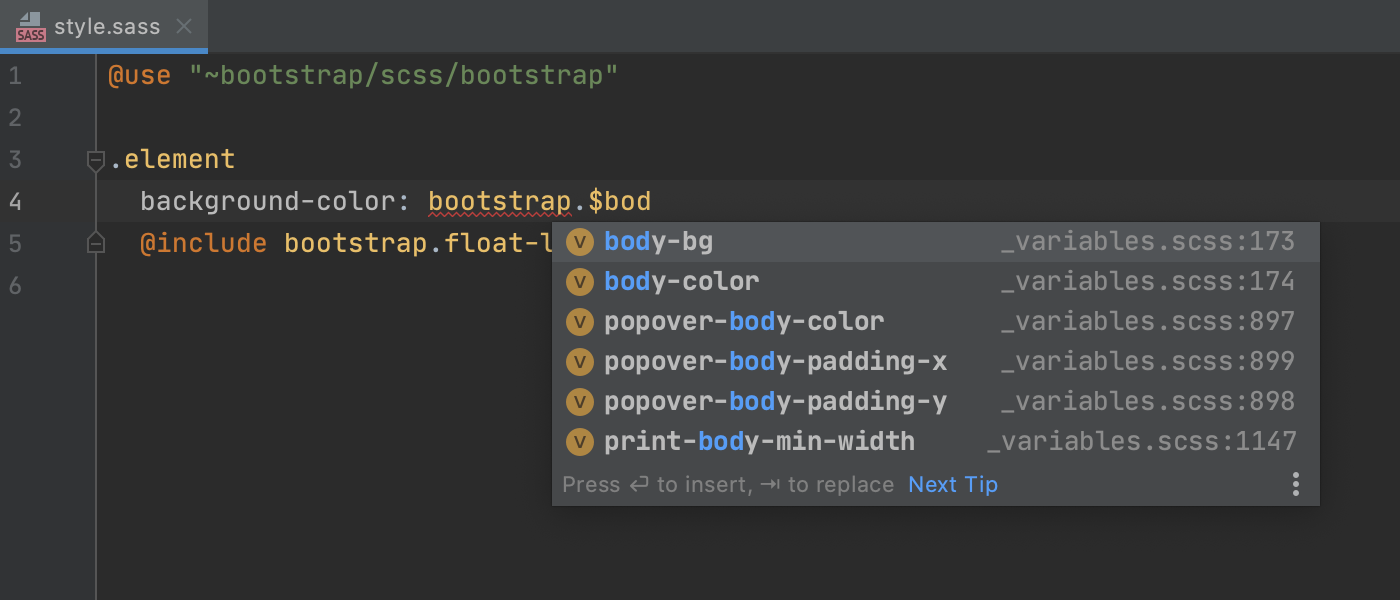
Улучшенная поддержка правил @use и @forward
В прошлом году мы представили базовую поддержку правил @use и @forward, используемых в Sass и SCSS. Теперь мы ее расширили: автодополнение кода стало умнее, а импортированные символы определяются точнее.
Поддержка изображений WebP
Теперь, наряду с файлами .jpeg и .png, можно просматривать изображения формата .webp прямо в WebStorm. Раньше этот формат не распознавался и приходилось использовать другие приложения.
Чтобы просмотреть изображение, просто наведите указатель мыши на ссылку в коде. Вы также можете дважды кликнуть по нему в окне Project или использовать функцию Quick Definition.
Автодополнение CSS-селекторов в методах querySelector
При работе с HTML DOM WebStorm предложит варианты автодополнения CSS-селекторов в вызовах document.querySelector, document.querySelectorAll, element.querySelector и element.querySelectorAll.
Система контроля версий
Расширенная поддержка пул-реквестов GitHub
В WebStorm 2020.2 мы расширили поддержку пул-реквестов GitHub: теперь удобно выполнять все действия с пул-реквестами прямо из IDE: просматривать реквесты, выполнять ревью и слияние.
Вы сразу заметите, что окно выглядит по-новому и показывает всю необходимую информацию. Список пул-реквестов теперь открывается слева в отдельном окне. Кликните дважды по пул-реквесту в списке или нажмите стрелку рядом с ним, чтобы просмотреть необходимые сведения: комментарий к реквесту, имя автора, названия веток, измененные файлы, коммиты, обсуждения и т. д.
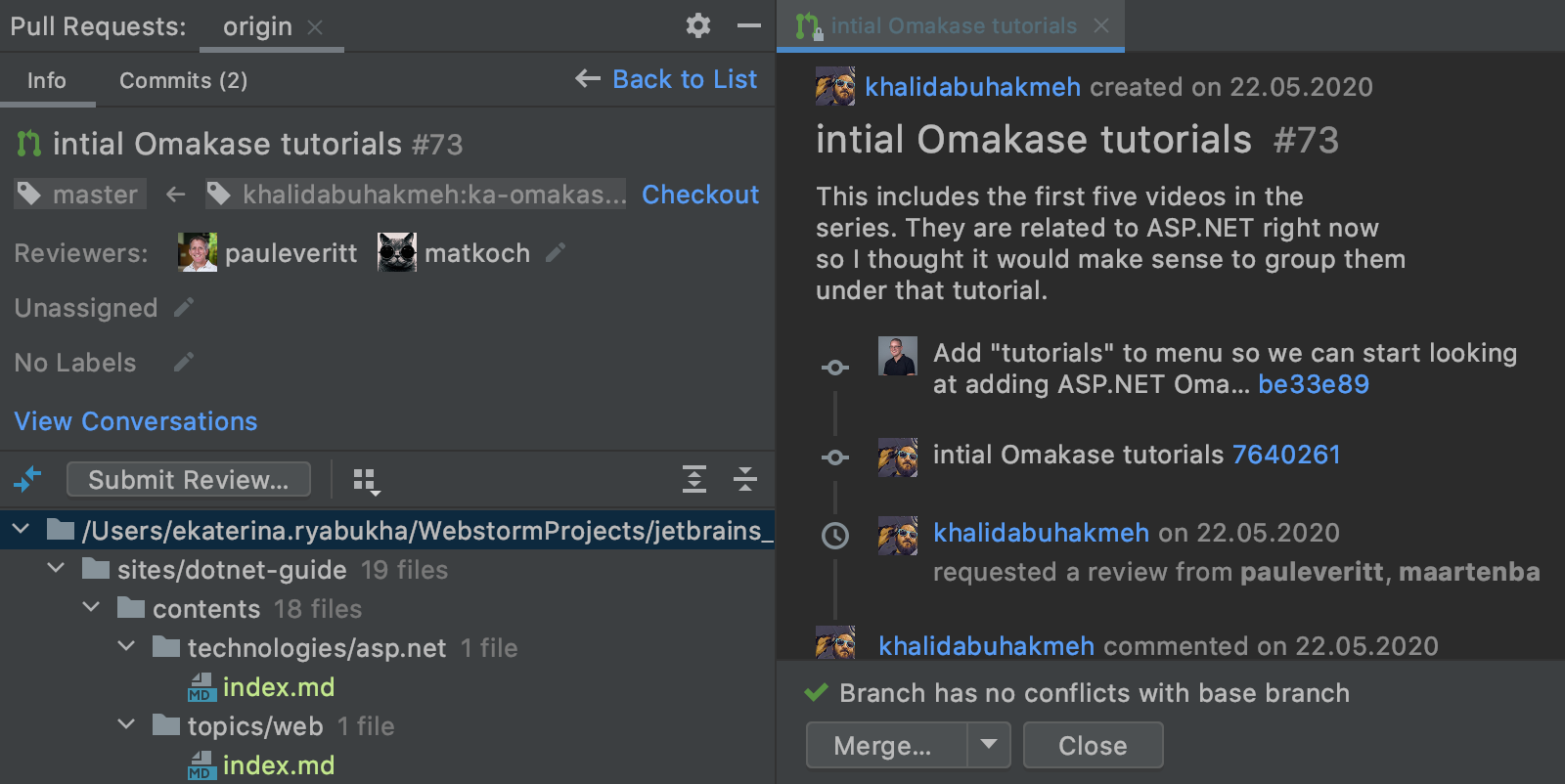
Еще одно важное изменение: теперь можно начинать, запрашивать и отправлять ревью, а также оставлять комментарии прямо из IDE.

Вы можете просматривать, добавлять, редактировать и удалять комментарии как к коммитам, так и к отдельным строкам.

Наконец, можно выполнить merge пул-реквеста прямо из IDE.
Обновленные диалоги для работы с Git
В WebStorm 2020.2 мы обновили дизайн диалогов Merge, Pull и Rebase, сделав работу с ними более удобной. Теперь сразу видно, какая Git-команда будет выполнена. Кроме того, добавлены новые параметры, например –rebase в диалоге Pull и –no-verify в диалоге Merge.
Объединение локальных коммитов на вкладке Log
Теперь вы можете выбрать несколько локальных коммитов на вкладке Log в окне Git и объединить их в один. Это делается в контекстном меню, которое вызывается правым кликом.
Редактирование кода
Новые инструменты для нахождения ошибок в коде
Чтобы облегчить процесс поиска ошибок в коде, мы добавили виджет Inspections и окно Problems.
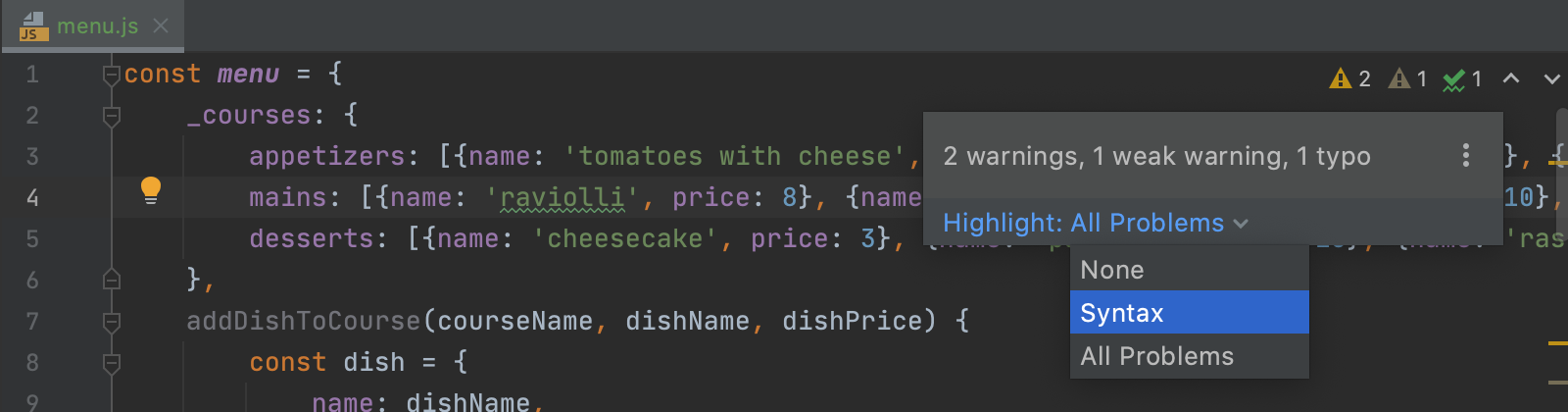
Новый виджет находится в правом верхнем углу редактора. С его помощью вы можете узнать, сколько проблем в текущем файле, а также быстро переместиться от одной проблемы к другой, пользуясь стрелками или F2. Еще вы можете настроить уровень подсветки ошибок прямо из виджета: наведите на него курсор и None, Syntax, and All Problems.
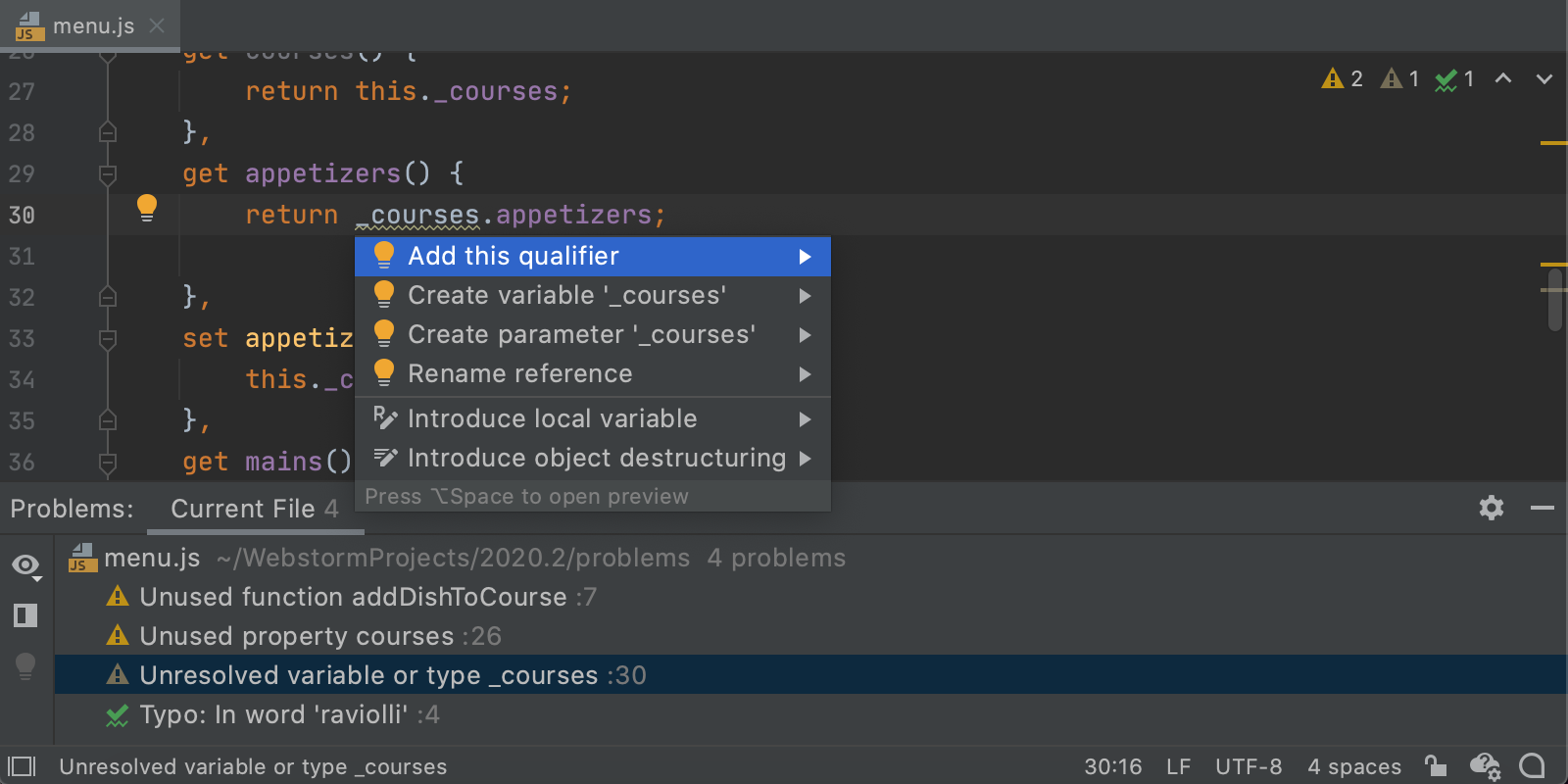
Если нажать на виджет, откроется окно Problems. В нем вы увидите полный список проблем в текущем файле. Из окна можно быстро перейти к любой проблеме, дважды кликнув по ней или выбрав Jump to Source в контекстном меню. Вы также можете посмотреть доступные исправления: выберите Show Quick Fixes или нажмите Alt+Enter. Затем выберите нужное исправление и нажмите Enter.
В дальнейшем мы планируем расширить список доступных действий, добавив более тесную интеграцию с языковой службой TypeScript и возможность просматривать ошибки во всем проекте.
Добавление нескольких курсоров в конец выбранных строк
Мы добавили новое действие для работы с несколькими курсорами. Можно быстро добавить курсоры в конец каждой строки в выбранном фрагменте кода: просто выделите нужный фрагмент и нажмите Alt+Shift+G. Чтобы выйти из режима редактирования с несколькими курсорами, нажмите Escape.
Это только основные улучшения. Полный список новых возможностей WebStorm 2020.2 вы найдете в примечаниях к релизу. Сообщайте нам об обнаруженных ошибках через баг-трекер — мы очень ценим вашу помощь.
Команда WebStorm
Subscribe to WebStorm Blog updates
Discover more






WebStorm 2020.2: Use Prettier as the Default Formatter, Work with Nuxt.js, and Get Full Support for GitHub PRs

WebStorm 2020.2, the second major update this year, is now available! It comes with the option to use Prettier as the default formatter, best-in-class support for Vue, new intentions for JavaScript, full support for GitHub pull requests, and much more.
If you only have a few minutes to explore what’s new in WebStorm 2020.2, watch this video where Paul Everitt, Developer Advocate at JetBrains, reviews the most notable changes. If you feel like diving deeper, read on!
The new features and improvements fall into these categories:
- Frameworks and Technologies: an option to use Prettier as the default formatter, various improvements for Vue.js, and support for Git installed in WSL 2.
- JavaScript and TypeScript: new smart intentions, rendered JSDoc comments, ML-assisted code completion, and debugger enhancements.
- HTML and Style Sheets: better support for Sass’s module system, WebP support, and code completion for CSS selectors in querySelector methods.
- Version Control: more advanced support for GitHub pull requests, redesigned dialogs for several Git actions, and a new action for squashing commits from the log.
- Code Editing: new tools for finding problems in your code and an action for adding carets at the end of each selected line.
Frameworks and Technologies
Using Prettier as the default formatter
We continue to make the experience of working with Prettier in WebStorm as seamless as possible. This time, we’ve made it easier to set Prettier as your default formatter, instead of the one that’s built in. Now, all you need to do is tick the new On code reformat option in Preferences/Settings | Languages & Frameworks | JavaScript | Prettier.
With the On code reformat option ticked, Prettier will be invoked whenever you use the default formatting action. By default, WebStorm will apply formatting to all .js, .ts, .jsx, and .tsx files that you’ve edited in your project, just like it does when running Prettier on save. To apply the formatting to other file types, or to limit formatting to files located only in specific directories, you can customize the default configuration by using glob patterns.
If you want to use Prettier as the default formatter in all new projects, go to File | New Projects Settings | Preferences/Settings for New Projects from the main menu and select the On Code Reformat option there, and update the default list of file types if needed.
What if you’re happy with the old way of doing things – using both the built-in formatter and the Reformat with Prettier action? Or what if you have a custom shortcut assigned to the Reformat with Prettier action that you’ve gotten used to? You can, of course, keep using it. However, you may want to give the new functionality a try to see if it works better for you.
Best-in-class support for Vue.js
In the past year, we’ve done a lot to make WebStorm’s Vue coding assistance the most advanced on the market so that you can work with Vue projects more comfortably. We’re happy to say that we’ve managed to deliver on this promise! In addition to many existing features, WebStorm 2020.2 adds support for Nuxt.js, a dedicated section for Vue code style settings, and some other improvements. Let’s take a look at what’s been added.
Support for Nuxt.js
First of all, if you’re using a Nuxt version from 2.9.0 onwards and don’t have the @nuxt/types package installed, WebStorm warns you about it and suggests installing it as a dev dependency. Please do so if you want better code completion in the IDE.
When working with the nuxt.config.js file, you’ll now get proper code completion suggestions. On hover, you’ll also see the Documentation popup showing the type information for the Nuxt options used in the file.
Nuxt-specific webpack setup is also supported. Starting with Nuxt.js 2.12.0, WebStorm will automatically find the webpack config file and use the module resolution rules from it for coding assistance. For versions earlier than 2.12.0, you can copy the script from here and point WebStorm to it to achieve the same result.
The IDE also recognizes references to the Vuex store and can resolve and autocomplete them correctly.
Lastly, all assets in the static directory that are referenced in Vue templates will be properly resolved, too.
Vue-specific code style settings
WebStorm 2020.2 comes with a dedicated section for configuring formatting options for your Vue files. The new section is located in Preferences/Settings | Editor | Code Style | Vue.
With Vue-specific code style settings, you can quickly choose which top-level tags should have their content indented. You can also decide on whether indentation should be the same for the entire Vue file, or dependent on language settings, e.g. HTML-specific. By default, only <template> content is indented and indentation is uniform for the entire file.
You can also change how interpolations should be formatted within your Vue code. To configure any other code style options, go to the dedicated section for that language in Preferences/Settings | Editor | Code Style.
Other Vue improvements
In addition to these two major enhancements, you’ll find a few more, such as:
- We’ve improved the way the TypeScript language service works with .vue files. They are now treated just like .ts or .tsx files. Vue file imports inside other Vue or TypeScript files should no longer cause any trouble.
- WebStorm now supports Vuelidate, a module-based validation for Vue.js.
- All mapped symbols within the Vuex store are properly resolved to functions/properties on
this., showing the correct number of arguments and the correct types. - If you try to create a component with
Vue.extend()when using single-file components, you’ll now see all data properties resolved as expected. - We’ve made a small improvement to completion for instance properties –
$data,$props, and$optionsare now supported.
Support for Git installed in WSL 2
As WSL is becoming an important part of the development process on Windows, we’ve been working on adding support for all the necessary workflows to our IDEs. In the first and second bug-fix updates for WebStorm 2020.1, we fixed a lot of known Node.js-related issues with WSL. Now we’ve implemented the missing support for Git installed in WSL 2.
The IDE can switch between Git executables depending on the project location. When a project is opened from WSL, the IDE will automatically switch to Git in WSL and enable you to use all the Git-related features.
Please note that WebStorm 2020.2 allows you to use Git only from WSL 2, which is available in the May update of Windows 10, version 2004. The IDE won’t support WSL 1 because Git from WSL 1 doesn’t return output reliably when called from Windows. This could lead to incorrect results from Git commands.
JavaScript and TypeScript
New intentions for loops
As usual, we’ve added some new intentions that can help you do routine work a bit faster. The first three are for loops. Just like with any other intention, you can use Alt+Enter to see the intentions available in the current context.
For example, WebStorm can now assist you with converting a traditional for loop with a numeric index into the forEach array method.
To learn about the other two intentions for loops, check out this blog post.
New intentions for optional chaining and nullish coalescing
With this release, we’ve extended the number of cases covered by the recently added intention for converting code to optional chaining and/or nullish coalescing.
Now, the intention can be used in if/else conditional statements. It works for logical operators used in such statements and for nested if statements, too. Try it yourself! Press Alt+Enter on the expression you want to convert and select the corresponding intention.
Render JSDoc comments right in the editor
Reading JSDoc comments in the editor can be a challenge because of all the tags you have to wade through. To make it a bit easier, we’ve added a way to render those comments in the editor.
To try the new feature out, click the new icon in the gutter, next to the comments, and you’ll see those comments displayed cleanly and without any distractions. You can also right-click to adjust the font size for better readability.
Experimental ML-assisted code completion
Last year we started looking for a way to improve the relevancy of suggestions shown in the Completion popup using machine-learning (ML) algorithms. Although this is still a work in progress, we’ve managed to achieve some good results and we’re happy to say that you can give ML-assisted code completion a try in v2020.2!
To turn it on, go to Preferences/Settings | Editor | General | Code Completion, tick Rank completion suggestions based on Machine Learning, and select JavaScript and/or TypeScript from the available options.
Your privacy is of the utmost importance to us, so please rest assured that with ML-assisted code completion turned on, your personal data and code aren’t sent anywhere. If you’re using the EAP builds, only anonymized data about your usage of code completion is collected. For stable builds like this one, even this information is not sent anywhere.
Start debugging from the Run and Terminal tool windows
Starting with v2020.2, the IDE will offer a quick way to start a debug session from the Run and Terminal tool windows.
Let’s say you want to run a script like npm start using the npm tool window or the built-in terminal. If you hold Cmd/Ctrl+Shift and then click an http:// link in the output of this script, WebStorm will start a JavaScript debug session for you.
For ws:// links, the IDE will start a Node.js debug session using the Attach to Node.js configuration. To try it out, run the node or nodemon command in debug mode using the –inspect or –inspect-brk flags and repeat the same steps as above.
Improved item previews when debugging
When debugging, you’ll notice some enhancements to item previews in the built-in console. These enhancements will let you see more helpful details about an object without having to expand it.
HTML and Style Sheets
Better support for @use and @forward rules in Sass/SCSS
Last year we introduced some initial support for the @use and @forward rules used in Sass and SCSS. In WebStorm 2020.2, we’ve extended this support. You can now expect to get smarter completion and improved resolution for imported symbols.
Support for WebP image format
Starting with v2020.2, you can preview .webp images in WebStorm, in the same way that you can preview .jpeg or .png images. Previously, the IDE wouldn’t recognize the .webp format, forcing you to switch to another application whenever you needed to take a quick look at such images.
To preview an image, you can simply hover over its link in the code. You can also double-click it in the Project tool window to preview it in the editor, or use the Quick Definition feature.
Completion for CSS selectors in querySelector methods
When manipulating the HTML DOM, you’ll now see completion suggestions for CSS selectors within document.querySelector, document.querySelectorAll, element.querySelector, and element.querySelectorAll calls.
Version Control
More advanced support for GitHub pull requests
In WebStorm 2020.2, we’ve extended support for GitHub pull requests and made it more convenient to work with them without leaving the IDE. You can now see all PRs, review code, and merge PRs.
The first thing you’ll notice is the new layout, which lets you see all the necessary information at a glance. The list of pull requests now opens in a separate tool window on the left. By double-clicking any pull request in the list, or clicking the arrow next to it, you can see all the relevant details about it. These details include PR messages, branch names, authors, assignees, changed files, commits, comments, and more.
Another important change that you’ll find in v2020.2 is the ability to start, request, and submit reviews as well as leave single comments.
You can view, edit, create, or remove commit-level comments. The IDE now also lets you view and interact with line-level comments so you can do a code review right inside the IDE.
Lastly, you can now merge pull requests from within the IDE.
Updated dialogs for several Git actions
In WebStorm 2020.2, you’ll find redesigned, less cluttered dialogs for the merge, pull, and rebase Git actions. With this change, we wanted to make it easier to identify which Git command will be run. We’ve also included some new options, such as –rebase in the Pull dialog and –no-verify in the Merge dialog.
Squashing local commits from the log
You can now select a number of local commits in the Log tab of the Git tool window and squash them into one. The new action is available from the context menu, which can be invoked with a right-click.
Code Editing
New tools for finding problems in your code
To help you make your code error-free with less effort, we’ve added a new Inspections widget and the Problems tool window.
The Inspections widget is located in the top right-hand corner of the editor. It informs you about the number of issues in the current file and makes it easy to jump between them. For navigation, you can use the arrow icons or F2. You can also configure the highlighting level right from the new widget: hover over it and choose between None, Syntax, and All Problems.
If you click on the Inspections widget, the Problems tool window will open up. It gives you an overview of problems in the current file and lets you do several things. For example, you can quickly jump to any problem by double-clicking it, or by right-clicking it and selecting Jump to Source. You can also review the available fixes by right-clicking a problem and selecting Show Quick Fixes or using Alt+Enter. To apply a fix, choose it from the list and press Enter.
We plan to extend the functionality of the Problems tool window in the future. We want it to have better integration with the TypeScript language service and be capable of analyzing errors across entire projects.
Adding carets at the end of each selected line
We’ve added a new action for working with multiple carets. It lets you quickly place carets at the end of each selected line and removes the selection as soon as all carets are added. To try it, select some code and press Alt+Shift+G. Press the Escape key when you’re ready to exit the multi-caret editing mode.
Those are the most notable highlights. For the full list of new features and enhancements available in WebStorm 2020.2, see the release notes. Please share your feedback with us, and report any issues you encounter on our issue tracker.
The WebStorm team
