

WebStorm 2021.1: более умное автодополнение кода для JavaScript и TypeScript, предпросмотр HTML и другие функции

Мы рады представить WebStorm 2021.1 — первое крупное обновление в этом году. В этой версии автодополнение кода для JavaScript и TypeScript стало умнее, улучшена поддержка Stylelint, появился встроенный предпросмотр HTML и многое другое.

Если у вас есть всего пара минут, чтобы узнать о возможностях WebStorm 2021.1, смотрите видео, в котором наш девелопер-адвокат Пол Эверитт рассказывает о самых важных нововведениях. А если вам интересны подробности, читайте этот пост.
Готовя этот релиз, мы в первую очередь стремились улучшить имеющуюся функциональность WebStorm, но несколько новых возможностей тоже добавили. Вот основные улучшения в разных частях IDE:
- JavaScript и TypeScript: включенное по умолчанию автодополнение кода на основе машинного обучения, улучшенный подбор вариантов автодополнения для имен символов и подсветка синтаксиса JSDoc, возможность отключения инспекций для отдельных файлов.
- Фреймворки и технологии: встроенный сервис для совместной удаленной разработки и парного программирования, поддержка модулей CSS в Vue, улучшения HTTP-клиента, настройки применения ESLint, поддержка формата JSON Lines support и интеграция с JetBrains Space.
- HTML и CSS: ряд улучшений Stylelint, встроенный предпросмотр HTML и возможность проверить специфичность селекторов при работе с CSS.
- Пользовательский интерфейс: настройки толщины шрифта в редакторе, возможность развернуть вкладки, открытые в редакторе в режиме Split, встроенная документация MDN и многое другое.
- Контроль версий: улучшения работы с пул-реквестами, поддержка шаблонов сообщений Git-коммитов, новое действие Save to Shelf и настройка профилей инспекций перед коммитом.
JavaScript и TypeScript
Автодополнение кода на основе машинного обучения включено по умолчанию
В прошлом году мы добавили экспериментальную возможность автодополнения кода на основе машинного обучения для JavaScript и TypeScript. Отзывы об этой функции и статистика ее использования были положительными, и мы решили включить ее по умолчанию. Теперь варианты автодополнения в файлах .js и .ts сортируются с помощью алгоритмов машинного обучения.
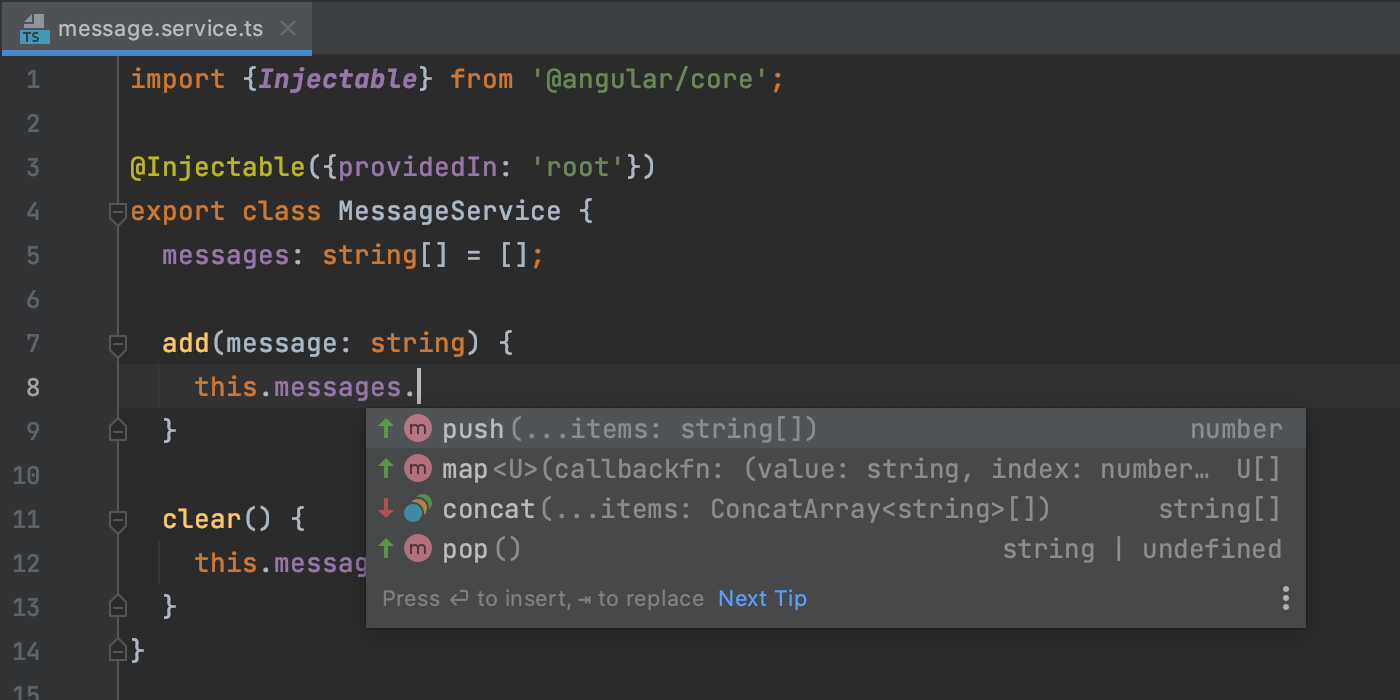
Чтобы настроить эту функцию, перейдите в настройки Preferences/Settings | Editor | General | Code Completion и задайте необходимые значения параметров в разделе Machine Learning-Assisted Completion.
Безопасность ваших данных для нас превыше всего, поэтому мы гарантируем, что, если новая функция включена, ваш код и личные данные никуда не отправляются. Если вы используете EAP-билды, мы собираем исключительно анонимизированные данные о том, как вы пользуетесь автодополнением. При использовании стабильных сборок, таких как эта, мы не собираем даже такую информацию.
Улучшенное автодополнение имен символов
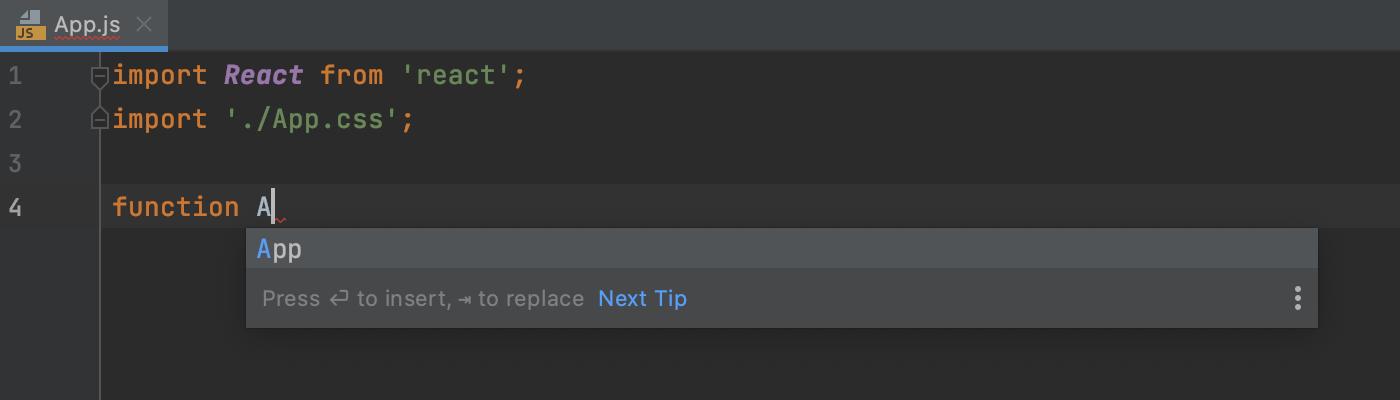
Мы сделали автодополнение кода для JavaScript и TypeScript еще умнее. WebStorm теперь учитывает имена файлов, когда предлагает варианты автодополнения для имен переменных верхнего уровня, функций и классов.
Улучшенная подсветка синтаксиса JSDoc
Чтобы было удобнее читать комментарии JSDoc, мы улучшили подсветку синтаксиса JSDoc в WebStorm. Перейдя в Preferences/Settings | Editor | Color Scheme | JavaScript/TypeScript, вы найдете новые варианты настройки цветовой схемы элементов JSDoc, в том числе значений и типов тегов JSDoc.
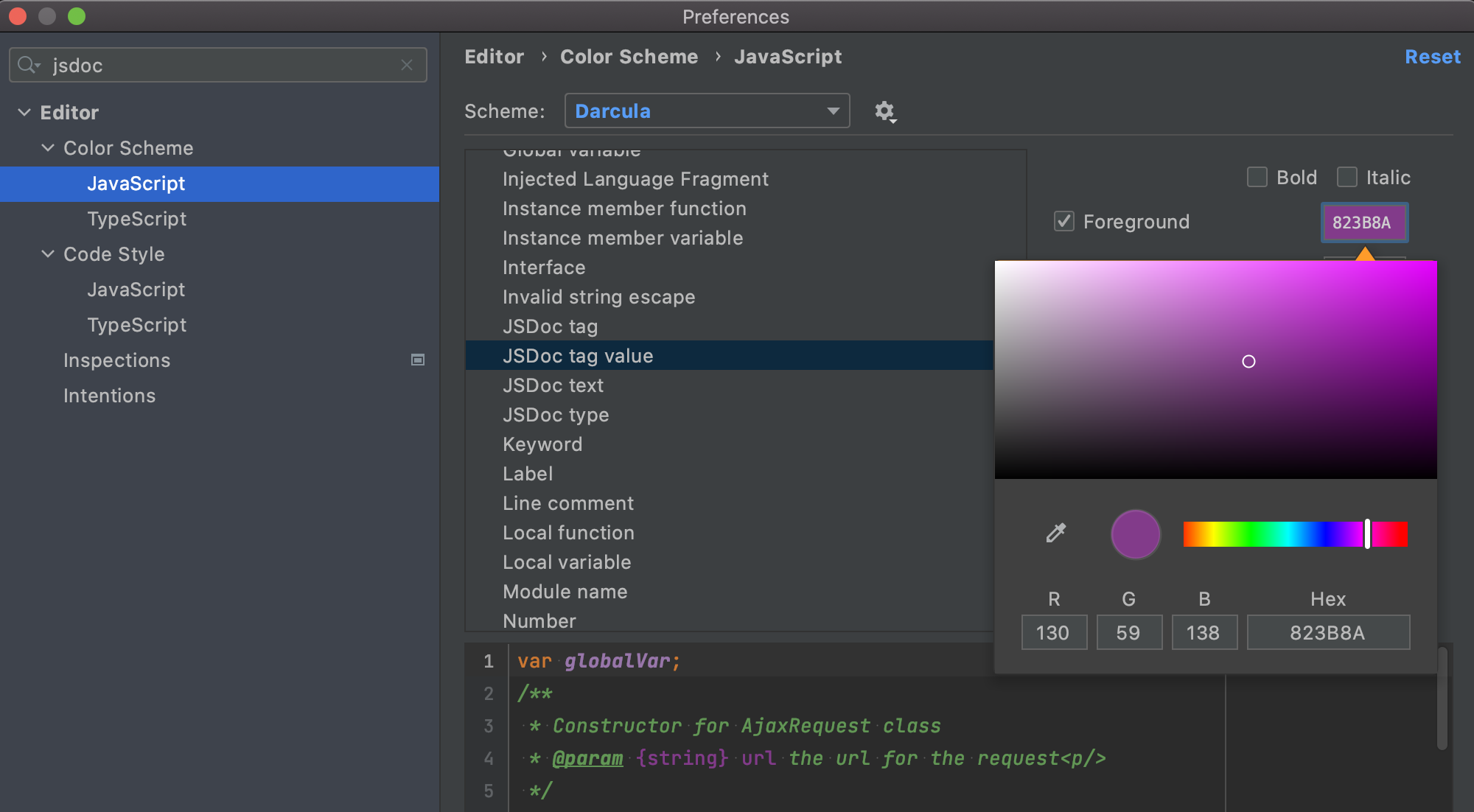
Чтобы изменить настройки по умолчанию, снимите флажок Inherit values from и выберите нужный цвет для соответствующего элемента. На панели предпросмотра можно просмотреть изменения, не выходя из диалога Preferences/Settings.
Отключение инспекций пофайлово
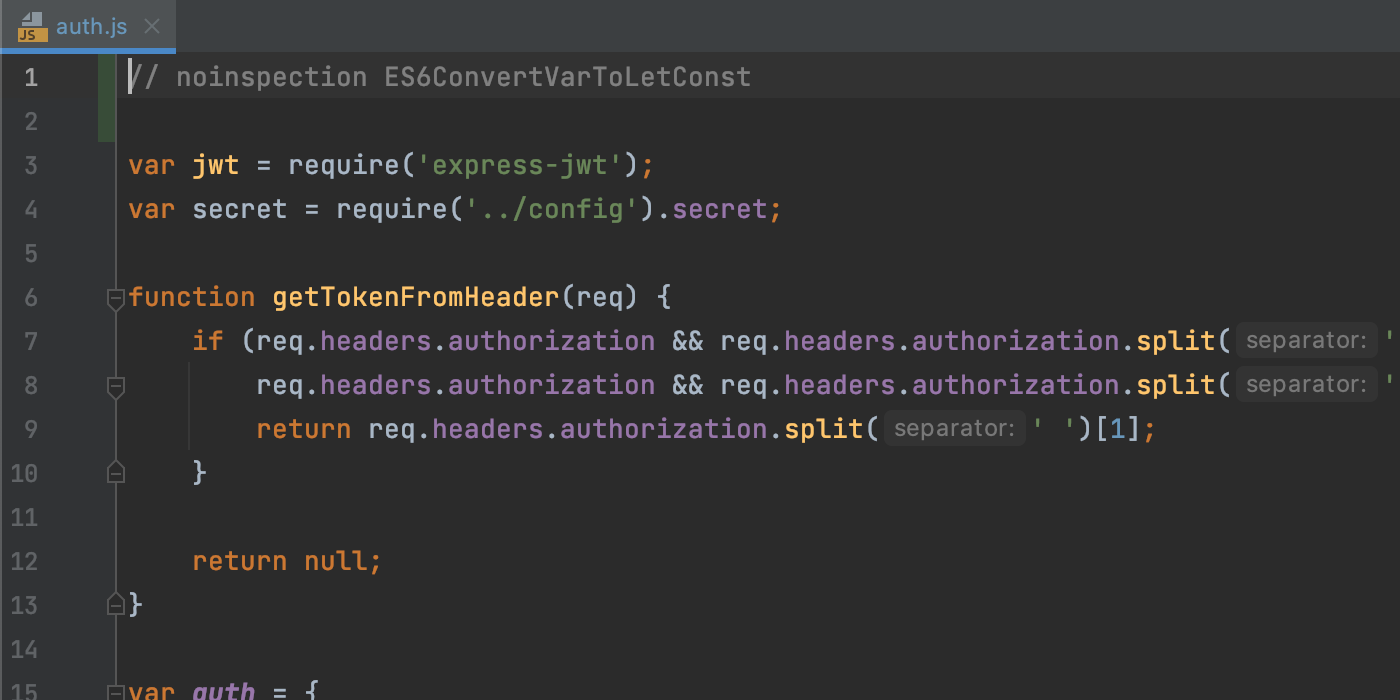
WebStorm позволяет отключать отдельные инспекции для всего проекта или более избирательно: например, для определенных инструкций и классов. В версии 2021.1 вы также можете отключать инспекции для определенных файлов.
Фреймворки и технологии
Встроенный сервис для совместной разработки и парного программирования
Новый сервис JetBrains для совместной разработки и парного программирования Code With Me теперь включен в WebStorm. Программируйте вместе с командой в реальном времени и общайтесь с коллегами прямо в IDE.
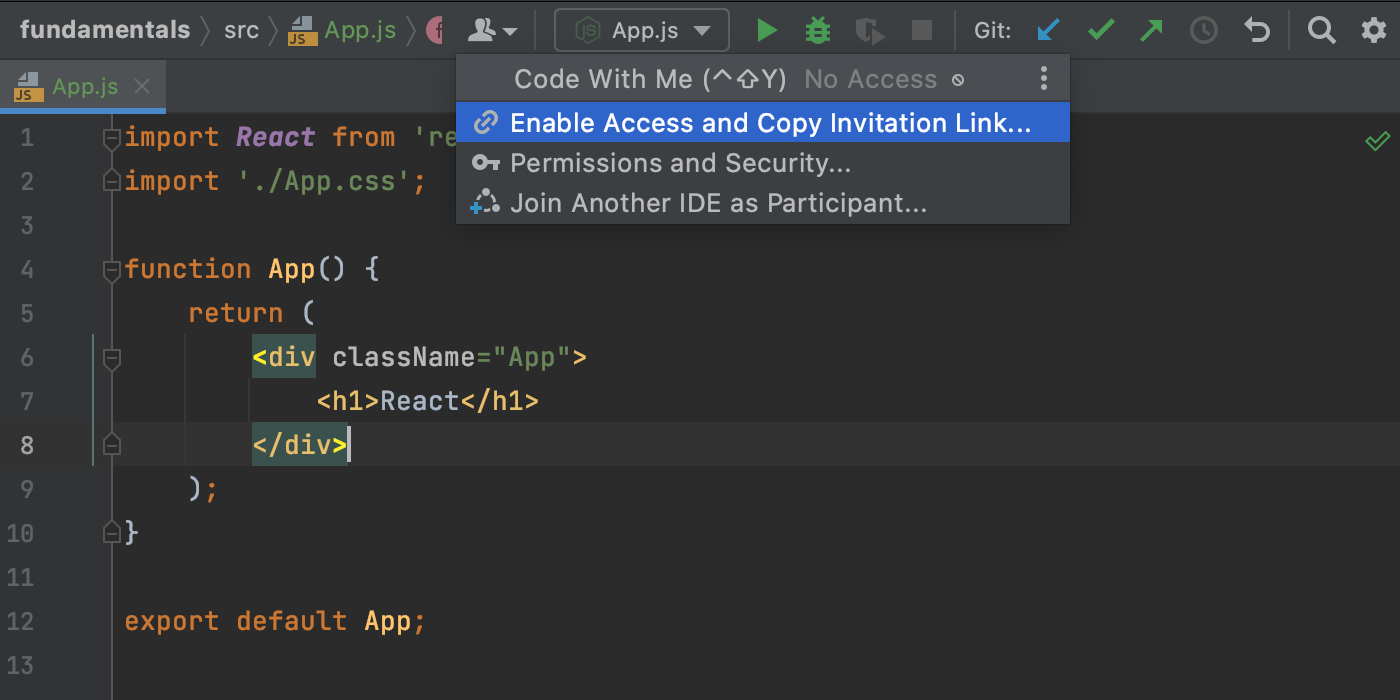
Прежде чем начать работу с новым сервисом, прочитайте документацию: там вы найдете ответы на часто задаваемые вопросы.
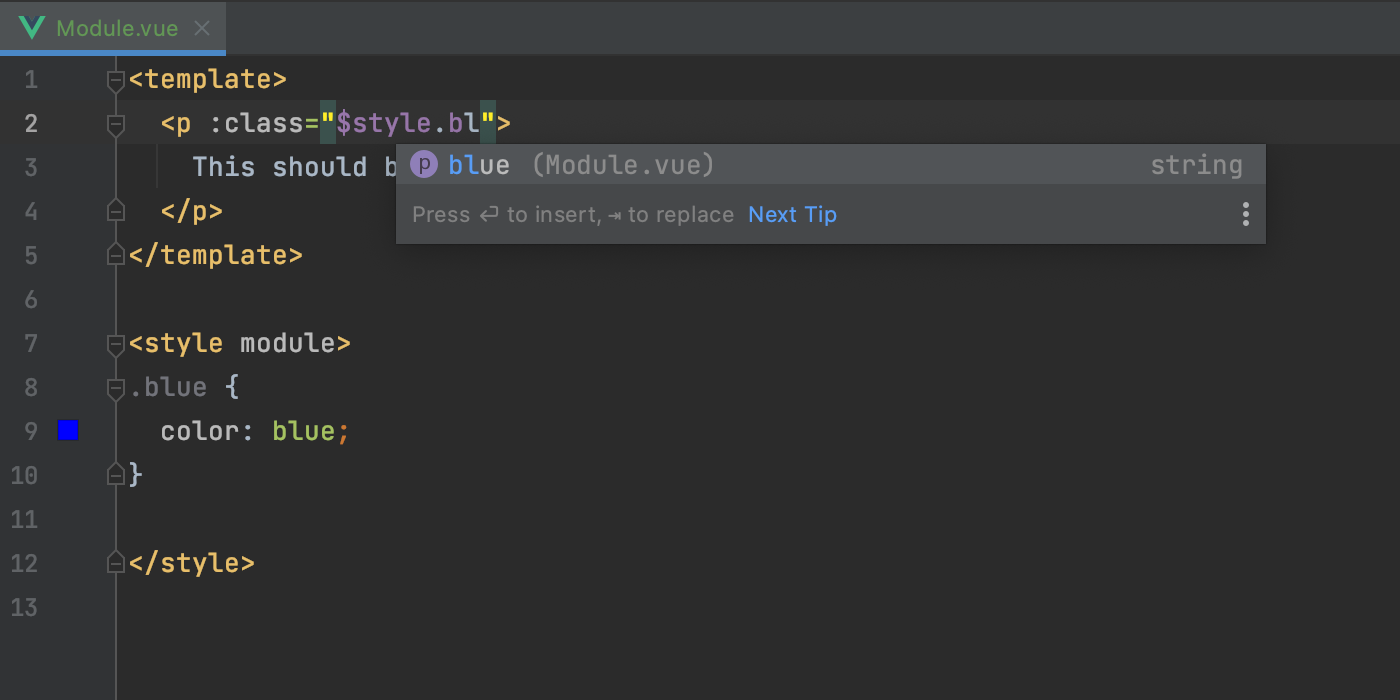
Поддержка CSS-модулей в Vue-файлах
Начиная с версии 2021.1, WebStorm корректно поддерживает модули CSS, используемые в файлах .vue. IDE корректно обрабатывает свойства $style, предоставляя для них автодополнение, навигацию и базовые возможности рефакторинга.
Обновленный HTTP-клиент
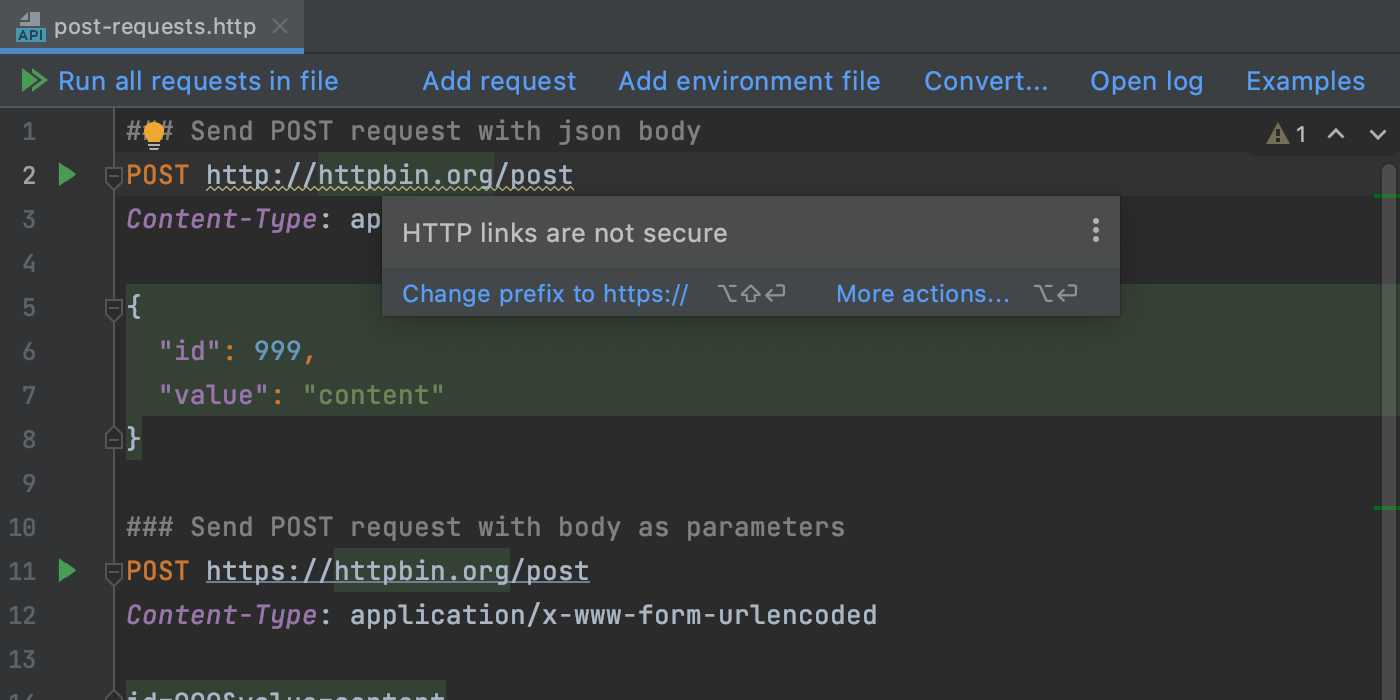
Мы реализовали ряд улучшений, упрощающих работу со встроенным HTTP-клиентом. Можно свернуть возвращенный результат, нажав на новый значок, быстро прокрутить ответ по вертикали, найти и заменить случаи использования протокола http:// за пару кликов и многое другое.
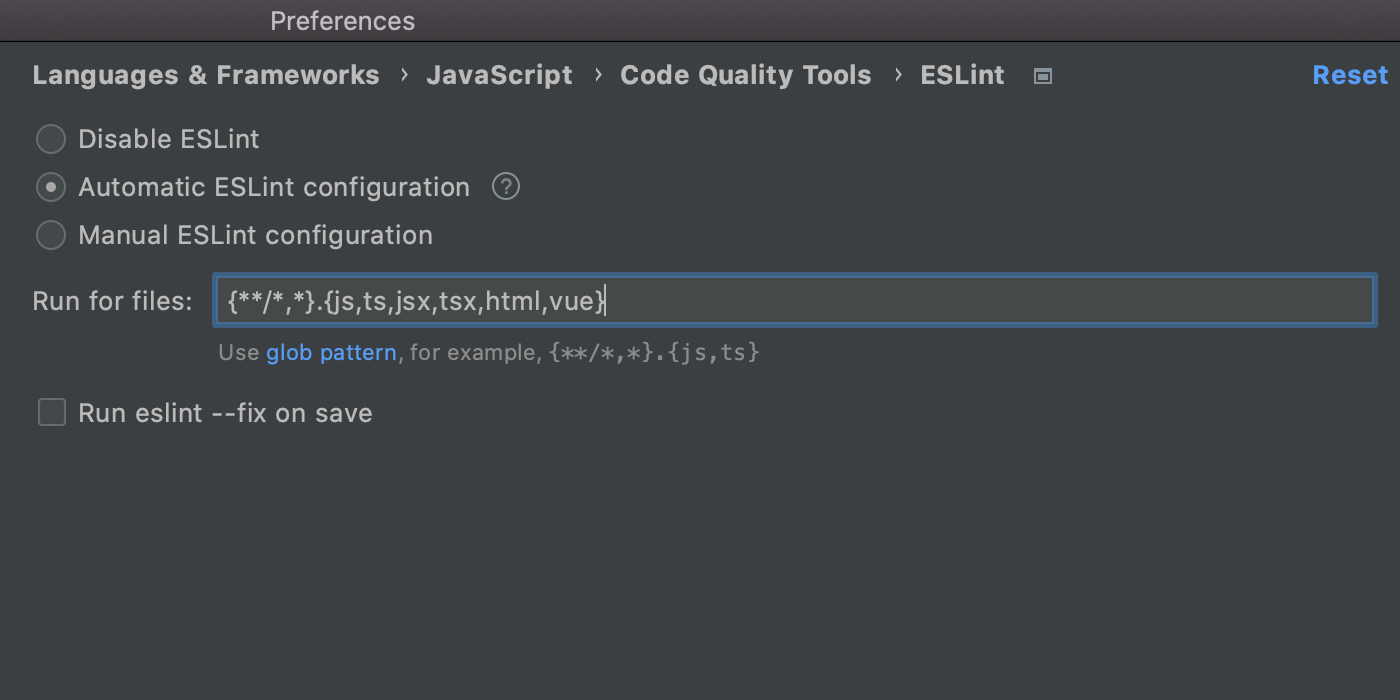
Настройки применения ESLint
Если у вас настроен ESLint для таких файлов, как .md или .coffee, вы сможете просматривать сообщения об ошибках в редакторе. Для этого добавьте соответствующие типы файлов в поле Run for files. Его можно найти здесь: Preferences/Settings | Languages & Frameworks | JavaScript | Code Quality Tools | ESLint.
Поддержка JSON Lines
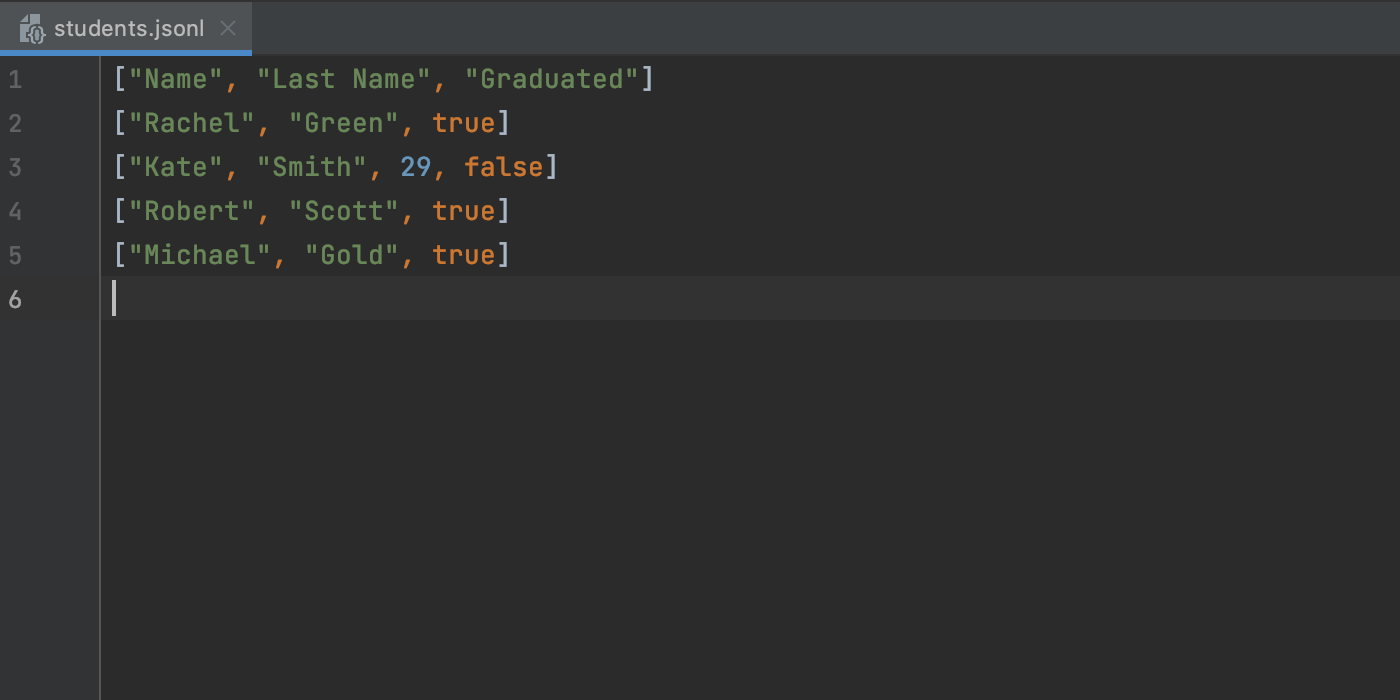
Теперь WebStorm корректно поддерживает текстовый формат JSON Lines. IDE распознает типы файлов .jsonl, .jslines, .ldjson и .ndjson.
Интеграция с JetBrains Space
Если вы используете JetBrains Space, то можете подключить WebStorm к вашей организации, чтобы просматривать и клонировать репозитории проекта, а также читать код коллег. Чтобы начать работу, установите плагин Space через Preferences/Settings | Plugins.
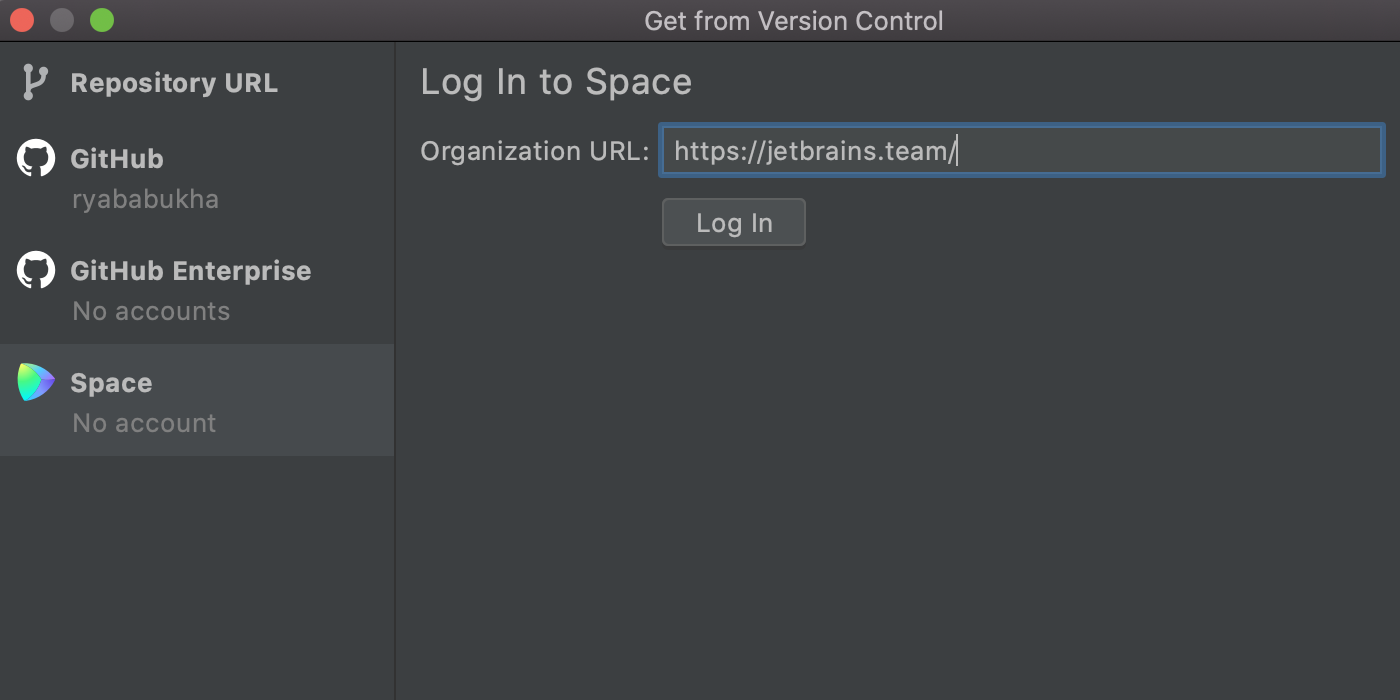
Чтобы авторизоваться в Space, нажмите кнопку Get from VCS на начальном экране, слева выберите Space и введите URL-адрес вашей организации в специальное поле. Кроме того, вы можете авторизоваться из главного меню через Tools | Space | Log In to Space или через Preferences/Settings.
HTML и CSS
Улучшенная поддержка Stylelint
Мы реализовали несколько улучшений, которые упрощают инспекцию CSS-кода с помощью Stylelint.
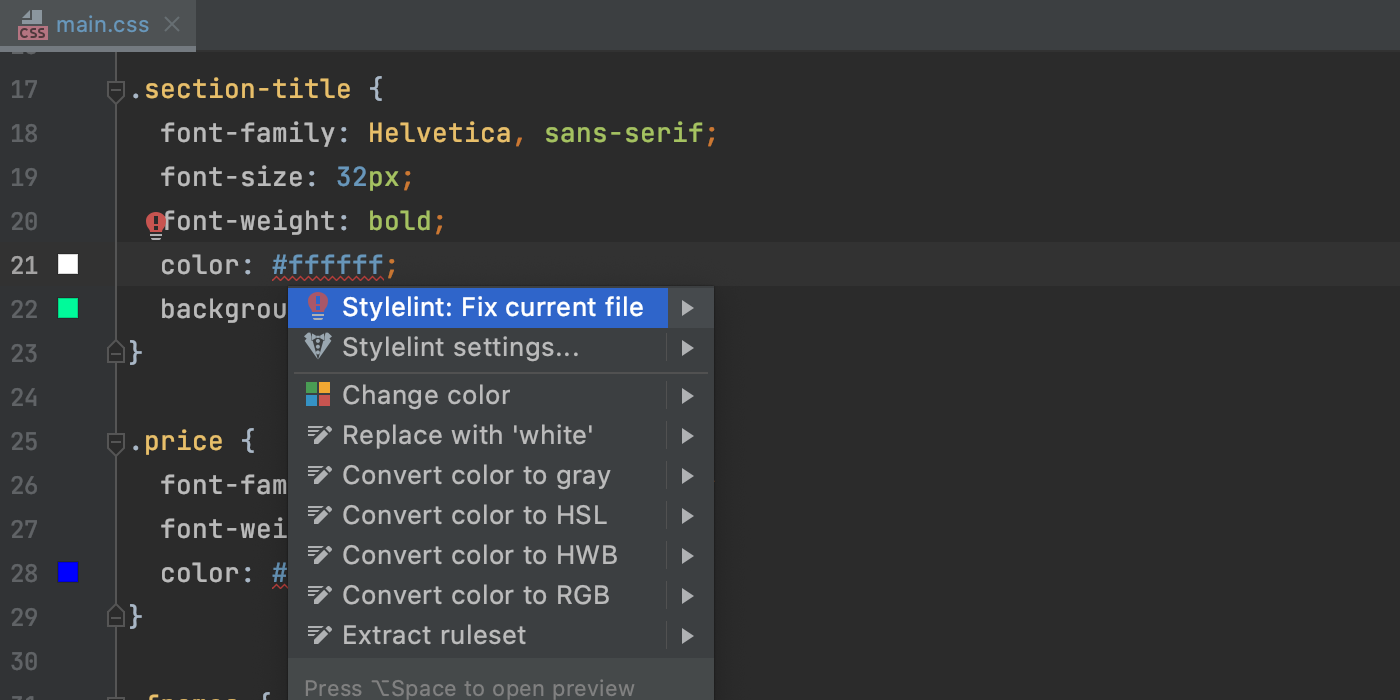
Во-первых, теперь этот линтер можно использовать в WebStorm, чтобы быстро исправить ошибки в коде. Попробуйте сами: наведите указатель мыши на проблемное место в CSS-файле или поместите туда курсор и нажмите Alt+Enter, а затем выберите Stylelint: Fix current file. Можно также вызвать действие Fix Stylelint Problems из контекстного меню (открывается при щелчке правой кнопкой мыши) или через всплывающее окно, вызываемое нажатием Shift+Shift.
Кроме того, теперь можно указать путь к файлу конфигурации Stylelint в соответствующем поле в разделе Preferences/Settings | Languages & Frameworks | Style Sheets | Stylelint.
Предварительный просмотр HTML-файлов
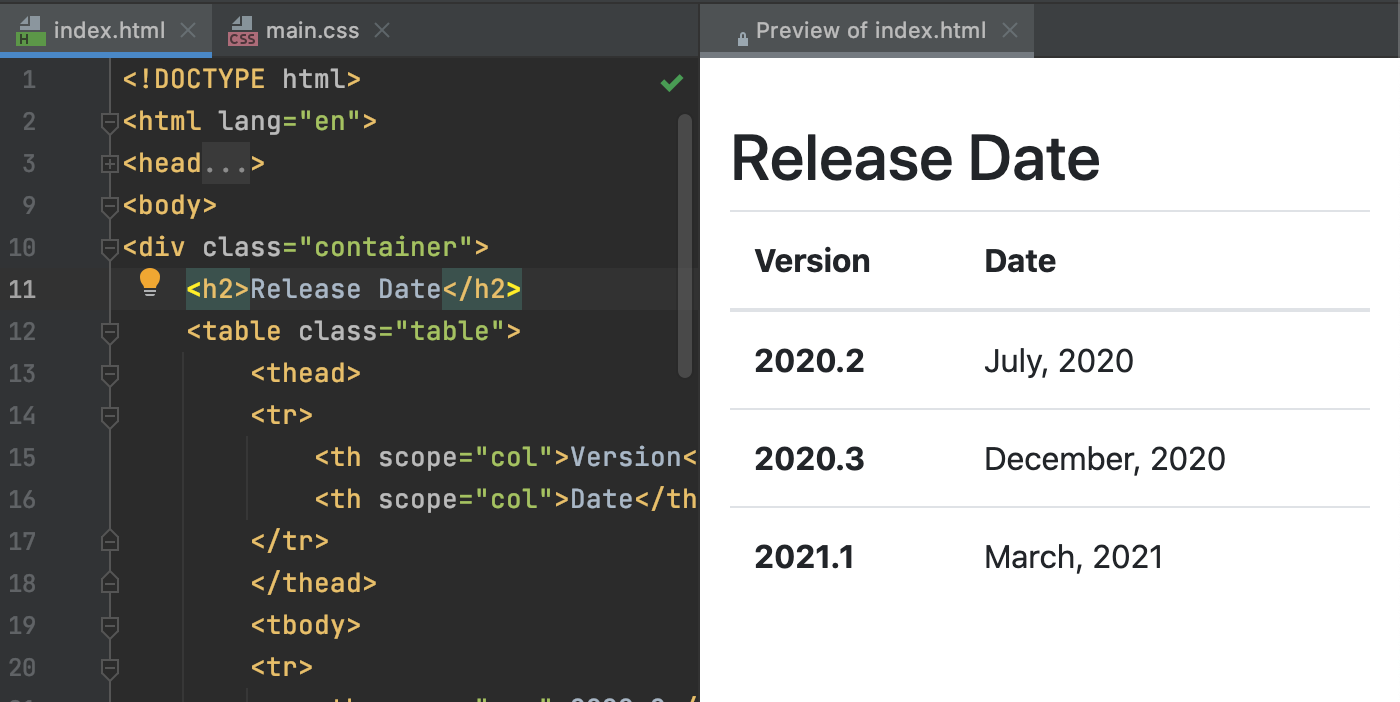
В WebStorm появился предпросмотр для статических HTML-файлов. Когда вы редактируете HTML-код или связанные CSS и JavaScript-файлы, изменения сохраняются и превью обновляется автоматически.
Чтобы его открыть, нажмите на значок WebStorm в виджете в правом верхнем углу редактора.
Специфичность селекторов CSS
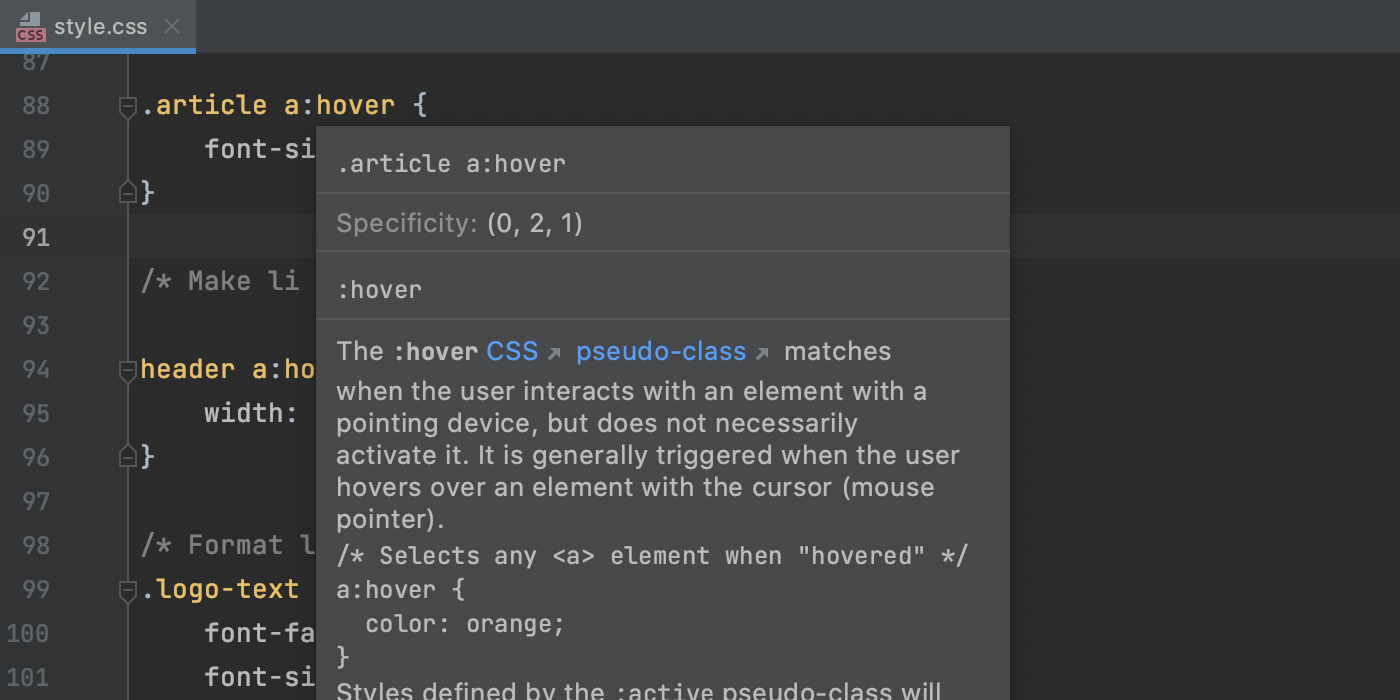
При работе с файлами стилей теперь можно проверить специфичность селекторов: просто наведите указатель мыши на селектор, который хотите проверить. Можно также установить фокус на селектор и нажать F1/Ctrl+Q, чтобы явным образом вызвать всплывающее окно Documentation, где содержится эта информация.
Пользовательский интерфейс
Настройки толщины шрифта
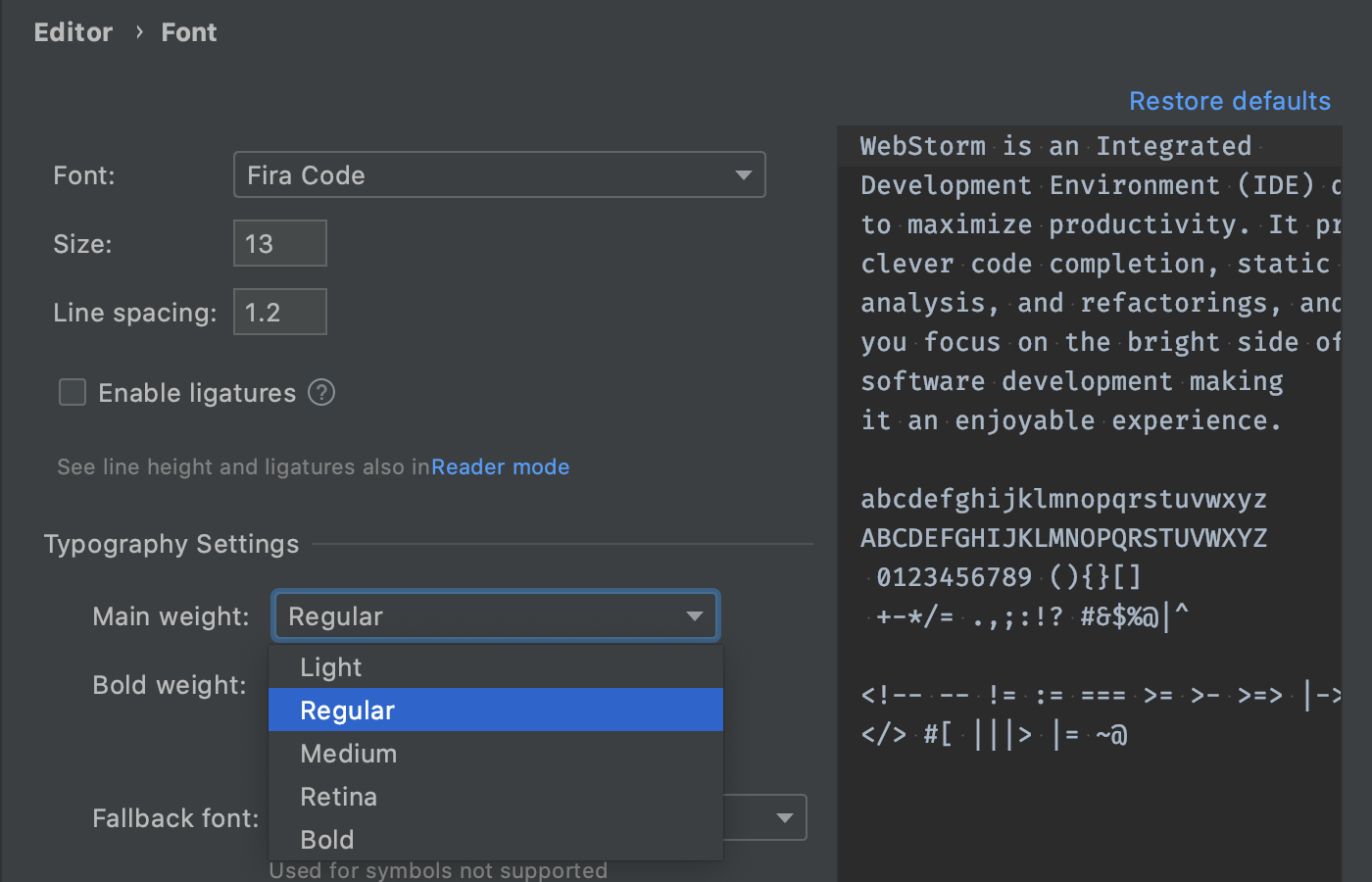
Теперь в редакторе можно регулировать толщину используемого шрифта. Новые настройки находятся в разделе Typography Settings в меню Preferences / Settings | Editor | Fonts.
Раскрытие вкладок в режиме разделенного редактора
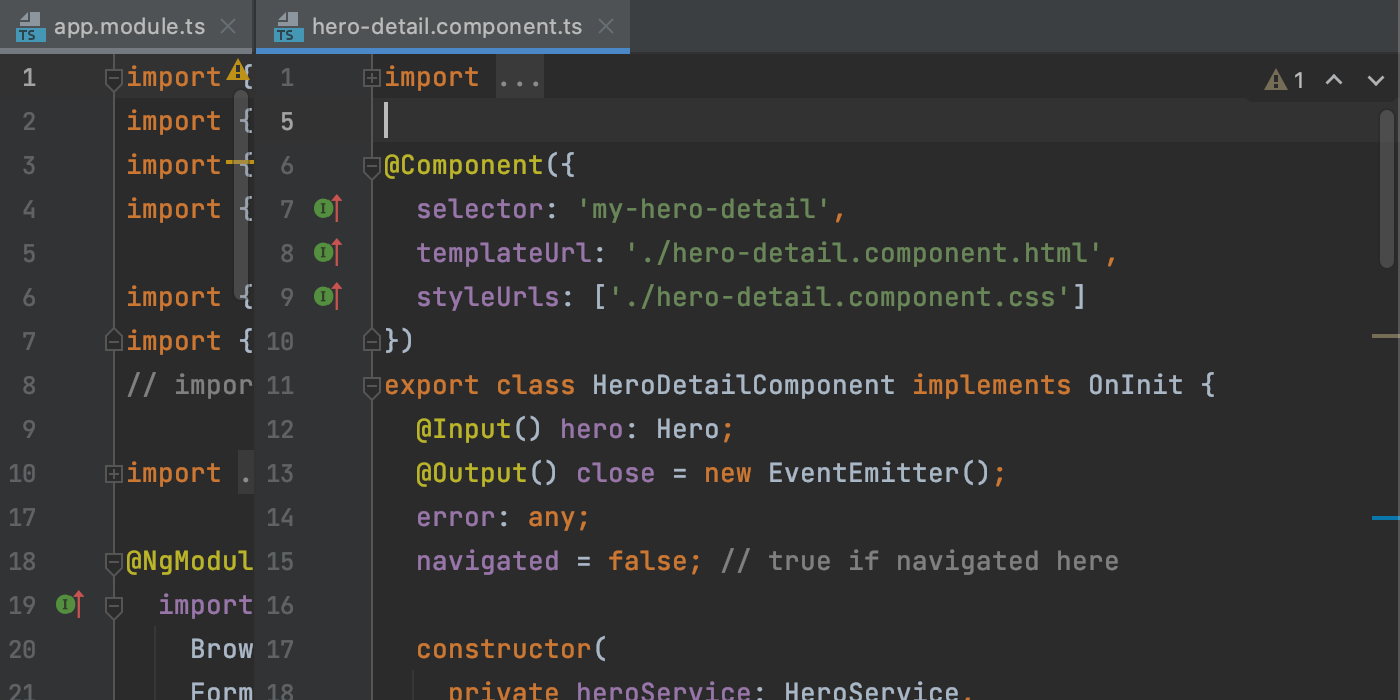
Работать в режиме разделенного редактора стало удобнее. Когда редактор открыт в разделенном режиме, двойным щелчком по нужной вкладке ее можно развернуть в окне редактора. Чтобы вернуть вкладку к исходному размеру, снова кликните по ней дважды.
Полезные данные в документации
Документация MDN теперь интегрирована в WebStorm. Это помогает избежать проблем с подключением к сайту MDN, и документация быстрее отображается в редакторе. Кроме того, она стала более информативной: например, можно посмотреть подробные сведения о поддерживаемых версиях браузеров для JavaScript API.
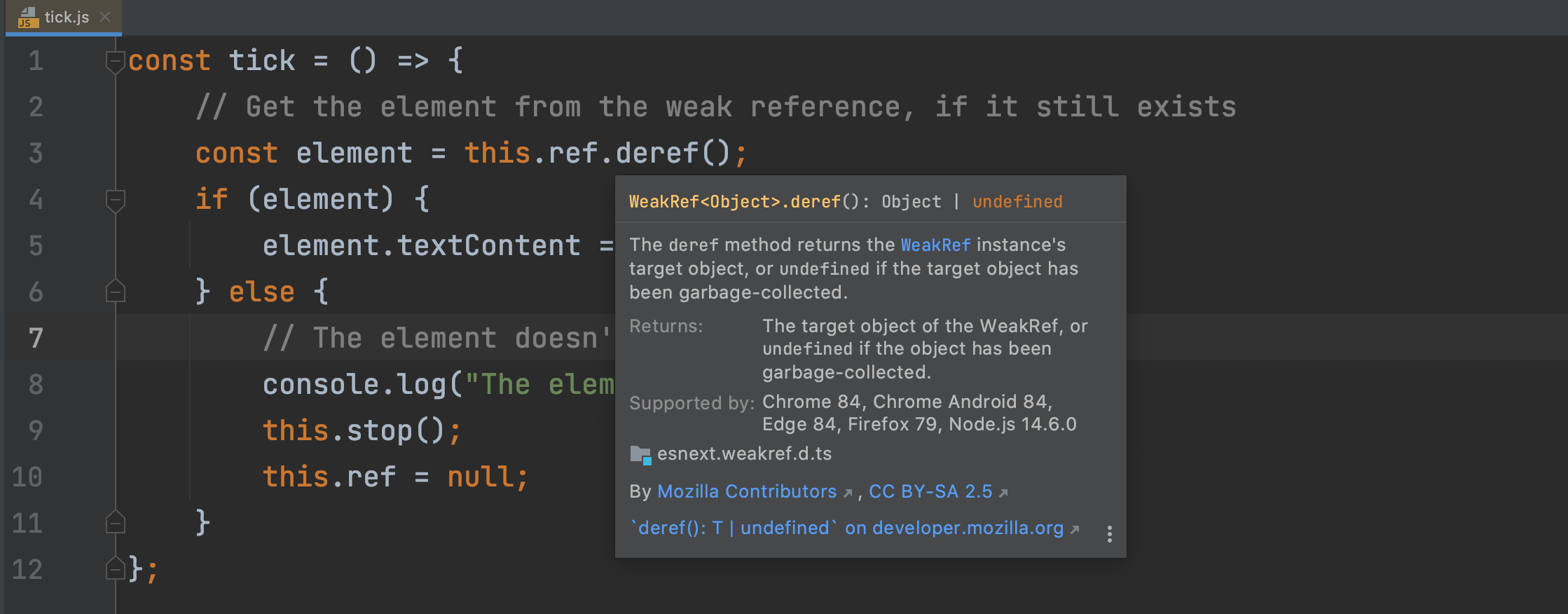
Для этого наведите курсор на символ в файлах HTML, CSS и JavaScript или вызовите всплывающее окно Documentation, нажав на F1/Ctrl+Q.
Специальные возможности
В этом выпуске мы добавили больше меток к элементам интерфейса начального экрана, панели Project Structure и VCS-лога. Теперь эти элементы, как и иконки на полях редактора, корректно обрабатываются инструментами чтения с экрана.
Кроме того, если вы используете режим высокой контрастности в Windows, при первом запуске IDE синхронизируется с ОС и включит высококонтрастную тему.
Другие важные улучшения
Вот еще несколько важных улучшений, появившихся в версии 2021.1:
- В Windows теперь можно открывать недавние проекты, кликнув правой кнопкой мыши по значку WebStorm на панели задач или в меню Пуск.
- Теперь IDE может автоматически определять для каждого каталога чувствительность к регистру (IDEA-135546).
- Теперь можно настроить то, как IDE будет обрабатывать внешние зависимости при поиске текстовых строк в проекте (IDEA-103560).
- Теперь легко выделить весь вывод во встроенном терминале с помощью сочетания клавиш. Перейдите в Preferences/Settings | Keymap, выберите Select All в разделе Terminal и назначьте для этого действия удобное сочетание клавиш. Также можно использовать действие Select All в контекстном меню окна Terminal (IDEA-117484).
- Если вам не удалось найти нужную информацию во всплывающем окне, вызываемом нажатием Shift+Shift, вы увидите прямо в этом окне ссылку поиска по файлам Find in Files. Нажмите на нее, чтобы продолжить поиск текста в проекте и по разным областям (IDEA-256078).
- Теперь можно искать проекты по командам на начальном экране (IDEA-141556).
- Мы устранили несколько проблем, касавшихся пользователей Apple Silicon и macOS Big Sur (IDEA-257549, IDEA-255620, and IDEA-258912).
- Кроме того, исправлен ряд проблем с производительностью и ошибок, вызывавших неисправность IDE (WEB-48983, WEB-43639, WEB-48488, JBR-2947 и JBR-3066).
Система контроля версий
Оптимизация работы с пул-реквестами
Мы реализовали несколько улучшений, которые повышают эффективность работы с пул-реквестами.
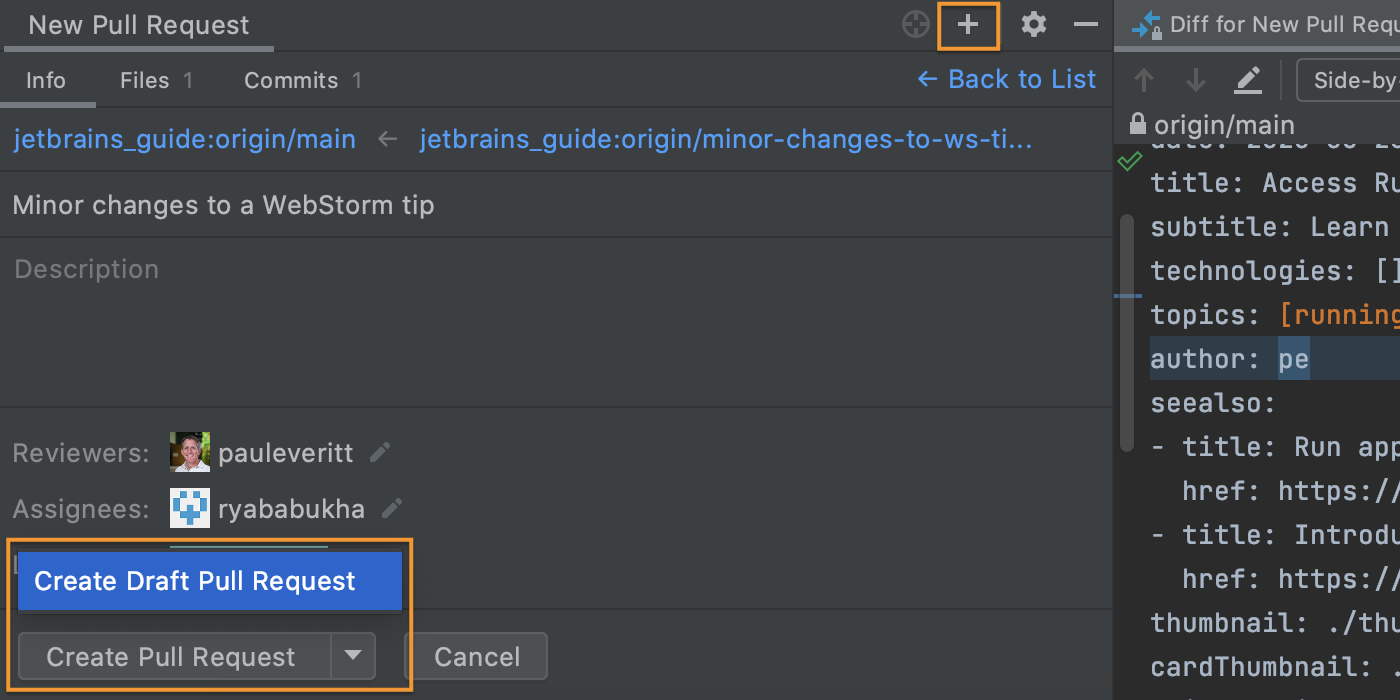
Во-первых, создавать пул-реквесты стало проще. Это можно сделать в окне Pull Requests, нажав на иконку + или перейдя в Git | GitHub | Create Pull Request. После этого работать с новым пул-реквестом можно прямо в окне Pull Requests. Кроме того, при необходимости можно сохранить черновик пул-реквеста.
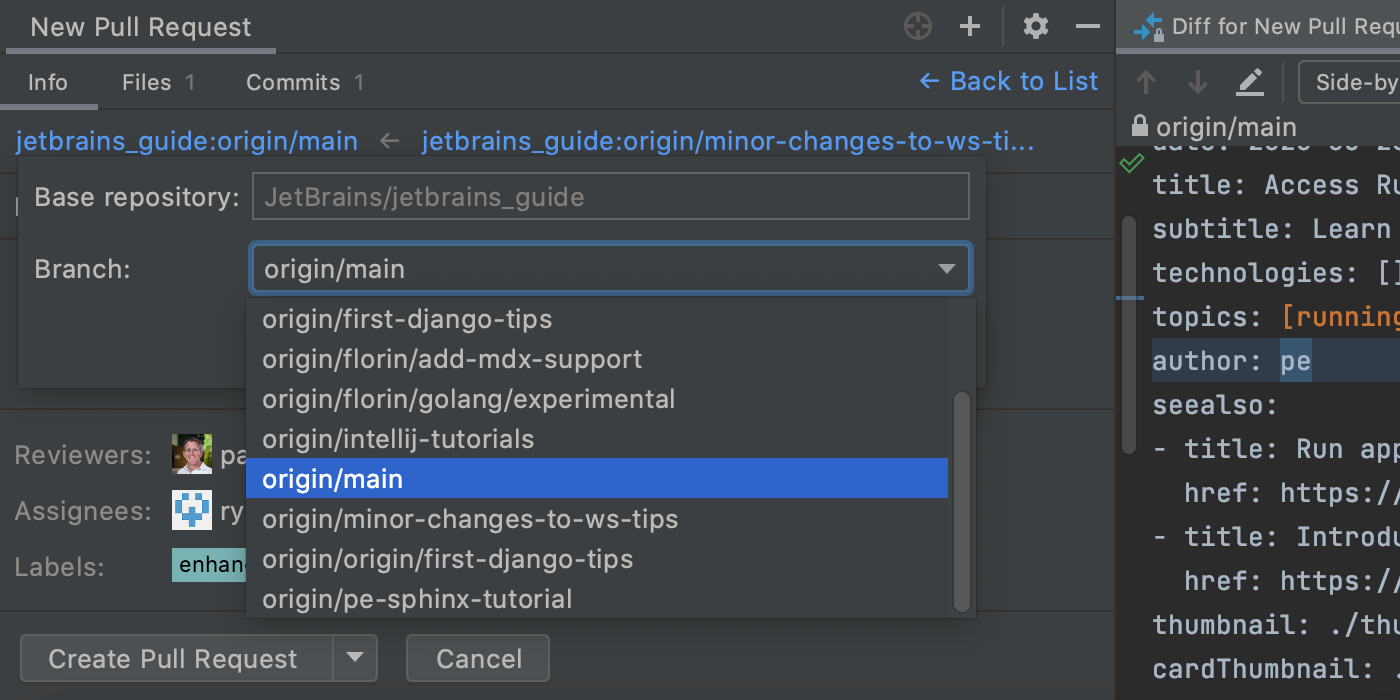
При создании нового пул-реквеста можно выбрать необходимые ветки из нового раскрывающегося списка, содержащего все доступные ветки текущего проекта.
Во вкладке Info можно выбрать head-репозиторий и ветку, указать название и описание пул-реквеста, назначить ревьюеров и исполнителей, добавить метки.
Измененные файлы теперь отображаются в специальной вкладке Files. Если дважды кликнуть по любому из этих файлов, IDE откроет его diff в редакторе.
И последнее: теперь WebStorm поддерживает шаблоны пул-реквестов. Добавьте в проект файл pull_request_template.md с описанием пул-реквеста — при создании пул-реквестов это описание будет отображаться автоматически.
Поддержка шаблонов для сообщений коммитов
Теперь WebStorm поддерживает шаблоны сообщений Git-коммитов. Их удобно использовать как напоминание о том, что нужно включить в сообщение. Создайте такой шаблон, и IDE будет отображать его текст в качестве исходного сообщения коммита.
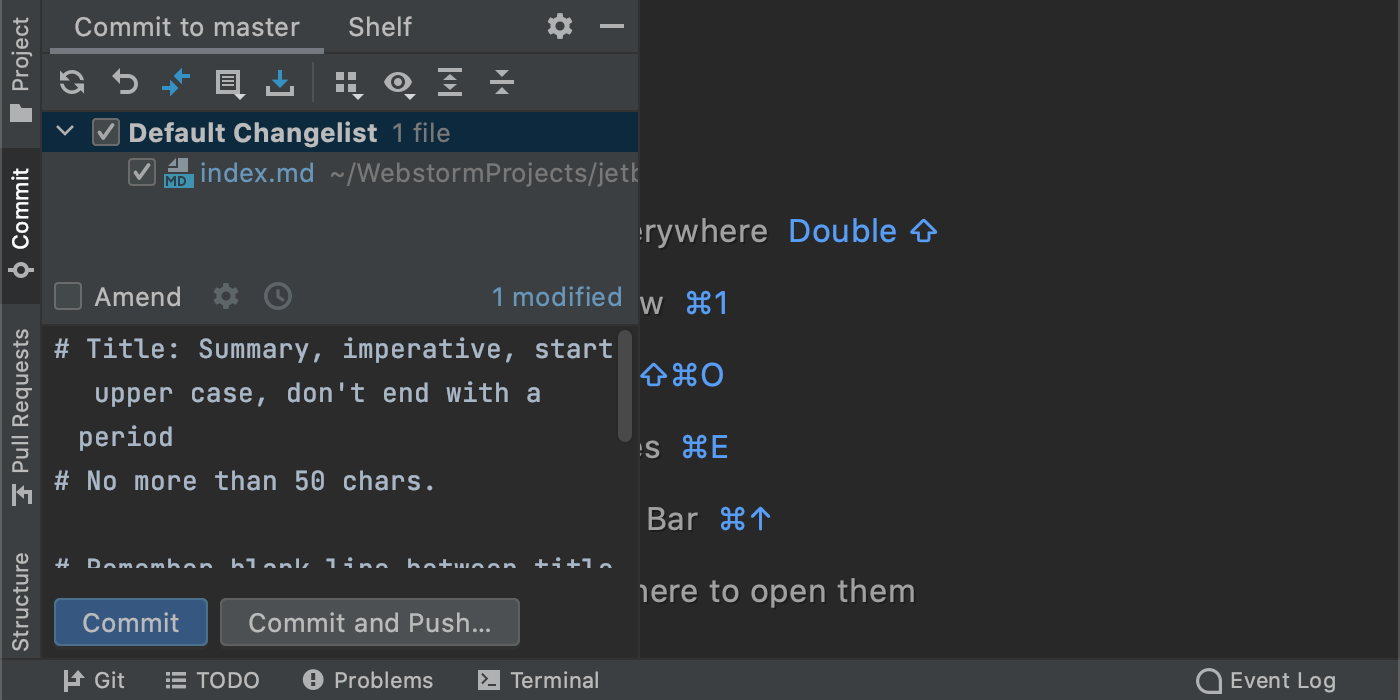
Новый способ отложить изменения
При работе с контролем версий новое действие Save to Shelf позволяет скопировать изменения на вкладку Shelf, сохранив их в локальной истории изменений. Чтобы запустить это действие, нажмите Cmd+Shift+A на macOS или Ctrl+Shift+A на Windows или Linux и введите Safe to Shelf.
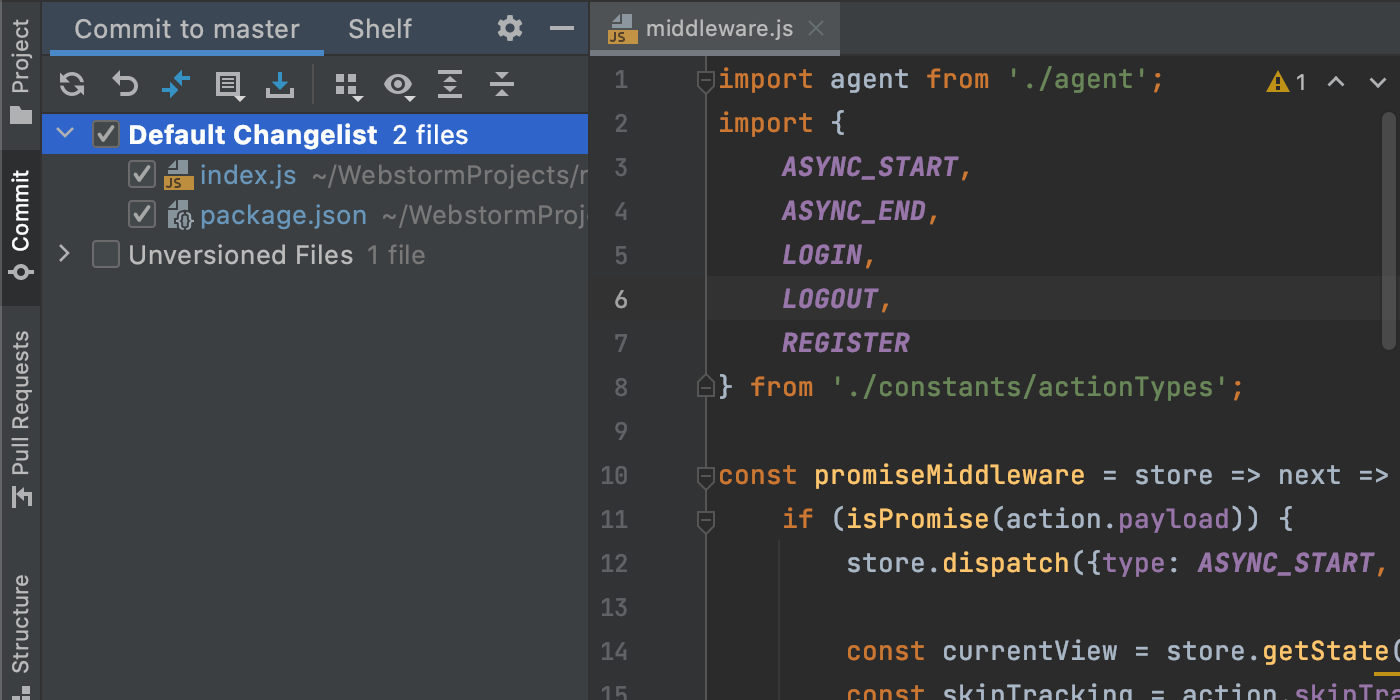
Настройка профиля инспекций перед коммитом
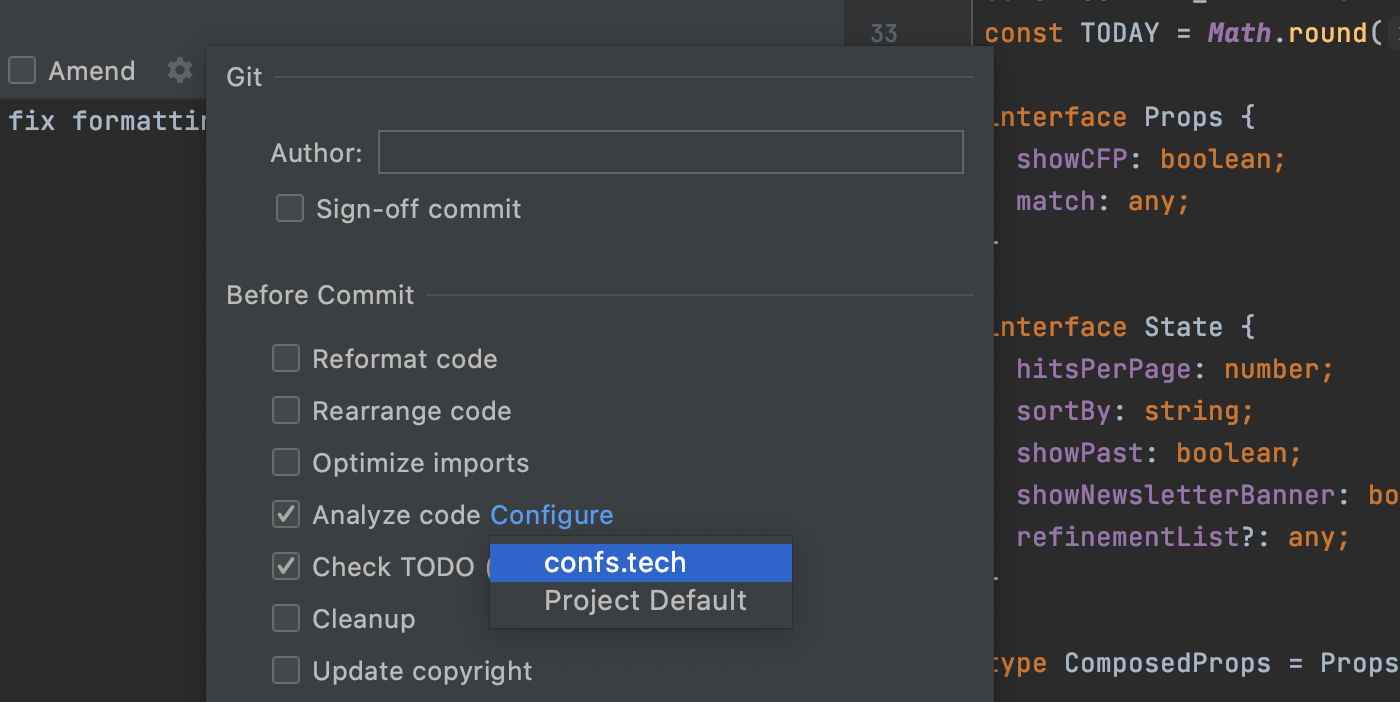
Вы можете легко выбрать профиль инспекций перед отправкой изменений в VCS. Для этого нажмите на значок шестеренки, чтобы увидеть настройки коммита, поставьте флажок Analyze code, кликните Configure и выберите нужный профиль. Чтобы создать профиль, перейдите в раздел Preferences/Settings | Editor | Inspections. IDE будет использовать выбранный профиль для инспекции кода перед коммитом.
Это только основные улучшения. Полный список новых возможностей WebStorm 2021.1 вы найдете в примечаниях к релизу. Сообщайте нам об обнаруженных ошибках через баг-трекер — мы очень ценим вашу помощь.
Ваша команда WebStorm
The Drive to Develop
Subscribe to WebStorm Blog updates
Discover more






WebStorm 2021.1: Smarter Code Completion for JavaScript and TypeScript, HTML Preview, and More
WebStorm 2021.1, the first update of the year, is out! It features smarter code completion for JavaScript and TypeScript, improved support for Stylelint, a built-in HTML preview, and much more.
If you only have a few minutes to explore what’s new in WebStorm 2021.1, check out this video in which Paul Everitt, Developer Advocate at JetBrains, reviews the most notable changes. If you feel like diving deeper, read on!
This release was mainly focused on improving the quality of WebStorm, but we also made sure to deliver some new features. The list of features and improvements can be divided into these categories:
- JavaScript and TypeScript: ML-assisted code completion enabled by default, improved completion suggestions for symbol names, better JSDoc syntax highlighting, and the ability to turn off inspections on a file-by-file basis.
- Frameworks and Technologies: bundled service for remote collaborative development and pair programming, support for CSS modules in Vue, HTTP client improvements, configurable scope for ESLint, JSON Lines support, and JetBrains Space integration.
- HTML and CSS: several improvements for Stylelint, a built-in HTML preview, and the ability to check the selector specificity when working with CSS.
- User Interface: adjustable editor font weight, the ability to maximize tabs when you split the editor, bundled MDN documentation, and more.
- Version Control: improvements for working with pull requests, support for Git commit message templates, a new Save to Shelf action, and configurable profiles for pre-commit inspections.
JavaScript and TypeScript
ML-assisted code completion enabled by default
Last year we introduced experimental ML-assisted code completion for JavaScript and TypeScript. As the feedback and statistics regarding this feature were positive, we’ve decided to turn it on by default. Now, completion suggestions in your .js and .ts files will be sorted using machine-learning algorithms.
To tweak the settings for this feature, go to Preferences/Settings | Editor | General | Code Completion and modify the available options under Machine Learning-Assisted Completion.
Your privacy is of the utmost importance to us, so please rest assured that with this new feature turned on, we don’t send your personal data and code anywhere. If you’re using the EAP builds, only anonymized data about your usage of code completion is collected. For stable builds, like this one, not even this usage information is collected.
Better completion suggestions for symbol names
We’ve made code completion for JavaScript and TypeScript a bit smarter. WebStorm will now take file names into consideration when showing you completion suggestions for top-level variables as well as for function and class names.
Improved JSDoc syntax highlighting
To make JSDoc comments more readable, we’ve improved the way WebStorm highlights JSDoc syntax. You can find new options for changing the color scheme for JSDoc elements, including JSDoc tag values and types, in Preferences/Settings | Editor | Color Scheme | JavaScript/TypeScript.
If you feel like changing the defaults, untick the Inherit values from checkbox and set the desired color for the selected element. You can preview the changes right from the Preferences/Settings dialog using the preview pane.
Suppressing inspections for files
WebStorm allows you to turn off individual inspections for your entire project or on a more granular level – for example, for a statement or a class. With v2021.1, you can also disable them on a file-by-file basis.
Frameworks and Technologies
Built-in service for collaborative development and pair programming
Code With Me, a new JetBrains service for remote collaborative development and pair programming, is now bundled with WebStorm. You can use it to code together in real time and talk to others from the IDE.
Check out our documentation to get started with this new service and find answers to some frequently asked questions.
Support for CSS modules in Vue
Starting from v2021.1, WebStorm will properly support CSS modules used in .vue files. The IDE will resolve $style properties correctly and provide code completion, navigation, and basic refactoring capabilities for them.
Enhancements for the HTTP client
We’ve implemented several enhancements that will make your work with the built-in HTTP client simpler. You can collapse the returned output using a new icon, quickly scroll to the top or the bottom of the response, find and replace usages of the http:// protocol in a few clicks, and more.
Configurable scope for ESLint
If you have ESLint set up for files like .md or .coffee, you can now see the errors reported by it in the editor. For this, add those file types to a new Run for files field. You can find it in Preferences/Settings | Languages & Frameworks | JavaScript | Code Quality Tools | ESLint.
Support for JSON Lines
WebStorm now properly supports the JSON Lines text format. The IDE will recognize .jsonl, .jslines, .ldjson, and .ndjson file types.
Integrate with JetBrains Space
If you’re using JetBrains Space, you can connect WebStorm to your organization there to view and clone project repositories, as well as review your teammates’ code. To get started, install the Space plugin from Preferences/Settings | Plugins.
To log in to Space, click the Get from VCS button on the Welcome screen, select Space on the left, and enter your organization URL in the dedicated field. You can also log in via Tools | Space | Log In to Space from the main menu or Preferences/Settings.
HTML and CSS
Improved support for Stylelint
We’ve implemented a couple of improvements that will make it easier to inspect your CSS code with Stylelint.
First, WebStorm now lets you quickly fix your code with this popular linter. To try it out, hover over a problem in your CSS file or place the caret at it and press Alt+Enter, and then select Stylelint: Fix current file. You can also invoke the Fix Stylelint Problems action from the context menu, which is available on right-click or via the Shift+Shift popup.
Now you can also specify a path to the Stylelint configuration file under the corresponding field in Preferences/Settings | Languages & Frameworks | Style Sheets | Stylelint.
Built-in HTML preview
You can now preview static HTML files right in WebStorm! The changes you make to an HTML file or the linked CSS and JavaScript files will be saved, with the preview reloaded automatically so you can see the changes.
To open the preview, click the icon with the WebStorm logo in the widget in the top-right corner of the editor.
Selector specificity for CSS
When working with style sheets, you’ll now be able to check the specificity of your selectors – just hover over a selector that you want to check. You can also focus on a selector and press F1/Ctrl+Q to explicitly invoke the Documentation popup with this information.
User Interface
Adjustable font weight
You can now choose between different variations of the editor font you’re using, be it light, regular, or bold. You can find the new options under Typography Settings in Preferences/Settings | Editor | Fonts.
Maximize tabs in the split view
Working in the split view is now more convenient. Whenever you split the editor, you can double-click the tab you’re working with to maximize the editor window for it. To bring that tab back to its original size, simply double-click it again.
More helpful quick documentation
MDN documentation is now bundled with WebStorm. This will help prevent connectivity issues with the MDN website and make in-editor documentation show up faster. It’s now also more informative – for example, you’ll see details about supported browser versions for JavaScript APIs.
You can see this information by hovering over a symbol in your HTML, CSS, and JavaScript files or by invoking the Documentation popup with F1/Ctrl+Q.
Better accessibility
In this release, we’ve added more labels to UI elements on the Welcome screen, in the Project Structure view, and in the VCS log. These elements, as well as gutter icons, are now read out correctly when a screen reader is enabled.
In addition, if you use high contrast mode on Windows, your IDE will sync with the OS and apply the high-contrast theme on the first launch.
Other notable improvements
Here are some other notable usability improvements available in v2021.1:
- On Windows, you can now access your recent projects by right-clicking on the WebStorm icon on the taskbar or on the Start menu.
- The IDE can now automatically detect case sensitivity per directory (IDEA-135546).
- It’s now possible to configure how the IDE will treat external dependencies when searching for a text string within a project (IDEA-103560).
- You can now use a shortcut to select all output in the built-in terminal. Go to Preferences/Settings | Keymap, look for Select All under the Terminal section there, and assign a shortcut of your choice to this action. Alternatively, you can use the Select All action available within the right-click menu of the Terminal tool window (IDEA-117484).
- Whenever you fail to find anything in the Shift+Shift popup, you’ll see the Find in Files link right in the popup. Click it to continue looking for text strings within a project and using different scopes (IDEA-256078).
- You can now look for projects organized by groups on the Welcome screen (IDEA-141556).
- We’ve solved several problems affecting Apple Silicon and macOS Big Sur users (IDEA-257549, IDEA-255620, and IDEA-258912).
- We’ve fixed a number of performance problems and issues causing the IDE to crash (WEB-48983, WEB-43639, WEB-48488, JBR-2947, and JBR-3066).
Version Control
Improved work with pull requests
We’ve added several improvements that will help you work with pull requests more efficiently.
First, the creation of pull requests is now more straightforward. You can create one from the Pull Requests tool window by clicking on the + icon or by going to Git | GitHub | Create Pull Request. The IDE will let you work on a new PR right from the Pull Requests tool window. It will also allow you to save draft PRs if needed.
When creating a new pull request, you can select the desired branches from a new drop-down list that has all the available branches for the current project.
Under the Info tab, you can select the head repository and its branch, enter a pull request title and description, appoint reviewers and assignees, and add descriptive labels.
The changed files are now displayed under a dedicated Files tab. If you double-click on any file there, the IDE will open the in-editor diff for that file.
Lastly, WebStorm now supports pull request templates. Add the pull_requst_template.md file with the pull request description to your project, and every time you create a pull request, this description will appear in it.
Support for commit message templates
WebStorm now supports Git commit message templates, which are great for reminding yourself what you need to include in a message. If you define such a template, the IDE will display the text from it as an initial commit message.
New action for saving to Shelf
When working with version control, you can now use a new Save to Shelf action to copy your changes to the Shelf while keeping them in the local changes. You can access this action by pressing Cmd+Shift+A on macOS or Ctrl+Shift+A on Windows or Linux and typing Save to Shelf.
Configure a profile for pre-commit inspections
You can now choose a code inspection profile before committing changes to VCS. To do this, click the gear icon to show commit options, then tick the Analyze code checkbox, click Configure, and choose the desired profile. Profiles can be created in Preferences/Settings | Editor | Inspections. The IDE will use the selected profile when inspecting your code before the commit.
Those are the most notable highlights. For the full list of new features and enhancements available in WebStorm 2021.1, see the release notes. Please share your feedback with us and report any issues you encounter to our issue tracker.
The WebStorm team