.NET Tools
Essential productivity kit for .NET and game developers
ReSharper for Visual Studio Code, Cursor, and Compatible Editors Is Out


ReSharper has been a trusted productivity tool for C# developers in Visual Studio for over 20 years. Today, we’re taking the next step and officially releasing the ReSharper extension for Visual Studio Code and compatible editors.
After a year in Public Preview, ReSharper has been refined to bring its C# code analysis and productivity features to developers who prefer VS Code and other editors – including AI-first coding environments like Cursor and Google Antigravity.
Whether you’re coming from ReSharper in Microsoft Visual Studio, JetBrains Rider, or you’re a VS Code C# developer, the goal is the same – to help you write, navigate, and maintain C# code with confidence and ease.
Why ReSharper for VS Code and compatible editors
ReSharper brings JetBrains’ decades-long C# expertise into lightweight, flexible editor workflows to elevate your code quality.
What it’s designed for:
- Professional-grade C# code quality
Advanced inspections, quick-fixes, refactoring, and formatting for C#, Razor, Blazor, and XAML. - Refining AI-generated code
ReSharper helps review and refine AI-assisted code to make sure it meets professional standards before it ships. - Wide editor compatibility
ReSharper works seamlessly across all compatible editors, meeting your needs wherever you code. - Proven JetBrains expertise
Built on over two decades of experience developing .NET tooling used by teams worldwide. - Free for non-commercial use
Available at no cost for learning, hobby projects, and non-commercial development.
Availability
ReSharper is available from:
- Visual Studio Code Marketplace
- Open VSX Registry (for Cursor, Google Antigravity, Windsurf, and other compatible editors)
How to install ReSharper
You can install the extension via the Extensions view:
- Open Visual Studio Code or another compatible editor.
- Go to the Extensions view.
- Search for ReSharper.
- Click Install.
You can also install the extension via the Command Palette:
- Open Visual Studio Code or another compatible editor.
- Open the Command Palette (Ctrl+P /
Cmd+P). - Paste:
ext install JetBrains.resharper-code - After pasting the command, press
Enter, and ReSharper will be installed automatically.

Key features at a glance
ReSharper focuses on the core workflows C# developers use daily.
- Insightful code analysis
Real-time inspections and quick-fixes help keep your code readable, maintainable, and consistent across projects.
- Smart coding assistance
Context-aware code completion, auto-imports, live templates, and inline documentation go way beyond the standard capabilities of a code editor. - Solution Explorer
A central hub for managing files, folders, NuGet packages, source generators, and projects across a solution – just like the one in JetBrains Rider or ReSharper in Microsoft Visual Studio.
- Reliable unit testing
Run and manage tests for NUnit, xUnit.net, and MSTest directly in VS Code or a compatible editor, with easy navigation to failing tests. - Refactorings you can trust
Rename works across your solution while safely handling conflicts and references. - Fast navigation, including to external and decompiled sources
Navigate to symbols, usages, files, and types across your solution. When source code isn’t available, ReSharper can decompile assemblies and take you directly to the relevant declarations.
For more information on ReSharper’s functionality, please see our Documentation.
What’s next
The next major area of focus for ReSharper for VS Code is debugging support. Based on feedback collected during the Preview, we’re actively working on support for launching debugging sessions and attaching to processes in .NET and .NET Framework applications.
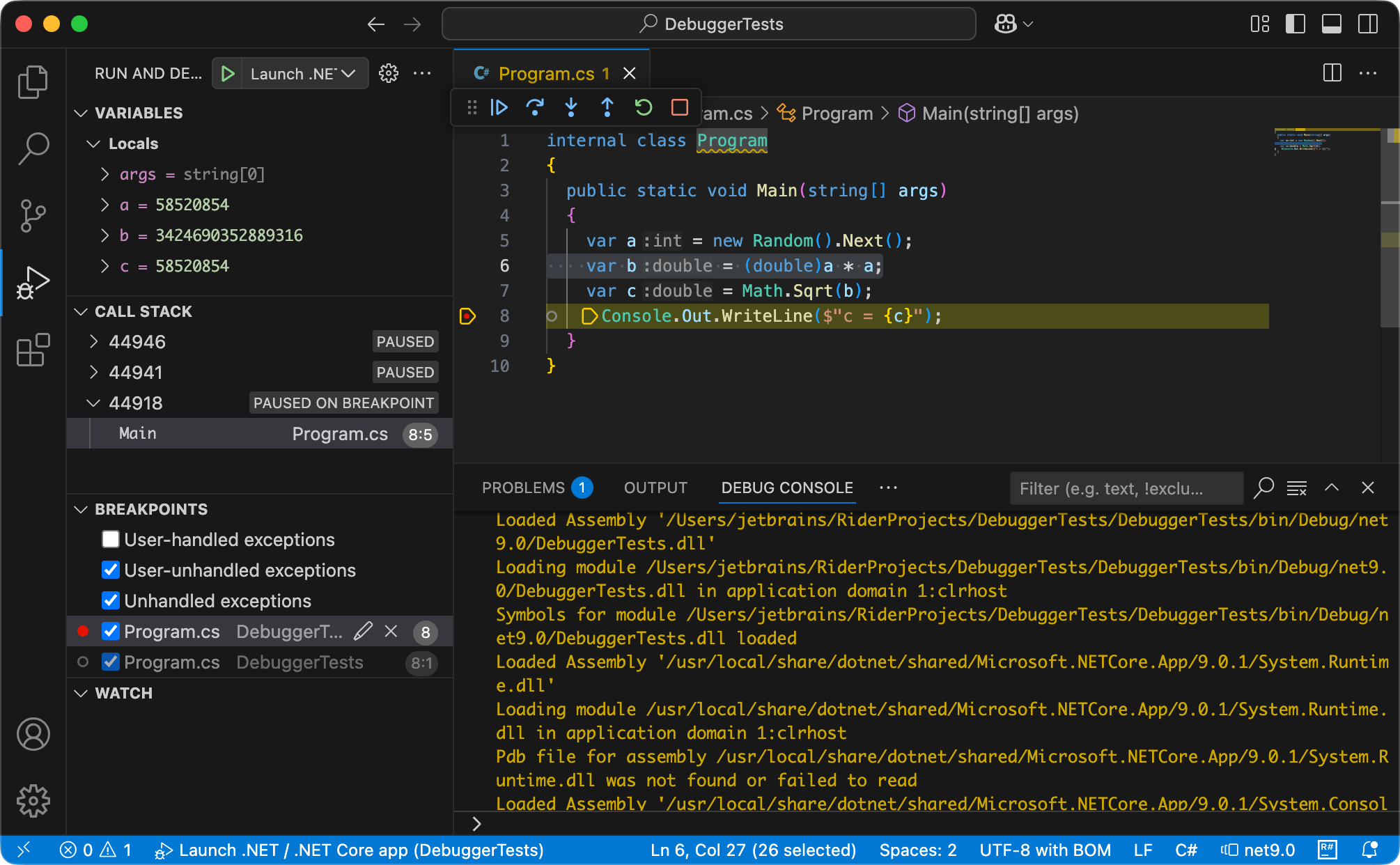
Beyond debugging, our roadmap includes continued quality improvements and expanding the set of available refactorings.
We’ll be listening closely to your feedback as we define the next priorities. If there’s something that would make ReSharper indispensable in your workflow, we’d love to hear from you.
Licensing
ReSharper for VS Code and compatible editors is available under ReSharper, dotUltimate, and All Products Pack licenses. You can review the pricing options here.
The extension will continue to be available for free for non-commercial use, including learning and self-education, open-source contributions without earning commercial benefits, any form of content creation, and hobby development.
Get started
- Install ReSharper.
- Open a workspace/folder in VS Code, Cursor, or another compatible editor.
- ReSharper will automatically detect any
.sln/.slnx/.slnf(solution) files or acsprojfile in the folder:
- If only one solution is found, it will open automatically.
- If multiple solutions are found, click the Open Solution button in a pop-up menu to choose which one to open.
If you encounter any issues, have feedback to share, or additional features to request, you can do so by creating a ticket here.