

IntelliJ IDEA
IntelliJ IDEA – the Leading IDE for Professional Development in Java and Kotlin
JetBrains IDE の AI Assistant

7 月 13 日更新: AI Assistant は JetBrains IDE 各製品の v.2023.2 以降のバージョンにはバンドルされていません。利用のためには専用のプラグインのインストールが必要です。現在、AI Assistantへのアクセスはキャンセル待ちリストによって制限されていますのでご留意ください。また、データの取り扱いや正式版リリース等に関する情報はFAQページをご覧ください。
今週リリースされるすべての IntelliJ ベース IDE と .NET ツールの EAP ビルドには、重要な新機能である AI Assistant(AI アシスタント)が搭載されています。 このブログ記事では IntelliJ ベース IDE に的を絞っていますが、.NET ツールに特化した記事については間もなく公開される予定です。
ジェネレーティブ AI と大規模言語モデルはソフトウェア開発ツールの分野に急激な変化をもたらしており、JetBrains は迷うことなくこのテクノロジーを製品に組み込むことにしました。 私たちが AI Assistant 機能の制作に取り組む際には、主に次の 2 つの点に注力しています。
- AI 支援を基本的な IDE ユーザーの作業の流れに組み込むこと。
- AI の機能とコード認識能力を緊密に統合すること。これは、以前からずっと JetBrains IDE が得意としている分野です。
AI 機能は JetBrains AI サービスを利用しています。 このサービスは製品ユーザーをさまざまな大規模言語モデル(LLM)に透過的に関連付け、多くの JetBrains 製品に組み込まれた特定の AI 駆動型機能を有効にします。 サービスをリリースした時点では OpenAI をサポートし、JetBrains が作成した多数の比較的小さなモデルをホストしますが、 将来的にはプロバイダーの数を増やし、最適な選択肢とモデルへのアクセスをユーザーに提供できるようにすることを計画しています。
また、ローカルとオンプレミスのモデルのサポートも計画しています。 ローカルのモデルでサポートされる機能セットは制限される可能性があります。
AI 機能
現在の EAP ビルドには、JetBrains の方向性を示す機能のサンプルが含まれています。
AI チャット
AI Assistant ツールウィンドウを使用して LLM との対話、質問、タスクの反復処理を行います。 IDE がプロジェクトで使用される言語やテクノロジーなど、プロジェクト固有のコンテキストを提供します。 満足のいく結果を得られたら、Insert Snippet at Caret(キャレット位置にスニペットを挿入)機能を使用して AI が生成したコードをエディターに挿入またはコピーできます。
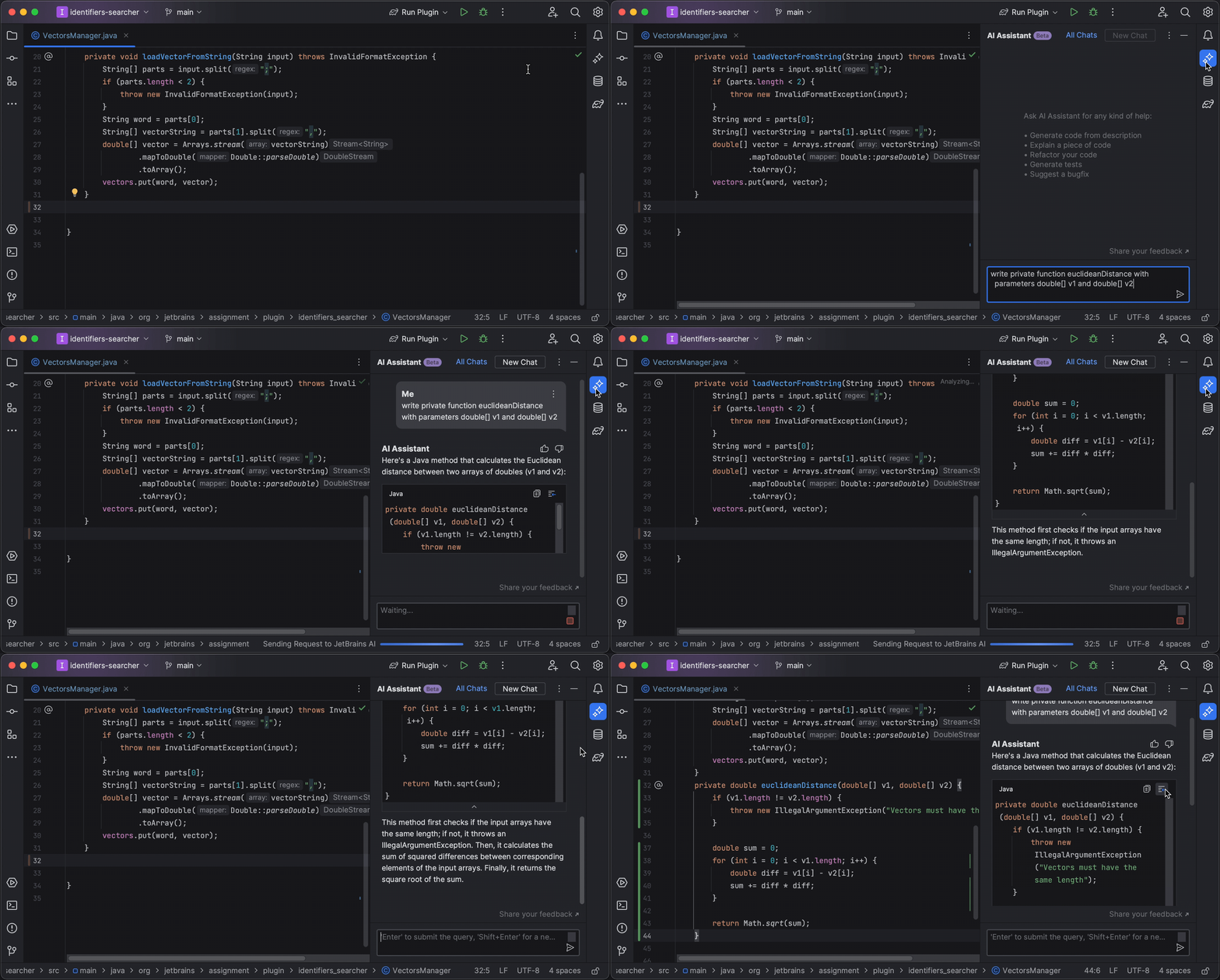
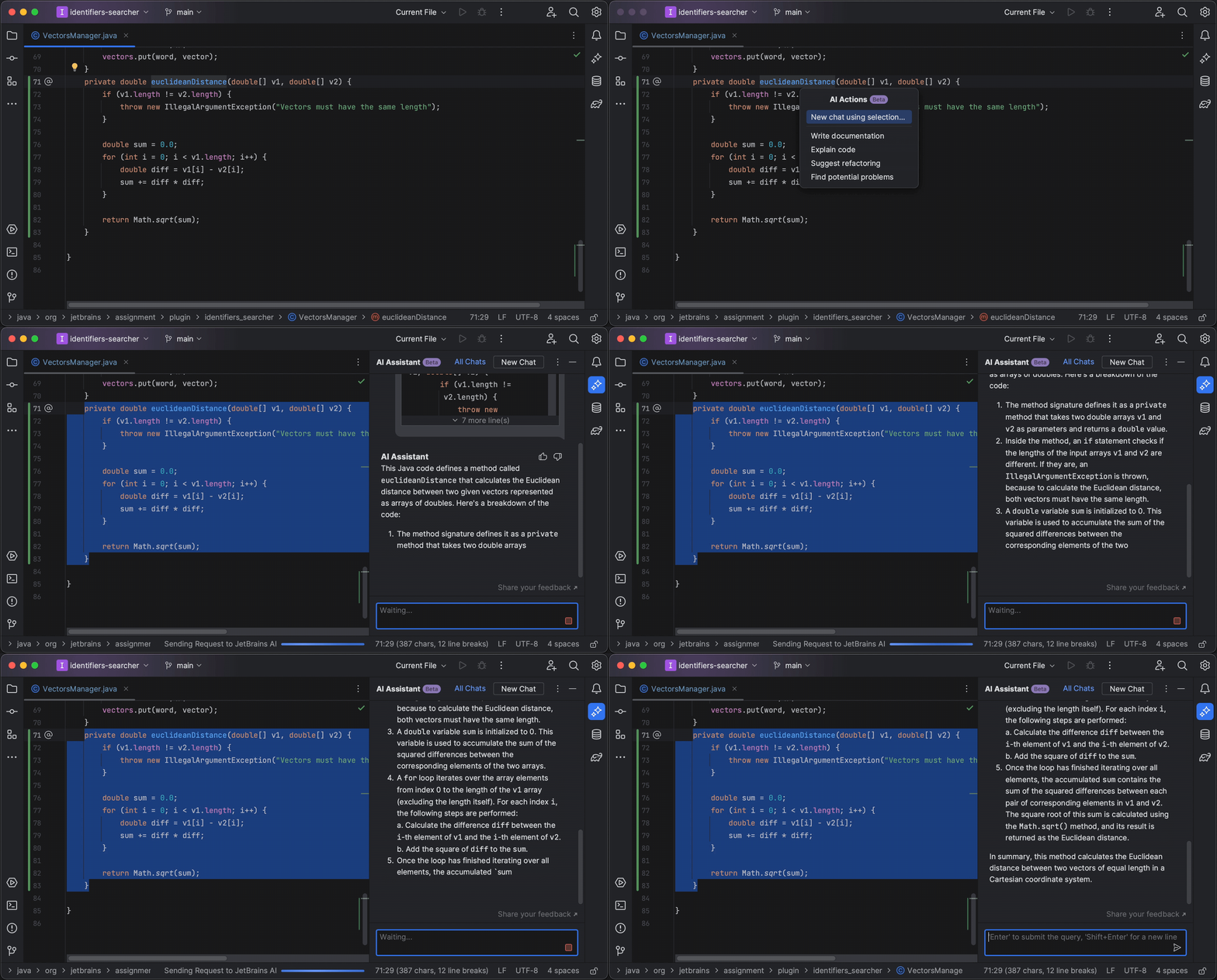
AI に特定のコード箇所について質問するには、エディター内でその箇所を選択し、AI Actions(AI アクション)メニュー(エディターのコンテキストメニューまたは Alt+Enter ショートカットを使用)からアクションを呼び出します。 New chat using selection(選択範囲を使用して新しいチャットを開始)アクションを使用すると、独自のプロンプトまたはリクエストを提供できます。 必要に応じて Explain code(コードの説明)、Suggest refactoring(リファクタリングの提案)、または Find potential problems(潜在的な問題の発見)を選択すると、追加の標準 AI 支援プロンプトを入力できます。
ドキュメント生成
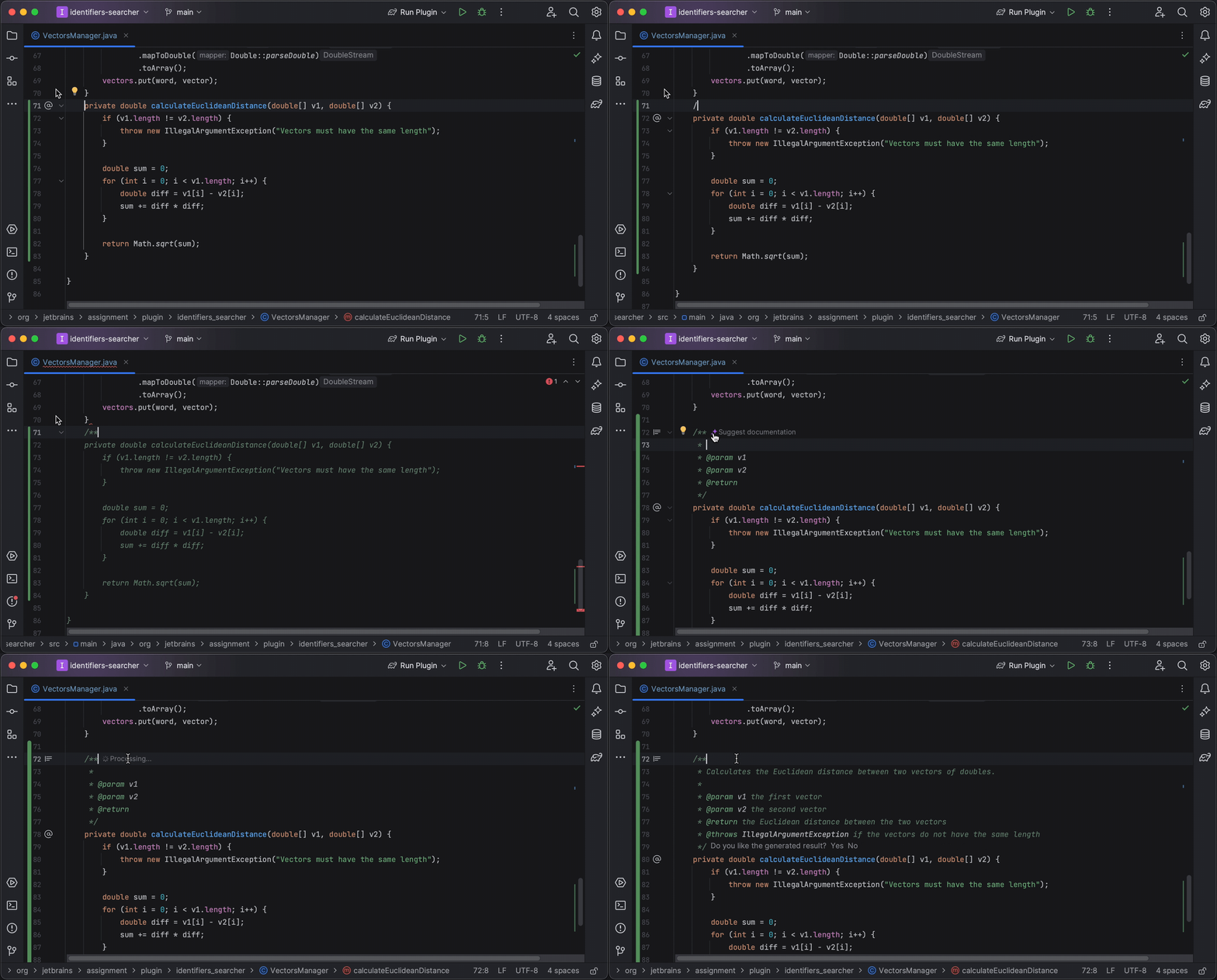
LLM を使用して宣言のドキュメントを生成する必要がある場合は、AI Actions(AI アクション)メニューを呼び出して Generate documentation(ドキュメントの生成)アクションを選択します。 現在、Java、Kotlin、および Python がサポートされています。
Java と Kotlin においては、ドキュメントコメントのスタブを生成する際の標準メソッド(/** を入力)を使うと、ドキュメントの生成が提案されます。 IDE は統計的に認識しているコメントの一部(Java の @param タグなど)を生成し、AI はユーザーに代わって実際のドキュメントのテキストを生成します。
名前の提案
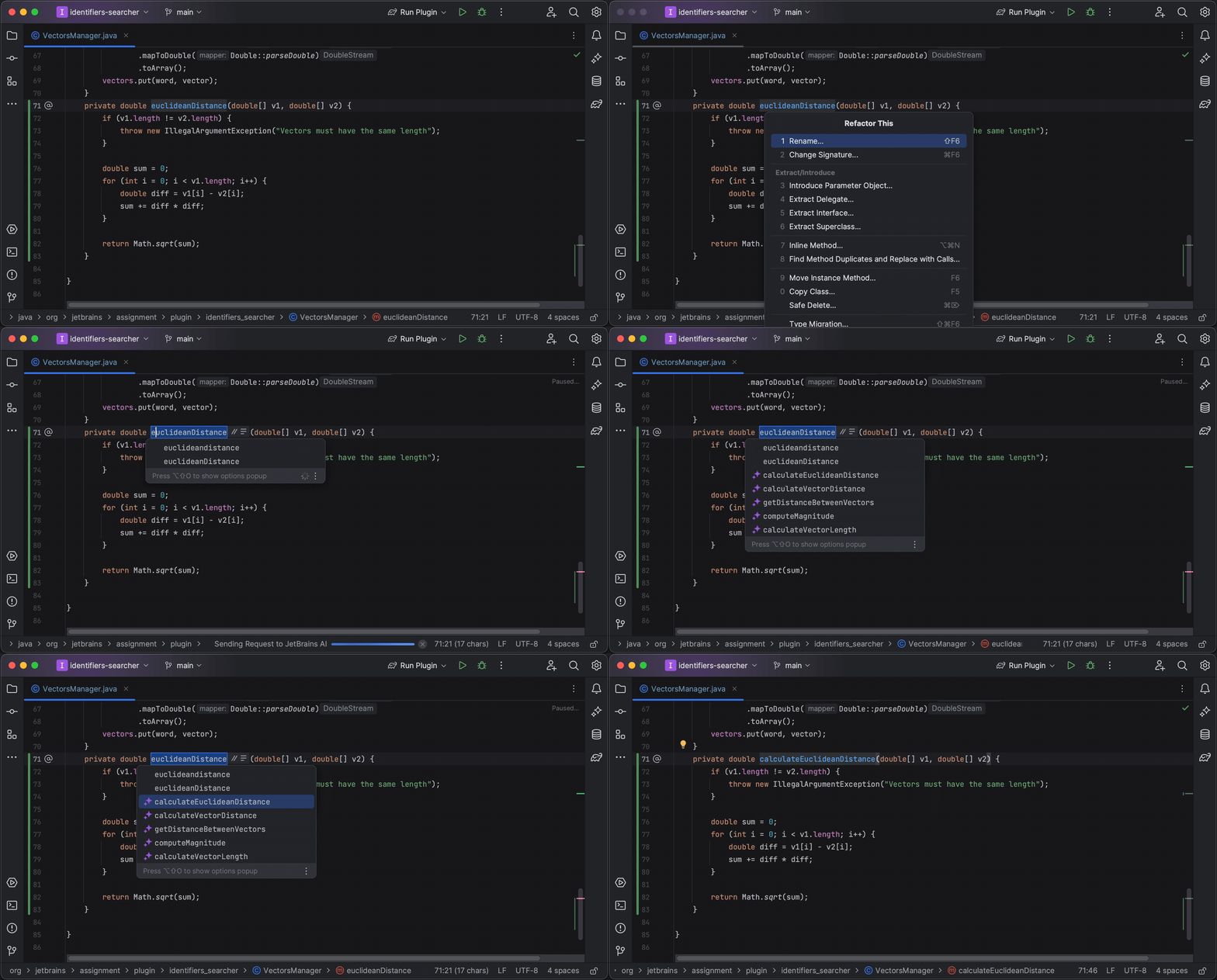
Java、Kotlin、または Python の宣言の名前を変更すると、AI が宣言の内容に応じて名前の選択肢を提案します。 この機能は Settings(設定)| Tools(ツール)| AI Assistant(AI アシスタント) でオフにできます。
コミットメッセージの生成
コミットメッセージダイアログに Generate Commit Message with AI Assistant(AI アシスタントでコミットメッセージを生成)ボタンが追加されました。 このボタンをクリックすると LLM に変更の差分が送信され、変更内容を説明するコミットメッセージが生成されます。
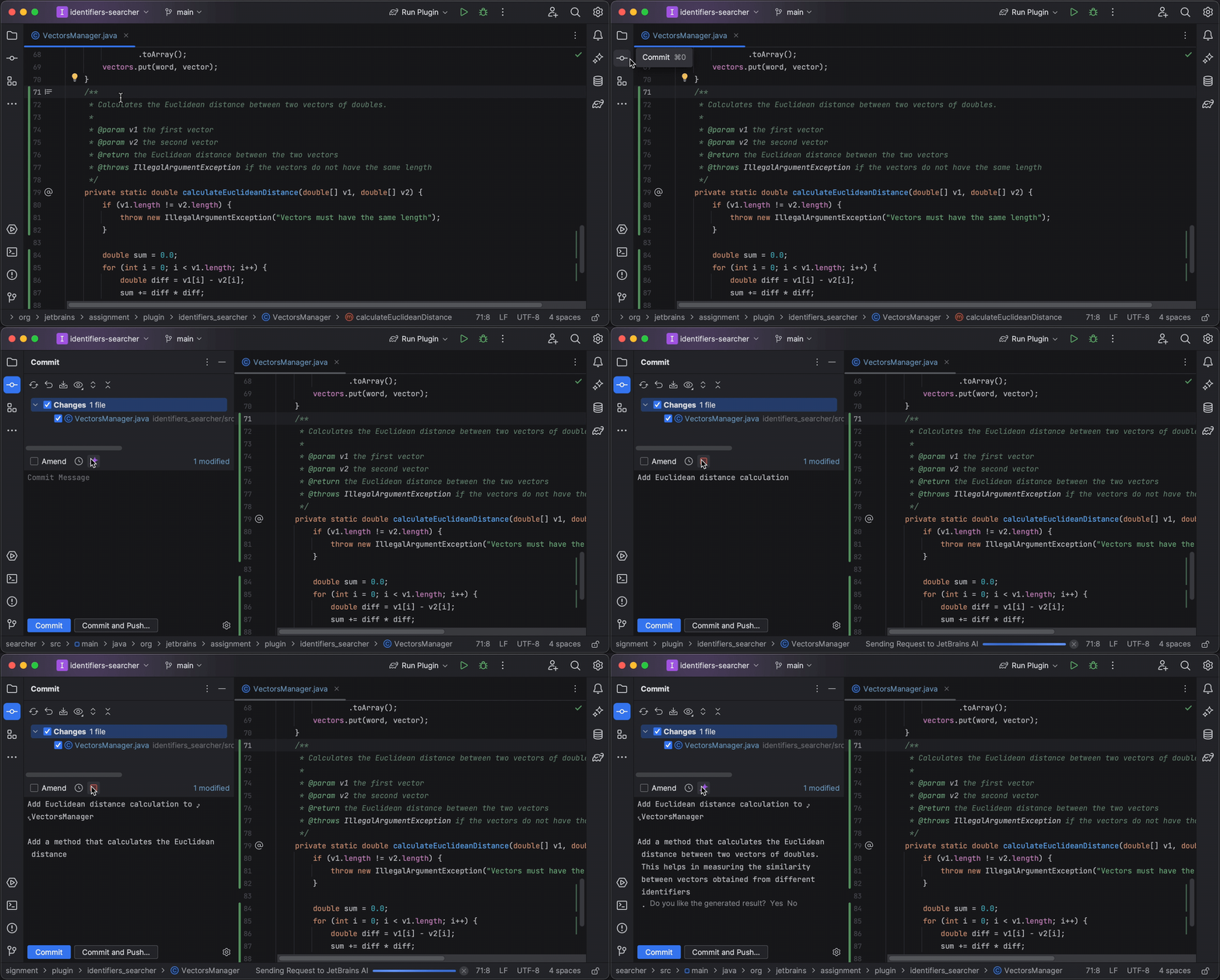
AI 機能へのアクセス
AI 機能にアクセスするには、JetBrains Account を使用して JetBrains AI サービスにログインする必要があります。 ログインは AI Assistant(AI アシスタント)ツールウィンドウ、または Settings(設定)| Tools(ツール)| AI Assistant(AI アシスタント)から行います。
JetBrains AI サービスはすべてのユーザーに直ちに提供されるわけではないことに注意してください。 まずは限られた数のユーザーにアクセスを提供し、人数が定員に達した時点で残りのユーザーは順番待ちリストに追加されます。 今後数週間にわたってユーザーを順次招待し、製品をお試しいただく予定です。
AI サービスへのアクセスは現在、OpenAI サービスが提供されている地域に制限されています。 具体的な地域の全リストは、こちらをご覧ください。
AI サービスは EAP サイクルの期間は無料でご利用いただけます。 ライセンスと価格体系については、後日お知らせします。
ユーザーのコードとデータの処理方法
AI 機能を使用する場合、IDE はユーザーのリクエストとコードを LLM プロバイダーに送信する必要があります。 IDE はユーザーに入力を求めるほか、LLM にコンテキストを提供する目的でコード、ファイル形式、使用されているフレームワークなどの必要な追加情報を送信することがあります。
また、AI アシスタント機能を搭載した EAP ビルドはユーザーと LLM 間でやりとりされるすべての情報(テキストとコード箇所)を含め、AI 機能の使用状況に関する詳細なデータをオプトインで収集します。 このデータは極秘扱いで保管され、JetBrains が製品を改善する目的でのみ使用されます。 データが外部関係者と共有されることは一切ありません。また、コードやテキストを生成する ML モデルのトレーニングに使用されたり、いかなる形態でも他のユーザーに開示されたりすることはありません。詳細なデータ収集を制御するオプションは、Tools(ツール)| AI Assistant(AI アシスタント)| Data Sharing(データ共有)| Send AI Assistant usage statistics(AI アシスタントの使用統計情報を送信する)にあります。
データ収集ポリシーに関する詳細については、JetBrains のウェブサイトをご覧ください。
フィードバックをお寄せください
この段階では、サクセスストーリー、AI が期待どおりに動作しなかった状況、AI が支援できる他のシナリオの提案など、新機能に関する皆さんのフィードバックを参考にすることが非常に重要であると考えています。 AI Assistant(AI アシスタント)ツールウィンドウの Share feedback(フィードバックの共有)をクリックし、皆さまのアイデアやご意見をお送りください。AI アシスタントのバグについては YouTrack でご報告ください。 ご協力いただきありがとうございます!
オリジナル(英語)ブログ投稿記事の作者:


Subscribe to IntelliJ IDEA Blog updates
Discover more





JetBrains IDE의 AI Assistant

7월 13일 업데이트: AI Assistant는 사전 릴리스 버전에서 사용할 수 있지만, JetBrains IDE의 안정적인 릴리스인 2023.2에서는 번들로 제공되지 않습니다. 2023.2.x 버전에서 플러그인을 설치하여 사용할 수 있지만, AI Assistant 기능은 사용자 수가 많은 경우 사용자 수가 제한되어 대기자 명단에 추가될 수 있습니다.
모든 IntelliJ 기반 IDE 및 .NET 도구를 대상으로 하는 이번 주 EAP 빌드에는 AI Assistant라는 새로운 주요 기능이 포함되었습니다. 이 블로그 게시물은 곧 제공될 .NET 도구용 게시물과 함께 IntelliJ 기반 IDE에 중점을 둡니다.
생성형 AI와 대규모 언어 모델이 소프트웨어 개발 도구의 생태를 빠르게 변화시키고 있는 가운데, 자연스레 JetBrains 제품에도 이 기술을 통합하기로 했습니다. AI Assistant 기능 빌드의 접근 방식은 두 가지 주요 측면에 중점을 둡니다.
- AI 지원을 핵심 IDE 사용자 워크플로에 결합합니다.
- 항상 JetBrains IDE의 강점이었던 코드에 대한 이해와 AI 기능의 긴밀한 통합을 구축합니다.
AI 기능은 JetBrains AI 서비스를 기반으로 합니다. 이 서비스는 제품 사용자로서 여러분을 다양한 대형 언어 모델(LLM)에 투명하게 연결하고 수많은 JetBrains 제품 내에서 특정 AI 기반 기능을 구현합니다. 또한 출시와 함께 OpenAI를 지원하고 JetBrains에서 만든 여러 소형 모델을 추가로 호스팅합니다. 앞으로 JetBrains는 이 서비스를 더 많은 제공업체로 확장하여 사용자들이 가능한 최상의 옵션과 모델을 이용할 수 있도록 할 계획입니다.
더불어 로컬 및 온프레미스 모델도 지원할 계획입니다. 로컬 모델의 경우, 지원되는 기능 세트가 제한될 가능성이 높습니다.
AI 기능
현재 EAP 빌드는 우리가 나아가고 있는 방향을 제시하는 기능 샘플을 제공합니다.
AI 채팅
AI Assistant(AI 어시스턴트) 도구 창을 사용하여 LLM과 대화하거나 질문하거나 작업을 반복 처리하세요. IDE는 프로젝트에서 사용되는 언어 및 기술과 같은 몇 가지 프로젝트별 컨텍스트를 제공합니다. 결과가 만족스러우면 Insert Snippet at Caret(캐럿 위치에 스니펫 삽입) 기능을 사용하여 AI가 생성한 코드를 에디터에 집어넣거나 간단히 복사하세요.
AI에게 특정 코드 조각에 대해 물어보려면 에디터에서 해당 코드 조각을 선택하고 AI Actions(AI 액션) 메뉴에서 액션을 호출합니다(에디터 컨텍스트 메뉴 또는 Alt+Enter 단축키 사용). New chat using selection(선택한 내용을 사용하여 새 채팅 시작) 액션을 통해 자신만의 프롬프트 또는 요청을 제공할 수 있습니다. Explain code(코드 설명), Suggest refactoring(리팩터링 제안) 또는 Find potential problems(잠재적 문제 찾기)를 적절하게 선택하여 추가적인 표준 AI 지원 프롬프트를 입력할 수 있습니다.
문서 생성
LLM을 사용하여 선언에 대한 문서를 생성해야 하는 경우, AI Actions(AI 액션) 메뉴를 호출하고 Generate documentation(문서 생성) 액션을 선택합니다. 현재 Java, Kotlin 및 Python이 지원됩니다.
Java 및 Kotlin의 경우, 문서 주석 스텁을 생성하는 표준 방법(/** 입력)을 사용할 때 문서 생성이 제안됩니다. IDE는 주석의 정적으로 알려진 부분(예: Java의 @param 태그)을 생성하고 AI는 실제 문서 텍스트를 자동으로 생성합니다.
이름 제안
Java, Kotlin 또는 Python 선언의 이름을 바꾸면 AI가 그 내용을 바탕으로 선언의 이름 옵션을 제안합니다. 이 기능은 Settings(설정) | Tools(도구) | AI Assistant에서 해제할 수 있습니다.
커밋 메시지 생성
이제 커밋 메시지 대화상자에 Generate Commit Message with AI Assistant(AI Assistant로 커밋 메시지 생성) 버튼이 제공됩니다. 이를 클릭하여 변경 내용의 Diff를 LLM으로 보내면 변경 내용을 설명하는 커밋 메시지가 생성됩니다.
제공되는 AI Assistant 기능은 제품별로 다를 수 있습니다. 자세한 내용은 각 제품(CLion, GoLand, IntelliJ, PhpStorm, PyCharm, ReSharper, Rider, RubyMine, WebStorm, Fleet)의 블로그 게시물에서 확인하실 수 있습니다. .
AI 기능에 액세스
AI 기능에 액세스하려면 JetBrains Account로 JetBrains AI 서비스에 로그인해야 합니다. AI Assistant(AI 어시스턴트) 도구 창이나 Settings(설정) | Tools(도구) | AI Assistant에서 로그인할 수 있습니다.
참고로 일부 사용자에게는 JetBrains AI 서비스가 즉시 제공되지 않을 수도 있습니다. 먼저 일정 수의 사용자를 수용하고 최대 수용 인원에 도달하면 나머지 사용자를 대기자 명단에 추가할 예정입니다. 앞으로 몇 주에 걸쳐 더 많은 분을 초대하여 제품을 사용해 볼 수 있도록 할 예정입니다.
AI 서비스에 대한 액세스는 현재 OpenAI 서비스가 제공되는 지역으로 제한됩니다. 여기에서 전체 지역 목록을 확인할 수 있습니다.
AI 서비스는 EAP 기간 동안 무료로 이용할 수 있습니다. 라이선스 및 가격 모델은 추후에 제공할 예정입니다.
JetBrains가 코드와 데이터를 처리하는 방식
AI 기능을 사용할 때 IDE는 요청과 코드를 LLM 제공업체로 보내야 합니다. 입력한 프롬프트 외에 IDE는 코드 조각, 파일 유형, 사용된 프레임워크 및 LLM에 컨텍스트를 제공하는 데 필요할 수 있는 기타 정보 등 추가 세부 정보도 함께 보낼 수 있습니다.
또한, AI 지원 기능을 포함하는 EAP 빌드는 사용자와 LLM 간의 전체 통신 내용(텍스트 및 코드 조각 모두)을 포함하여 AI 기능 사용에 관한 상세 데이터를 옵트인 방식으로 수집합니다. 이 데이터는 엄격히 기밀로 유지되며 JetBrains에서 제품 개선 목적으로만 사용됩니다. 이 정보는 외부의 제3자와 절대 공유되지 않으며, 코드 또는 텍스트를 생성하는 ML 모델 학습을 비롯해 어떤 형태로든 다른 사용자에게 공개되지 않습니다. 상세 데이터 수집에 관련된 옵션은 Tools(도구) | AI Assistant | Data Sharing(데이터 공유) | Send AI Assistant usage statistics(AI Assistant 사용 통계 보내기)에서 찾을 수 있습니다.
데이터 수집 정책에 대한 자세한 내용은 JetBrains 웹사이트를 참조하세요.
피드백 공유
지금 단계에서는 성공 사례, AI가 예상한 대로 작동하지 않는 상황, AI가 도움이 될 수 있는 다른 시나리오 제안 등 새로운 기능에 대한 피드백을 수렴하는 것이 매우 중요합니다. AI Assistant(AI 어시스턴트) 도구 창에서 Share feedback(피드백 공유)을 클릭하여 아이디어와 제안 사항을 보내주시고 AI Assistant 버그를 발견했다면 YouTrack에서 보고해 주세요. 감사합니다!
게시물 원문 작성자
Subscribe to IntelliJ IDEA Blog updates
Discover more
AI Assistant in JetBrains IDEs

Update, Dec 6: JetBrains AI Assistant is generally available with v.2023.3 or JetBrains IDEs and ReSharper. Read more in the dedicated post.
This week’s EAP builds of all IntelliJ-based IDEs and .NET tools include a major new feature: AI Assistant. This blog post focuses on our IntelliJ-based IDEs with a dedicated .NET Tools post coming soon.
Generative AI and large language models are rapidly transforming the landscape of software development tools, and the decision to integrate this technology into our products was a no-brainer for us. Our approach to building the AI Assistant feature focuses on two main aspects:
- Weaving the AI assistance into the core IDE user workflows.
- Building a deep integration of AI features with the code understanding, which has always been a strong suit of JetBrains IDEs.
The AI features are powered by the JetBrains AI service. The service transparently connects you, as a product user, to different large language models (LLMs) and enables specific AI-powered features inside many JetBrains products. At launch, the service supports OpenAI and additionally hosts a number of smaller models created by JetBrains. In the future, we plan to extend this to more providers, giving our users access to the best options and models available.
We also plan to support local and on-premises models. For local models, the supported feature set will most likely be limited.
AI features
The current EAP build provides a sample of features that indicates the direction we’re moving in:
AI chat
Use the AI Assistant tool window to have a conversation with the LLM, ask questions, or iterate on a task. The IDE will provide some project-specific context, such as the languages and technologies used in your project. Once you’re happy with the result, use the Insert Snippet at Caret function to put the AI-generated code into the editor, or just copy it over.
To ask the AI about a specific code fragment, select it in the editor and invoke an action from the AI Actions menu (available in the editor context menu or by using the Alt+Enter shortcut). The New chat using selection action allows you to provide your own prompt or request. You can input additional standard AI assistance prompts by selecting Explain code, Suggest refactoring, or Find potential problems, as appropriate.
Documentation generation
If you need to generate the documentation for a declaration using an LLM, call up the AI Actions menu and select Generate documentation action. This is currently supported for Java, Kotlin, and Python.
For Java and Kotlin, documentation generation is suggested when you use the standard method of generating a doc comment stub: type /**. The IDE will generate the statically known part of the comment (such as @param tags in Java), and the AI will generate the actual documentation text for you.
Name suggestions
When you rename a Java, Kotlin, or Python declaration, the AI will suggest name options for the declaration, based on its contents. This can be turned off in Settings | Tools | AI Assistant.
Commit message generation
The commit message dialog now has a Generate Commit Message with AI Assistant button. Click it to send the diffs of your changes to the LLM, which will generate a commit message describing your changes.
AI Assistant functions may differ between products. For more details on specific products check these dedicated posts: CLion, GoLand, IntelliJ IDEA, PhpStorm, PyCharm, ReSharper, Rider, RubyMine, WebStorm, and Fleet.
Access to AI features
To access the AI features, you’ll need to be logged in to the JetBrains AI service with your JetBrains Account. You can log in from the AI Assistant tool window or from Settings | Tools | AI Assistant.
Please note that the JetBrains AI service may not be available for everyone immediately. We will first let a certain number of users in, and once the maximum capacity is reached, the remaining users will be added to a waiting list. We’ll be gradually inviting more people to try the product in the coming weeks.
Access to the AI service is currently restricted to the territories where the OpenAI service is available. You can check the full list of territories here.
The AI service is free to use during the EAP cycle. We’ll be providing the licensing and pricing model at a later date.
How we handle your code and data
When you use AI features, the IDE needs to send your requests and code to the LLM provider. In addition to the prompts you type, the IDE may send additional details, such as pieces of your code, file types, frameworks used, and any other information that may be necessary for providing context to the LLM.
In addition, EAP builds that include the AI assistant functionality perform opt-in collection of detailed data about the usage of AI features, including the full communication between you and the LLM (both text and code fragments). This data is kept strictly confidential and is used by JetBrains for product improvement purposes only. It is never shared with any external parties, and it will not be used for training any ML models that generate code or text, or revealed in any form to any other users. The option controlling detailed data collection can be found under Tools | AI Assistant | Data Sharing | Send AI Assistant usage statistics.
For more detailed information on our data collection policies, please refer to our website.
Sharing feedback
At this stage, it’s extremely important for us to hear your feedback about the new features, including success stories, situations where the AI didn’t do what you expected, and suggestions of other scenarios when AI could assist you. Please send us your ideas and suggestions by clicking Share feedback in the AI Assistant tool window, and report AI Assistant bugs in YouTrack. Thank you!