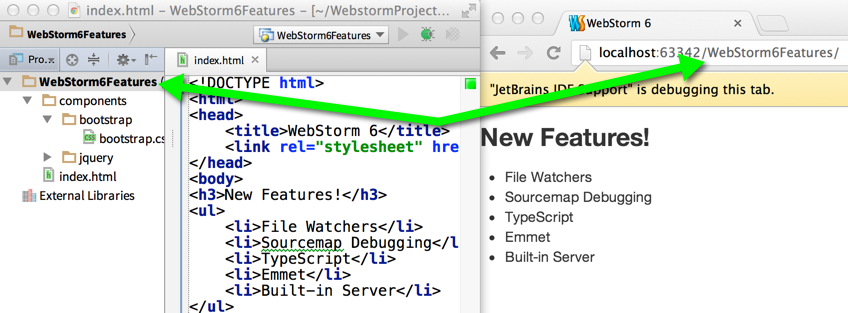
Have you ever started writing an app only to realize that you need a simple local webserver?
Never fear, WebStorm 6 is here!
Simply open “http://localhost:63342/”, append your project name, and WebStorm will serve up your site for you!
For example, if you’re working in a project called “WebStorm6Features”, you would open: http://localhost:63342/WebStorm6Features
Needless to say, you can easily debug JavaScript code – just create a run configuration in the context menu on an HTML file. No additional URL mappings are required.
Please download the latest build, provide your feedback for bugs and feature requests here, and leave questions in the comments below or in our forums!
Develop with pleasure!
-JetBrains WebStorm Team

Testing out project with Built-in Server in WebStorm 6 in Google Chrome lead to browser freeze. (even can’t open developer tools).

Looks like there is some request per second limit. Because later requests hang on ‘penging’ state (with 0 bytes revived according to Chrome dev tools ‘network’ tab).
Hey Denis,
We would appreciate if you can submit the details to the tracker: http://youtrack.jetbrains.com/issues/WEB
Thanks!
-Eugene
Fixed in WebStorm 7.
Does this feature work for web projects in IDEA? If so, must one enable a specific plugin for it to work? Version required?
Since IDEA 13 (http://confluence.jetbrains.com/display/IDEADEV/IDEA+13+EAP).
This is a cool feature, but is there any way to set it up so that the site gets served from the root of the server? (i.e., http://localhost:63342/ instead of http://localhost:63342/projectname/)
I know it’s not the best practice but just the project I happen to be working on refers to resources from the root (such as “/js/app.js”) rather than a relative path (“./js/app.js”) and it’s not something I have control over.
+1
This is a great thing. Maybe an alternative would be adding the project path to the local links in the files so that they display correctly.
Thanks
It is possible since WebStorm 7 — edit your /etc/hosts file
127.0.0.1 projectName
And set custom port: Settings -> Debugger -> JavaScript -> Built-in server port 8090.
So, URL will be: http://projectName:8090
Thank you! Exactly what I needed!
Thanks, I was looking for solution to this problem too.
Although this is a solution until now, it’s really not a clean way
If my project name is a domain like xxx.com, then your solution will fail.
Then we recommend you to use some another server. The one in WebStorm is very basic and doesn’t address this use case, because we want to keep it as simple as possible.
Hello. This is not working for me. I tried it multiple times. Even Restarted WebStorm. Any hints please? Thanks.
Is there any way (yet) to use this in IDEA as well?
Or do I have to wait for IDEA 13 (which, sadly, is still sooo far away)?
You can use IDEA 13 EAP. http://confluence.jetbrains.com/display/IDEADEV/IDEA+13+EAP
The tutorial is incorrect according to my experience. In WebStorm 6.02 the debug url for this example must be ‘http://localhost:63342/WebStorm6Features/index.html’ (include the html file).
Took me a long time to find this…
Hopefully this saves other people some time…
And please JetBrains: also add ui tests to your project development.
By default we search “index.*”, “default.*”. Should works.
U can see the built-int web server up and running in WS 6, but in this thread I see it is workig with EAP 7… is it available for Live Edit?
http://localhost:63342/folder how to set to be http://localhost/folder, because the former don’t work.
Sorry, but there’s no an easy way to do that, please find more details here: https://youtrack.jetbrains.com/issue/WEB-11949