
.NET Tools
Essential productivity kit for .NET and game developers
ReSharper’s New Out-of-Process Engine Cuts Visual Studio startup UI freezes by 61%

Visual Studio power users love ReSharper’s deep analysis, but the cost has been the occasional UI hiccup that breaks the flow of work. In ReSharper 2025.2, analysis runs in a separate 64-bit worker out of Visual Studio’s UI process. Previously, ReSharper shared Visual Studio’s UI process, so long analyses could stall the UI thread. Now, Visual Studio keeps repainting while ReSharper crunches.
Update (August 2026): Out-of-Process mode is now the default for most users in ReSharper 2026.2. The measurements below come from our original 2025.2 lab test, and the list of unsupported features has narrowed since then. See What’s New in ReSharper 2026.2 for the current state and how to check which mode you are in.
We tested this new approach on the Orchard Core solution. During Visual Studio launch, total UI freezes of 100 ms or longer fell from 26 s with ReSharper 2025.1.4 (in-process) to 10.1 s with ReSharper 2025.2 running out of process — a 61% reduction. The side-by-side UI-pause visualizer shows the experience during startup. Here’s how we measured it.
Testing methods
We ran two measurements on the Orchard Core solution (about 223 projects). First, we used ETW MessageCheckDelay to detect UI freezes. For greater flexibility, we later switched to custom tooling that detects periods when the UI thread becomes unresponsive.
We then summed all UI freezes of 100 ms or longer occurring during Visual Studio launch, regardless of source.
We measured ReSharper 2025.1.4, ReSharper 2025.2 (in-process), ReSharper 2025.2 (out of process), and Visual Studio without any extension installed.
Startup results – Visual Studio launch (100 ms or longer, all sources)
The graph below shows cumulative UI freezes of 100 ms or longer during Visual Studio startup:
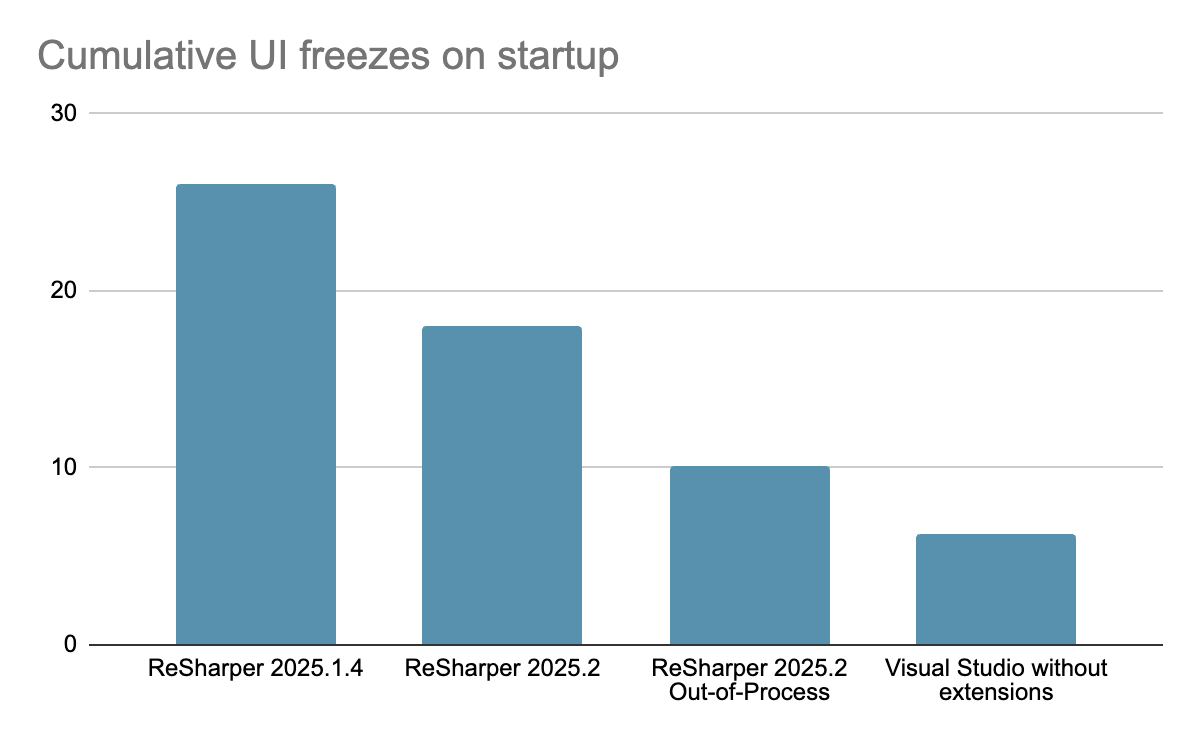
For context, Visual Studio without ReSharper measured 6.3 s during Visual Studio startup in our lab. Deviation from our previous measurements is possible, as the tests were performed locally in different environments by different people using different methods. We are currently implementing even more optimizations for Out-of-Process mode.
What changed under the hood
- Most analysis now runs out of process, so heavy work no longer blocks the Visual Studio UI thread.
- Smarter scheduling reduces contention during typing, completion, and navigation.
- Caches and indexes live in a separate process to avoid extra work inside Visual Studio.
Visual comparison
Below is the side-by-side UI-pause visualizer demo, recorded in similar conditions to the previous table. It demonstrates opening and working in the Orchard Core solution on the same machine with both versions.
Left: ReSharper 2025.1.4 (in-process) · Right: ReSharper 2025.2 (out of process)
The bars at the bottom indicate intervals when the UI thread is unresponsive. A bar turns red when an interval is 100 ms or longer. During those times, typing or clicking in the IDE has no effect. At a glance, you’ll see fewer red bars on the right (out of process), indicating a smoother user experience.
If you’ve seen Visual Studio warn that ReSharper is slowing down your computer, Out-of-Process mode targets the root causes behind that warning, so you should now see fewer alerts.
Feature support in Out-of-Process mode
Out-of-Process mode has come a long way since 2025.2. The dotTrace and dotMemory integrations and the Monitoring tool window now all work in Out-of-Process mode, and Dynamic Program Analysis has been retired, with its capabilities now transferred to the Monitoring tool window. A short list of features is still unsupported, including some debugger features and dependency diagrams. See our documentation for the current list.
Learn more about Out-of-Process mode and how to enable it on this page.
What we’re improving next
- Methodology and thresholds: We’ll keep validating on larger solutions and may adjust freeze thresholds as we learn more.
Recently fixed: Right-click latency hotspots in PsiFiles.GetPsiFiles and SqlInjectionPsiProvider.ComputeDataForFileContext were addressed in the 2025.2 RTM.
Try it today
Out-of-Process mode is enabled by default for most users in ReSharper 2026.2 and later. If you are on an earlier build, or if you are running in In-Process mode, there are four ways to switch.
- From the menu, go to Extensions | ReSharper | R# Out-of-Process and select Switch to Out-of-Process mode.
- From the menu, go to Extensions | ReSharper | Options | Environment | Products & Features and select Run ReSharper in a separate process (preview). When you click Apply, you may be prompted to restart ReSharper.
- Use the Go to action, Ctrl+Shift+A, and then simply type “Switch to Out-of-Process mode” and press Enter.
- In the status bar (after you’ve enabled Out-of-Process mode at least once), click the R# Out-of-Process indicator and choose Switch to Out-of-Process mode.
To revert, you can use any of the paths above and select Switch to In-Process mode. If none of these work, you can start Visual Studio with /ReSharper.InProcess to temporarily revert to In-Process mode and save your choice in the options.
Power user tip: Start Visual Studio with /ReSharper.OOP to launch directly in Out-of-Process mode.
Call for feedback
While we are encouraged by the results of our tests, we really want to know if the editor feels faster to you. We invite you to share frame drops, trace files, or even a quick screen recording GIF. We read every report.
Optionally share anonymous usage statistics
To help us validate performance improvements at scale, you can opt in to ReSharper’s Usage Statistics program.
- Opt in: From the menu, go to Extensions | ReSharper | Options | Environment | Usage Statistics, check Participate anonymously in the Usage Statistics program, and then click Save.
Only aggregate, anonymous data is sent — no project names or source code. See the Options panel for details.Beyond raw speed, Out-of-Process mode helps ensure ReSharper remains a first-class bridge for Visual Studio users and a stepping-stone for anyone curious about our standalone IDE, Rider.