IntelliJ IDEA
IntelliJ IDEA – the Leading IDE for Professional Development in Java and Kotlin
IntelliJ IDEA 2020.1 EAP: Java 14, improvements for Git and UI, and much more

Today we are happy to open the Early Access Program for the next major release of IntelliJ IDEA – v2020.1. We are kicking off the new decade with a host of new improvements, check out all the details in this post!
As always, you can download the new EAP from our website, get it from our free Toolbox App, or update using snaps if you’re an Ubuntu user.

Let’s get right to the point! Here’s what’s new in the IntelliJ IDEA 2020.1 EAP:
JDK
Download JDK from the IDE
Imagine you are starting a new preconfigured project (Spring/Maven/Gradle, etc.) or a plain, simple Java project and you need to add a new JDK. With IntelliJ IDEA 2020.1 this will no longer be such a chore, as you can now download, extract, and set up a JDK right from the New Project wizard:
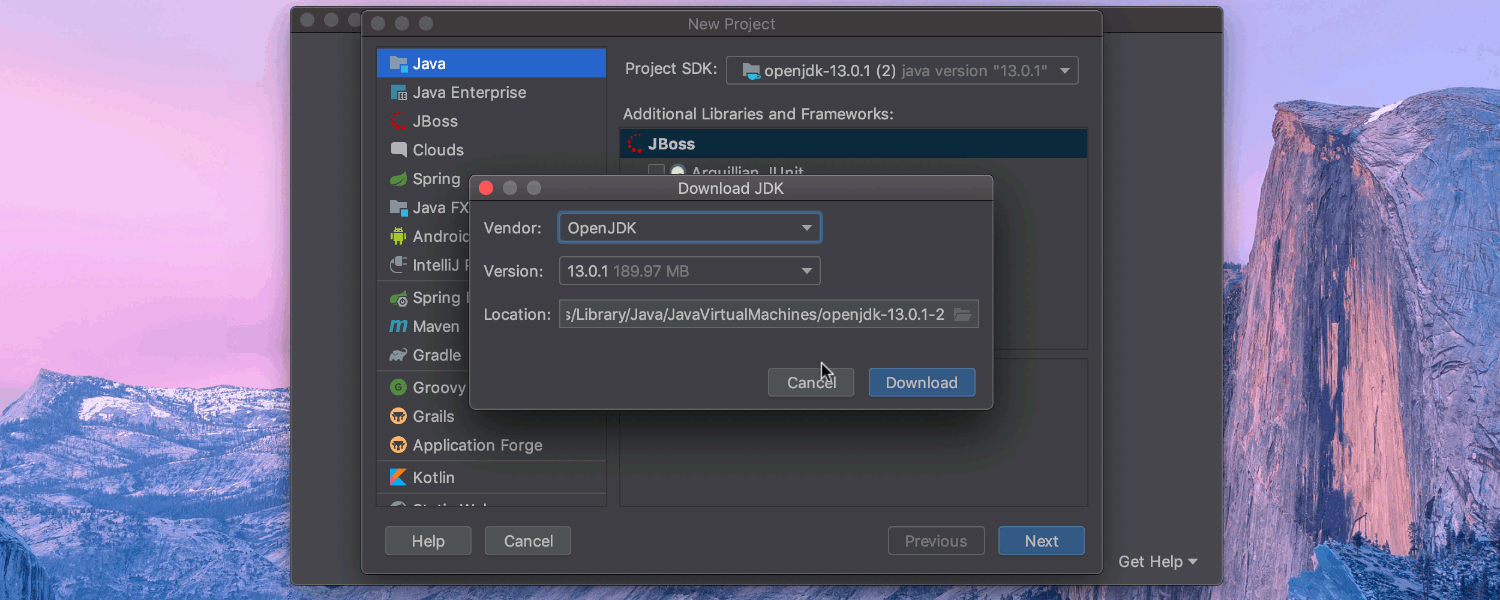
Once you have configured and created an application, the IDE will automatically download and set up the chosen Java version, allowing you to jump straight into coding without having to switch contexts.
Similarly, when you open an existing project, IntelliJ IDEA automatically checks whether there is already a suitable JDK available on your machine. If not, the IDE will suggest downloading one:
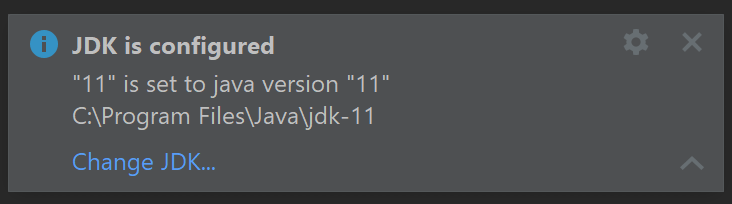
Note that you can now also download and configure Java when you’re setting up a Project Structure (File | Project Structure) in an existing project, and you can configure the Gradle JDK (Preferences / Settings | Build, Execution, Deployment | Build Tools | Gradle).
Support for Java 14
The IntelliJ IDEA 2020.1 EAP adds support for Java 14, which is also still in its Early Access stages and is planned for public release in March 2020.
This first EAP build allows you to play around with some of the new Java features, such as Records and Pattern Matching.
Records
With this first EAP, you can create Java Records right from the New Java Class popup (Cmd+N/Ctrl+N from the Project tool window) just like you would for usual classes and interfaces:
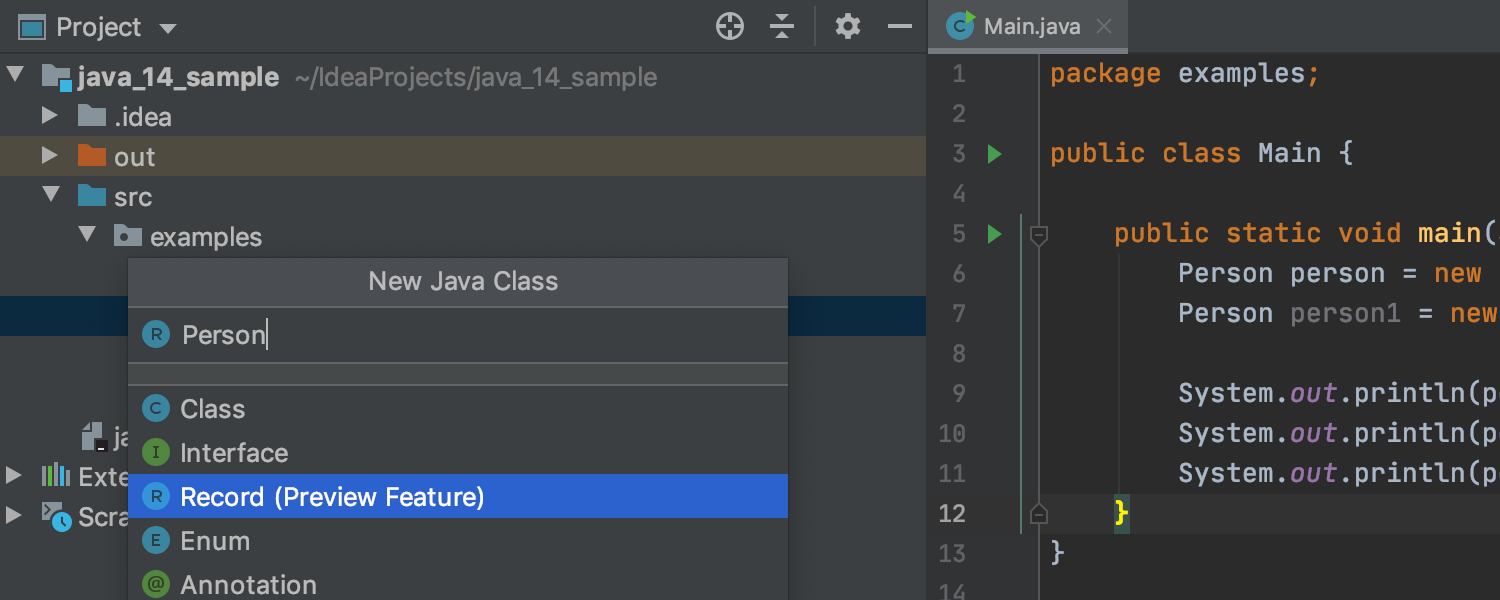
In addition to the code insight features, such as code autocompletion and navigation, the IDE allows you to quickly generate a canonical or custom constructor and it will notify you about any existing errors:
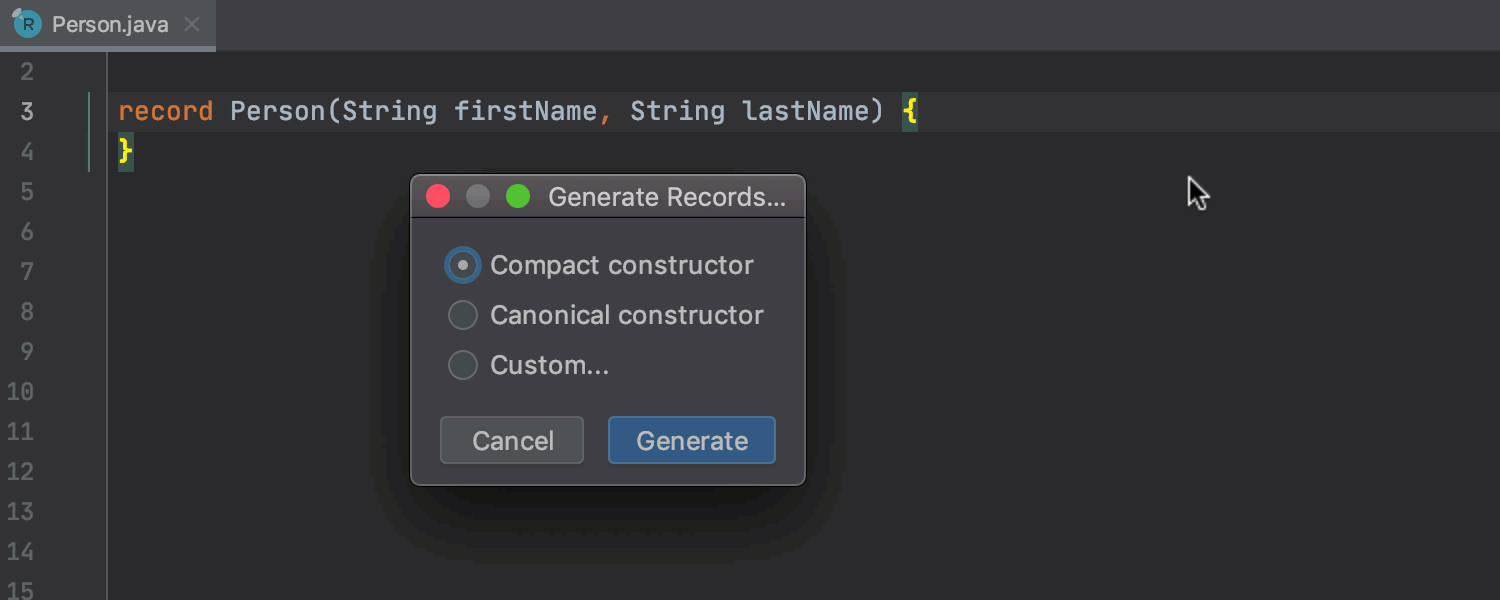
Note that support for Records is still a work in progress, and some of the features, such as the code formatter, refactorings, and quick documentation will be added later in future EAP builds.
Pattern Matching
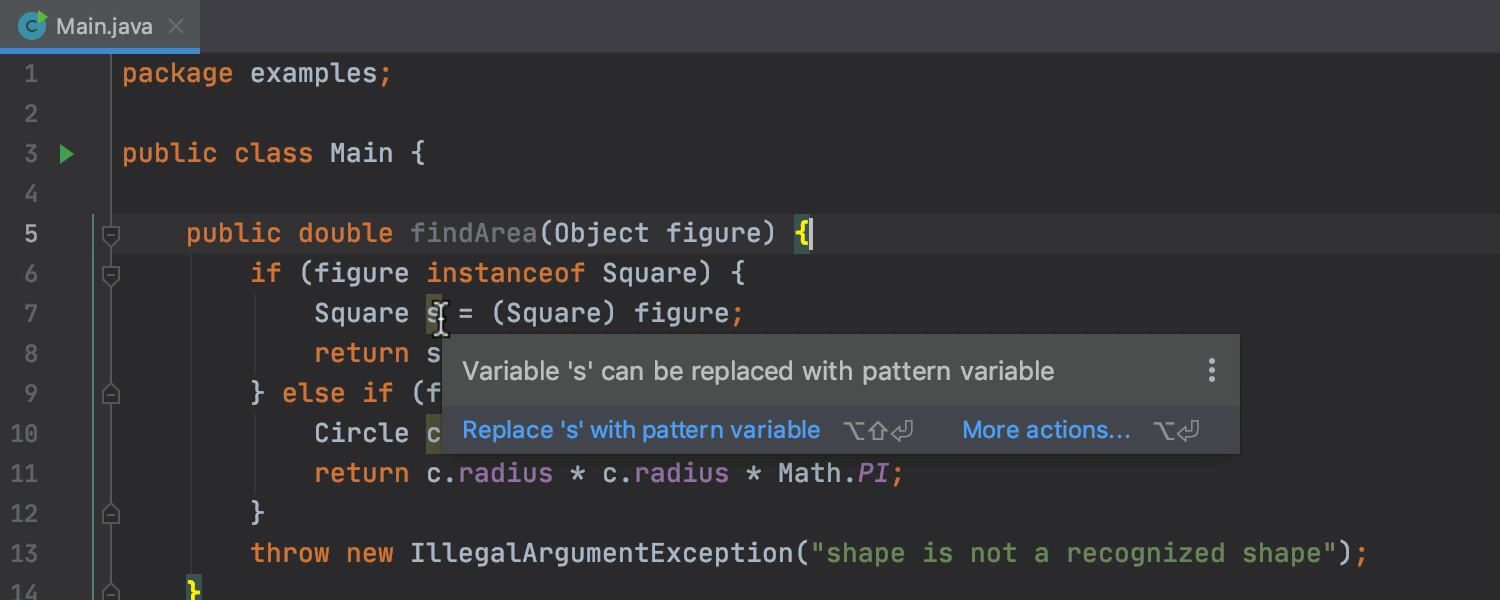
IntelliJ IDEA now also supports pattern matching of `instanceof` that will be included in Java 14. In this first EAP build, the IDE already provides full code insight support including inline renaming (Refactor | Rename or Shift+F6) of pattern variables. There’s also a new inspection and a quick-fix that enables you to quickly simplify the verbose instanceof-and-cast idioms with the new and concise pattern variables:
Editor
Quick Type Definition
With v2020.1, not only can you quickly view the definition of a variable, field, method, or any other symbol (View | Quick Definition), but you can also quickly view its type definition. To do so, put the caret on the desired symbol, then go to View | Quick Type Definition:
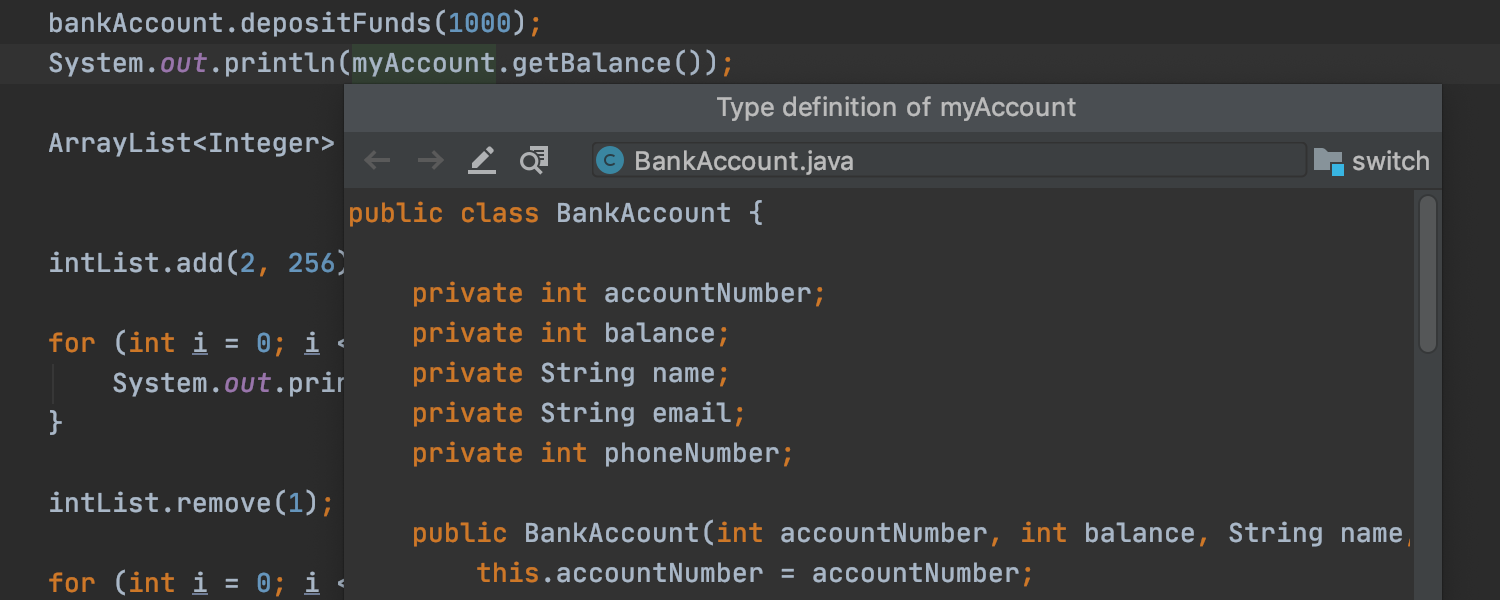
The IDE doesn’t have a default keyboard shortcut for this action yet, but you can manually set one up in the Preferences / Settings | Keymap.
Improved Navigation Bar
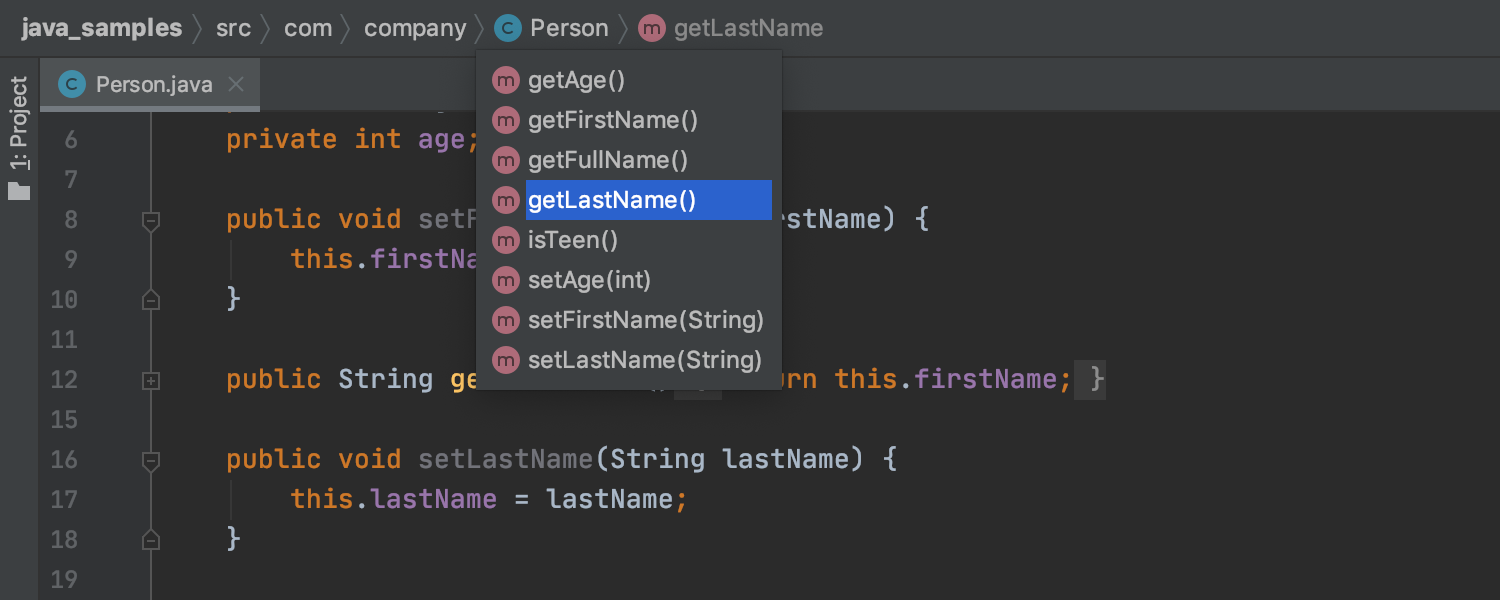
The Navigation Bar (View | Appearance | Navigation Bar) now displays methods in Java classes and interfaces, making it much easier to navigate between them:
And as a minor improvement, Quick Documentation now appears on mouseover by default. You can disable this option in Preferences / Settings | Editor | General.
UI improvements
JetBrains Mono font by default
IntelliJ IDEA and other IntelliJ-based IDEs are now using the brand new JetBrains Mono font (Preferences / Settings | Editor | Font) as their default. Learn all the details about this new beautiful typeface from the dedicated resource on our website.
Unified IntelliJ Light theme
The default light theme is now unified across all the different operating systems and is called “IntelliJ Light”. If the new theme doesn’t take your fancy, you can quickly roll back to the older default one for your OS: go to View | Quick Switch Scheme | Theme, and choose the `OS_NAME Light` theme (e.g. `macOS Light` for Mac).
Git
Branches popup
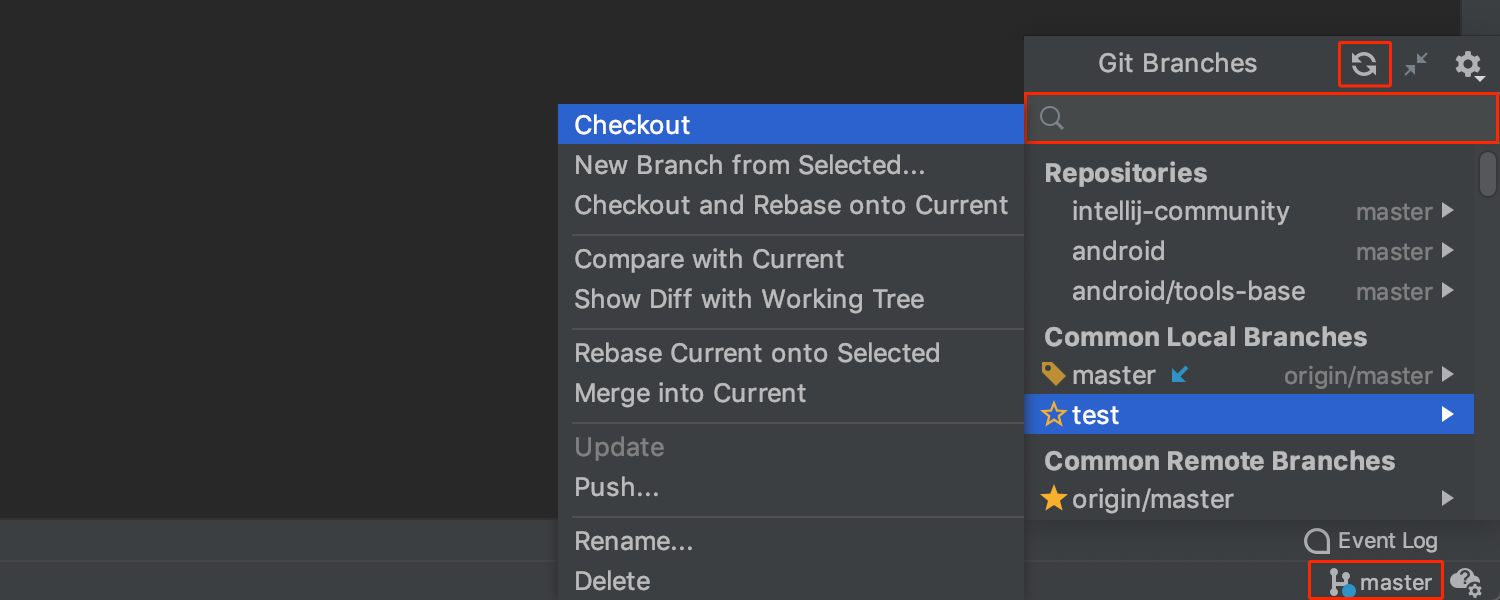
- The Branches popup now features an explicit search field that enables you to look for existing remote and local branches. Previously, you could find specific branches just by starting to type, but the absence of the explicit search field made this option unclear and rarely used.
- The Refresh button has been reworked, so that you can now use it to update the existing remote branches.
- Incoming (blue) and outgoing (green) commit indicators have been added to the status bar:
New “Interactively Rebase from Here” dialog
We have given Interactively Rebase from Here a substantial rework. This is a dialog that allows you to edit, combine, and remove your previous commits in order to make your commit history more linear and comprehensible.
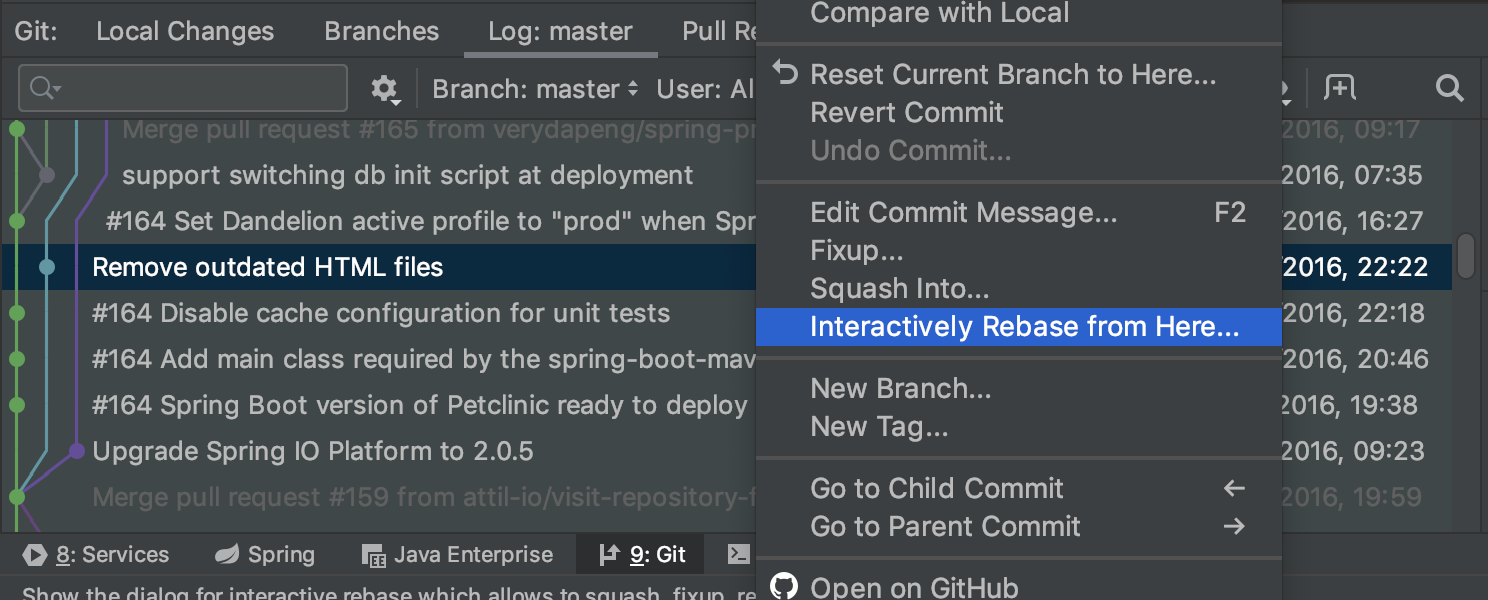
To invoke this dialog, go to the Log tab of the Git tool window, select the oldest commit in the series of commits you want to edit, right-click it, and choose Interactively Rebase from Here:
And here’s what now opens in v2020.1:
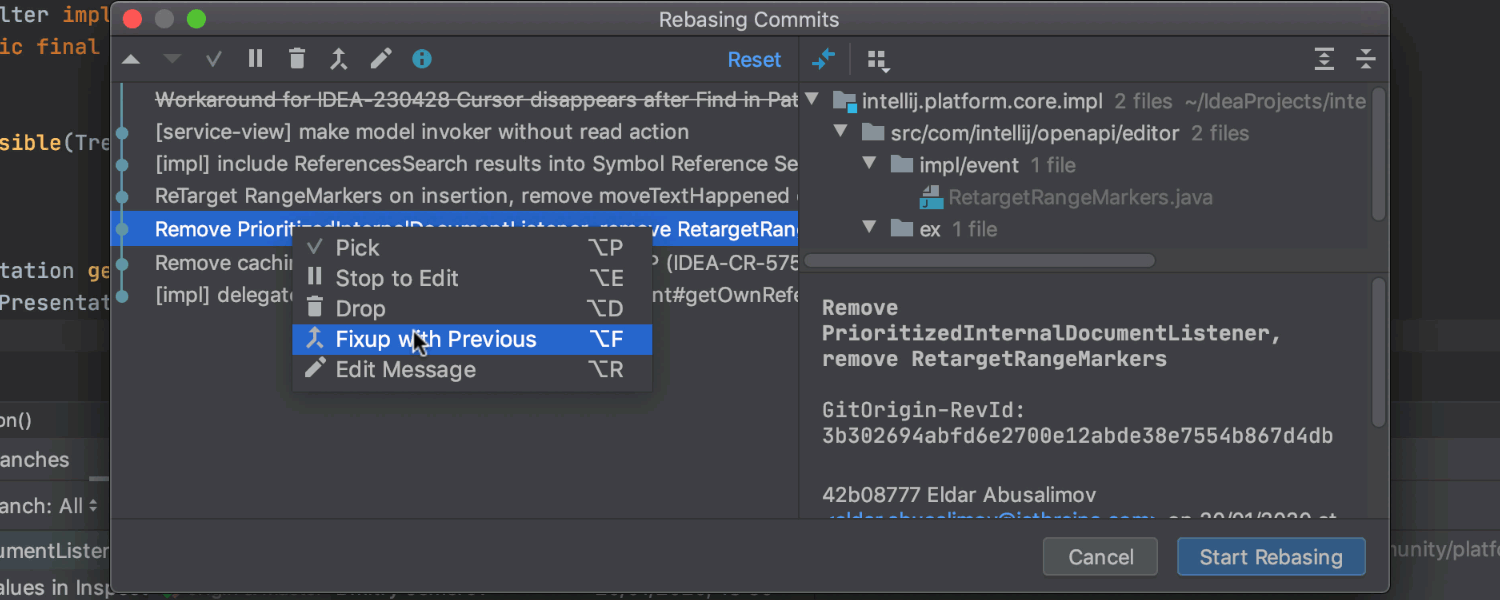
Unlike the previous dialog, which was basically a list of available actions for the chosen commits, the new dialog is truly interactive. It features a nice graph that shows the actions you applied to each commit, it shows the commit details, and it allows you to see the diff and quickly reset the applied changes. Try it out and let us know what you think!
Other improvements for Git:
- The Version Control tool window is now called the Git tool window, or Subversion/Mercurial/Perforce if you are using any of these instead of Git.
- When you check out a new project from Version Control, the IDE will assist you with downloading and setting Git up if you don’t already have it on your machine.
Build tools
Maven and Gradle importing updates
v2020.1 makes the importing of Maven and Gradle changes less obtrusive. First of all, we’ve removed the annoying auto-import that used to always trigger, as well as the balloon that used to constantly show up and suggest importing updates before you’d finished updating the script. Instead, there’s now a floating notification in the upper-right part of the editor that will prompt you to load the changes:
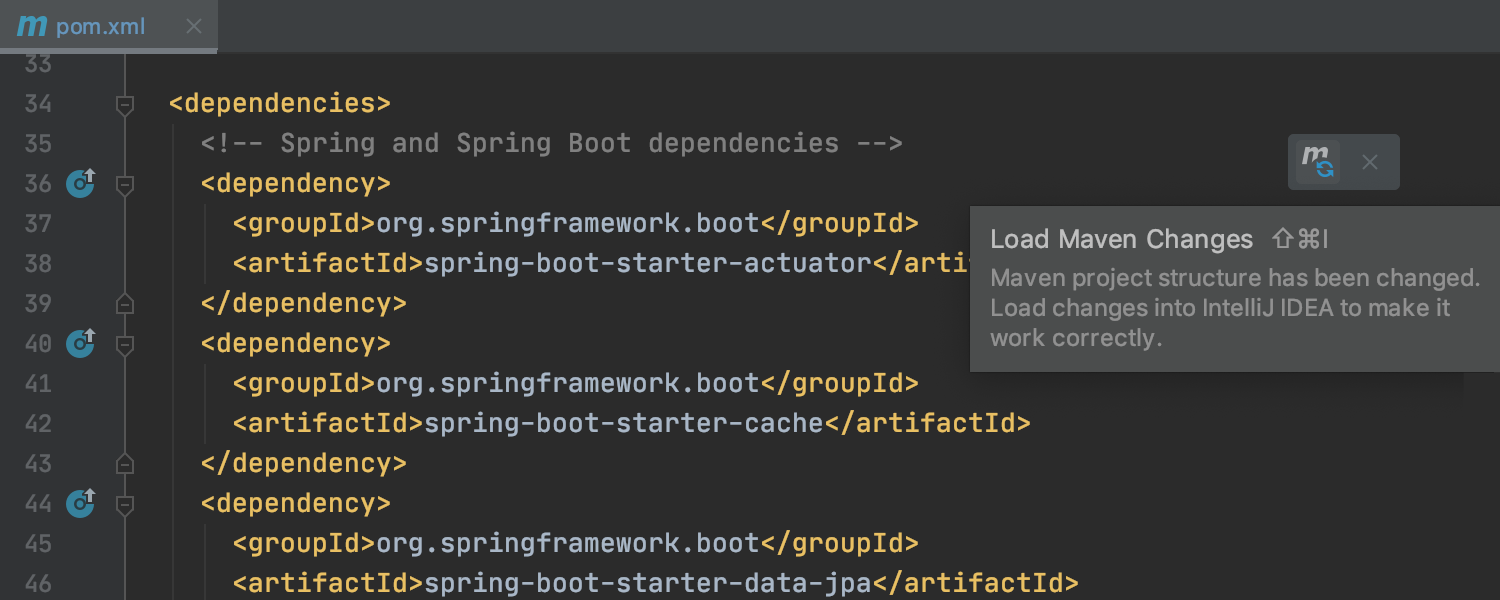
You can now also use the shortcuts Ctrl+Shift+O for Windows and Linux /Shift+Cmd+I for Mac to load the changes.
If there are any external changes to the build scripts, such as VCS updates or edits made outside of the IDE, IntelliJ IDEA will reload the related projects automatically.
We’ve also removed the option to enable/disable auto-import from the settings, as the improvements mentioned above have made it redundant.
JetBrains Runtime
JBR8 End of Support
With v2020.1 EAP we are fully moving to JetBrains Runtime 11 (JBR11), and will no longer distribute builds with JetBrains Runtime 8 (JBR8). Please note that all the IntelliJ IDEA 2020.1 updates both in the IDE and the Toolbox App are coming with JBR11.
Please note that there’s a known issue with patch-updating JDK11 builds on 32-bit Windows and Linux machines, which should be fixed in one of the upcoming EAP builds: IDEA-229379.
Ultimate
Code insight for R2DBC, reactive SQL clients for Micronaut and Quarkus, and other 3rd-party libraries
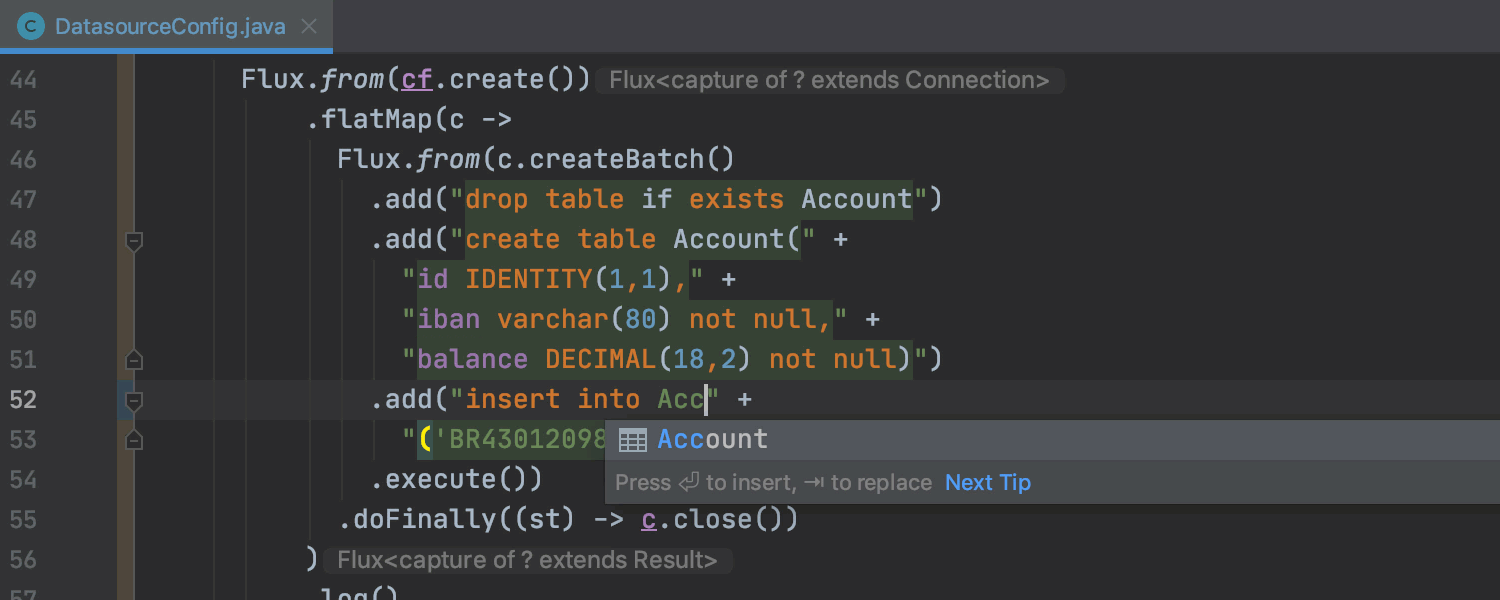
IntelliJ IDEA has been long providing language injection for editing SQL strings used with the standard JPA and JDBC queries, but it used to treat 3rd-party SQL libraries as usual strings. Starting with v2020.1 the IDE automatically injects SQL fragments for popular 3rd-party libraries, such as R2DBC, providing code autocompletion and navigation for SQL statements and fields:
Similarly, we added full code insight support for reactive SQL clients (Vert.x SQL Clients) in Micronaut and Quarkus:
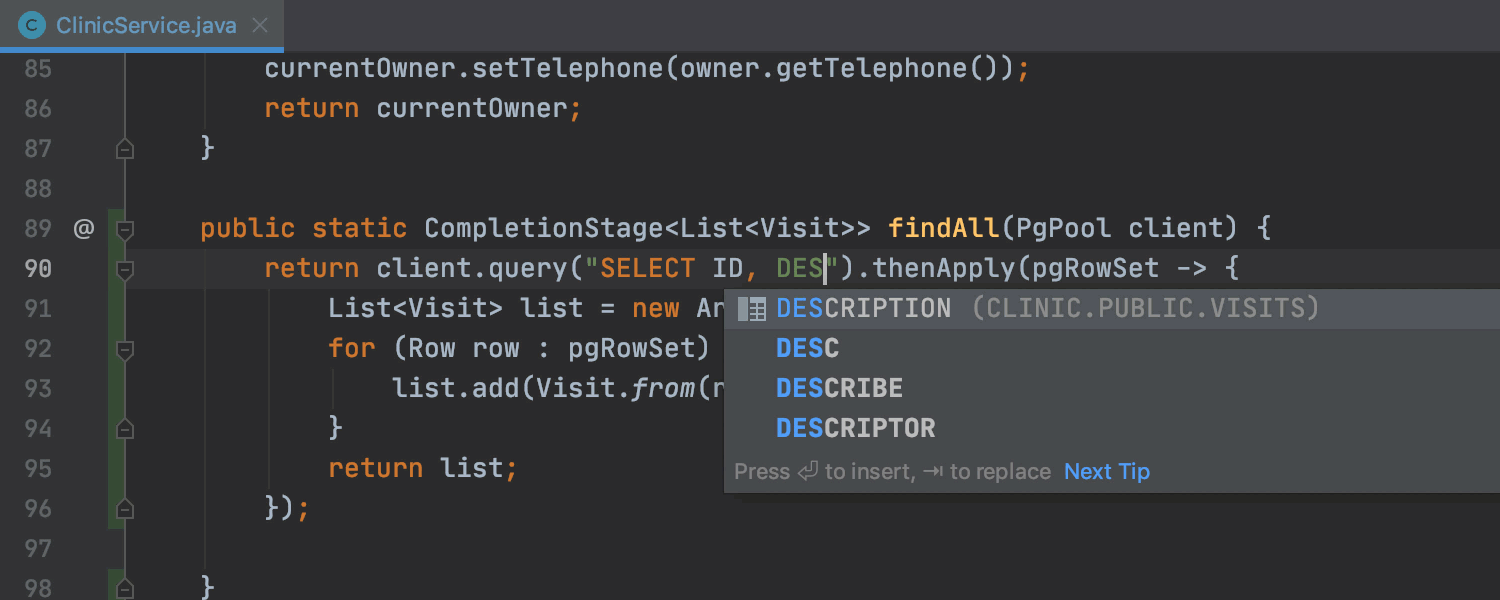
The list of supported libraries includes Apache DbUtils, Apache Spark SQL, R2DBC, Vert.x SQL Clients, Fluent JDBC, JDBI, Sql2o, Jodd DbQuery, jasync-sql, and jOOQ.
URL code completion for Android Volley
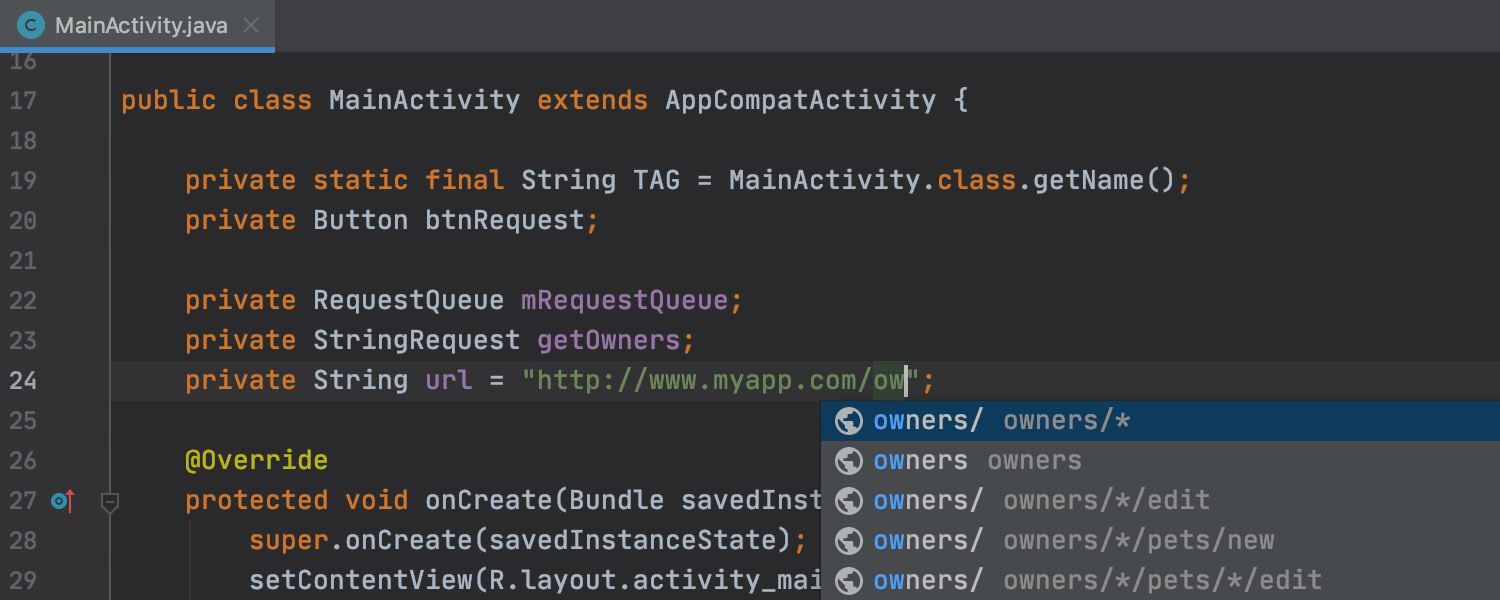
IntelliJ IDEA now supports the Android Volley library, and provides code autocompletion for URL path references, as well as code navigation to the related resources. For instance, if you are using Spring Boot as a backend for your Android app, the IDE will suggest existing URL paths in the autocompletion list (Ctrl+Space), and will enable you to navigate to the related controller or endpoint:
Check out the full release notes for the exact list of closed tickets.
Give this first EAP build a thorough try, and please share your feedback with us here in the comments, in our issue tracker, or on Twitter.
That is it for today. We’ll keep publishing the EAP builds for v2020.1 with more fixes and improvements each week. Stay tuned!
Happy Developing!